Meta Wearables Camera Streaming
Overview
The Meta Wearables Camera Streaming sample demonstrates how to stream the camera feed from Meta smart glasses (Ray-Ban Meta, Meta Fury, etc.) to remote users using Fusion and Photon Video SDK.
This sample uses the Meta DAT SDK (Device Access Toolkit) to access the camera of paired wearable glasses via Bluetooth. The video feed is captured and converted to RGBA by the Android Kotlin plugin, then encoded in H264 on the Unity side by Photon's built-in encoder before being transmitted over the network to remote viewers.
The glasses camera is accessed through the Meta DAT SDK on an Android smartphone, which acts as the bridge between the glasses and the Unity application.

This sample streams live video from smart glasses. Always obtain explicit consent from individuals before recording or streaming their image. Ensure your use complies with applicable privacy laws and regulations in your jurisdiction.
Technical Info
This sample uses the Fusion Shared Authority topology.
The project has been developed with: - Unity 6.3 - Fusion 2 - Voice & Video SDK v2.64
The Android Kotlin plugin is built with: - Meta Wearables DAT SDK v1.0 - Kotlin 2.0.21
Tested with: - Meta Ray-Ban Wayfarer G2 Firmware v129 - Meta Fury smart glasses Firmware v128 - Meta AI app v292
Graphics API must be set to Vulkan.
Before You Start
To run the sample:
Create a Fusion AppId in the PhotonEngine Dashboard and paste it into the
App Id Fusionfield in Real Time Settings (reachable from the Fusion menu).Create a Voice AppId in the PhotonEngine Dashboard and paste it into the
App Id Voicefield in Real Time Settings.Ensure you have a pair of Meta smart glasses paired with the Android device via the Meta AI app.
The application must be deployed on an Android 12+ (API 31+) device.
Developer Mode must be enabled in the Meta AI app (Settings → App Info, tap the version number five times, then turn on Developer Mode).
The smart glasses must run the latest Meta DAT version (compatible with the DAT SDK v1.0 used by the sample), also shown in the Meta AI app.
Set a
GITHUB_TOKENenvironment variable with a GitHub personal access token (classic) that has at leastread:packagesscope. This is required by the Unity Gradle build to download the Meta DAT SDK dependencies from GitHub Packages. See SDK for Android setup for details.On first launch, the sample registers itself with the Meta AI app (the Meta AI app opens and asks you to allow the connection). This registration is kept and it only has to be redone after:
- reinstalling the app,
- clearing its data,
- registering another DAT app (observed in Developer Mode).
Download
| Version | Release Date | Download |
|---|---|---|
| 2.1.1 | 9月 30, 2026 | Fusion Meta Wearable Streaming 2.1.1 |
Folder Structure
Assets/MetaWearablesCameraStreaming/ contains the sample-specific scene, prefabs and UI scripts.
Assets/Photon/ contains Fusion and the Photon Voice & Video SDK, including the reusable video streaming framework the sample runs on.
Assets/Photon/PhotonVideoAddons/ contains the per-platform integrations built on the video SDK — MetaQuestIntegration/ and MetaWearablesIntegration/. The Meta Wearables one groups the bridge layer (MetaWearableManager/ — between Unity and the Android Kotlin plugin, including the compiled MetaWearablesPlugin.aar) and the platform sender (MetaWearableSender/).
Assets/Plugins/Android/ contains the Gradle files that define the dependencies required by Unity to build the APK.
Architecture Overview
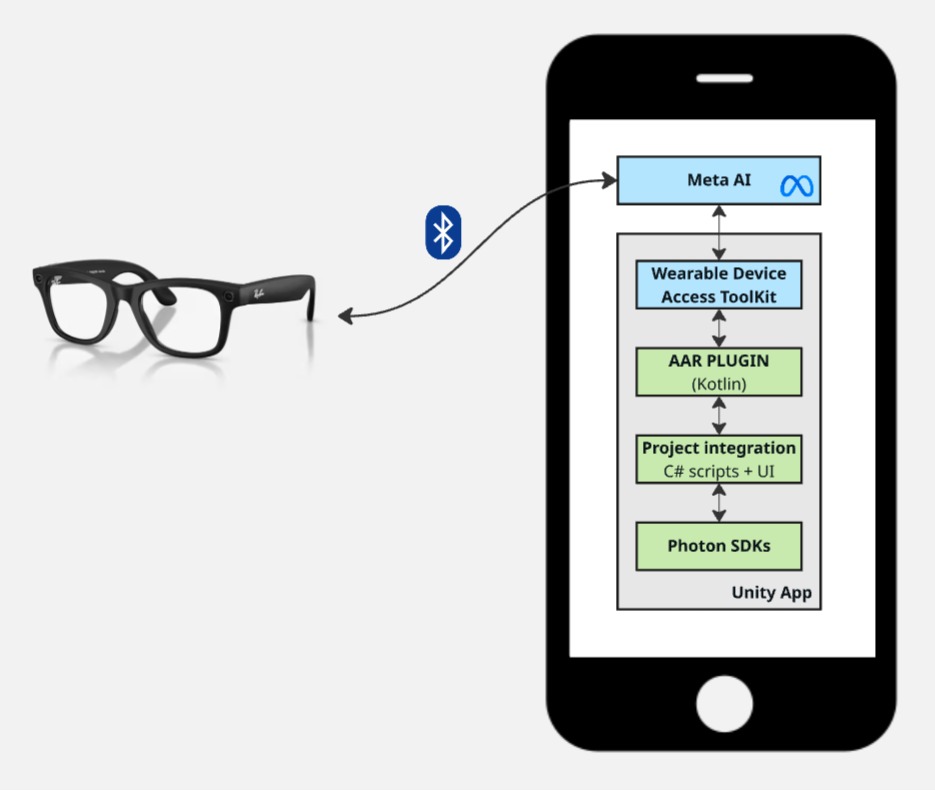
The sample bridges four technology layers to deliver real-time video from Meta smart glasses to remote users:
- the Meta DAT SDK to access the glasses camera and receive I420 video frames
- an Android Kotlin plugin to bridge the DAT SDK's Kotlin APIs to Unity
- Unity C# scripts to manage the video pipelines, UI, and Photon integration
- Photon Fusion + Voice + Video SDK to handle network sessions, audio, and H264 video transport
DAT SDK (Device Access Toolkit)
The Meta DAT SDK provides access to Meta wearable devices (smart glasses) from Android applications. It handles:
- App registration and device discovery: registering the app with the Meta AI app and connecting to the paired glasses via Bluetooth
- Camera streaming: delivering I420 video frames at configurable quality levels (LOW, MEDIUM, HIGH)
- Photo capture: single-frame capture in JPEG/HEIC format
- Permission management: camera access permission flow through the Meta AI app
The SDK communicates with the Meta AI companion app installed on the Android device, which manages the Bluetooth connection to the glasses.
For more details, see the Meta Wearables Developer Documentation and the Wearables Android DAT API Reference.
Android Kotlin Plugin
The Android Kotlin plugin (MetaWearablesPlugin.aar) acts as an intermediary between the Meta DAT SDK and Unity. Since the DAT SDK is a native Android library with Kotlin coroutine-based APIs, it cannot be called directly from Unity C#.
The plugin exposes a JNI-compatible API that Unity can call, and uses UnitySendMessage to send events back to Unity.
It converts the DAT SDK's I420 video frames to RGBA32 and makes them available to Unity via a double-buffered JNI polling API (see Video Pipelines).
H264 encoding for network streaming is handled entirely on the Unity side by Photon's built-in AndroidTextureVideoEncoder.
See the Android Kotlin Plugin chapter for full details.
Unity Integration
The Unity side consists of C# scripts that handle:
- JNI bridge: calling the Kotlin plugin and receiving events
- Video display: converting raw pixel data to Unity textures
- Photon integration: feeding the glasses RGBA texture to Photon's built-in recorder and H264 encoding pipeline through
MetaWearableVideoSender, the Meta Wearables sender provided by the Video SDK addon - UI management: buttons, status display, and in-app log
- Permission gating: ensuring microphone permission before Photon Voice activation
See the Unity chapter for full details.
Photon Integration (Fusion + Voice + VideoSDK)
The sample uses three Photon SDKs together:
- Fusion for network session management (in shared authority topology)
- Voice for audio transport layer. It also carries the H264 video stream as a voice channel. The voice is captured by the glasses' own microphone: the Photon Voice
Recorderuses the Photon microphone type, which records the glasses' Bluetooth mic (see Glasses Microphone) - Video for H264 encoding/decoding framework with Vulkan support
While this sample does not use Fusion's networked state synchronization, Fusion is required because the Photon Voice/Video SDK, which manages the entire video pipeline, integrates with Fusion's network runner for session and voice management. The Photon Video SDK includes demo scenes that do not rely on Fusion.
Permissions
Permission handling spans both the Android Kotlin plugin and the Unity C# layer. Three distinct permissions are required for full functionality.
Android System Permissions
BLUETOOTH_CONNECT
Required for communication with the Meta smart glasses via Bluetooth. Requested by MetaWearablesManager.CheckBluetoothAndMicrophonePermissions() (through the Photon Voice PermissionsRequester) before the DAT SDK is initialized.
RECORD_AUDIO
Required by Photon Voice for the audio transport channel that carries both voice and video data. Managed by VoiceConnectionPermissionWaiter (part of the Photon Voice/Video SDK), which:
- Disables Photon Voice
Recordercomponents before they attempt to capture audio - Requests the permission proactively at startup
- Re-enables recording once the permission is granted
This ensures that audio capture by the Photon Voice Recorder works correctly from the very first app launch.
DAT SDK Camera Permission
The CAMERA permission for the Meta smart glasses is managed entirely through the DAT SDK, not through Android's standard permission system. The flow involves two separate JNI calls:
- Unity calls
MetaWearablesManager.CheckCameraPermission()→MetaWearablesBridge.CheckCameraPermission()→ JNI →checkCameraPermission()→Wearables.checkPermissionStatus(Permission.CAMERA)→ result sent to Unity viaUnitySendMessage("OnPermissionCheckResult", ...) - If not granted, the C#
HandleCameraPermissionChecked()handler callsMetaWearablesBridge.RequestCameraPermission()→ JNI →requestCameraPermission()→ launches aPermissionProxyActivity(a transparent intermediary Activity) that callsregisterForActivityResult(Wearables.RequestPermissionContract()) - The user grants permission through the Meta AI app (redirected automatically)
- Result is sent back to Unity via
UnitySendMessage("OnPermissionCheckResult", ...)
MetaWearablesManager defers CheckCameraPermission until an active device is available.
Otherwise the DAT SDK returns the error "All discovered devices are powered off or disconnected", which would force the user to click the Check Permission button a second time.
When OnDeviceListChange reports a CONNECTED device, the deferred check is automatically retried.
Detailed Architecture
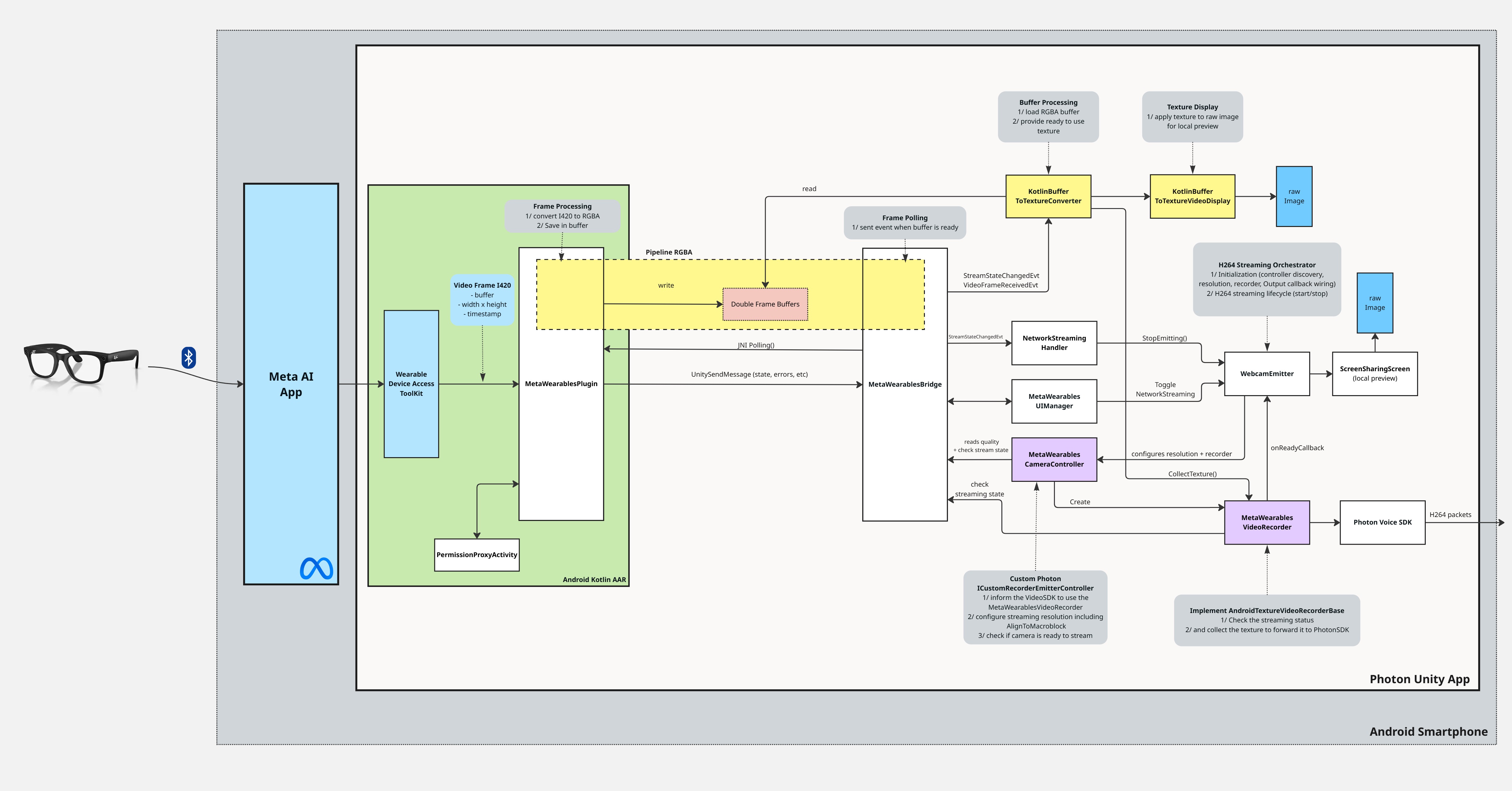
Emission
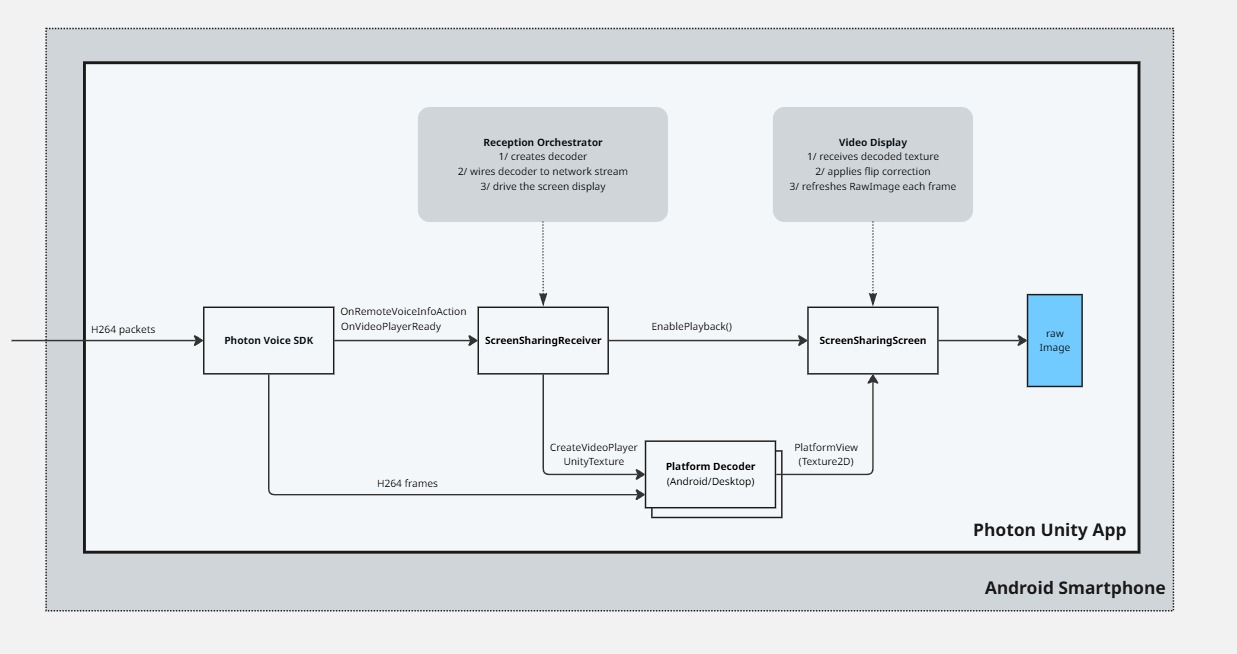
Reception
Android Kotlin Plugin
Plugin Architecture
The Android plugin is created by Unity with new AndroidJavaObject("...MetaWearablesPlugin", activity), which passes the current Activity to the Kotlin constructor. Then initialize() is called (no parameters) to set up the DAT SDK. The plugin converts the DAT SDK's I420 video frames to RGBA32 and exposes them to Unity via a double-buffered JNI polling API (see Video Pipelines).
Internally, the plugin observes the DAT SDK flows:
Wearables.registrationStateWearables.registrationErrorStreamfor typed registration errorsDeviceSession.state(DeviceSessionState lifecycle),DeviceSession.errorsStream.stateandStream.errorStream
The DAT device session is kept open between camera streams: stopping the camera preview only stops and closes the camera, and the next start adds a new camera to the same session, which restarts the camera faster and avoids the Bluetooth link drops caused by closing and reopening a session for every stream. The session is closed when it can no longer be used (glasses disconnected or folded, session ended by the glasses, start failure) and when the application goes to the background while the camera is stopped, so a closed application never leaves an open session behind.
AAR Manifest
The plugin's AndroidManifest.xml contributes the DAT SDK Developer-Mode meta-data so that the consuming Unity app does not have to declare them itself:
XML
<meta-data android:name="com.meta.wearable.mwdat.APPLICATION_ID" android:value="" />
<meta-data android:name="com.meta.wearable.mwdat.CLIENT_TOKEN" android:value="" />
<meta-data android:name="com.meta.wearable.mwdat.ANALYTICS_OPT_OUT" android:value="true" />
The empty values trigger the DAT SDK's Developer Mode. To use production credentials from the Wearables Developer Center, the consuming app can override APPLICATION_ID and CLIENT_TOKEN with tools:replace="android:value".
Registration auto-retry
Please note that the registration process may fail (ServiceConnectionLeaked error).
To work around it, MetaWearablesPlugin listens to Wearables.registrationErrorStream and, on FAILED_TO_REGISTER, automatically re-issues Wearables.startRegistration(activity) up to 3 times.
The retry budget resets on REGISTERED or when the user clicks Register manually.
Communications: Kotlin → Unity
For state changes, errors, and non-video data, the plugin calls UnitySendMessage("MetaWearablesBridge", callbackName, jsonData).
The target GameObject in Unity must be named "MetaWearablesBridge".
The following callbacks are sent by the plugin to Unity:
OnInitializeResult: SDK initialization success/failureOnRegistrationStateChanged: app registration state changeOnStreamStateChanged: camera stream state change (STOPPED, STARTING, STARTED, STREAMING, PAUSED, STOPPING, CLOSED)OnPhotoReceived: photo capture completed (base64 JPEG)OnDeviceListChanged: paired devices list updatedOnActiveDeviceChanged: active glasses device changedOnPermissionCheckResult: permission check/request resultOnError: error occurred
Communications: Unity → Kotlin
Unity controls the plugin through JNI method calls:
initialize(): initialize DAT SDK (Activity is passed to the Kotlin constructor, not to this method)startRegistration(): open the Meta AI app to register the appstartUnregistration(): unregister from the Meta AI appcheckCameraPermission(): check DAT camera permission statusrequestCameraPermission(): request DAT camera permission via PermissionProxyActivitygetRegistrationState(): get current registration state (returns JSON string)getDeviceList(): get paired devices list (returns JSON string)startStreaming(quality, fps): start camera stream at specified qualitystopStreaming(): stop camera streamcapturePhoto(): capture a single photodispose(): clean up all resources
JNI Polling (Video Data)
Video frame data is too large and frequent for UnitySendMessage (which serializes to JSON strings).
Instead, Unity polls the plugin at each frame using lightweight JNI calls:
hasNewFrame()→Boolean: lightweight check, no allocationpollFrame()→ByteArray?: RGBA32 pixel data (front buffer copy)getFrameMetadata()→String: returns"width|height|timestamp"
Unity
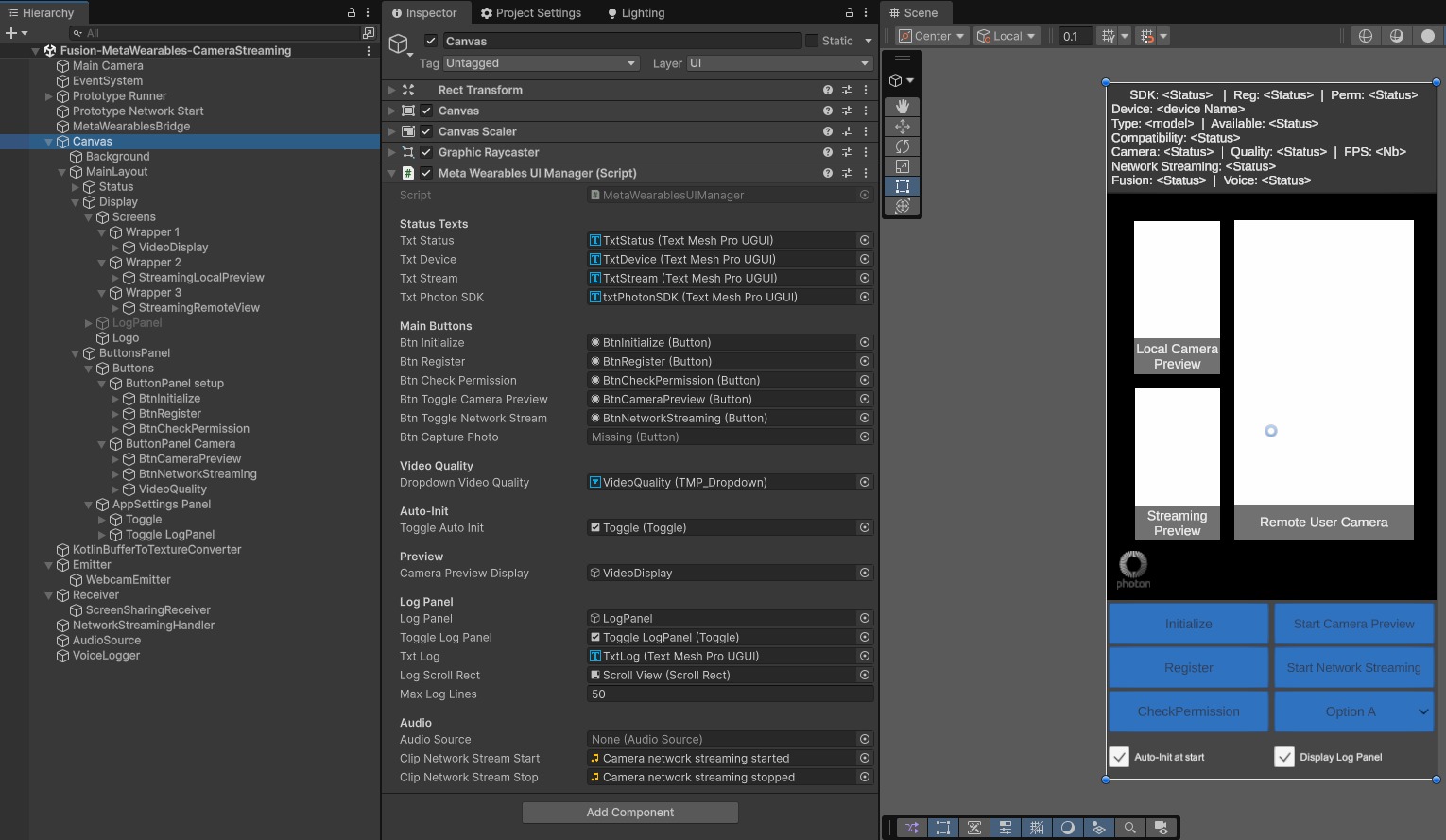
Scene Description
The main scene Fusion-MetaWearables-CameraStreaming (in Assets/MetaWearablesCameraStreaming/Scenes/) contains the following GameObjects:
- Prototype Runner:
NetworkRunner,FusionVoiceClient,VoiceConnectionPermissionWaiter: manages the Photon Fusion network session, the voice/video transport, and gates the VoiceRecorderuntil the microphone permission is granted - Recorder: Photon Voice
Recorder(microphone type Photon, i.e. the glasses' Bluetooth microphone, see Glasses Microphone) - Prototype Network Start:
FusionBootstrap: handles Fusion session startup - MetaWearablesBridge:
MetaWearablesBridge: singleton that handles communication between the Kotlin plugin and Unity scripts - MetaWearablesManager:
MetaWearablesManager: singleton orchestrator that drives the DAT SDK lifecycle (initialize → register → camera permission → stream) and exposes a high-level API consumed by the UI and the video sender - Canvas:
MetaWearablesUIManager: main UI canvas in Screen Space - Camera mode, contains all buttons and panels. It hosts aRawImagefor the raw RGBA preview (texture bound directly fromMetaWearablesManager.WearableCameraTexture) and twoVideoScreenOnRawImageto display VideoSDK streaming (local preview and remote view). - Emission:
MetaWearableVideoSender: handles the H264 video emission pipeline (extendsTextureVideoStreamSenderfrom the Photon Voice/Video SDK) - Reception:
VideoStreamReceiver: receives remote H264 video streams via Photon Voice - Display :
PreviewVideoScreenViewHandler&RemotePlayersVideoScreenViewHandler: lifecycle managers that bind incoming/outgoing video players to display surfaces (VideoScreenOnRawImage)
C# Scripts
Bridge layer
MetaWearablesBridge.cs
Singleton that handles all communication between the Kotlin plugin and Unity scripts.
It exposes JNI methods to control the plugin (initialize, register, check permission, start/stop streaming) and receives UnitySendMessage callbacks that are dispatched as C# events (InitializedEvt, RegistrationStateChangedEvt, StreamStateChangedEvt, PermissionCheckedEvt, ActiveDeviceChangedEvt, DeviceListChangedEvt, VideoFrameReceivedEvt, ErrorEvt, etc.).
In its Update() loop, it polls the Kotlin plugin for RGBA video frames via JNI and fires VideoFrameReceivedEvt with the raw pixel data.
MetaWearablesManager.cs
Singleton orchestrator that sits above the Bridge and exposes a higher-level, intent-based API (PrepareStream(), StartStreaming(quality, fps), StopStreaming(), ToggleStreaming(), EnsureStreaming(quality, fps), WearableCameraTexture, cameraStreamStatus, plus state proxies like IsInitialized, IsRegistered, HasActiveDevice, ActiveDevice).
EnsureStreaming() starts the glasses camera if needed, or restarts it if it stopped on its own (for example when the glasses are folded), but never stops a running camera. WearableCameraTexture is read-only: reading it never starts the camera.
The quality and frameRate fields are the default glasses camera settings. If no MetaWearablesManager is placed in the scene, one is created automatically by MetaWearablesManager.Instance, and the camera settings of the MetaWearableVideoSender are then used when it starts the camera.
It owns the auto-init chain (BT permission → Initialize → Register → CheckCameraPermission → ready), defers the camera-permission check until a connected device is present, and is the single entry point used by the UI and by MetaWearableVideoSender to coordinate with the glasses.
It listens to all of the Bridge's events and applies the lifecycle decisions; consumers should depend on the Manager rather than calling the Bridge directly.
By default the sample streams automatically at launch: the Auto-init at start preference (prepareStreamOnStart, checked by default on the MetaWearablesManager component) runs the init chain on launch, and the MetaWearableVideoSender's sendOnJoinRoom is kept in sync with it, so joining the Fusion room also starts the network emission. To prevent the app from streaming automatically at launch, uncheck Prepare Stream On Start (the "Auto-init at start" toggle) on the MetaWearablesManager component in the scene, nothing is then initialized or streamed until the user starts it manually with the UI buttons.
KotlinBufferToTextureConverter.cs
Singleton that subscribes to MetaWearablesBridge.VideoFrameReceivedEvt and converts the received RGBA byte arrays into a Unity Texture2D.
It creates or recreates the texture automatically when the resolution changes, and exposes a frameVersion counter that consumers can poll to detect new frames.
It is not placed in the scene: it is created automatically at runtime by KotlinBufferToTextureConverter.Instance.
UI layer
MetaWearablesUIManager.cs
Manages the full UI lifecycle with buttons for initialization, registration, permission checking, camera preview, and network streaming.
Camera-related actions are delegated to MetaWearablesManager (init, register, check permission, start/stop camera).
The network streaming buttons call MetaWearableVideoSender.ToggleSending() directly. It dynamically enables/disables buttons based on the current state via RefreshAllButtons().
It also includes an in-app scrollable log that displays all events and status changes.
It is also responsible for displaying the raw RGBA preview of the glasses camera: when the stream becomes active, the UIManager activates the preview GameObject and binds MetaWearablesManager.WearableCameraTexture to a RawImage.
Photon Voice/Video SDK Classes
The sample uses the high-level reusable Photon Voice/Video helper classes provided by the Video SDK.
It contains the abstract base classes (TextureVideoStreamSender, VideoStreamSender, VideoStreamReceiver, BaseVideoScreen, BaseVideoScreenViewHandler) and ready-made implementations (AndroidTextureVideoRecorder, UnityTextureVideoRecorder, VideoScreenOnRawImage, RemotePlayersVideoScreenViewHandler, PreviewVideoScreenViewHandler, VoiceConnectionPermissionWaiter).
The Meta-Wearables-specific sender used by this sample is provided by the Video SDK addon (Assets/Photon/PhotonVideoAddons/):
MetaWearableVideoSender.cs
Extends TextureVideoStreamSender. Provides the glasses camera texture to Photon's H264 encoding pipeline by overriding:
CollectTexture(): returnsMetaWearablesManager.Instance.WearableCameraTextureIsTextureCollectingPossible(): checks that the camera stream is started and the texture is readyGetResolutionOverride(): returns the 64-pixel aligned resolution (see Video Quality & Resolution)RequestRecordingPermissions(): lifecycle hook called by the base class when starting to emit. It callsMetaWearablesManager.EnsureStreaming(quality, frameRate): the glasses camera is started if it is not running yet, or restarted if it stopped on its own (glasses folded), and left untouched if it is already running. This makes starting the network emission work even without a preceding "Start Camera Preview", and after the glasses have been folded and unfolded.
The sender's quality and frameRate fields are glasses camera settings (used only when the sender starts the camera itself). The network encoding frame rate is set by Video FPS in the sender's Video Settings.
The platform-specific texture-video recorder (AndroidTextureVideoRecorder on Android, UnityTextureVideoRecorder in the Editor / on desktop, AppleTextureVideoRecorder on iOS/macOS, all deriving from BaseTextureVideoRecorder) is instantiated internally by TextureVideoStreamSender via a factory method (it is not a scene component).
The sender's Video Settings have Video Echo enabled by default: the outgoing stream is routed back from the server and decoded on the emitter itself (like a remote stream), so the fully encoded-then-decoded video, exactly what remote viewers receive, is displayed on the sending device. This lets you verify the end-to-end video quality through the complete pipeline without a second device. Uncheck Video Echo in the sender's Video Settings so this echoed stream is no longer displayed on the stream emitter (it also avoids the extra server round-trip bandwidth).
Local previews
Two distinct local previews are displayed side-by-side in the UI:
- Raw RGBA preview (bound directly by
MetaWearablesUIManagerfromMetaWearablesManager.WearableCameraTexture): the texture coming directly from the Kotlin plugin, without going through any encoder. Available as soon as the camera stream is started. - H264 loopback preview (via
PreviewVideoScreenViewHandler→VideoScreenOnRawImage): the texture that comes out of the local H264 encoder after a roundtrip. Available once the network streaming is started, and shows exactly what the remote viewers see (with encoding artefacts, etc.).
This side-by-side layout is helpful for debugging codec issues or comparing visual quality.
UI Description
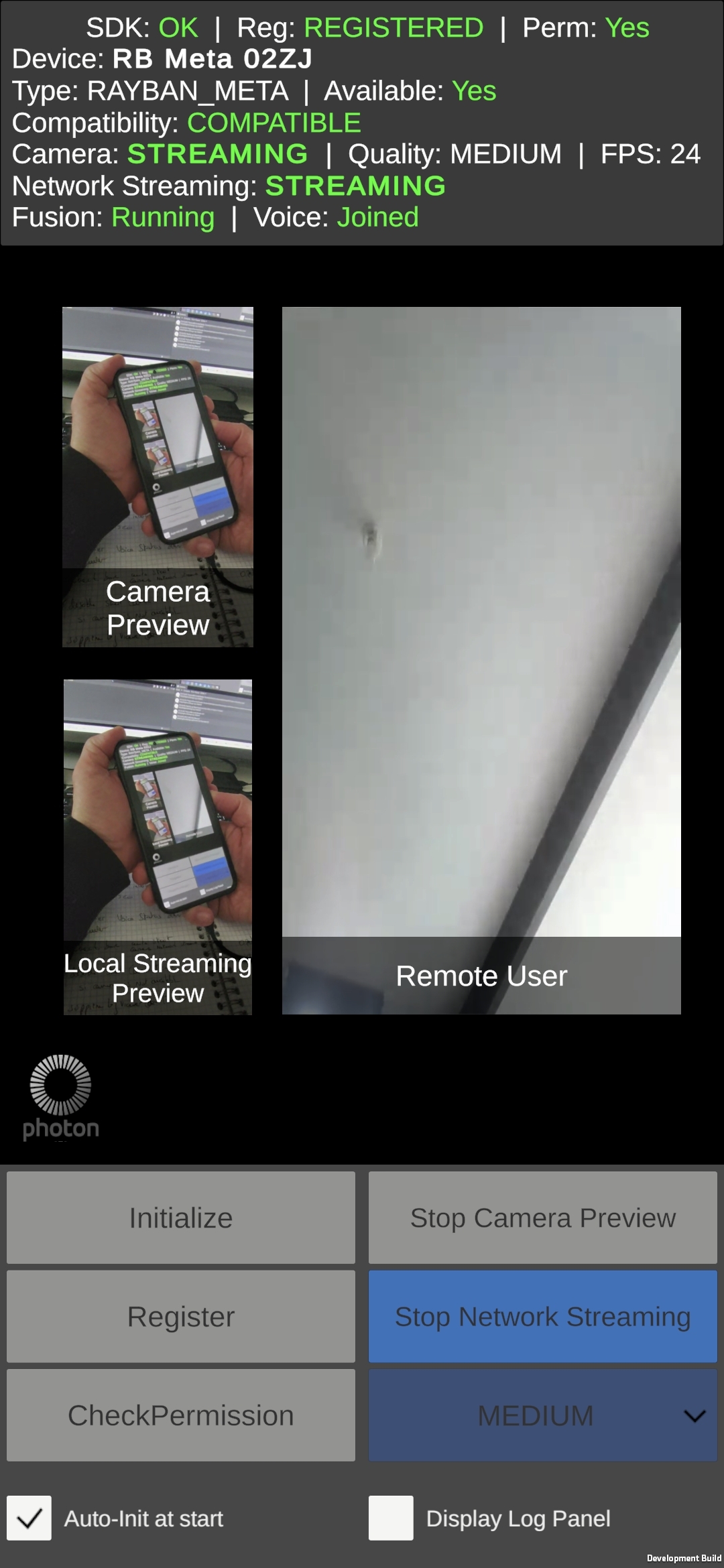
The UI provides buttons for the full device lifecycle:
Initialize: requests the BLUETOOTH_CONNECT and RECORD_AUDIO permissions, then initializes the DAT SDK
Register: opens the Meta AI app to register the app
Check Permission: checks (and requests if needed) the DAT SDK CAMERA permission
Start/Stop Camera Preview: starts/stops the glasses camera stream
Start/Stop Network Streaming: starts/stops H264 emission via Photon
Auto-init at start checkbox can be used to automatically handle the DAT SDK init, app registration & permission verification processes when the application starts.
Display Log Panel checkbox displays/hides an in-app scrollable log panel to display all events and status changes for debugging.
Button states are dynamically updated based on the current stream state (RefreshAllButtons()). For example, "Start Network Streaming" is only enabled during STREAMING, and "Stop Network Streaming" while the camera is STREAMING, STARTED or PAUSED.
The network streaming status shows the real state of the MetaWearableVideoSender: WAITING FOR ROOM, WAITING FOR CAMERA (the emission has started but the glasses camera does not deliver frames yet), STARTING, STREAMING (frames are sent) or FAILED. With the Auto-init at start option, the emission starts as soon as the Fusion room is joined, so WAITING FOR CAMERA is displayed until the glasses camera streams.
The status panel shows information about the active glasses (the pair the DAT SDK streams from):
- the SDK, registration and permission status, and the device compatibility (
Compat:OK,KO, orSDK too oldwhen the glasses require an app built with a newer DAT SDK) - the glasses name and type, and the number of connected pairs when several glasses are registered
- the live device state provided by the DAT SDK v1.0: link state, battery level (and charging), worn / not worn, folded / unfolded, and thermal level
Video Pipelines
The video data flows through two pipelines that share the same RGBA Texture2D produced by the Kotlin plugin:
RGBA Pipeline (Local Preview)
This pipeline provides a real-time local preview of the glasses camera feed:
- I420 → RGBA32 conversion: the Kotlin plugin performs color space conversion with vertical flip (for Unity's bottom-up texture coordinate convention)
- Double buffering: new frames are buffered in the plugin to avoid blocking the camera thread
- JNI polling:
MetaWearablesBridgepolls the plugin every frame inUpdate()and notifiesKotlinBufferToTextureConverterwhen a new frame is ready to be read - Texture creation:
KotlinBufferToTextureConverterloads the RGBA data into aTexture2D - Display:
MetaWearablesUIManageractivates the preview GameObject when the stream starts (STARTING) and bindsMetaWearablesManager.WearableCameraTexture(which proxies theKotlinBufferToTextureConverter.texture) to the previewRawImageonce the texture has been created.
H264 Pipeline (Network Streaming)
This pipeline encodes the camera feed in H264 for transmission over the Photon network. The encoding is handled entirely on the Unity side by Photon's built-in encoder:
- Texture collection:
MetaWearableVideoSender.CollectTexture()returns the RGBATexture2Dproduced by the RGBA pipeline (viaMetaWearablesManager.WearableCameraTexture) - Resolution alignment:
Graphics.Blitscales the texture to 64-pixel aligned dimensions (see Video Quality & Resolution) - H264 encoding: the platform-specific recorder (
AndroidTextureVideoRecorder) copies theRenderTextureto a MediaCodec Surface viaVulkanSurfaceDrawer, where MediaCodec performs hardware H264 encoding - Photon transport: Photon Voice transmits the H264 data over the network
- Remote decoding: on the receiver,
VideoStreamReceivercreates anIVideoPlayer(Platform.CreateVideoPlayerUnityTexture) whose decoder consumes the H264 frames and produces aTexture2D.RemotePlayersVideoScreenViewHandlerthen binds this texture to aVideoScreenOnRawImagefor display.
Video Quality & Resolution
The DAT SDK delivers frames at three quality levels. Since MediaCodec in Surface mode internally aligns to 64-pixel boundaries, the emission resolution is aligned to multiples of 64:
- LOW: 360×640 → aligned to 384×640 (+24px width)
- MEDIUM: 504×896 → aligned to 512×896 (+8px width)
- HIGH: 720×1280 → aligned to 768×1280 (+48px width)
The resolution alignment is computed in Unity by MetaWearableVideoSender.GetResolutionOverride(), which reads the current quality level via MetaWearablesManager.Instance.WearableCameraTexture (the texture dimensions match the DAT SDK quality level) and applies AlignToMacroblock().
On Qualcomm encoders, a width of 512 produces a garbled stream, so AvoidUnsupportedWidth() bumps MEDIUM to 576×896 (see Video Settings). The receiver displays the texture with a fixed 9:16 aspect ratio to cancel the stretch.
Workflows
Camera Streaming (Emission)
The end-to-end workflow for starting a camera stream and emitting it over the network:
- Initialize:
MetaWearablesUIManagercallsMetaWearablesManager.CheckBluetoothAndMicrophonePermissions(). Once BLUETOOTH_CONNECT is granted,OnBluetoothPermissionGrantedinvokesMetaWearablesManager.Initialize()→MetaWearablesBridge.Initialize()(DAT SDK initialized) - Register:
MetaWearablesManager.StartRegistration()→ Meta AI app opens → the user allows the app. OnFAILED_TO_REGISTER, the Kotlin plugin auto-retries up to 3 times (immediate first retry, then 3 s delays) - Check Permissions: RECORD_AUDIO (Android) is gated by
VoiceConnectionPermissionWaiter. The DAT CAMERA permission is requested throughMetaWearablesManager.CheckCameraPermission(), deferred internally untilHasActiveDeviceis true - Start Camera Preview:
MetaWearablesManager.StartStreaming(quality, fps)→MetaWearablesBridge.StartCameraStream()(Kotlin uses the DAT SDK v1.0 model:Wearables.createSession()→session.addCamera(config)→camera.stream.start(); the session is created on the first start only, the following starts reuse it). DAT SDK begins delivering I420 frames → RGBA pipeline becomes live (local preview only) - Start Network Streaming:
MetaWearablesUIManagercallsMetaWearableVideoSender.ToggleSending()directly: a. Base classTextureVideoStreamSendercallsRequestRecordingPermissions()on the sender, which callsMetaWearablesManager.EnsureStreaming(quality, frameRate): the glasses camera is started (or restarted after a fold) if it is not running. b.IsTextureCollectingPossible()confirms the camera stream is active andWearableCameraTextureis non-null c.GetResolutionOverride()returns the 64-pixel aligned resolution d. The platform-specificAndroidTextureVideoRecorder(instantiated by the base class) is wired to the Photon Voice transport layer - Streaming active: the recorder collects the RGBA texture (via
MetaWearableVideoSender.CollectTexture()), blits it to a RenderTexture, and Photon's encoder sends it to MediaCodec viaVulkanSurfaceDrawer→ H264 → Photon transport → remote viewers. Locally,PreviewVideoScreenViewHandler+VideoScreenOnRawImagemirror the encoded stream on the second preview RawImage.
Stream Reception (Remote View)
On the receiving side:
VideoStreamReceiver(subscribed asIStreamReceiverto the Photon Voice transport) receivesOnRemoteVoiceAddfor each remote video voice. It creates a platform-specificIVideoPlayerviaPlatform.CreateVideoPlayerUnityTexture(...)and exposes its decoder back to the transport layer (options.Decoder = videoPlayer.Decoder).- The platform-native H264 decoder (
AndroidVideoPlayerUnityTextureon Android,VideoPlayerUnityon desktop) consumes the incoming H264 frames and exposes aTexture2Dvia itsPlatformViewproperty. - Once the player is ready,
VideoStreamReceiverfiresOnVideoPlayerReadyto its listeners. RemotePlayersVideoScreenViewHandler(a listener) creates or finds aBaseVideoScreenfor that player and callsscreen.UseAsRemoteVideoPlayerDisplay(videoPlayer, info).- The screen (
VideoScreenOnRawImage) readsvideoPlayer.PlatformViewto obtain the decodedTexture2D, configures shader anduvRectflip handling, and assigns it to itsRawImage.texture.
The reception path has no dependency on the DAT SDK or on the Kotlin plugin.
Glasses Lifecycle
The Meta smart glasses have several physical states that affect the streaming session:
Stream States (DAT SDK):
STOPPED: stream inactiveSTARTING: transitioning to streaming (timeout: 10 seconds, or 5 seconds when the camera is added to the already open session, followed by one automatic retry on a new session)STARTED: stream active, camera idleSTREAMING: stream active, frames being producedPAUSED: touchpad pause. Stream kept alive, no frames producedSTOPPING: transitioning to stoppedCLOSED: stream terminated (terminal state)
Touch Button Pause/Resume:
When the user touches the glasses touchpad button during streaming, the state cycles: STREAMING → PAUSED → STREAMING
The plugin forwards PAUSED to Unity, so the UI shows a paused state with the Stop buttons still enabled. During PAUSED, the Photon session stays alive but no video frames are collected by the recorder, the preview freezes on the last frame and resumes on the next tap.
Fold/Unfold:
Folding the glasses during streaming causes the active stream to terminate (STREAMING → STOPPED or STREAMING → CLOSED depending on timing). Restarting requires a new streaming session, which the plugin opens automatically: once the glasses are unfolded, clicking "Start Camera Preview" again restarts the camera (projects that start the network emission directly can rely on EnsureStreaming(), which also restarts it). While the glasses are folded, "Start Camera Preview" is disabled. The STARTING timeout is set to 10 seconds to account for the extra time the glasses camera needs to re-initialize after being unfolded.
Folding and unfolding the glasses many times in a short period during streaming may put the glasses in an unstable state: new streaming sessions no longer start (the DAT SDK reports errors such as "session ended by device"). The user then has to restart the glasses to recover.
Please, note that the Device.linkState property reflects Bluetooth connectivity only, not the physical fold state of the glasses: folded glasses can stay CONNECTED. The fold state is given by Device.hingeState (CLOSED when folded), which the sample uses to disable the start button.
Glasses Microphone
Since DAT SDK v1.0, the glasses' own Bluetooth microphone can be used at the same time as the camera stream. The Photon Voice Recorder in the sample scene therefore uses the Photon microphone type, which captures the glasses' Bluetooth microphone. The Use Microphone Type Fallback option is left enabled, so the phone's built-in microphone is used only if the glasses microphone cannot be opened.
Several Glasses
Several pairs of glasses can be registered in the Meta AI app. The DAT SDK streams from the connected pair it selects, and the UI displays the information of that pair. The stream is only stopped automatically if the streaming pair itself disconnects: powering off another pair has no effect on the stream.
Known Limitations
Bluetooth link drop on the first connection after installing the app: on the first connection following a fresh install of the app, the glasses sometimes close the Bluetooth link a few hundred milliseconds after
CONNECTED, and the SDK does not reconnect on its own. To recover when it happens, fold and unfold the glasses (which makes them re-initiate the connection) or restart the application. The sample mitigates the side effects of the drop by waiting for the device connection to be stable before checking the camera permission, so once the link is restored the permission flow resumes automatically.Audio routing with several glasses powered on: the video comes from the pair selected by the DAT SDK, but the audio played by the phone and the glasses microphone follow the Bluetooth audio device selected by Android (usually the last connected pair). If both pairs are powered on, the voice and the sounds may therefore use the other pair. To avoid it, power on only one pair, or select the right pair in Android's audio output settings.
Graphics API must be Vulkan: OpenGLES3 causes
AndroidTextureView getTexID error: Preview texture ID is 0on ANGLE devices (Samsung and others). The Video SDK v2.64 supports Vulkan.Android only: the plugin to bridge the Meta DAT SDK to Unity is Android-specific. The reception side is cross-platform, any Android, PC or XR device running the Unity app can act as a receiver.
3rd Party Assets and Attributions
The sample is built around the following third-party components:
- Meta Wearables Android DAT SDK: Device Access Toolkit for smart glasses
Last updated on
Back to top