Cross-platform XR Starter
Overview
The Cross-platform XR Starter sample demonstrates how to build a cross-platform XR project on top of OpenXR, leveraging the Fusion XR addons. No specific code was required to build this project : it is composed entirely from prefabs and components shipped with the XR addons. It is intended as a quick-start reference for developers who want to bootstrap a networked, multi-device XR experience.
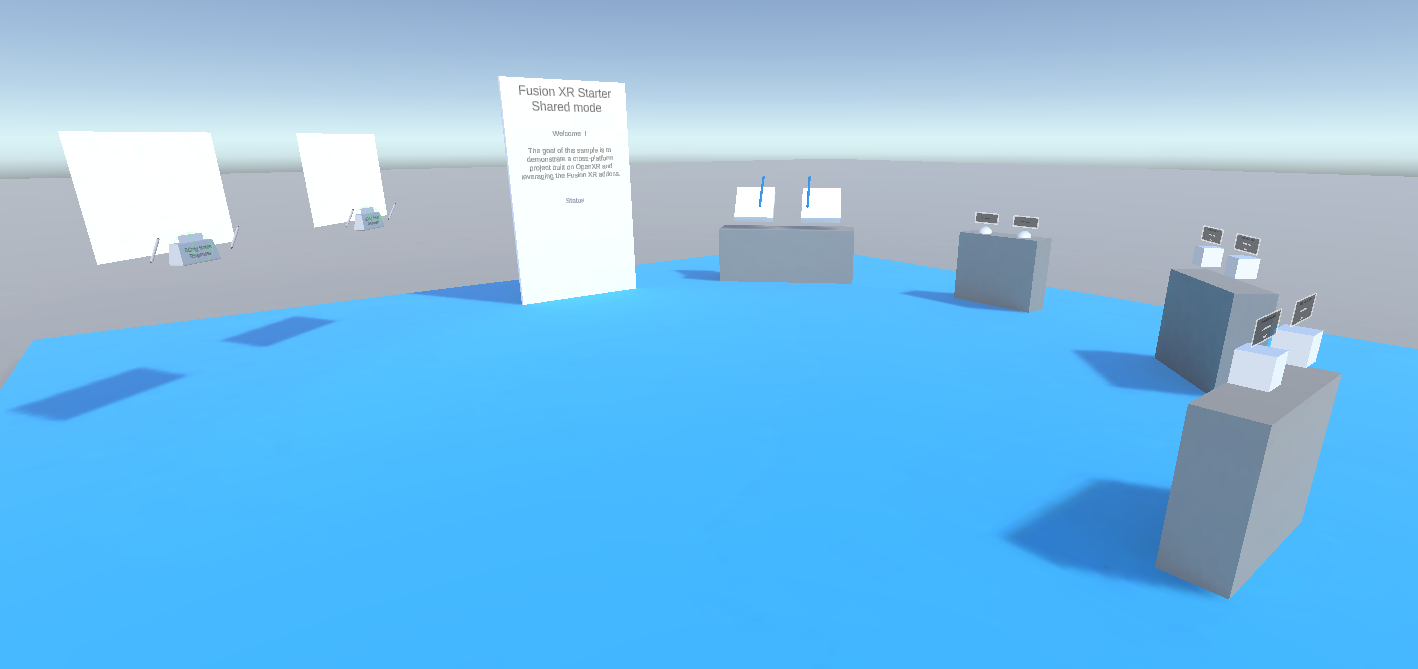
The scene illustrates a few XR features:
- avatar synchronization, including hand tracking
- teleportation
- grabbing and touching objects
- 2D and 3D drawing synchronization
- haptic and audio feedback
- watch menu, used to change network parameters and to toggle between VR (fully immersive) and MR (passthrough) view
- world-grab locomotion
For a detailed understanding of how each feature works, please refer to the documentation of the addon responsible for it (see the Used XR Addons section below).
Technical Info
- This sample uses the Shared Mode topology,
- The project has been developed with Unity 6.3, Fusion 2.1.1 and Photon Voice 2.63,
- Headset firmware version:
- Meta Quest v2.1 & v2.3
- Samsung Android v14
The same APK can be installed on a Meta Quest headset or on a Samsung Android XR device.
Before you start
To run the sample:
Create a Fusion AppId in the PhotonEngine Dashboard and paste it into the
App Id Fusionfield in Real Time Settings (reachable from the Fusion menu).Create a Voice AppId in the PhotonEngine Dashboard and paste it into the
App Id Voicefield in Real Time Settings.Then load the main sample scene and press
Play.
Download
| Version | Release Date | Download |
|---|---|---|
| 2.1.1 | 7월 09, 2026 | Fusion Cross-platform XR Starter 2.1.1 |
Handling Input
Meta Quest / Samsung Android XR
- Teleport: press a stick or the dedicated teleport button to display a pointer. You will teleport on any accepted target on release.
- Touch: simply put your hand over a button to toggle it.
- Grab: put your hand over the object and grab it using the controller grab button, or pinch index and thumb when using hand tracking.
- Draw: grab a pen and press the trigger (or pinch while hand tracking) to draw on a whiteboard (2D) or in the air (3D). Change the selected color by pushing the controller stick up or down.
- Watch menu: look at your wrist to open the watch menu.
- Wrist button: open the network parameters panel.
- Watch face button: toggle between VR (fully immersive) and MR (passthrough) view. When passthrough is enabled, the floor and opaque walls are swapped for semi-transparent versions so you keep spatial references on the immersive scene while seeing the real environment.
- World-grab locomotion (passthrough mode only): grab the world around you to translate yourself within the scene.
Folder Structure
The main folder /Cross-platform-xr-starter contains all elements specific to this sample.
The /Photon folder contains the Fusion and Photon Voice SDK.
The /Photon/FusionAddons folder contains the XR Addons used in this sample.
The /XR folder contains configuration files for virtual reality.
Architecture overview
The Cross-platform XR Starter sample does not contain any custom code. The scene is entirely built by composing prefabs and components provided by the Fusion XR addons. The addons cooperate to cover rig synchronization, interactions, voice, drawing, UI and feedback.
To understand the behavior of a specific feature in depth, refer to the documentation of the addon responsible for it, listed in the next section.
Compilation
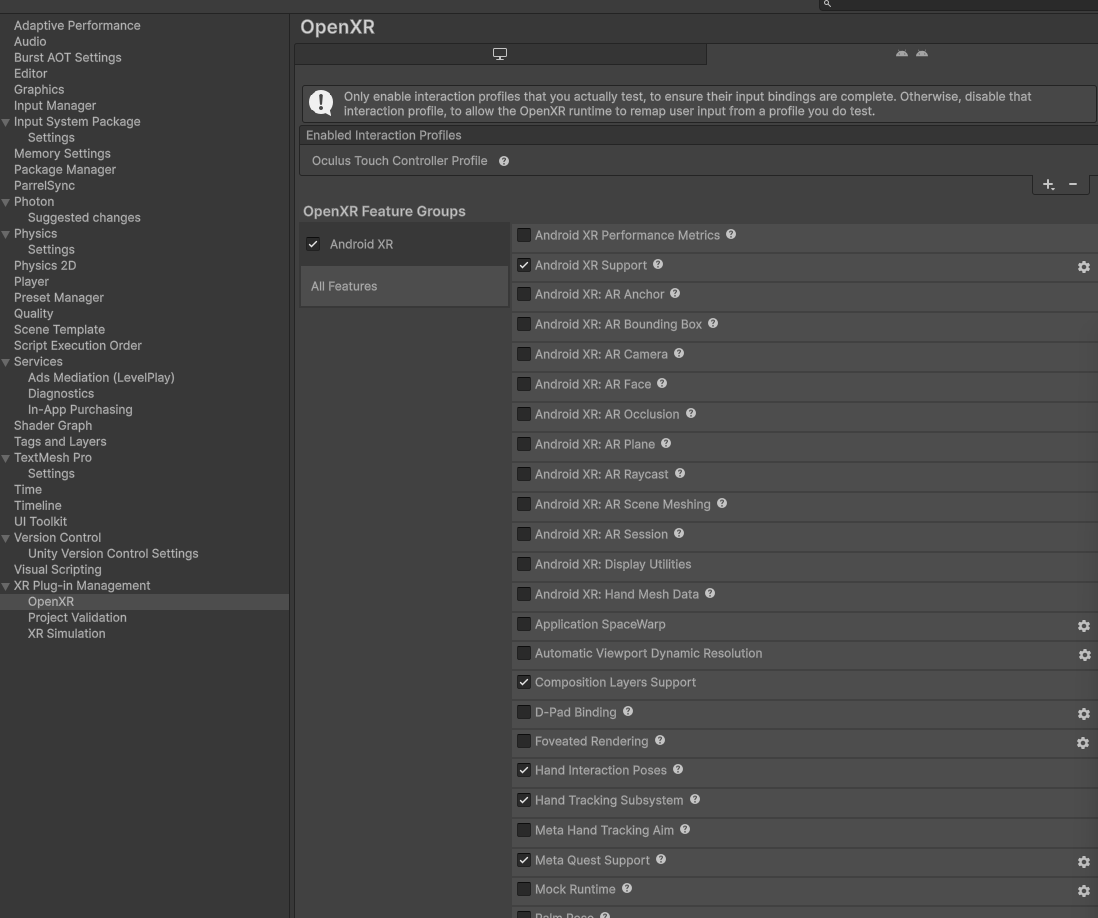
To build the project, make sure the following options are enabled in the OpenXR settings:
- Meta Quest Support
- Android XR Support
- Hand Tracking Subsystem
With those three options enabled, the same APK can be installed on a Meta Quest headset or on a Samsung Android XR device (no additional per-platform build is required).
Used XR Addons
To make it easy for everyone to get started with their XR project prototyping, we provide a comprehensive list of reusable addons. See XR Addons for more details.
Here are the addons used in this sample.
XRShared
The XRShared addon provides the shared foundation used by every other XR addon. It handles rig synchronization, basic interactions, auto-configuration scripts, and is required for the other addons to work.
It also provides the helpers used by this sample for VR/MR toggling and passthrough locomotion:
TogglePassthrough(on theHardwareRig) reconfigures the scene when switching between VR and MR modes (swapping opaque floor/walls with their semi-transparent counterparts).NamedActionManager(and its GameObject in the scene) centralizes the actions bound to the watch buttons. To wire a button, fill the Named Action Button Descriptors of theRadialMenuon the rigs (HardwareRigwhen offline,CrossPlatformXRStarterNetworkRigwhen online).InstantWorldLocomotionenables the world-grab translation used in passthrough mode.
See XRShared for more details.
Blocking Contact
Used to block 2D pens on the whiteboard surface. See Blocking Contact for more details.
Connection Manager
Used to manage the Fusion connection (game mode, room name, user prefab, etc.). See Connection Manager for more details.
Data Sync Helpers
Provides helper classes that simplify data synchronization for 2D and 3D drawings. See Data Sync Helpers for more details.
Dynamic Audio Group
Adapts voice transmission to the distance between players, to optimize comfort and bandwidth. See Dynamic Audio Group for more details.
Feedback
Centralizes sounds and manages haptic & audio feedback. See Feedback for more details.
Line Drawing
Handles 3D drawing synchronization between users. See Line Drawing for more details.
Magnets
Used to snap sticky notes on the whiteboard. See Magnets for more details.
MetaCoreIntegration
Synchronizes the hand state of Meta's OVR hands, including finger tracking. See Meta Core integration for more details.
StickyNotes
Provides a ready-to-use sticky notes dispenser. See StickyNotes for more details.
TextureDrawing
Provides the drawers and boards core prefabs and handles 2D drawing synchronization. See TextureDrawing for more details.
VoiceHelpers
Provides helper classes that simplify voice setup for a Fusion-based project. See VoiceHelpers for more details.
WatchMenu
Provides classes to create a simple interactable watch menu. In this sample, it exposes two buttons:
- a button on the wrist (bracelet) to open the network parameters panel,
- a button on the watch face to toggle between VR (fully immersive) and MR (passthrough) view.
The actions bound to these buttons are centralized through NamedActionManager (see XRShared above) and assigned per rig via the Named Action Button Descriptors of the RadialMenu.
See WatchMenu for more details.
3rd Party Assets and Attributions
The sample is built around several awesome third party assets:
- Meta Lipsync
- Meta Sample Framework hands
- Sounds
Last updated on
Back to top