Getting Started
Requirements
- Unity: 2022.3.34f1
- A Fusion 2 AppId created in the Photon Engine Dashboard.
Download
| Version | Release Date | Download |
|---|---|---|
| 2.0.5 | 3月 04, 2025 | Fusion Animal Coop 2.0.5 |
Running in Editor
- Set your AppID to the
Photon App Settingsasset found atAssets/Photon/Fusion/Resources/.- By default, the
Fixed Regionis set toeu. To use the best region, clear this value, or refer to the Regions documentation to pick a different one.
- By default, the
- Open the 'Preloader' scene found at
Assets/Scenes/Preloader.unity. - Click
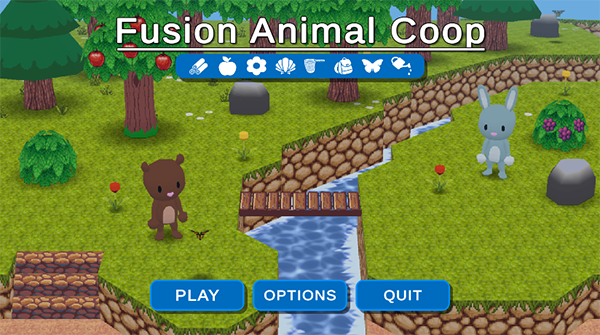
PLAYon the initial splash screen.
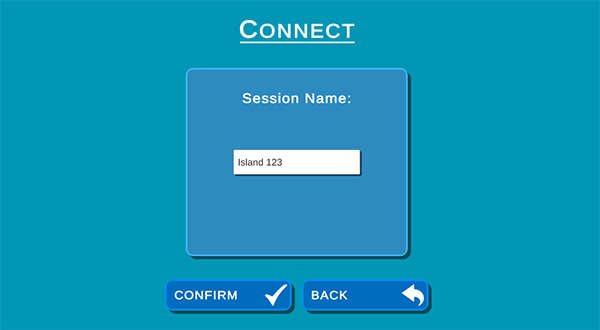
- Define a Session Name and click
CONFIRM. If left blank, a session name containing the wordMeadowwill be generated.
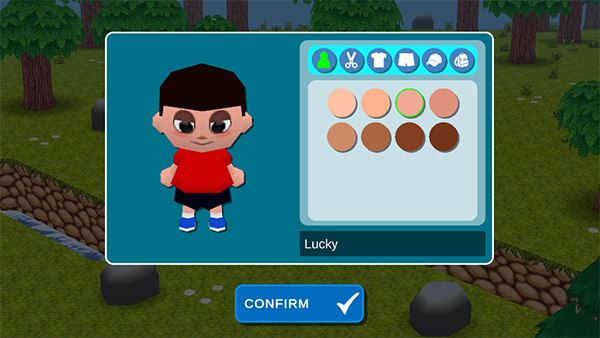
- You'll begin with a screen where you can assign a nickname and customize your avatar.
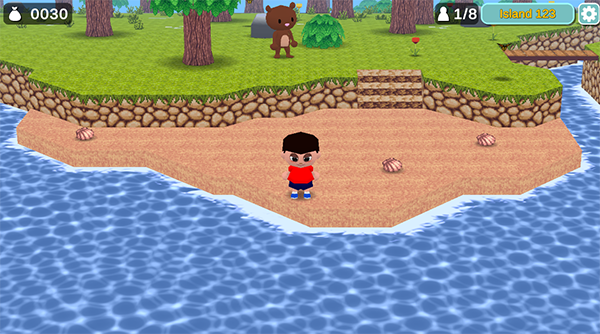
- Once confirmed, your avatar will be spawned and you can begin interacting with the game world.
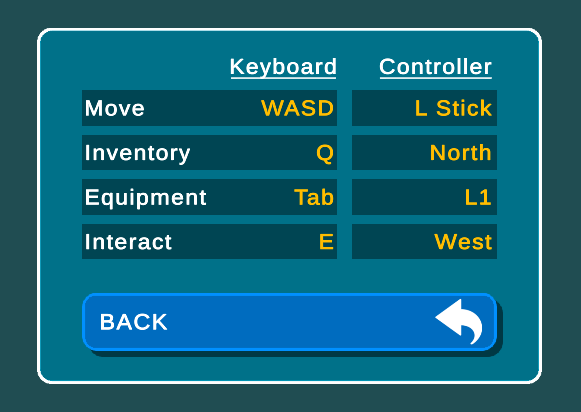
Gameplay Controls
- Keyboard
- Use
WASDfor movement - Open your inventory by pressing
Q - Open your equipment by pressing and holding
Taband then left-click the equipment to switch - Press
Eto interact with characters or use your currently equipped item.
- Use
- Controller
- Use the Left Stick (
L Stick) for movement - Use the
Northbutton for Inventory - Open your equipment by pressing and holding the
L1', the left bumper - Press the
Westbutton to interact with characters or use your currently equipped item.
- Use the Left Stick (
Making Online With Multiple Clients
To play with multiple clients, you can create a build for PC and run multiple instances on the same machine. Make sure the same Session Name and Region are used to connect to other clients.
Last updated on
Back to top