Time Synchronization
Fusion makes player actions feel immediate through a combination of having clients try to predict what happens before being told by the server and then hiding any mistakes.
Overview
Time
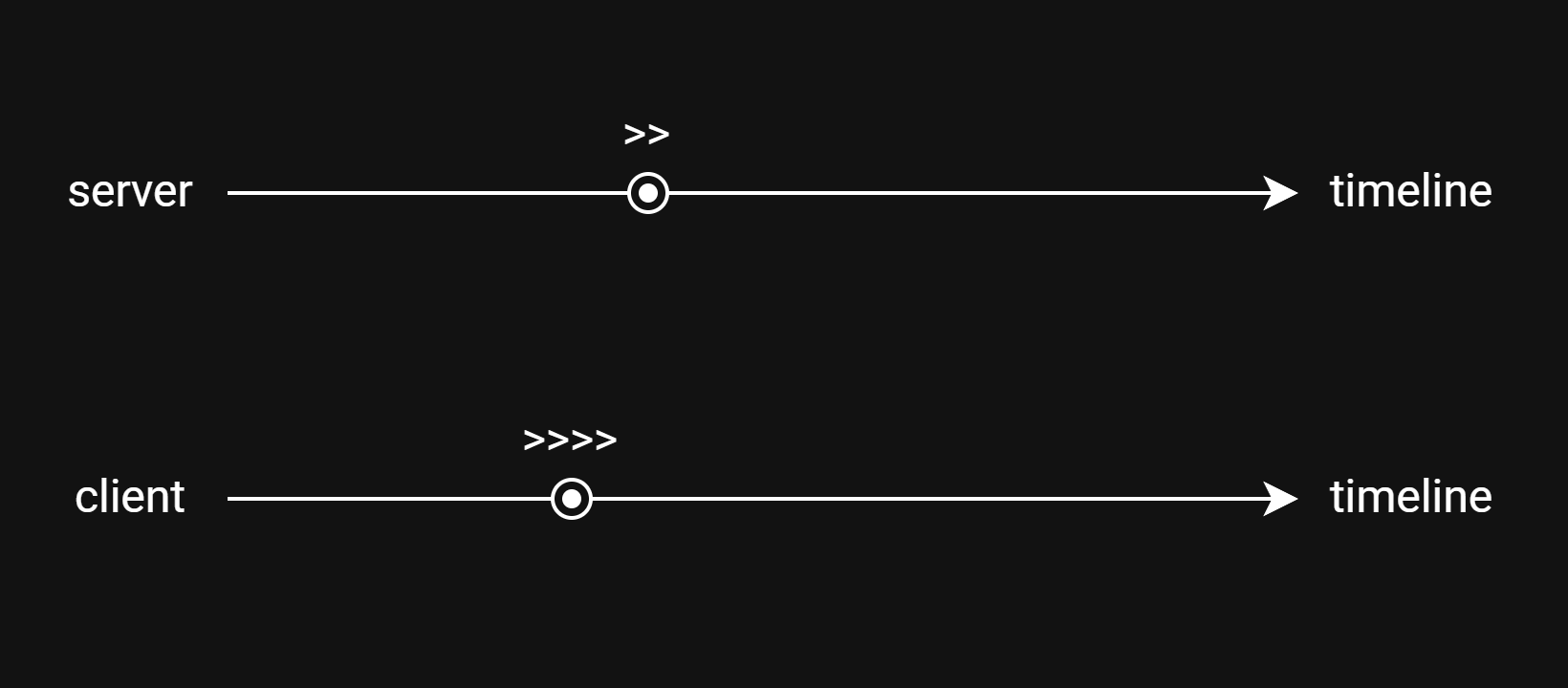
Think of time as a line. In a multiplayer game, there's one canonical timeline of events. The server and clients all move forward along it, but not necessarily in lockstep.
As long as everyone ultimately agrees on what happened when—either through determinism or by obeying whoever has authority—they could be at different points and moving at different speeds.
Prediction
For a game to progress, the server and client exchange messages stating "here's what happened at time T".
But packets have travel time, and assuming their travel time is at least one timestep, then at least one side will have passed T by the time the other's message about T arrives.
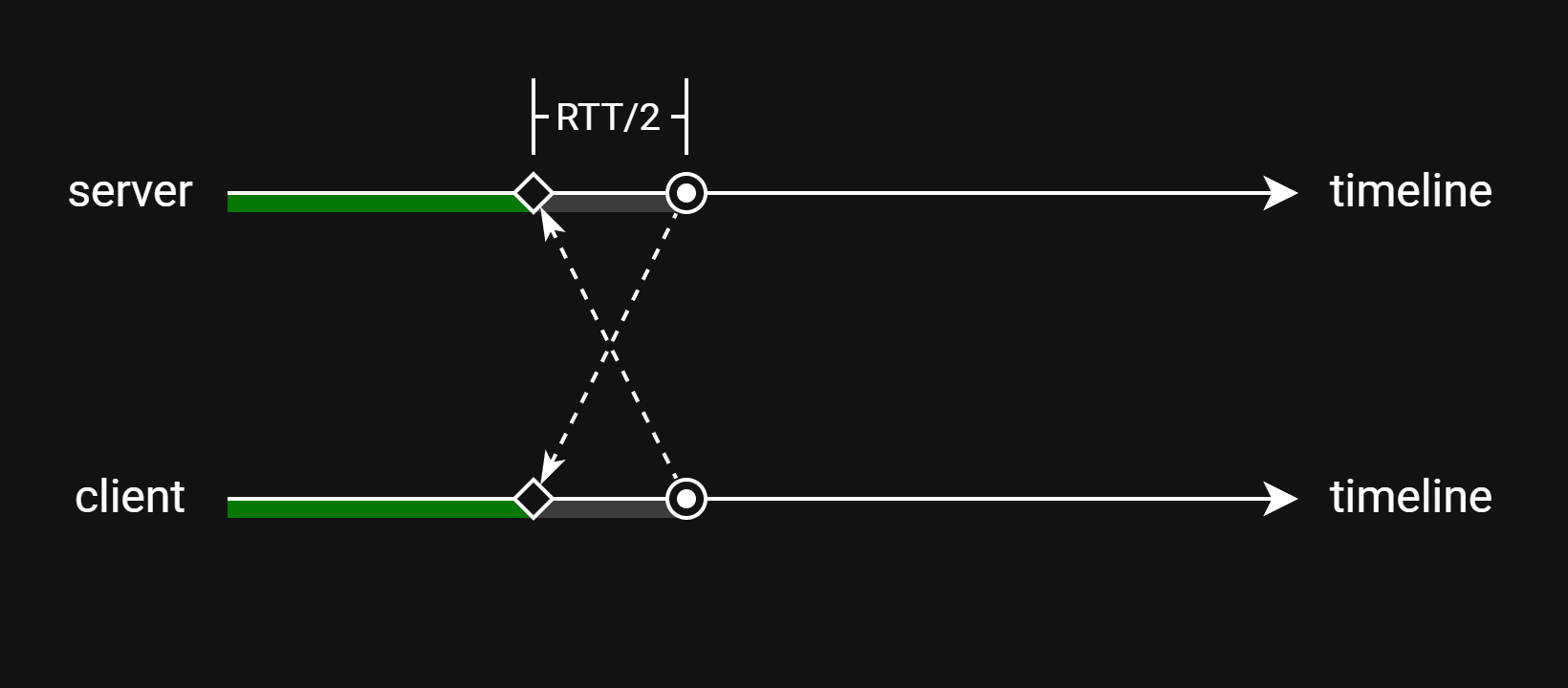
Usually, the server is set up to reject late messages, so before it reaches time T, it needs to already have the client's message for time T. Likewise, the client needs to hide all this network lag so the player doesn't feel it as input lag.
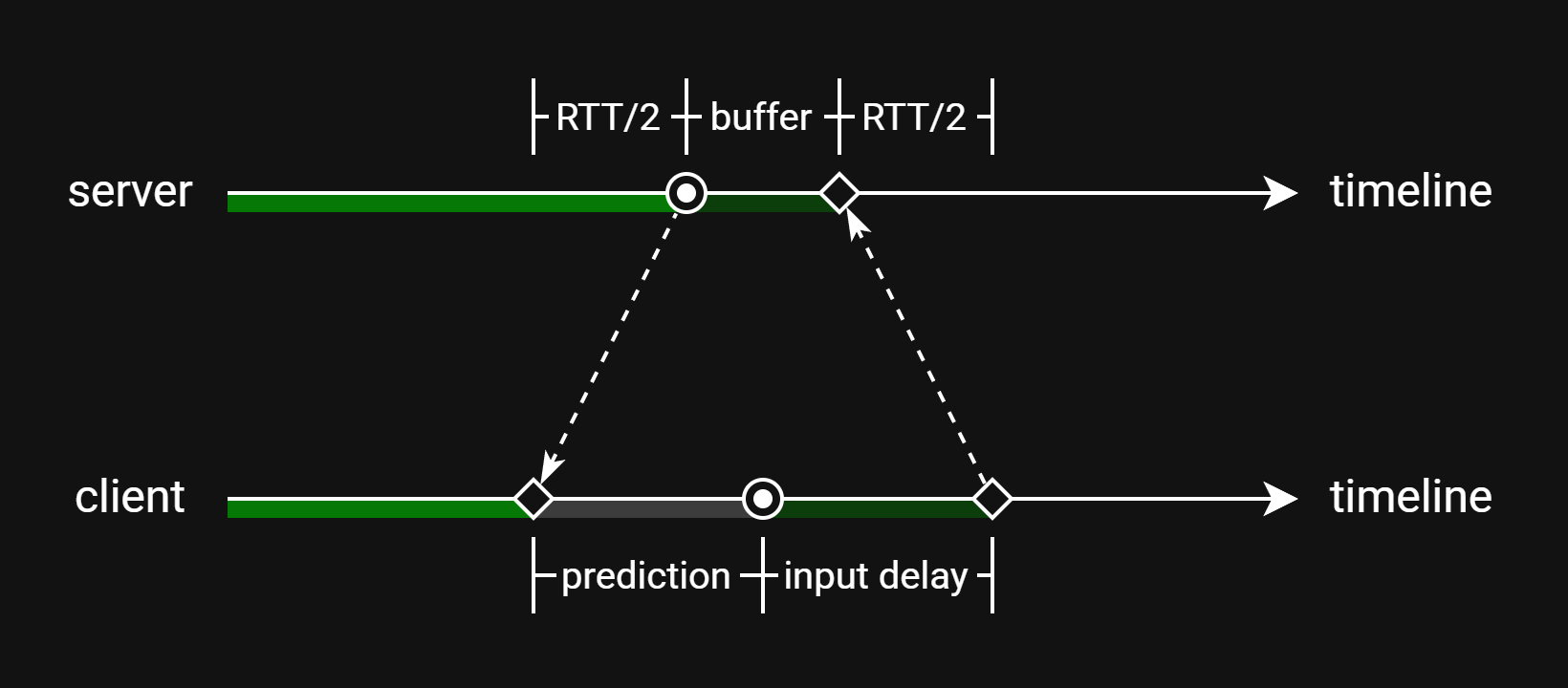
To achieve both goals, the client needs to send ahead of time, which it can do by positioning itself ahead of the server on the timeline.
This is prediction.
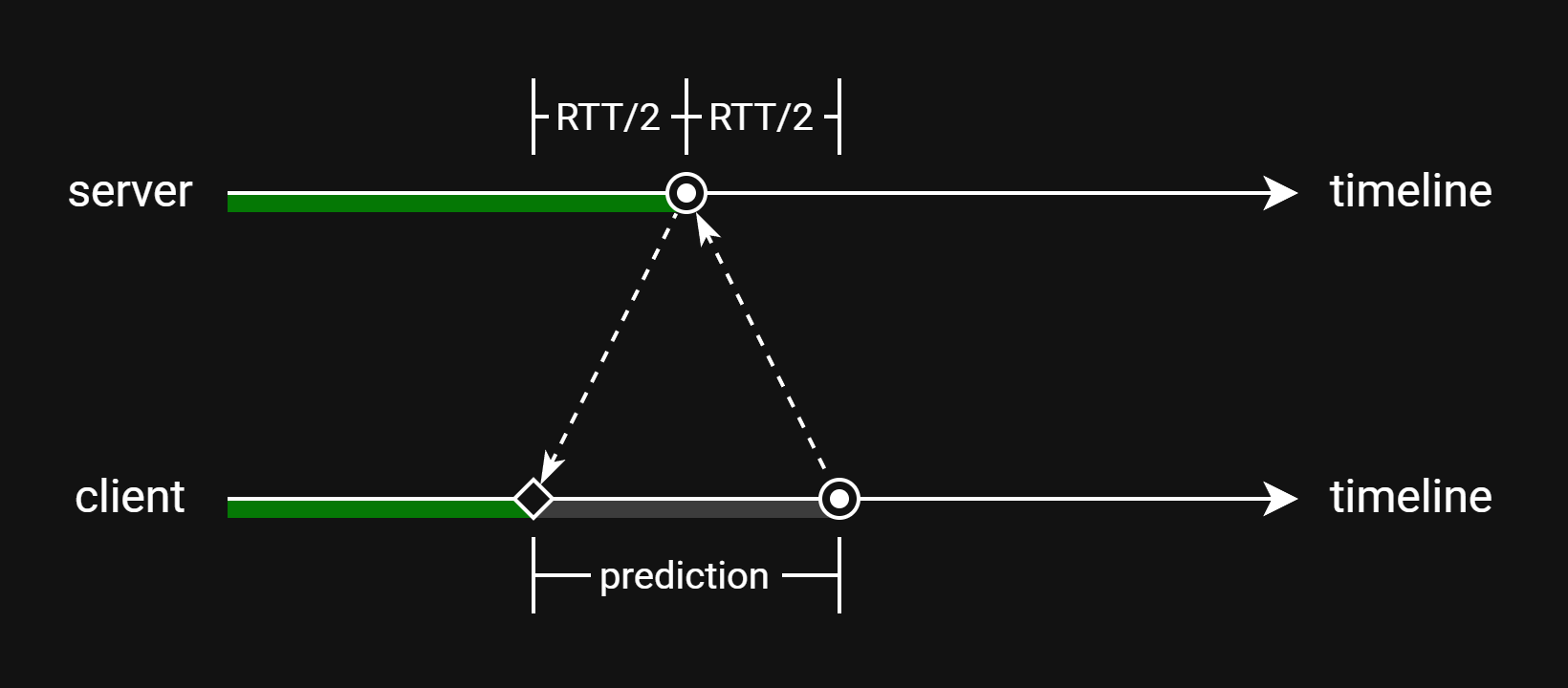
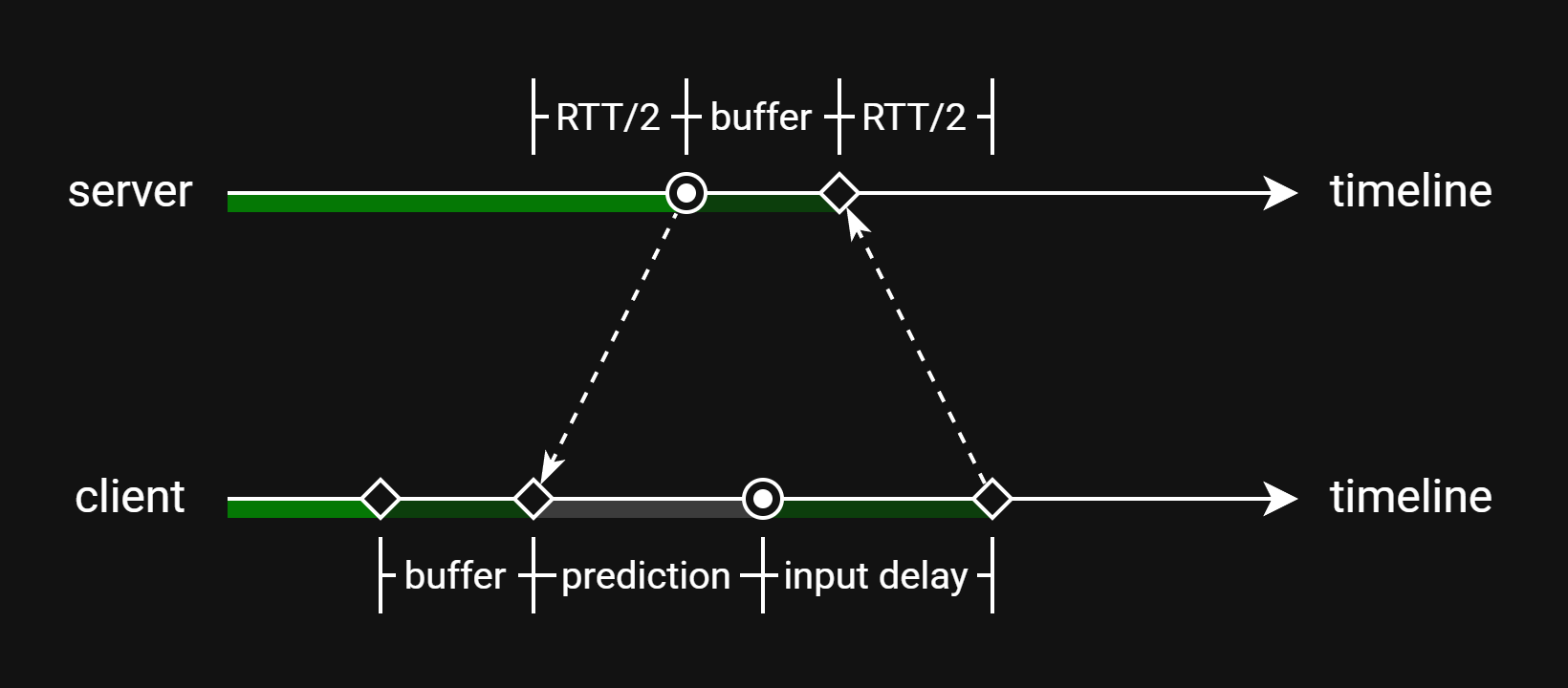
How far ahead the client should be not only depends on how long its messages take to arrive but also on how consistent their travel time is.
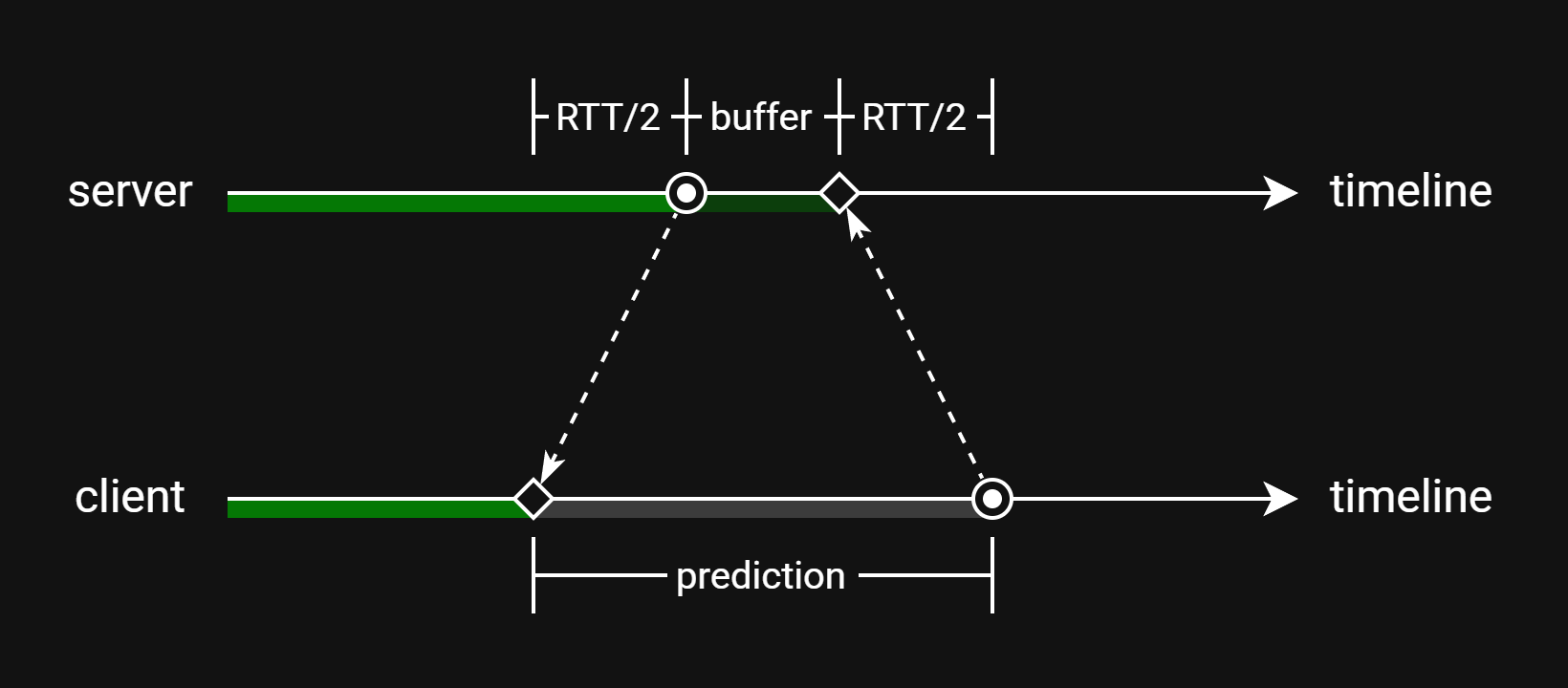
Route changes and network congestion can make that travel time vary a lot, forcing the client to send even earlier to be on the safe side. The earlier the client sends, the more likely the server will receive (at least one copy of) its input in time.
Input Delay
Unfortunately, hiding network lag doesn't come for free. When the client receives a new snapshot, it has to rollback to that tick and redo any newer ones. This means the more ticks a client predicts, the more time it has to spend redoing them later.
Normally, the number of predicted ticks grows with ping, but Fusion clients can be configured to let some network lag through, enough to reduce or completely cap the number of predicted ticks.
This is input delay.
Interpolation Delay
Since the server simulates all objects, the client can get away with predicting just a small number of them, like just the local player's avatar. The client can render any other object simply by interpolating the snapshots it has, but it needs a consistent stream of snapshots to do this smoothly.
Since packets can be late or lost, the client needs to delay its snapshot "playback time" enough that it nearly always has a pair of snapshots that can produce that moment in time.
This is interpolation delay.
(It's similar to how streaming services won't start playing a video until the client downloads enough frames to avoid interruption.)
Lag Compensation (Server-Side)
A server tick captures a single moment in time, but since clients predict some objects and interpolate others, their ticks overlay two moments in time. Because of this, even though what's being interpolated is already "set in stone", players can see things like predicted and interpolated objects colliding.
But instead of treating these inconsistencies like any other mispredictions, the server can make them canon instead. It can do this by holding onto some number of past collider states and running collision detection against those, in a way that matches what clients see.
The amount of lag that the server needs to compensate (in other words, how far back it needs to test against) is the sum of the client's prediction and its interpolation delay. More details about lag compensation are covered in its dedicated page.
Settings on NetworkProjectConfig
Time Settings are available starting with Fusion 2.1.
Prediction
The client analyzes the spacing of outgoing packets to figure out how early to send. Specifically, it collects measurements of packet delay variation ("jitter") and looks at their distribution.
To adjust this process, open the NetworkProjectConfig, find the Time header, and set Input Receive Buffer Settings to Custom to reveal the following settings:
Max Late Inputs: The client will send its inputs early enough to cover all but this percent of packet jitter. This is essentially a tail cutoff for jitter.- If this value is 3%, the client will use the 97th percentile jitter value (ignoring the worst 3%) to determine how early to send.
Redundant Inputs: The client will send its inputs early enough that they should arrive on time even if this many input packets are lost consecutively. This is essentially a multiplier on the percentile value derived fromMax Late Inputs.Input Receive Buffer Delay Added: The client will send its inputs even earlier, by this many milliseconds or ticks.
Input Delay
Input delay is only supported in Server Mode and Host Mode.
To enable and configure input delay, open the NetworkProjectConfig, find the Time header, and set Input Delay Settings to Custom. Doing this will reveal the following settings:
Minimum Input Delay: The player's input delay will be at least this many milliseconds or ticks.Clients Can Add Input Delay To Limit Resims: If checked, clients will add enough input delay to keep the number of predicted ticks belowClient Max Resims Per Frame.Client Max Resims Per Frame: The maximum number of predicted ticks that should happen per frame. This is essentially an upper bound on how far ahead clients can predict.
Interpolation Delay
The client analyzes the spacing of incoming packets to figure out how much to delay snapshot interpolation. Specifically, it collects measurements of packet delay variation ("jitter") and looks at their distribution.
To adjust this process, open the NetworkProjectConfig, find the Time header, and set State Receive Buffer Settings to Custom to reveal the following settings:
Max Late Snapshots: The client will delay snapshot interpolation long enough to cover all but this percent of packet jitter. This is essentially a tail cutoff for jitter.- If this value is 3%, the client will use the 97th percentile jitter value (ignoring the worst 3%) to determine how long to delay.
Redundant Snapshots: The client will delay snapshot interpolation long enough that it should remain smooth even if this many snapshot packets are lost consecutively. This is essentially a multiplier on the percentile value derived fromMax Late Snapshots.State Receive Buffer Delay Added: The client will delay snapshot interpolation longer by this many milliseconds or ticks.
Last updated on
Back to top