Architecture
Unity Project
The simulation code is located in Assets/QuantumUser/Simulation and the view code is located in Assets/Scripts. Each simulation feature has its own folder with its .qtn file, its systems and its config classes, and the view folders use the same names for the matching features.
Folders under Assets/QuantumUser/Simulation.
| Folder | Content |
|---|---|
/Player |
Spawns each player's character when they join, removes it when they leave and handles extra player's input logic. |
/Input |
Declares the input sent over the network. |
/Movement |
Moves the character with physics: walking, running, jumping and stepping over low obstacles. |
/Stamina |
An energy bar that sprinting and kicking use up and that refills over time. |
/GroundedTracker |
Detects when a character stands on the ground and remembers the last safe spot to respawn on. |
/Grab |
Lets players pick up, carry and drop props and knocked down bodies. |
/Attack |
The kick that pushes props and knocks players down. |
/Ragdoll |
Turns a knocked down character into a ragdoll and stands it back up. |
/Enemy |
The enemy that stays near its home position, chases players and throws them around. |
/Door, /JumpPad, /RotatingObstacle, /Bridge, /Fall |
The level props and what happens to anything that falls off the map. |
/Game |
The objective and the messages shown to all players. |
Folders under Assets/Scripts.
| Folder | Content |
|---|---|
/Core |
Shared view state and the prediction culling around the local player. |
/Input |
Reads the keyboard, mouse and gamepad, sends the input to Quantum and locks the cursor during play. |
/Camera |
The first person camera and its motion and shake. |
/Character, /Enemy, /Ragdoll |
How characters, the enemy and ragdolls look and animate. |
/Grab |
Shows the arms and highlights when players carry or aim at something. |
/Props, /Vfx, /Audio |
Visuals, effects and sounds for the level props and the game events. |
/UI |
The menu, the settings, the HUD and the on screen prompts. |
/Voice |
Proximity voice chat between players. |
Folders under Assets.
| Folder | Content |
|---|---|
/QuantumUser/Resources |
The simulation config assets, the physics materials and the Quantum settings assets. |
/Prefabs |
The characters, ragdolls, props, level pieces, UI and voice prefabs. |
/Scenes/Game |
The Game scene with its Quantum map and NavMesh. |
/Configs |
The view configs: game messages, voice occlusion and grab highlight. |
/Resources |
Assets loaded at runtime: the input prompts and the build label canvas. |
/Input |
The input actions. |
/Audio |
The sounds, the sound bank and the audio mixer. |
/Animations, /Materials, /Models, /Sprites, /Settings |
Animator controllers, materials and shaders, in-house models, UI sprites, and the render pipeline settings. |
/3rdParty |
Third party assets, see Overview. |
QuantumUser/Simulation/Generated and QuantumUser/View/Generated hold the code generation output.
The project uses one scene:
- Game: the main game scene with many physics props to interact with, dummy characters, an enemy, a baked NavMesh and the connection Menu.
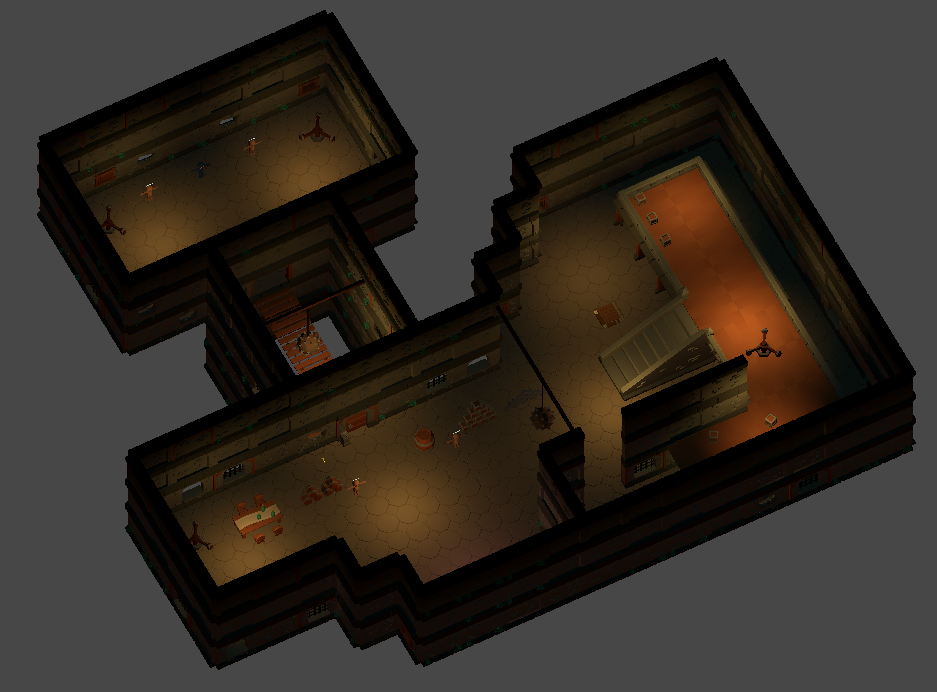
High Level Breakdown
The whole game runs in the Game scene. The Start UI connection menu starts the session, PlayerSystem spawns a character for each player who joins, and the players work together to throw the enemy off the map.
Tick Order
Every tick, the core physics and navigation systems run first, followed by the main game systems in the order registered in the sample's own SystemsConfig asset at Assets/QuantumUser/Resources/Configs/SystemsConfig.asset:
| Step | Systems | What Happens | See |
|---|---|---|---|
| 1 | PlayerSystem, PlayerLookSystem |
Each character receives the input and look angles of its player. | Player |
| 2 | StaminaSystem, GroundedTrackerSystem, MovementSystem |
Characters spend stamina, detect the ground and move. | Player |
| 3 | GrabbableCollisionSystem, LaunchedSystem, JumpPadSystem, RotatingObstacleSystem, FallSystem |
Carried objects stop colliding with their carriers, jump pads and rotating obstacles act and fallen bodies are handled. | Level and Props |
| 4 | GrabSystem, GrabJointCleanupSystem |
Players grab, carry and drop. | Grab and Kick |
| 5 | EnemySystem |
The enemy runs its state machine. | Enemy AI |
| 6 | RagdollSystem |
Knocked down characters follow their ragdolls and stand back up. | Ragdoll |
| 7 | DoorSystem, ImpactRagdollSystem, AttackSystem, BridgeSleepZoneSystem |
Keys open doors, fast bodies knock characters down, kicks land and bridges stay awake. | Level and Props, Ragdoll, Grab and Kick |
Characters
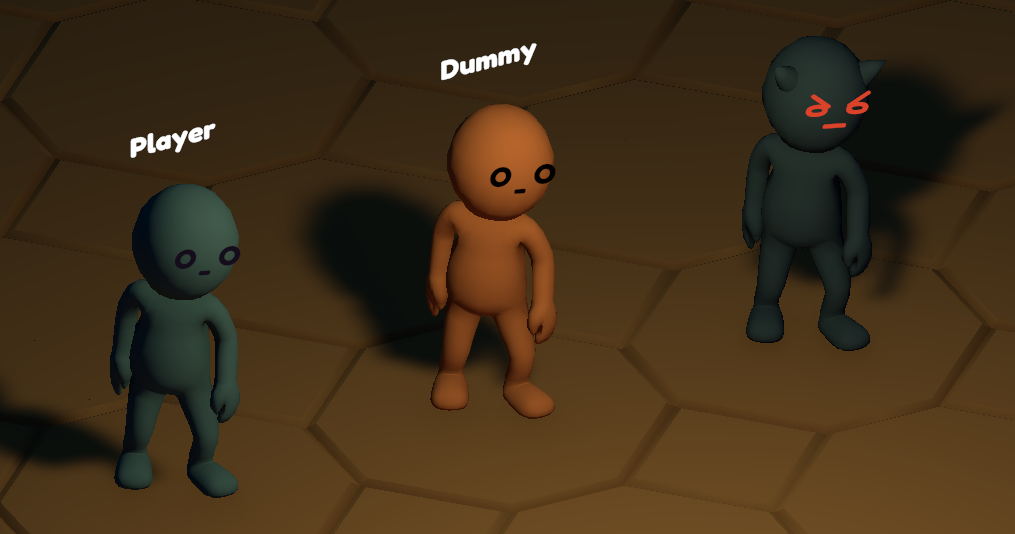
The sample has three kinds of characters: players, dummies and the enemy. They are all built from the same CharacterBase prefab in Assets/Prefabs/Characters, so they share the same foundation. Each one is a physics body that moves by forces, just like the props around it, with no special character controller. Pushing, being pushed, getting launched and falling work the same way for every character and every prop. On top of that, every character can become a Ragdoll, more on that in the next topic.
Player
The player is the character a person controls. PlayerSystem spawns it from RuntimePlayer.PlayerAvatar at a PlayerSpawnPoint when a player joins and removes it when the player leaves. Every tick, it also copies the input of that player onto the character. On top of the base, the player prototype adds the components that make it playable: Player ties it to its player and holds the input of the current tick, PlayerLook holds the look angles, MovementData and Stamina drive the movement, and Grabber and Attacker let it grab and kick.
The input is declared in Simulation/Input/Input.qtn. On the Unity side, InputManager owns the input actions and collects the input in two steps. Every rendered frame, LookInput adds the mouse delta and the right stick turn rate to a pair of look angles, clamps the pitch and wraps the yaw. When Quantum polls the input for a tick, PlayerInput sends those accumulated angles as absolute values, together with the move direction and the buttons.
PlayerLookSystem copies the look angles from the input into the PlayerLook component, clamping the pitch and wrapping the yaw. It runs before MovementSystem, so the body turns to where the player looks in the same tick.
MovementSystem turns the input into walking, running and jumping, and StaminaSystem limits the sprint. Both are tuned in the MovementConfig and StaminaConfig assets.
Dummy
The dummy is a player without a player. Its prototype has the same components as the player except Player, so no input reaches it and it stands still. Players kick, grab, knock down and throw dummies exactly like other players, which makes them practice targets.
Enemy
The enemy prototype adds the Enemy component and a NavMesh agent to the base. EnemySystem moves it instead of MovementSystem and gives it a Grabber so it can carry bodies, see Enemy AI.
Ragdoll

When a player, a dummy or the enemy is hit hard enough, it falls down and loses control of its body: the standing character is replaced by a ragdoll, a body made of separate limbs connected by joints. That body is a regular part of the simulation, so it tumbles, collides with the world and can be grabbed by any limb and dragged around. After a few seconds the character stands back up.
Kicks, rotary blades, the enemy and fast moving bodies all knock characters down. ImpactRagdollSystem handles the fast moving bodies: it measures the speed of the other body toward the character and launches the victim with the momentum of the hit. A character hit by something that another player carries does not fall down, but the carrier drops the object when moving fast enough into the victim.
Every knockdown starts and ends through the SetRagdoll signal. RagdollSystem implements it and only accepts entities with the Ragdollable component:
C#
void ISignalSetRagdoll.SetRagdoll(Frame frame, EntityRef entity, QBoolean active)
{
    bool isRagdolled = frame.Has<RagdollOwner>(entity);
    if (active == isRagdolled)
        return;

    if (active)
    {
        if (frame.Has<Ragdollable>(entity) == false)
            return;

        EnableRagdoll(frame, entity);
    }
    else
    {
        DisableRagdoll(frame, entity);
    }
}
EnableRagdoll keeps the character entity alive but disables its physics body and capsule collider, so it stops colliding with the world. In its place, it creates the ragdoll from its own entity prototype, the RagdollPrototype of the RagdollConfig that Ragdollable references. The player and the dummy share the PlayerRagdoll prefab, and the enemy has EnemyRagdoll with its own knockdown tuning. Both are variants of BaseRagdoll in Assets/Prefabs/Characters. A ragdoll is a root entity without a body that owns its limbs through an entity group, and one entity per limb with its own physics body and collider, connected to the next limb by PhysicsJoints3D. The limbs are placed in the pose of the character, and the hips get the velocity the character had. Every limb becomes Grabbable and gets a RagdollLimb component that points back to the character.
The character and the ragdoll keep separate views. CharacterRagdollView hides the standing model while the character has a RagdollOwner. The hidden character follows the hips every tick, so its camera, audio listener and nameplate keep working without knowing about the ragdoll. The ragdoll view moves each limb model with its limb entity through the SDK QuantumRagdoll and QuantumRagdollLimbView components, and RagdollIdentityView gives it the color and the mouth of its character.
The RagdollOwner component added to the character holds the knockdown timer. Every jump press while down cuts the timer in TryStruggle, with a cooldown between presses, and being carried keeps the character down. When the timer runs out, DisableRagdoll destroys the ragdoll entities and enables the body and collider again, so the character stands up where the hips came to rest. The synced RagdollChanged event drives the knockdown sounds.
Grab and Kick

Players act on the world in two ways. A grab picks up whatever the crosshair points at and holds it in front of the camera, where it follows the player's look like an object held in the hands. A kick is a short swing that shoves everything in front of the player, and a kick while carrying something throws it where the player looks.
GrabSystem starts a grab when the grab button is pressed. It casts the aim ray from GrabHelper, the same ray the crosshair highlight uses, and takes the first Grabbable it hits. A loose prop that someone else holds stays off limits, but a grab on a ragdoll someone else carries takes it from them. The held body loses its gravity and follows a hand point in front of the player that moves with the look pitch: every tick the system sets its velocity toward that point. A DistanceJoint3D leash from the physics joints engages once the object reaches the hands.
The hold breaks when the object is pulled further than the break distance or when the level blocks the line between the shoulders and the object. Pressing grab again drops it. Other systems release a held object through the DropHeld and ReleaseGrabbed signals, and ReleaseGrabbed resolves a hit on any ragdoll limb back to the carrier of the whole body. GrabbableCollisionSystem ignores the contacts between the carrier and what it carries, and GrabJointCleanupSystem removes the leash once nothing holds the object. The tuning lives in the PlayerGrabConfig asset.
AttackSystem runs the kick as a timed swing. Pressing kick adds the Attacking component with three FrameTimers: a short delay before the forward lunge impulse, a delay before the hit and the cooldown that ends the swing. The hit is a sphere overlap in front of the player. It pushes every dynamic body it catches, knocks loose whatever the target holds and ragdolls anything Ragdollable. A carried target flies along the look direction, which is how players throw what they carry. The AttackImpulseMultiplier component scales the push per prop.
The view reacts to the Grabbed, Dropped, Attack, AttackHit and ObjectImpact events with carry arms, highlights, sounds and camera shake.
Proximity Voice

Players hear each other as if they were in the same room: voices get quieter with distance and sound muffled behind walls. Voice chat is a separate Photon Voice connection that runs next to the game, so it never affects the simulation.
VoiceManager joins a separate Photon Voice room named after the Quantum room with a -voice suffix. It copies the app settings from PhotonServerSettings and pins the voice region to the region the Quantum client connected to. Each client stores its Quantum PlayerRef in a player property, so the other clients map every voice speaker to the right avatar. When the connection fails or drops, VoiceManager retries with a growing delay.
Each avatar registers its PlayerVoiceView, and VoiceManager attaches the speaker of that remote player to the head of the view. VoiceOcclusion casts a static raycast between the listener and the speaker and, when a wall blocks it, counts the NavMesh path corners around it. VoiceSpeakerFx muffles the voice by distance and wall count with the values of VoiceOcclusionConfig. This is a simple solution which fits this project's scope, but bigger projects may need a more complete solution for spatial sound. The mute key toggles the microphone, UIVoiceHud shows its state and FaceView moves the mouth of a player who talks.
Level and Props

The dungeon is filled with props that react to physics. Keys open doors, jump pads fling whatever lands on them, rotary blades knock players over and rope bridges swing under their weight. Players who fall off the map come back where they last stood safely, but the enemy does not: throwing it off the map is the goal of the game.
Physics Joints
Some props are made of several bodies held together by physics joints. The joints are set up on the prefabs, so these props need no code of their own: the physics engine moves them, and players push, kick and grab them like any other body.
Rope Bridge (Spring Joints)

A spring joint pulls two bodies toward a set distance, like an elastic band, and lets them stretch and bounce around it. Each plank of a rope bridge is a Plank prefab with two spring joints, one to the plank before it and one to the plank after it, and the first and last planks hang from fixed anchors. The planks sag and swing as players walk across. BridgeSleepZoneSystem keeps all planks awake together while a player stands on the bridge, so the bridge does not ripple as single planks fall asleep.
Also, for the sake of stability, a custom inertia shape was defined for every plank to increase its area. This is done in the PhysicsBody3D component in the Inertia Mode and Parametric Inertia Shape fields.
Wrecking Ball (Character Joint)


A character joint connects two bodies at one point and lets them rotate around it in every direction, like a shoulder, within swing and twist limits. The WreckingBallRig prefab hangs the WreckingBall from a mount through a chain of jointed ChainLink bodies, and the ball sits at the end on a character joint, so it swings and spins freely. Players kick the ball to set it swinging.
Scaffold Door (Hinge Joint)

A hinge joint connects two bodies along one axis, like a real door hinge, so they only rotate around that axis, and angle limits stop the rotation at set angles. While it is locked, the door is kinematic and does not move. Once a key unlocks it, DoorSystem turns it into a physics body, and the hinge lets players push it open up to its limit.
Other Props
DoorSystem handles the collision callback between a DoorKey prop and a DoorLock. The linked Door switches from a kinematic body to a physics body that players push open, and the spent key snaps into the lock. The door swings on its hinge joint, see Scaffold Door above. The synced DoorStateChanged and GameMessage events announce it.
JumpPadSystem launches every body that enters a jump pad trigger. It solves the launch velocity for the apex height and distance of the JumpPadConfig, so every body lands at the same spot regardless of its mass. It adds the Launched component, which removes the drag for the flight time and keeps the movement system from fighting the arc. LaunchedSystem restores the drag when the flight time ends. RotatingObstacleSystem spins the blades, moves them back and forth along an eased path and ragdolls what they hit, with a cooldown per target.
Falling Off the Map and the Objective
The level has edges and gaps where players, props and the enemy can drop out of the dungeon. Anybody that drops below a set height, RuntimeConfig.FallThresholdY, counts as fallen off the map, and FallSystem decides what happens to it:
- Players and dummies come back at the last safe spot saved by the ground tracker, and the synced
FallRespawnedevent tells the view. A knocked down body is moved back as a whole so its joints hold. - Props with a ground tracker, such as the
Keyand theLightBulb, come back the same way, so they can never get lost. - All other props are destroyed.
- The enemy dies, which completes the objective.
When the enemy falls off the map, FallSystem raises the OnEnemyDeath signal and EnemySystem latches the ObjectiveComplete global, then raises the synced GameOver and GameMessage events. UIObjective and UIGameMessage show the result. The objective is presentation only: the match does not end, pause or reset and players keep control.
Enemy AI

The enemy follows a simple routine. It stands at its home position, chases anyone who comes close, knocks them down, picks up the body and throws it, and walks back home when nobody is left nearby. Each step of this routine is a state, and the enemy switches between states based on what happens around it. It finds its way around walls with the Quantum NavMesh.
EnemySystem runs one state machine per enemy. The current state, the target and the timers of each state live in the Enemy component, and the states are listed in the EEnemyState enum, both declared in Simulation/Enemy/Enemy.qtn. Every tick, the system runs the current state, and the state decides when to switch to another one:
- Idle: stands at its home position and watches for players.
- Chase: walks toward the target and attacks once it is close and in sight.
- Attack: stops, faces the target and hits everything in front of it.
- Dodge: steps from side to side for a moment, then goes after the closest player or walks home.
- Fetch: walks to a knocked down target to pick it up.
- Hold: spins on the spot with the body and throws it.
- Return: walks back to its home position, and chases any player it sees on the way.
The home position is the spot where the enemy stands when the game starts, saved on its first tick. The enemy only targets players, never dummies: it picks the closest player within the aggro range of its home position that it can see from there, and gives up when the target moves past the de-aggro range. The ranges and timings are tuned in the EnemyConfig asset.
In Chase, Fetch and Return the enemy walks with a NavMeshPathfinder on the baked NavMesh, see Navigation and Agents. The EnemyNavMeshAgentConfig asset sets the movement type to callback, so the NavMesh system calls ISignalOnNavMeshMoveAgent and the system sets the velocity of the enemy's physics body toward the next waypoint. The attack is a sphere overlap that pushes every body it catches and knocks down players.
The enemy gets a Grabber component when it is created, so the grab code sees what it carries. In Hold it picks the body up by the hips, spins on the spot and lets go when the hold ends, which throws the body along the spin. A player can steal the body during the hold, and a jump pad that launches the enemy makes it drop the body. The enemy itself is Ragdollable: a kick knocks it down, and it walks back to its home position when it gets up.
Ground Tracker
The ground tracker answers two questions for an entity: is it standing on something right now, and where is the last safe spot to put it back if it falls off the map. Every character has one through CharacterBase, and so do a few special props that must never get lost, such as the Key and the LightBulb.
GroundedTrackerSystem reads the ground from the collision callbacks instead of casting a ray. A contact whose normal points up enough counts as ground, and a few ticks of grace keep a resting body from flickering between grounded and airborne. A sleeping body keeps its last state, since it cannot have moved. The movement code reads the result for jumping and for holding the character on slopes.
While grounded, the system banks a new safe spot once the entity has moved far enough from the previous one. It only accepts spots with level geometry all around them, checked with a ring of downward raycasts against static colliders, so a spot at the edge of a gap or on a loose crate is never saved. FallSystem uses that spot to bring back anything with a tracker except the enemy, and a knocked down ragdoll hands the tracker to its hips so the body can be brought back too. The tuning lives in the GroundedConfigPlayer, GroundedConfigEnemy and LightBulbGroundedConfig assets.
View
The view code in Assets/Scripts only presents the simulation and never changes it. CustomViewContext tells every view which character and camera belong to the local player.
| Area | Scripts | How It Works |
|---|---|---|
| Camera | FirstPersonCameraView, RagdollCameraView |
The local camera follows the look angles of LookInput every rendered frame instead of waiting for the next tick, and orbits the ragdoll while the player is knocked down. |
| Carrying | HeldObjectView, CarryHandsView |
The carried object is drawn in front of the camera at render rate, and the arms bend to grip it. |
| Aim | UICrosshair, GrabbableHighlightView |
Both call GrabHelper.FindGrabCandidate on the predicted frame, the same code GrabSystem grabs with, so the highlight always matches what a grab picks. |
| Feedback | /Audio, /Vfx, CameraShakeView |
Sounds, effects and camera shake react to the simulation events, such as Attack, RagdollImpact and DoorStateChanged. |
| Prediction culling | PredictionCullingHandler |
Centers the prediction culling area on the local player, so entities far away are not predicted. |
Last updated on
Back to top