Cross-platform XR Starter Video
Overview
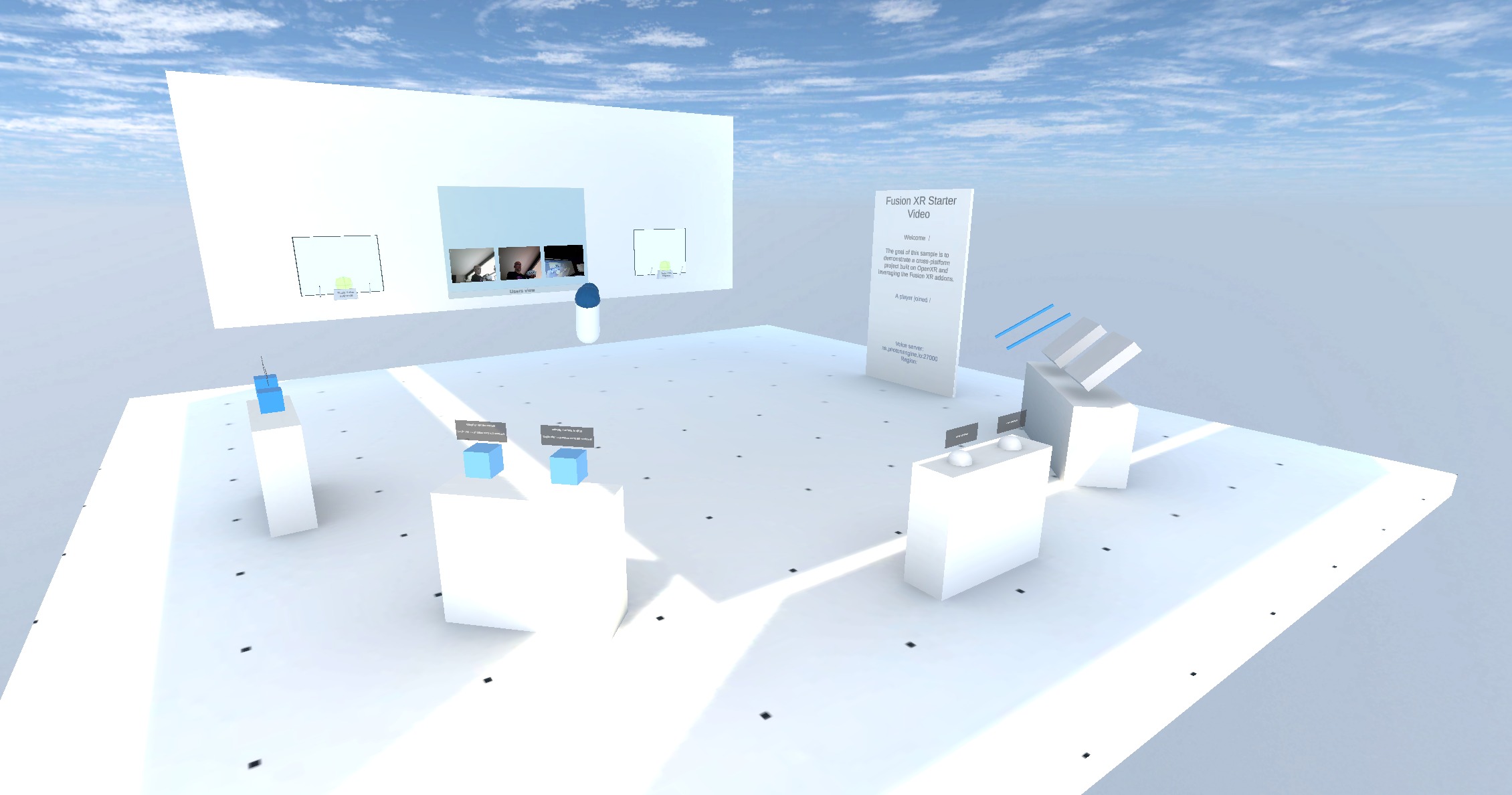
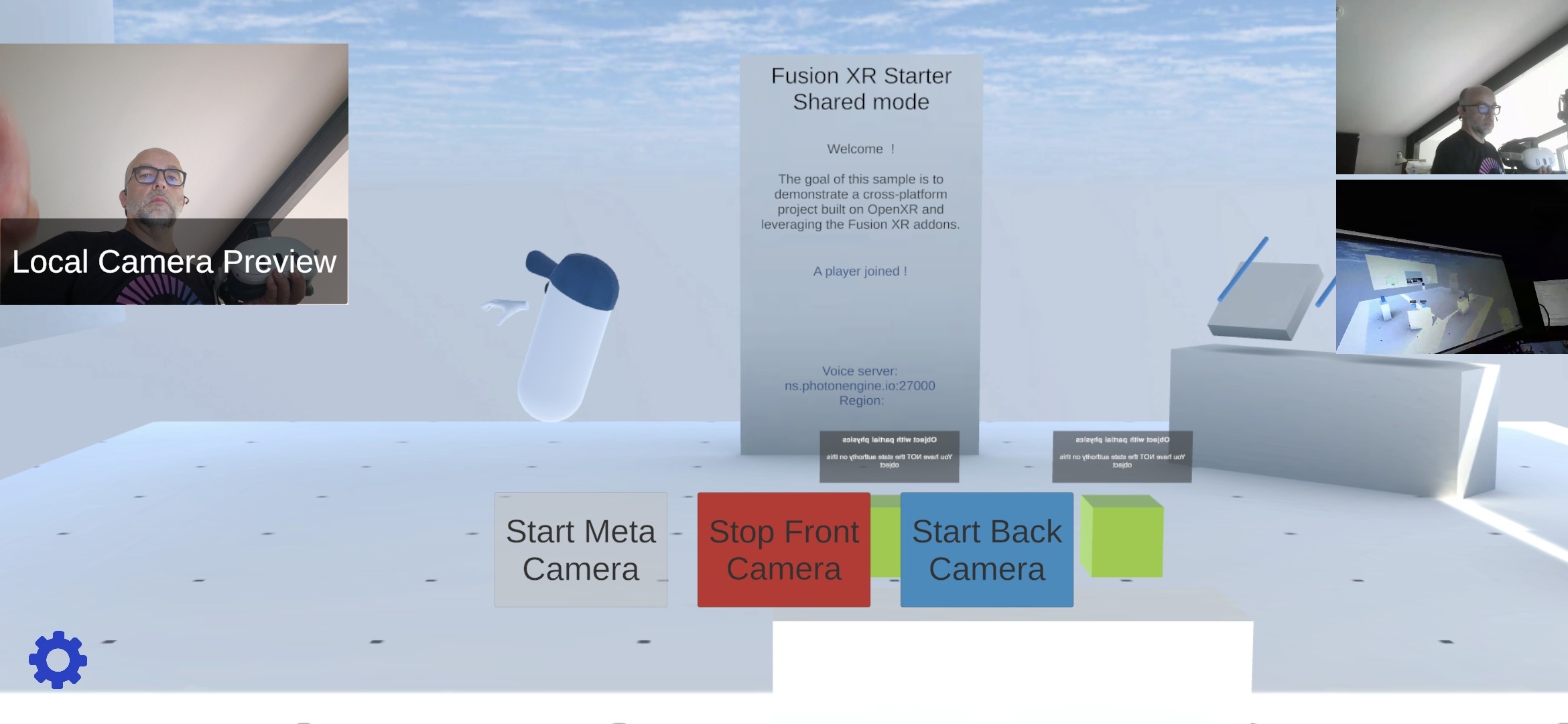
The Cross-platform XR Starter Video sample shares the same foundations (OpenXR & Fusion XR addons) as the Cross-platform XR Starter sample, but lets each user stream their camera, regardless of their platform. The video streams of remote users are displayed on the scene walls, and on the UI for mobile users. It is intended as a quick-start reference for developers who want to bootstrap a networked, multi-device XR experience with the Video SDK for camera streaming.
The supported platforms are:
- Android
- AndroidXR
- iOS
- macOS
- Meta Quest
- Meta Wearables
- WebGL
- Windows
Technical Info
- This sample uses the Shared Mode topology
- The project has been developed with Unity 6.3, Fusion 2.1.3 and Photon Voice & Video 2.64
- Device firmware version:
- Meta Quest v2.3 & v2.5
- Meta Ray-Ban Wayfarer G2 Firmware v129
- Meta Fury smart glasses Firmware v128
- Meta AI app v292
- Samsung Android v14
- Samsung Z Fold8 Android 17
- Samsung S24+ Android 16
- Samsung A16 Android 16
- iPhone iOS
Before you start
To run the sample:
Create a Fusion AppId in the PhotonEngine Dashboard and paste it into the
App Id Fusionfield in Real Time Settings (reachable from the Fusion menu).Create a Video AppId in the PhotonEngine Dashboard and paste it into the
App Id Videofield in Real Time Settings.If you plan to use Meta Wearables:
- Ensure you have a pair of Meta smart glasses paired with the Android device via the Meta AI app.
- The application must be deployed on an Android 12+ (API 31+) device.
- Developer Mode must be enabled in the Meta AI app (Settings → App Info, tap the version number five times, then turn on Developer Mode).
- The smart glasses must run the latest Meta DAT version (compatible with the DAT SDK v1.0 used by the sample), also shown in the Meta AI app.
- Set a
GITHUB_TOKENenvironment variable with a GitHub personal access token (classic) that has at leastread:packagesscope. This is required by the Unity Gradle build to download the Meta DAT SDK dependencies from GitHub Packages. See SDK for Android setup for details. - Select
Tools/Cross Platform XR Starter/Meta Wearable & Mobile Android build configurationbefore building (see Compilation). - On first launch, the sample registers itself with the Meta AI app (the Meta AI app opens and asks you to allow the connection). This registration is kept and it only has to be redone after:
- reinstalling the app,
- clearing its data,
- registering another DAT app (observed in Developer Mode).
Download
| Version | Release Date | Download |
|---|---|---|
| 2.1.3 | Sep 30, 2026 | Fusion Cross-platform XR Starter Video 2.1.3 |
Handling Input
Meta Quest / Samsung Android XR
- Teleport: press a stick or the dedicated teleport button to display a pointer. You will teleport on any accepted target on release.
- Touch: simply put your hand over a button to toggle it.
- Grab: put your hand over the object and grab it using the controller grab button, or pinch index and thumb when using hand tracking.
- Draw: grab a pen and press the trigger (or pinch while hand tracking) to draw on a whiteboard (2D) or in the air (3D). Change the selected color by pushing the controller stick up or down.
- Watch menu: look at your wrist to open the watch menu.
- Wrist button: open the network parameters panel.
- Watch face button: toggle between VR (fully immersive) and MR (passthrough) view. When passthrough is enabled, the floor and opaque walls are swapped for semi-transparent versions so you keep spatial references on the immersive scene while seeing the real environment.
- World-grab locomotion (passthrough mode only): grab the world around you to translate yourself within the scene.
Folder Structure
The main folder /Cross-platfom-xr-starter-Video contains all elements specific to this sample.
The /Cross-platfom-xr-starter folder contains all elements coming from the foundation sample.
The /Photon folder contains Fusion and the Photon Voice & Video SDK.
The /Photon/FusionAddons folder contains the XR Addons used in this sample.
The /Photon/PhotonVideoAddons/ folder contains the Meta Wearables and Meta Quest video SDK integration.
The /XR folder contains configuration files for XR.
Architecture overview
The Cross-platform XR Starter Video sample has very little custom code. The scene is mainly built by composing prefabs and components provided by the Fusion XR addons and the Video SDK. The Fusion XR addons cooperate to cover rig synchronization, interactions, voice, drawing, UI and feedback. The Video SDK components handle everything related to video streaming: emission, reception, and display.
Video Streaming
Adding video streaming for the different platforms did not require any specific development. It simply relies on the components provided by the Video SDK and the Platform-specific video senders addon.
Transport layer
The original sample uses Photon Fusion to synchronize the scene and Photon Voice for audio.
Therefore, it was not necessary to add a component to the scene to transport the video.
The Video SDK reuses the Photon Voice connection to establish and manage video streaming.
Here, the FusionVoiceSetupWithPermissionsRequester component located on Fusion's NetworkRunner ensures that a FusionVoiceClient is added, so that the connection is started alongside Fusion.
See the Video SDK Photon Connection documentation for more details.
Video Senders
Because this sample targets multiple platforms, the scene contains several video sender components responsible for sending video data, all inheriting from the VideoStreamSender class.
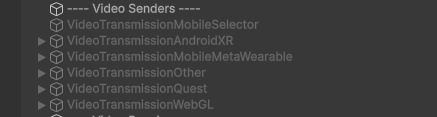
The scene uses the following video senders:
MetaPassthroughCameraVideoStreamSenderfor Meta Quest devicesMetaWearableVideoSenderfor Meta Wearable devicesNativeCameraStreamSenderfor WebGLWebcamTextureStreamSenderfor all other platforms (AndroidXR, Android, iOS, Windows, macOS)
Note that some video senders are configured to apply a material that modifies the texture before it is passed to the Video SDK to be streamed.
This is the case for the Meta Quest and Android XR video senders, where the DefaultFlippingTextureBrightenerUnlit material is used to brighten the image.
The selection of the video sender is automatically handled by the Extended Rig Selection.
See the Video SDK Video Sending documentation for more details.
Video Receiver
The VideoStreamReceiver component in the scene ensures that video streams emitted by other users in the room are detected.

See the Video SDK Video Reception documentation for more details.
Video Display
In this sample, the videos are displayed in the 3D scene, as well as in a 2D UI for non-XR platforms such as mobile or WebGL.
The Video SDK components offer many configurations to organize the video display. See the Video SDK Video Display documentation for more details.
World Space
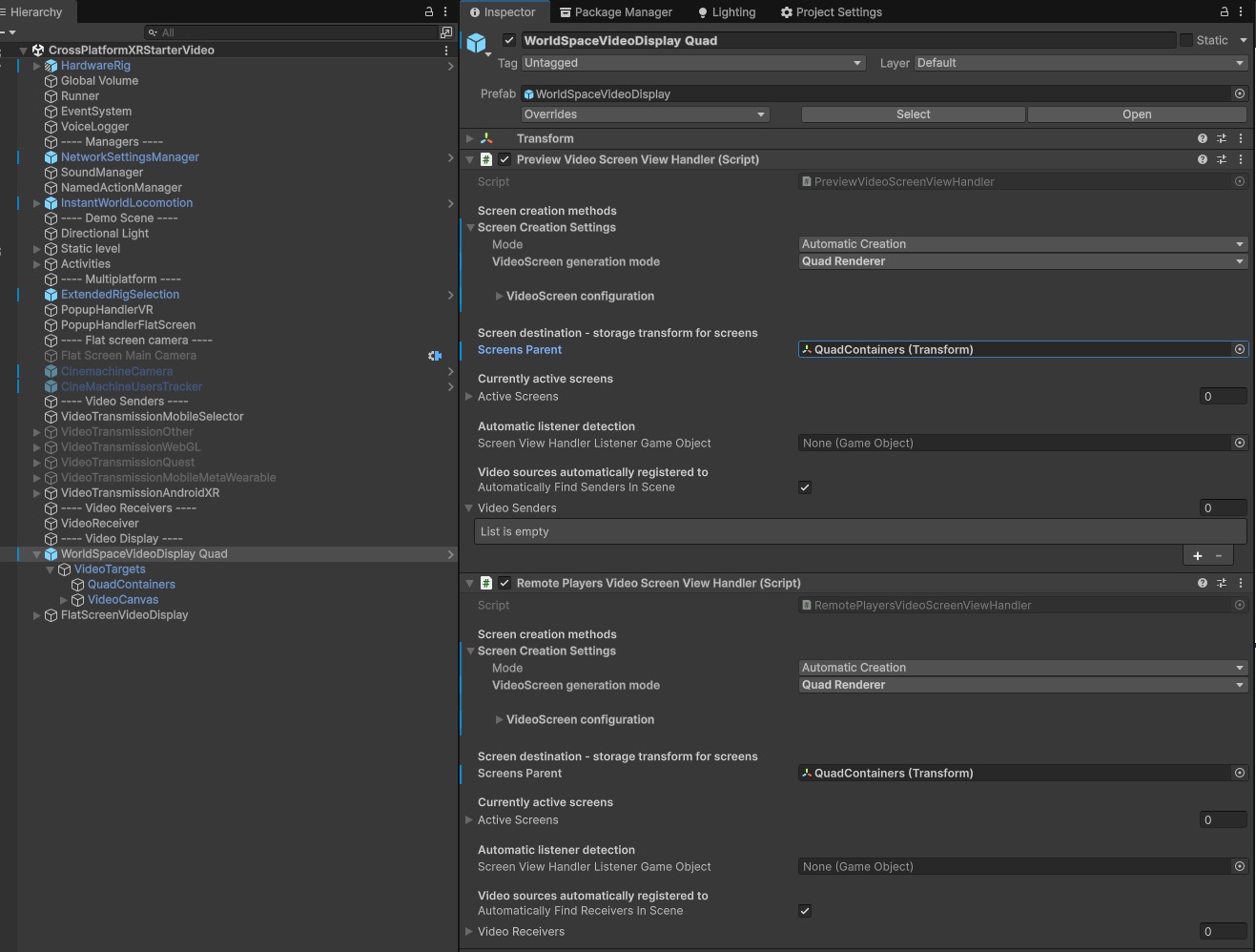
For all platforms, the local preview and remote users' videos are displayed on the 3D scene wall using the WorldSpaceVideoDisplay Quad game object.
It contains:
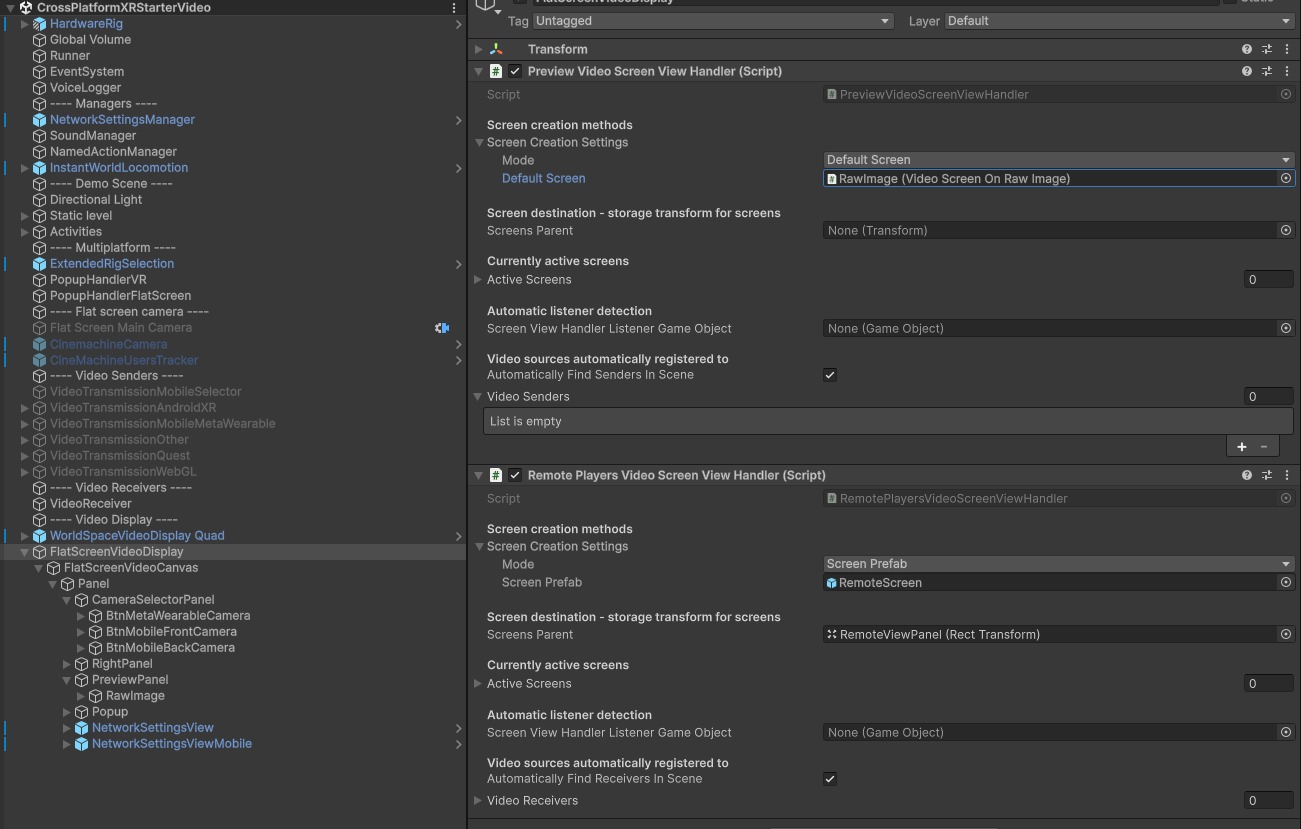
PreviewVideoScreenViewHandlerto display the local previewRemotePlayersVideoScreenViewHandlerto display remote users' videos
Both components are set to display the video on a Quad and share the same container. The screens are automatically organized via the TransformsFlatGridLayout component.
Flat Screen
For non-XR devices, the videos are also displayed in a 2D UI via the FlatScreenVideoDisplay game object.
In the same way as for the World Space display, the PreviewVideoScreenViewHandler and RemotePlayersVideoScreenViewHandler components are used to display the local preview and remote users' videos respectively.
However, here the preview is displayed in a RawImage, while a RemoteScreen prefab is spawned for each remote user.
Permissions
Streaming video and audio requires runtime permissions (camera, microphone, and on some platforms Bluetooth or headset camera access). Declaring a permission in the Android Manifest is not enough: on Android, camera and microphone are "dangerous" permissions that must also be requested at runtime. The sample does not use a dedicated scene component to request the camera permission: each video sender requests the permission it needs, when it starts sending.
To avoid conflicting permission popups (Android can only display one request at a time), all requests are queued in a PermissionsRequester singleton, which processes them one after the other.
Note that two PermissionsRequester implementations coexist in the project:
Fusion.XRShared.Tools.PermissionsRequester, used by the Fusion Voice helpers for the microphone,Photon.Voice.PermissionsRequester, used by the Video SDK senders and by the Meta Wearables integration.
Both are created automatically on first use, so there is nothing to add to the scene.
Microphone
The FusionVoiceSetupWithPermissionsRequester component located on the NetworkRunner adds a FusionVoiceClientPermissionWaiter on the FusionVoiceClient.
This waiter prevents the Recorder from recording when the room is joined (recordWhenJoined is set to false) until the RECORD_AUDIO permission has been granted, then restarts the recording.
Camera
When a video sender starts sending (for instance when sendOnJoinRoom is enabled and the room is joined), VideoStreamSender.CreateStreamCoroutine() calls RequestRecordingPermissions(), and then waits for IsRecordingPossible() to return true before creating the stream.
Each video sender overrides RequestRecordingPermissions() for its platform:
WebcamTextureStreamSenderandNativeCameraStreamSender: requestandroid.permission.CAMERAon Android (including Android XR devices), andUserAuthorization.WebCamon other platforms. On WebGL, the browser handles the request itself.MetaPassthroughCameraVideoStreamSender: requests the Meta Quest passthrough camera permission (horizonos.permission.HEADSET_CAMERA). ThePassthroughCameraAccessPermissionWaiterplaced next to thePassthroughCameraAccesscomponent preventsOVRManagerfrom requesting this permission itself at startup, so that the request goes through thePermissionsRequesterqueue.MetaWearableVideoSender: the camera belongs to the glasses, so access is not granted through an Android permission but through the Meta AI application, using the Meta Wearables SDK (MetaWearablesManager.CheckCameraPermission()/RequestCameraPermission()). On the phone side,MetaWearablesManageronly requestsBLUETOOTH_CONNECTandRECORD_AUDIO.
The permissions are also declared in Assets/Plugins/Android/AndroidManifest.xml (android.permission.CAMERA and horizonos.permission.HEADSET_CAMERA).
Sample-specific Code
Mobile Camera Selection
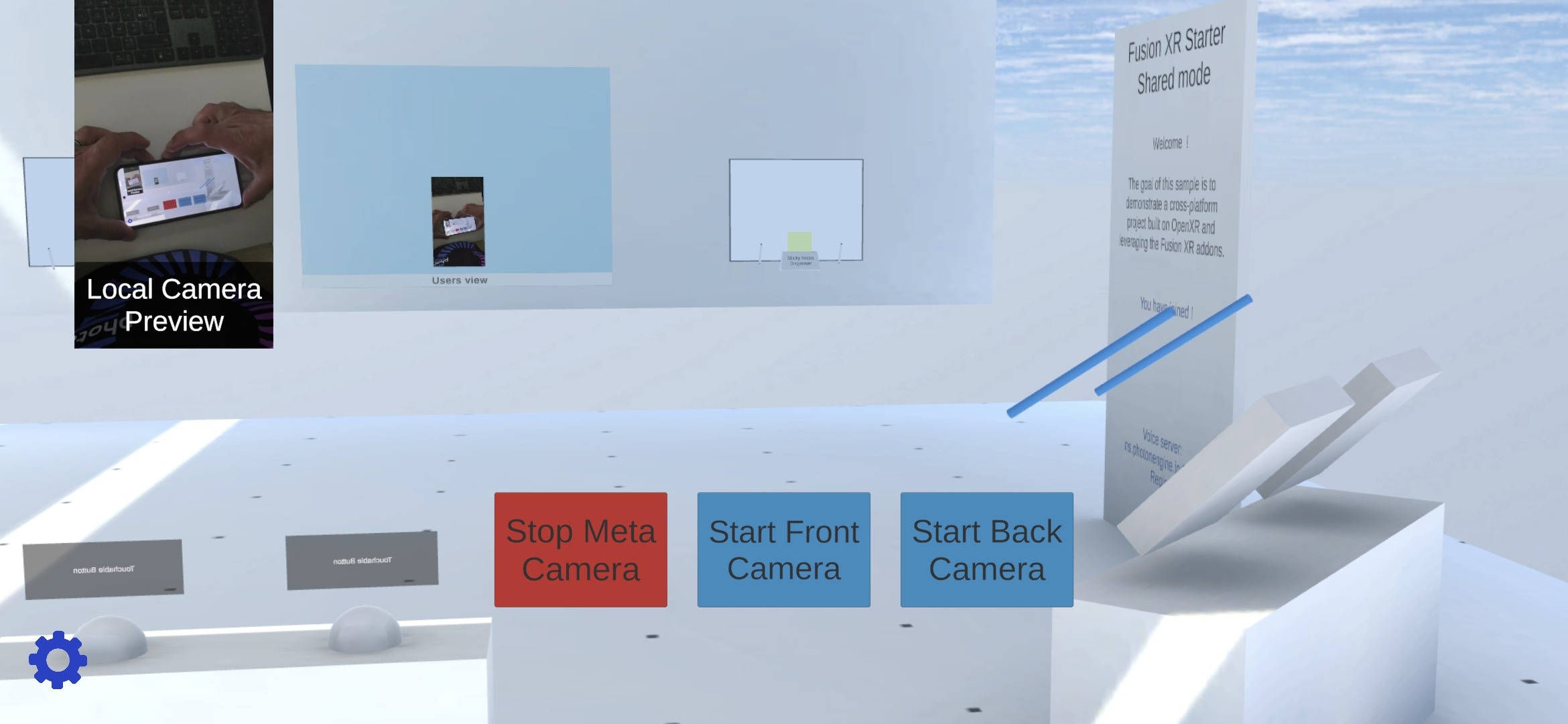
MobileCameraUISelector manages the UI buttons for mobile.
The Meta Wearable button is displayed only if the application and the device are registered with the Meta AI application. In addition, the button is interactable only if the Meta Wearable device is connected and the connection to the Photon Voice servers is established. While the glasses are folded, the button can only stop an active stream.
Two other buttons allow you to start/stop streaming from the front & back cameras.
Depending on the button selected by the user, the component activates either the MetaWearableVideoSender specific to Meta Wearable devices, or the generic WebcamTextureStreamSender video sender.
Notification display
To inform the user about the connection events that may occur, we developed two scripts:
- one for the connection to the Voice servers,
- and another for the connection to the Meta Wearable devices.
Voice Connection
VoiceServerInfoDisplay simply displays the address and region of the voice server the client connected to.
Meta Wearable Bridge
MetaWearableBridgeErrorNotifier registers with the MetaWearablesBridge to receive and display popup notifications for events related to the Meta Wearables (initialization, registration, permission, errors).
Compilation
Some platforms require specific build settings.
We have added the Tools/Cross Platform XR Starter Unity editor menu to help you configure the project for your target.
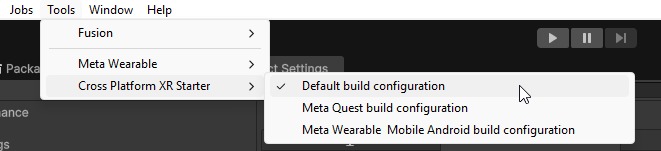
Here are the configuration steps performed by each menu entry:
- Meta Quest build configuration:
- changes the Gradle configuration to disable the Meta DAT compilation
- disables the Meta Wearable plugin
- enables the OpenXR settings required for XR devices
- restores the Android Manifest
- adds the Meta MRUK package for camera access
- Meta Wearable & Mobile Android build configuration:
- enables the Meta Wearable plugin
- changes the Gradle configuration to enable the Meta DAT compilation
- disables OpenXR
- disables the Android Manifest
- removes the Meta MRUK package if installed previously
- sets the player orientation to auto-rotation
- Default build configuration (it is the recommended configuration for all other XR platforms)
- changes the Gradle configuration to disable the Meta DAT compilation
- disables the Meta Wearable plugin
- enables the OpenXR settings required for XR devices
- restores the Android Manifest
- removes the Meta MRUK package if installed previously
- sets the player orientation to auto-rotation
See the CrossPlatformXRstarterVideoBuildHelper scripts for more details.
In addition to the project settings, some scene adaptations are required for each platform. This is managed by the Extended Rig Selection addon described below.
Used XR Addons
To make it easy for everyone to get started with their XR project prototyping, we provide a comprehensive list of reusable addons. See XR Addons for more details.
Below, we only cover the addons that are specifically relevant to the video variant of this sample. For the other features, please refer to the original project Cross-platform XR Starter.
Extended Rig Selection
Because this sample targets multiple platforms, the Extended Rig Selection addon plays a key role here. It is used to enable/disable scene GameObjects based on the platform.
As you can see in the image below, there are multiple scene configurations:
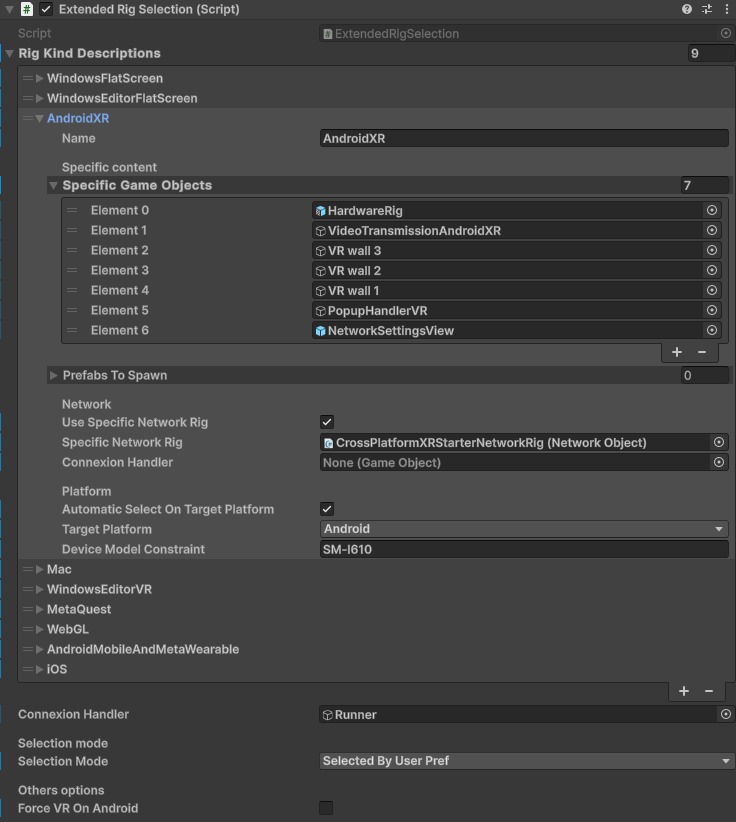
To configure the profile associated with each supported platform, the questions we considered were:
- should an XR or non-XR rig be spawned for the user on this platform?
- should the complementary 2D UI be displayed (camera video display + settings)?
- which video sender should be enabled for this platform?
- should the complementary external camera system be enabled (required to aim the camera on non-XR platforms)?
- are there any scene elements that are not needed (some walls are disabled on non-XR platforms)?
- for this platform, should this profile be limited to a specific device model?
Note that the selected rig is saved in the PlayerPrefs and, as the selection mode is SelectedByUserPref, this saved preference takes precedence over the automatic selection on the next launches.
So, if you add a device model constraint for a device on which the application has already been launched, clear the application data (or uninstall it) so that the new profile is selected.
Also, the device model constraint is checked with a case-insensitive Contains on SystemInfo.deviceModel, and the | separated values are not trimmed: avoid spaces around the | separator.
See Extended Rig Selection XR Addon for more details.
3rd Party Assets and Attributions
The sample is built around several awesome third-party assets:
- Meta Lipsync
- Meta Sample Framework hands
- Sounds