Quick Start Guide (Shared-Authority)
This is the Shared-Authority quick start. Looking for the Client-Server Quick Start? Not sure which to pick? See Choose a Topology.
Fusion Godot SDK 3 is a development preview and is not intended for production use yet.
Introduction
This guide shows how to build a simple multiplayer game/application using the Photon Fusion GDExtension for Godot 4.6. It covers app id creation, connection, spawning, movement replication, custom properties and RPCs. By the end, two clients will move around the same room and see each other in real time.
Requirements: Installed Godot 4.6 editor and basic knowledge of GDScript and Godot.
Step 1 - Photon Account and App IDs
Fusion runs on the Photon Cloud. The App ID ties your project to a backend that handles connection, authentication, matchmaking and finally state distribution. Follow these steps to create a new App ID to use for the rest of this guide:
- Create or log on to an account at dashboard.photonengine.com.
- Click Create a New App, select Fusion as the SDK, and Version 3 (used for both Unreal and Godot).
- Copy the App ID.
While logged on for the App ID creation, you can also proceed to the next step and download the SDK.
Step 2 - Download and Install the SDK
Photon Fusion Godot is a GDExtension add-on: a compiled library (for multiple platforms) plus a .gdextension descriptor. Drop it in and Godot picks it up, no engine rebuild needed.
- Download from SDK Download.
- Unpack and copy the
fusion/folder intoaddons/in your project root. - Reopen the project and Godot will load the GDExtension automatically.
Now the addon is registered, and its settings can be modified. On to the next step.
Step 3 - Fusion GDExtension Settings
Photon Fusion picks up pre-defined credentials from Project Settings when you call connect_to_photon(). Set your credentials in Project Settings > Fusion > Connection (notice that external GDExtensions settings will only show up if you use the search field, or enable "advanced" settings and scrolling through the list):
app_id- your Photon App ID created on step 1.app_version- a version string can be used to isolate matchmaking (e.g."1.0")default_region- Photon region (e.g."us","eu")
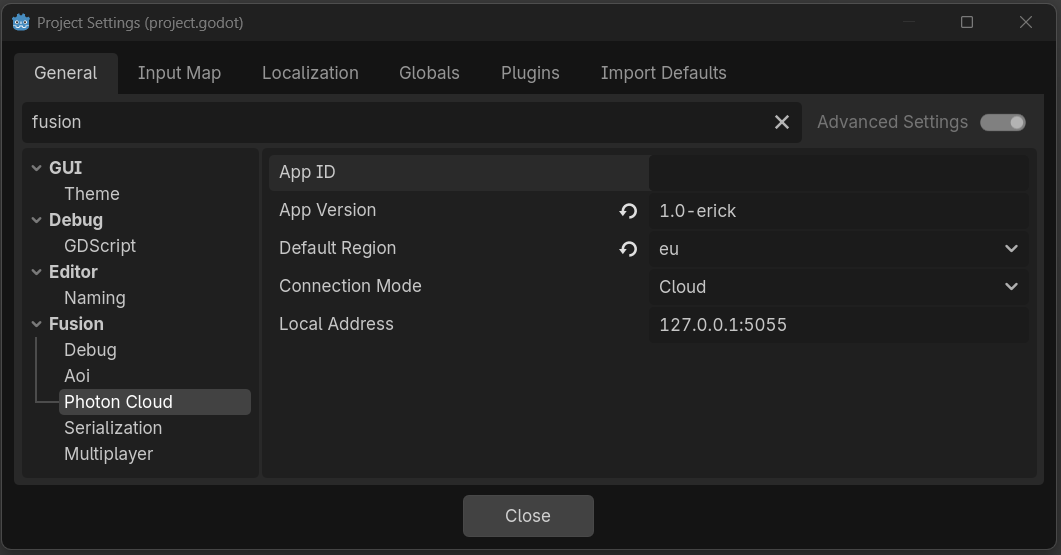
With basic credentials set, it's time to prepare a main scene.
Step 4 - Main Scene
In Godot, everything is organized in scenes, which are organized as node trees. A main scene is an entry point from where you can load others, start a game, etc.
For this guide, the main scene's role is to connect to Fusion's Photon infrastructure, create/join a room, and spawn a client-controlled object (a small Godot scene to represent the "player"). For this, the scene must contain an instance of the FusionSpawner node (the factory for networked objects), besides the connection logic.
Here's an example of how this scene can be structured using Node2D as the root. It should contain the following child nodes: a Button to trigger the connection, and a FusionSpawner (that will be used to spawn player scenes later):
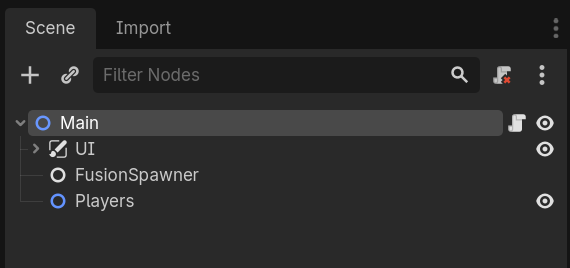
And here the first portion of a GDScript to:
- hold references to the spawner node, a connect button, and a scene to be spawned as the Player
- register signals for the connect button (to connect and join a room), and for when a room is joined (so the Player scene can be spawned)
- register the spawnable scene into the spawner node (this can also be done via the inspector)
GDScript
extends Node2D

const PlayerScene = preload("res://player.tscn")

@onready var spawner: FusionSpawner = $FusionSpawner
@onready var connect_button: Button = $UIConnectButton

func _ready():
    Fusion.room_joined.connect(_on_room_joined)
    connect_button.pressed.connect(_connect_and_join_room)
    spawner.add_spawnable_scene(PlayerScene)
When using a scene setup like in the image above this script can be attached to the root node of this starting scene. Notice that both signals still need their registered functions to be implemented. The Godot editor should also complain about the missing player scene resource. Lets take care of all these now, one by one.
Step 5 - Connect and Join
Connection is a two-step flow: reach the Photon master server first, then join or create a room. The room is where replication and RPCs actually happen. The function below will be called when the connect button is pressed, and the lambda function registered to the connected_to_photon signal tells Fusion to immediately try to join a room or create one in case there is none currently:
GDScript
func _connect_and_join_room():
    print("clicked connect")
    var user_id = "user_%d" % randi()
    Fusion.connect_to_photon(user_id)
    Fusion.connected_to_photon.connect(func():
        print("trying to join/create room as user: ", user_id)
        Fusion.join_or_create_room()
    )
Once in a room, you are ready to spawn and control other node trees. The only missing piece now is the function connected to the room_joined signal.
Step 6 - Player Scene
Each player is its own (small) scene with a FusionSharedReplicator child. The replicator is the node used to define what gets synced over the network: for now, set its root replication mode to AUTO and it will pick the right basic transform properties for your root node type.
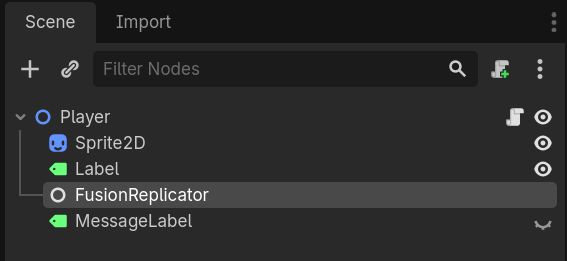
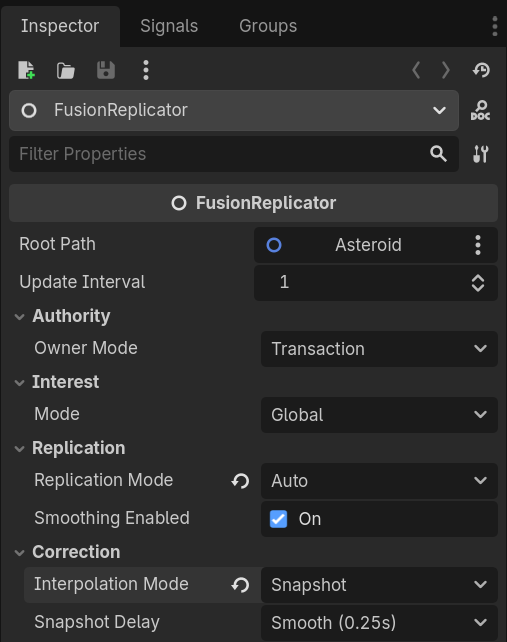
AUTO syncs position and rotation (and velocities if root node is RigidBody or Character) automatically with smoothing selected based on root node type.
Now spawning can be triggered when a client enters the room.
Step 7 - Spawn on Join
When the room_joined signal fires from the Fusion singleton (this was registered on step 4), it will spawn a player instance. FusionSpawner handles the network side: it assigns a unique ID, sends a spawn message to the cloud-based server, which is propagated to the other clients that then create a matching instance. This is also automatically handled for late joiners, as the server will be responsible for caching and distributing not only the spawn/destroy, but also the current state of every networked scene/object.
GDScript
func _on_room_joined():
    var pos = Vector2(randf_range(100, 700), randf_range(100, 500))
    var player = spawner.spawn()
    player.position = pos
    print("joined room and spawned player scene at: ", pos)
The scripts should be working now, and it is possible to connect to Photon, create/join rooms. The player scene now is also being spawned but sits still. Let's add input to move it around.
Step 8 - Movement
Only the authority client (in this case the one that spawned it) should process input. Everyone else will automatically get the position updates through replication and the replicator also smooths it automatically. Here is the code for the GDScript to be attached to the player scene.
GDScript
extends Node2D

const SPEED := 200.0
@onready var sync: FusionSharedReplicator = $FusionSharedReplicator

func _process(delta):
    if sync.has_authority():
        var dir = Input.get_vector("ui_left", "ui_right", "ui_up", "ui_down")
        position += dir * SPEED * delta

func _ready():
    $Sprite2D.modulate = Color.GREEN if sync.has_authority() else Color.RED
To test, you can add this script to the root Player node.
When _ready signal is called (both on the client that creates, and remote ones), Fusion will already correctly indicate if the object can be controlled locally. The script above assigns a color based on that, so remote and local spawned objects can be distinguished.
It also controls object movement based on the authority information. This means only the client who "owns" this object can apply changes to it (remote clients should not write to objects they do not own, as this would not be propagated anyway, neither from its client, nor by the server).
Step 9 - Test
Godot can easily launch multiple instances from the same editor, which makes local testing straightforward.
- Set Debug > Customize Run Instances... > Enable Multiple Instances > check the checkmark and set to 2.
- Press Play, both instances should connect (or click Connect in each window if a button was used).
Both clients join the same room and should see each other's player scenes/objects. That covers the core loop. The next two steps layer on gameplay features.
Step 10 - Custom Properties
Positions can be easily replicated using AUTO mode, but gameplay data like health, score or other more specific data needs to be added manually. Open the FusionSharedReplicator's bottom panel to register custom properties from any part of the spawnable scene. They will be replicated automatically alongside the root properties.

Notice that Godot´s setter semantics can be conveniently used to intercept modifications to any property both on owner/authority and remote clients.
GDScript
var player_name: String = "":
    set(value):
        player_name = value
        $Label.text = value
This code automatically sets the text value of the label when the custom replicated property is changed.
To test you can add this variable to the movement script on the Player node and then add Player:player_name to the FusionSharedReplicator.
Finally, for instance the player_name can be set in _ready() of the same movement script like this:
GDScript
if sync.has_authority():
    player_name = "Player" + str(Fusion.get_local_player_id())
See Replication for how other property types and arrays are replicated.
Step 11 - RPCs
Not everything in a game is continuous state. One-shot events like chat messages, hit notifications or ability triggers (anything that requires a modification on an object the local client does not own, for example) may be better sent as RPCs. Be aware that RPCs fire once, and while they are reliably delivered, they are not stored in server state buffer, so late joiners won't receive them.
GDScript
@rpc("any_peer", "call_local")
func show_message(text: String):
    $MessageLabel.text = text

func send_message():
    Fusion.rpc(show_message, "Hello!")
To test the RPCs you can add the above code to the movement script and then also extend the _process function inside the has_authority() check with the following:
GDScript
if Input.is_key_pressed(KEY_E):
    send_message()
After that when you press play and after pressing the E key, the MessageLabel is update to Hello! on both clients.
See RPCs for broadcast RPCs and more target delivery variations.
Next Steps
This guide covered basics of connect, spawn, replicate, RPCs. Each of these topics has a dedicated manual page that goes deeper. Here is a list of suggested next learning steps:
- Connection - full connection lifecycle
- Replication - authority and replication modes
- Spawning - spawn configuration and sub-objects
- RPCs - object and broadcast RPCs
- Physics Replication - forecast smoothing
- Large Scenes - pre-placed networked nodes
- Introduction
- Step 1 - Photon Account and App IDs
- Step 2 - Download and Install the SDK
- Step 3 - Fusion GDExtension Settings
- Step 4 - Main Scene
- Step 5 - Connect and Join
- Step 6 - Player Scene
- Step 7 - Spawn on Join
- Step 8 - Movement
- Step 9 - Test
- Step 10 - Custom Properties
- Step 11 - RPCs
- Next Steps