Inspector
Fusion Inspector is a tool for visualizing and debugging projects built with Photon Fusion. It provides detailed insights into networked objects and components — all in real time.
Download
| Version | Release Date | Download |
|---|---|---|
| 2.1.0 | 7月 28, 2026 | Fusion Inspector 2.1.0 |
| 2.0.4 | 6月 26, 2026 | Fusion Inspector 2.0.4 |
Features
- Inspect networked Scene Objects, Prefabs, and Components
- Track RPCs — Configuration, # of sent / received RPCs, event log
- Track usage of Fusion-specific methods and interfaces
- Audit networked state sizes and overall network traffic
- Understand component usage across scene objects and prefabs
- Detect networked object misconfigurations
- Realtime metrics for Play mode
- Powerful sorting and filtering
Overview
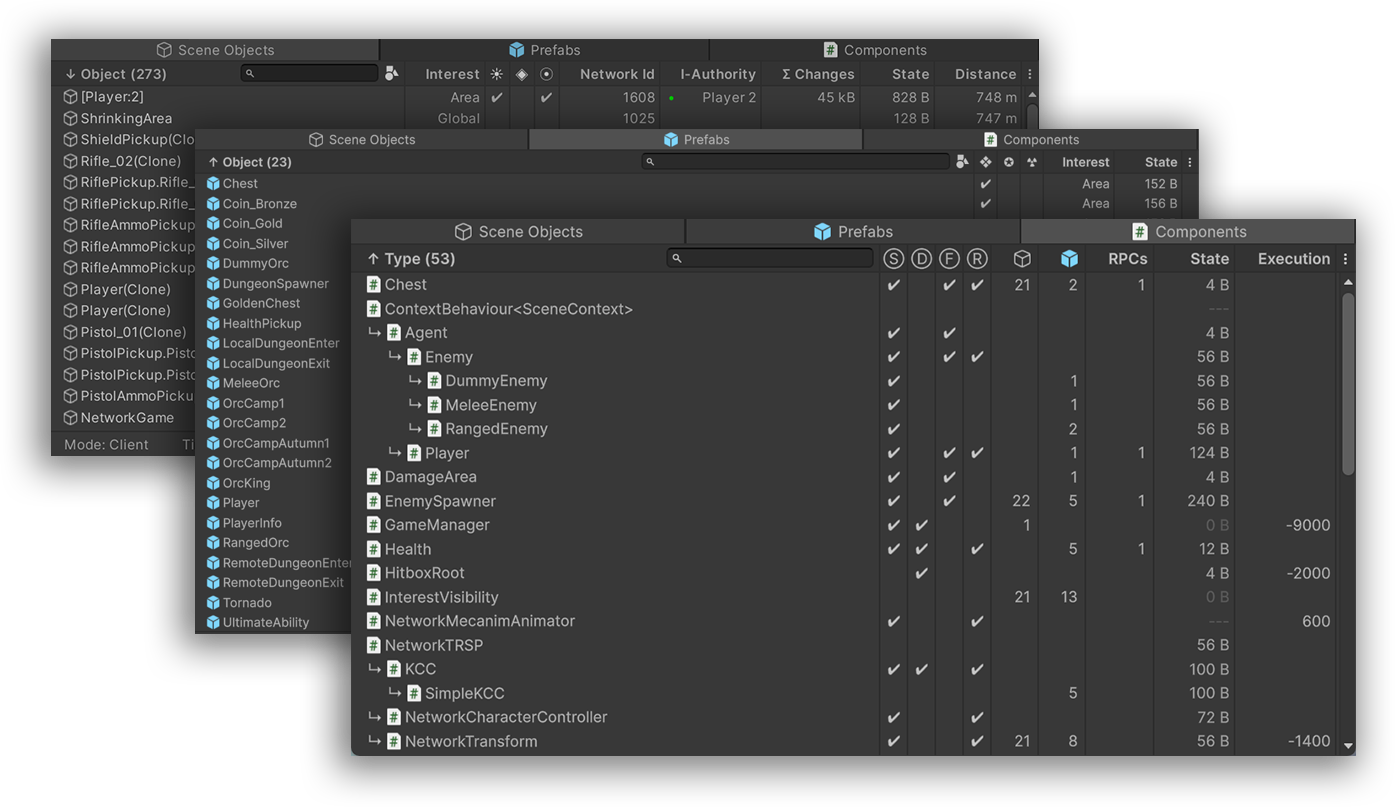
Fusion Inspector is available through editor menu using Tools => Fusion => Inspector and offers four primary sections:
- Scene Objects — shows all networked objects in the current scene, their configurations and runtime statistics
- Prefabs — shows all networked prefabs and their configurations
- Components — shows all scripts derived from
NetworkBehaviour - RPCs — shows all RPC methods declared in
NetworkBehaviourscripts, their configuration and RPC events (recorded at runtime)
All sections are fully functional in both Edit Mode and Play Mode. While in play mode, Scene Objects, Components and RPCs provide additional information and statistics.
💡 When multiple runners are active (for example in multi-peer mode), a runner selector appears in the header. Scene objects, RPC events and runtime statistics are then displayed for the selected runner.
💡 The addon also provides a toolbar overlay for quick access to the Fusion Inspector.

Scene Objects
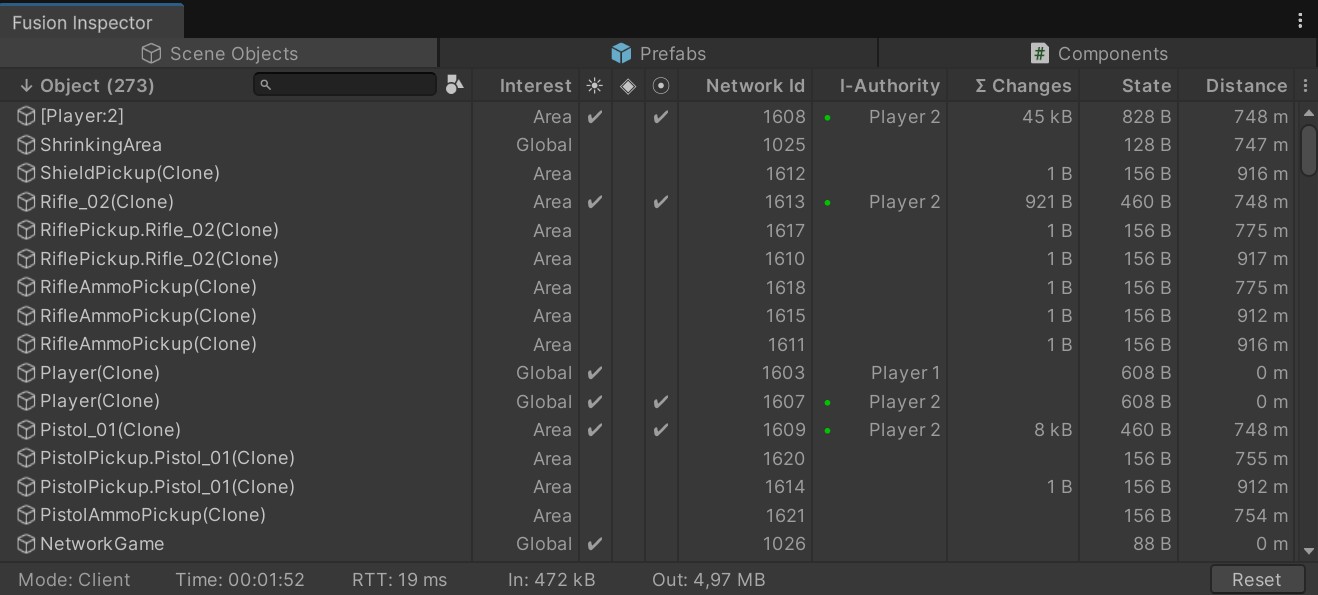
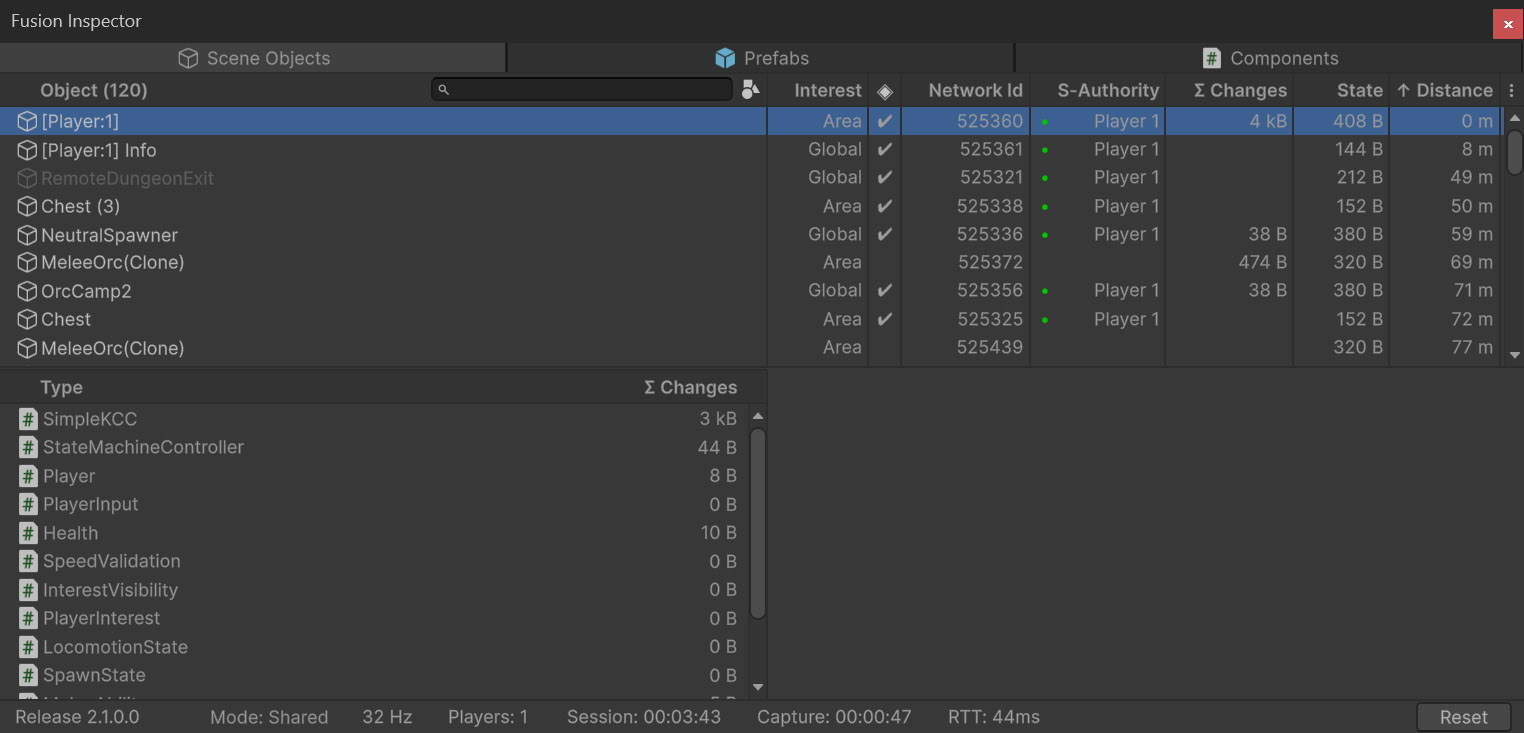
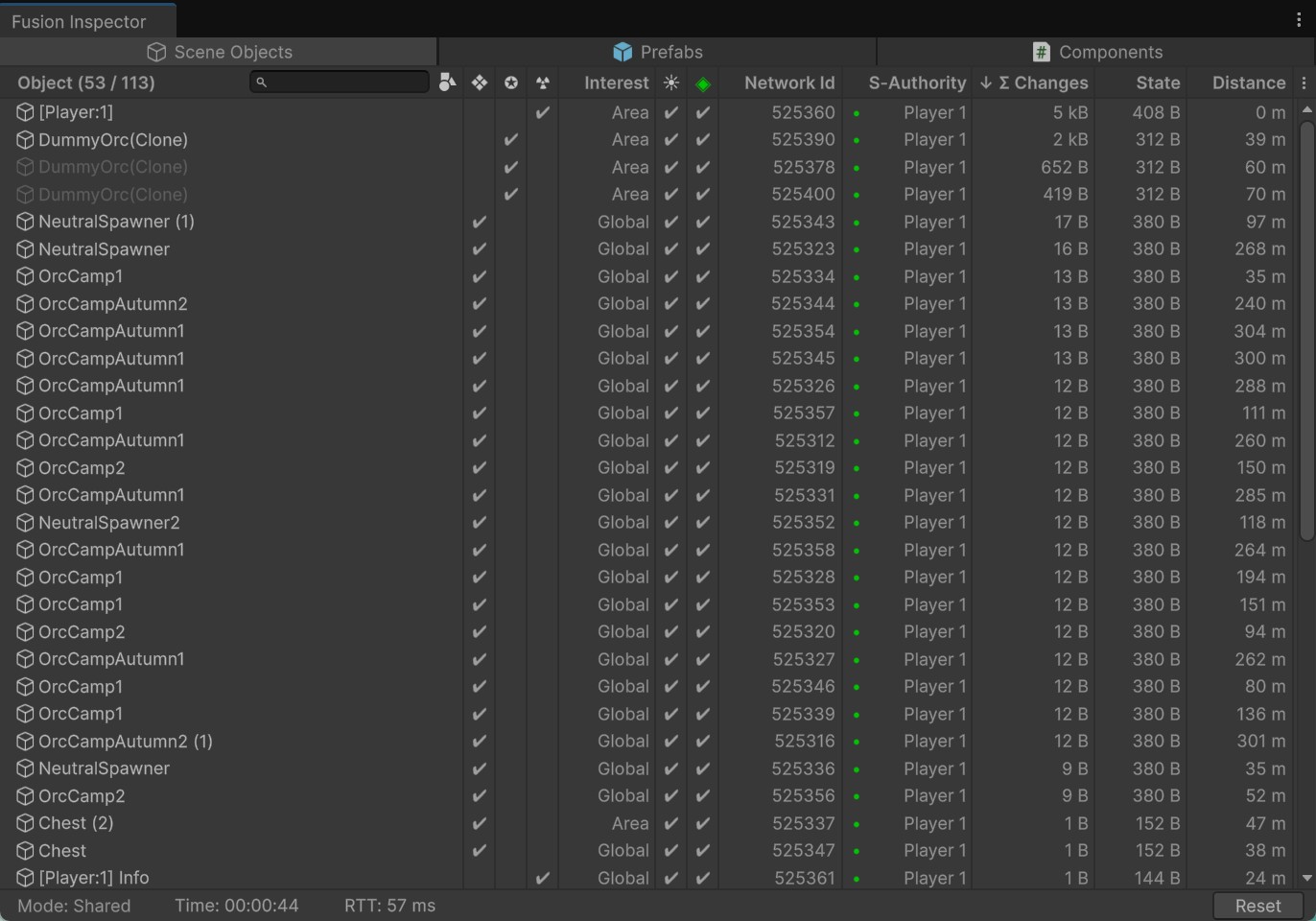
The Scene Objects section displays all networked objects present in the currently loaded scene.
Items Available
- Object reference (double-click to select)
- Configuration (configurable properties on the NetworkObject)
- Runtime (information shown during active session)
- Networked State Size of the whole object
- Distance from Player Object (if available) / Main camera / Editor camera
- Local player indicators - green / yellow dot next to objects with local state / input authority, green player labels
- Total row with summed values
- Object Name Filter
- Filter By Components
- Quick filter actions in context menus (right mouse button click) - by authority player, interest mode and object name, active filters shown in a bar below the header
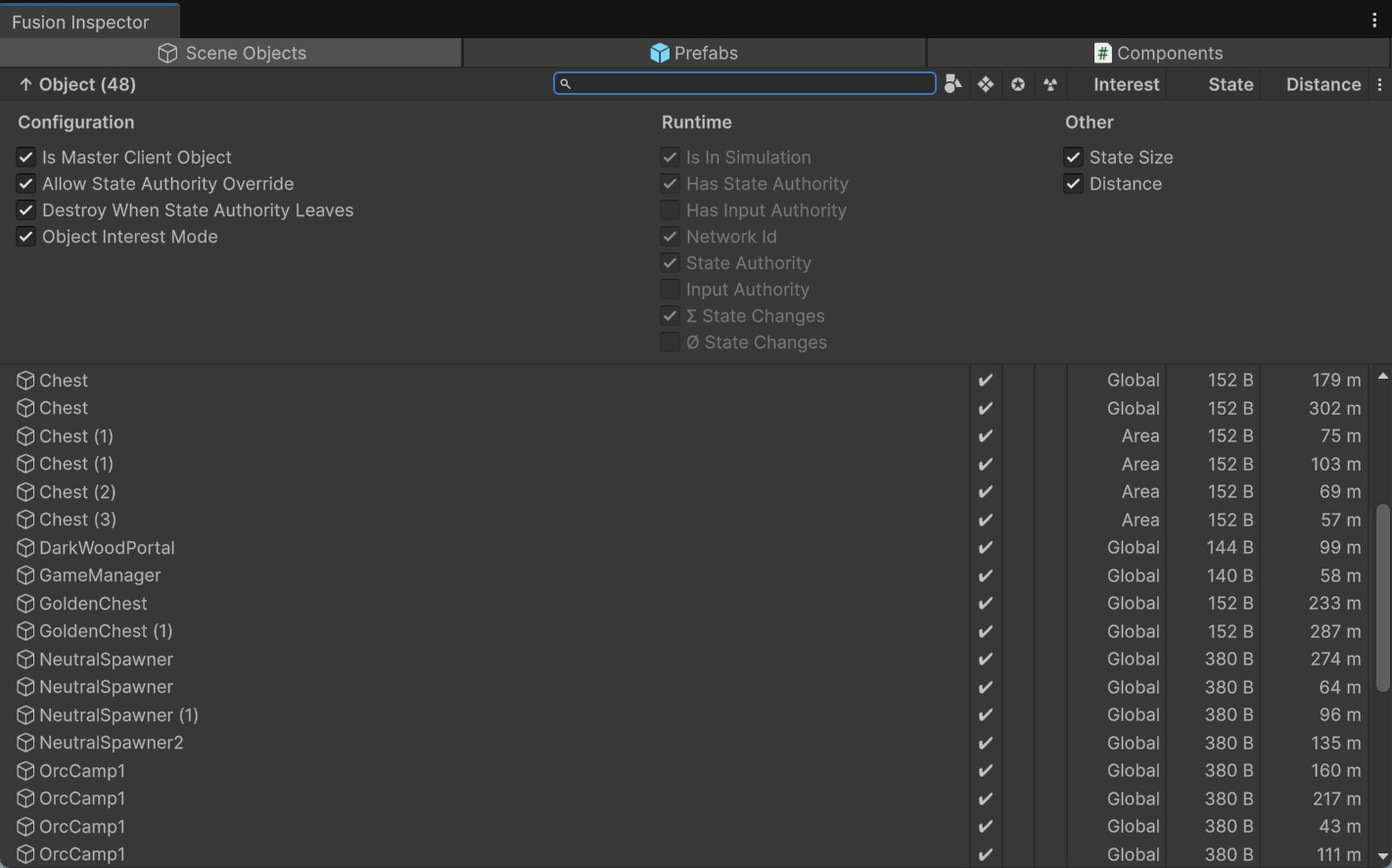
- Field Selectors (open in the picture above)
Use-Cases
- Audit of non-prefab networked objects - Shared Mode related properties, Object Interest Mode, networked state size of the whole object
- Quick distance based check of specific objects - for example # of chests in 50m from current camera position
- Runtime state authority check in Shared Mode, input authority check in Client/Server
- Tracking of Total State Changes - helps identifying objects which generate a lot of network traffic, for example a falling object
- Tracking of Average State Changes - helps identifying local state change peaks, for example during specific gameplay events
- Fast object lookup based on component types, NetworkId, Distance
Selection
The Scene Objects section supports object selection (Ctrl/Shift to select more objects). New window appears for selected objects and shows more details - state size of components in edit mode and component state changes in play mode. This feature can be used to narrow down which NetworkBehaviour changes and how often - for a specific object.
Prefabs
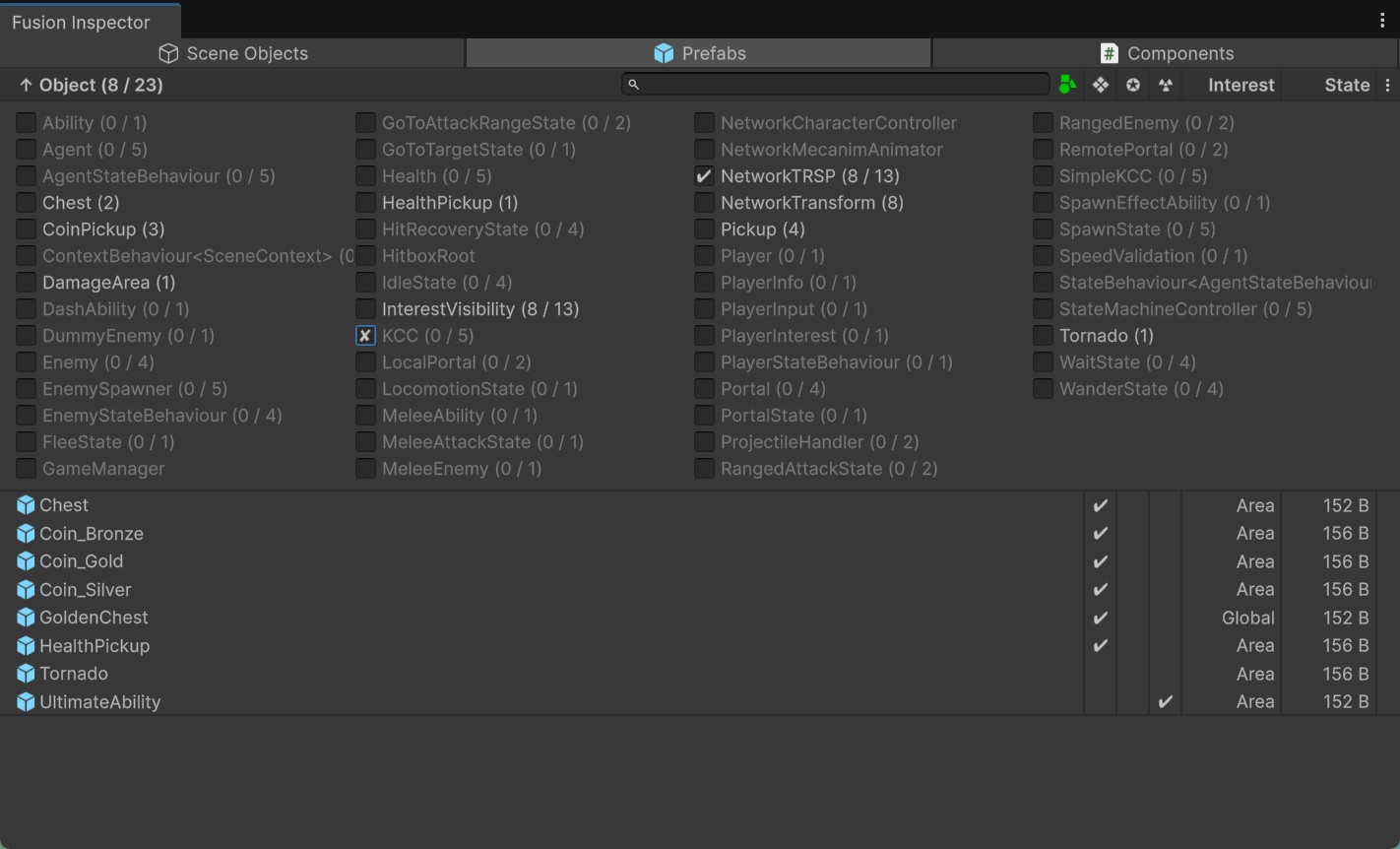
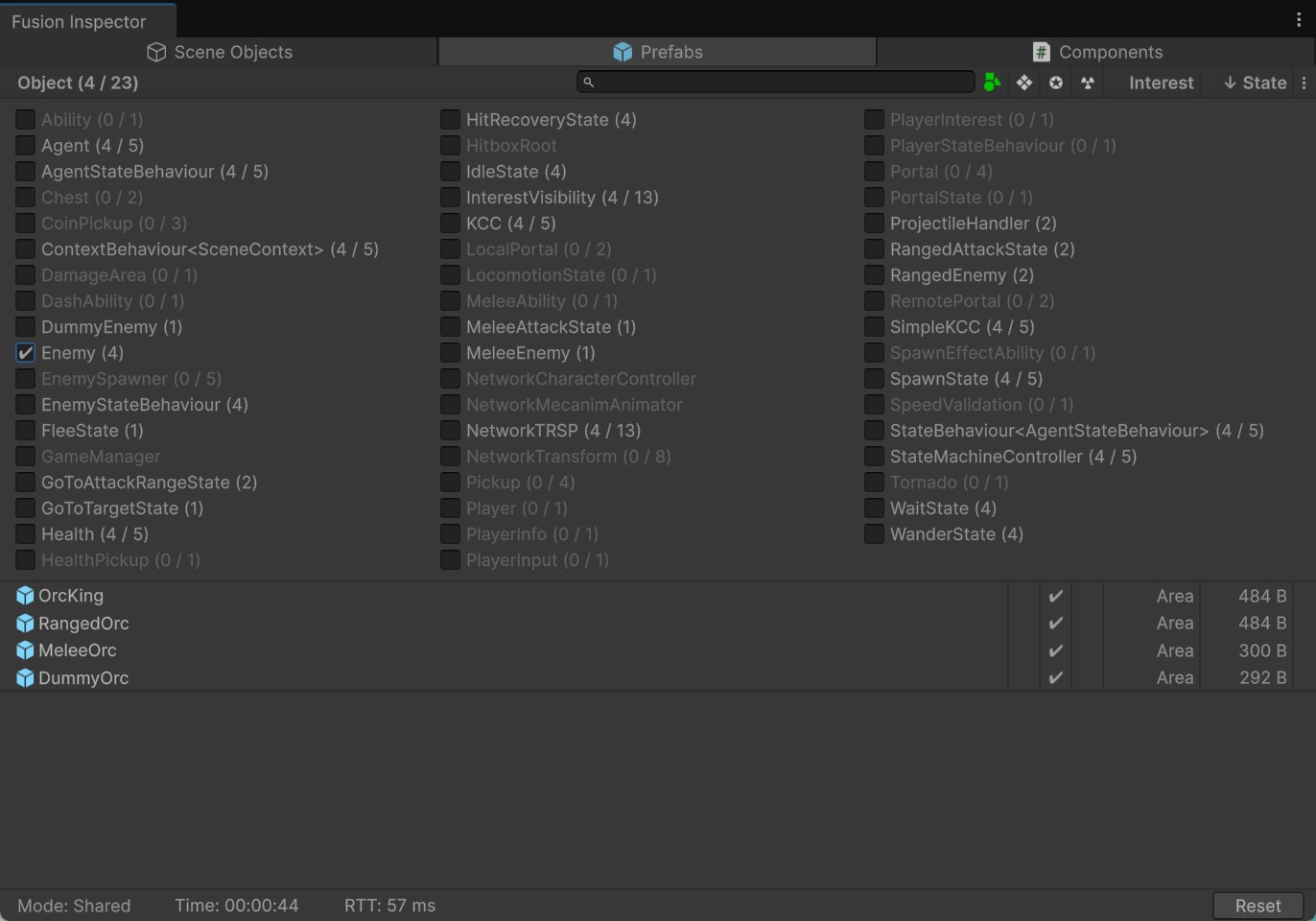
The Prefabs section displays all networked prefab objects.
Items Available
- Object reference (double-click to select)
- Configuration (configurable properties on the NetworkObject)
- Networked State Size of the whole object (expected at spawn time)
- Total row with summed values
- Object Name Filter
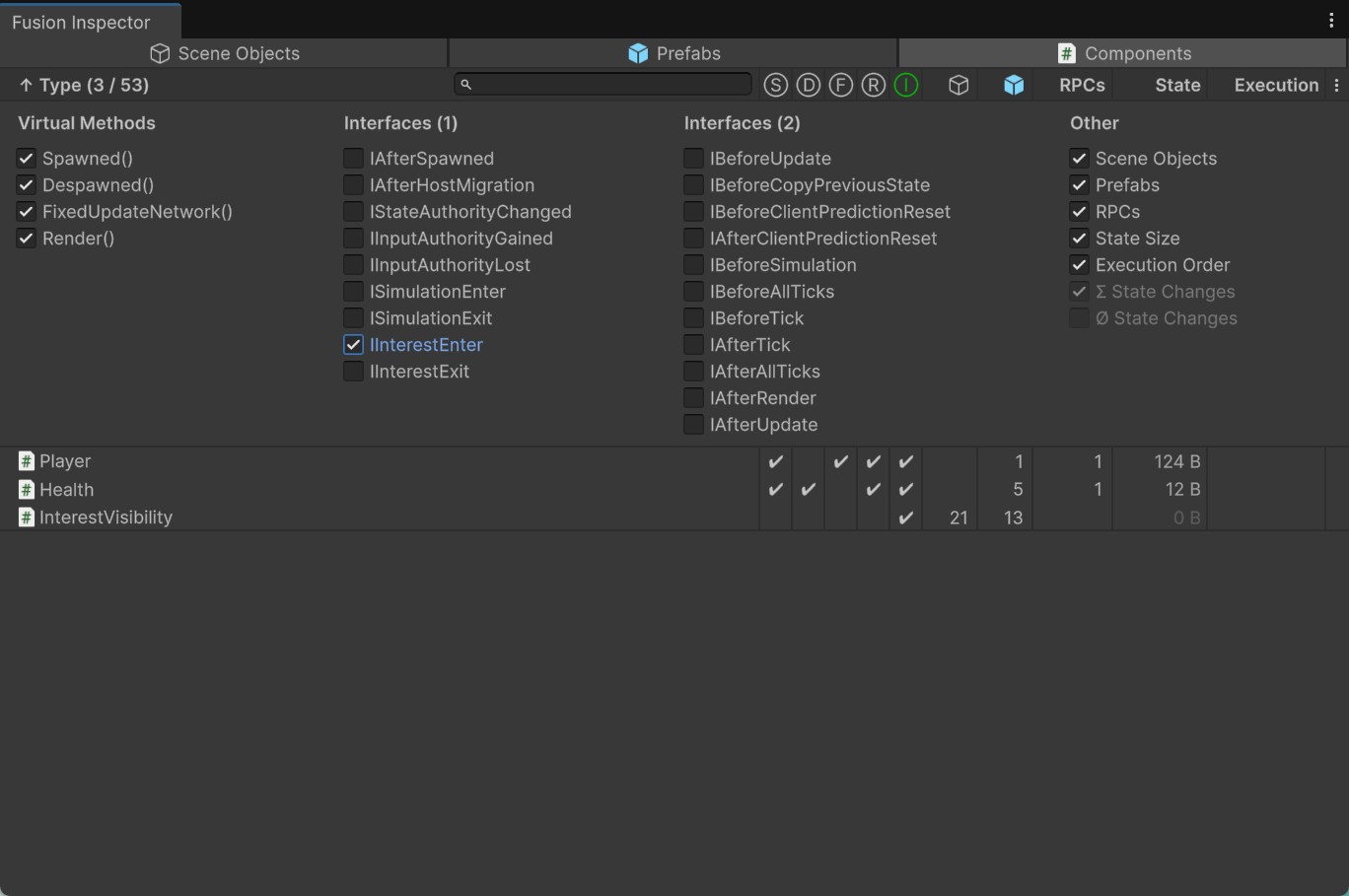
- Filter By Components (open in the picture above)
- Quick filter actions in context menus (right mouse button click) - by interest mode and object name
- Field Selectors
Use-Cases
- Audit of networked prefab objects - Shared Mode related properties, Object Interest Mode, networked state size of the whole object.
- Fast object lookup based on component types.
Components
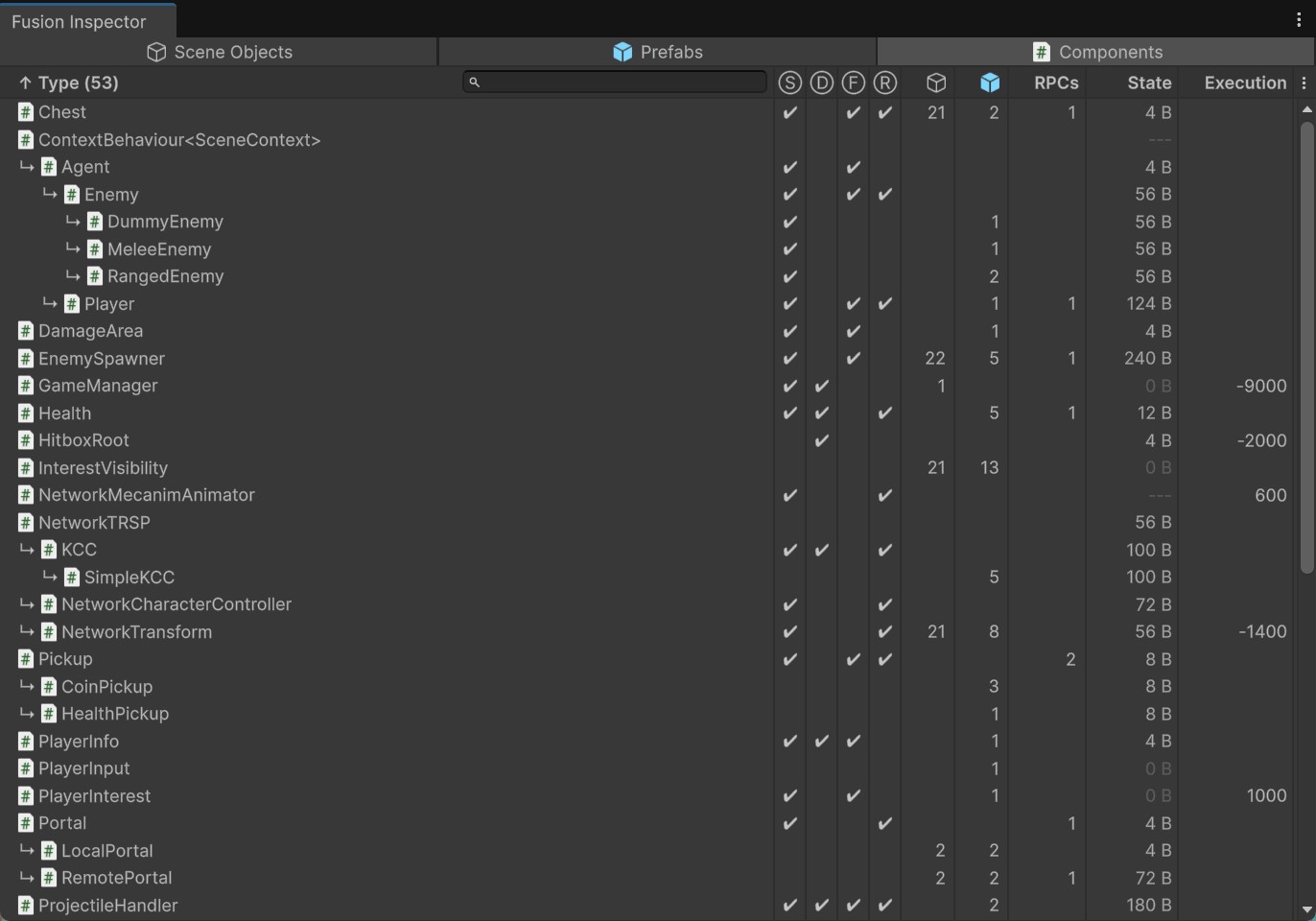
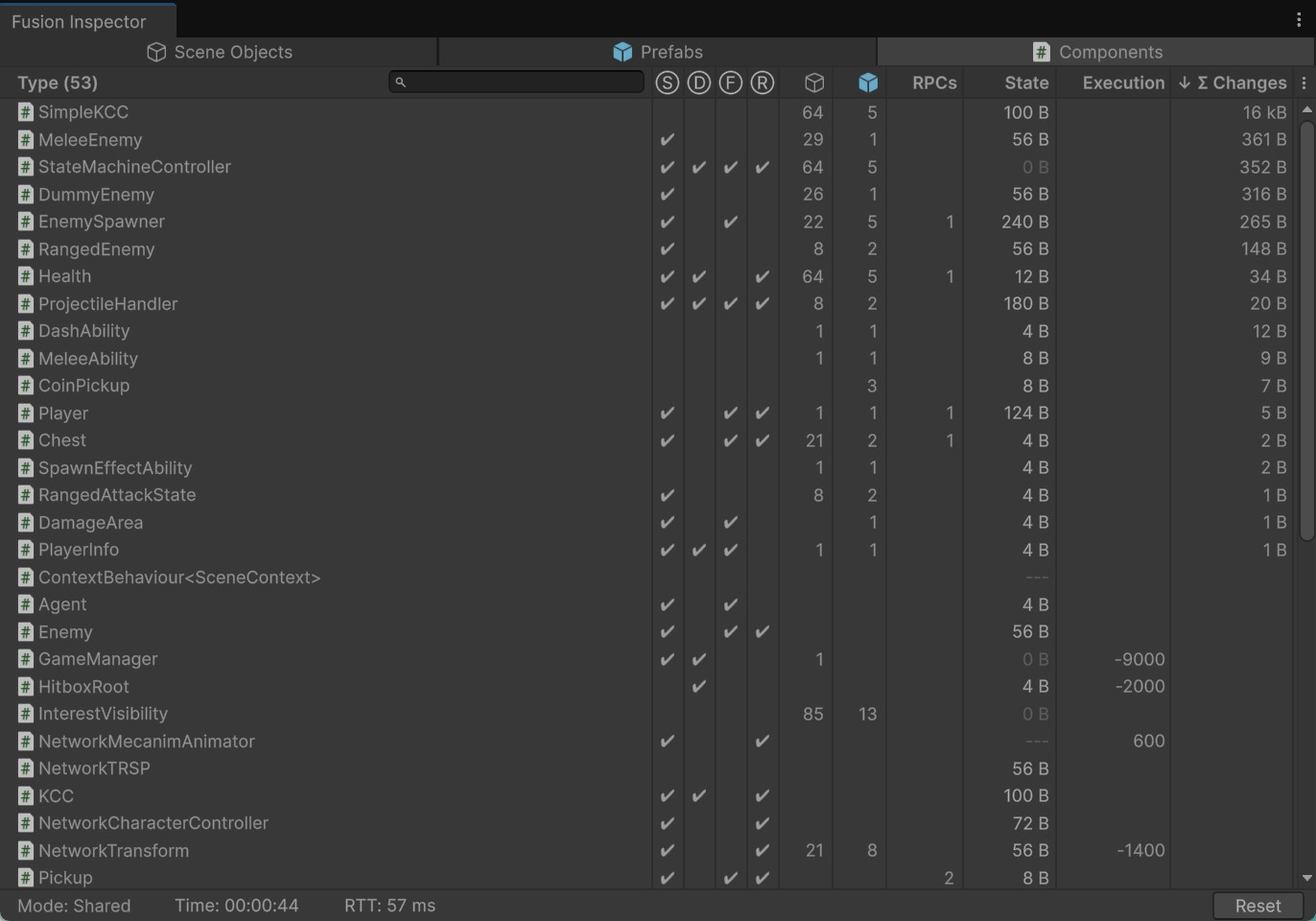
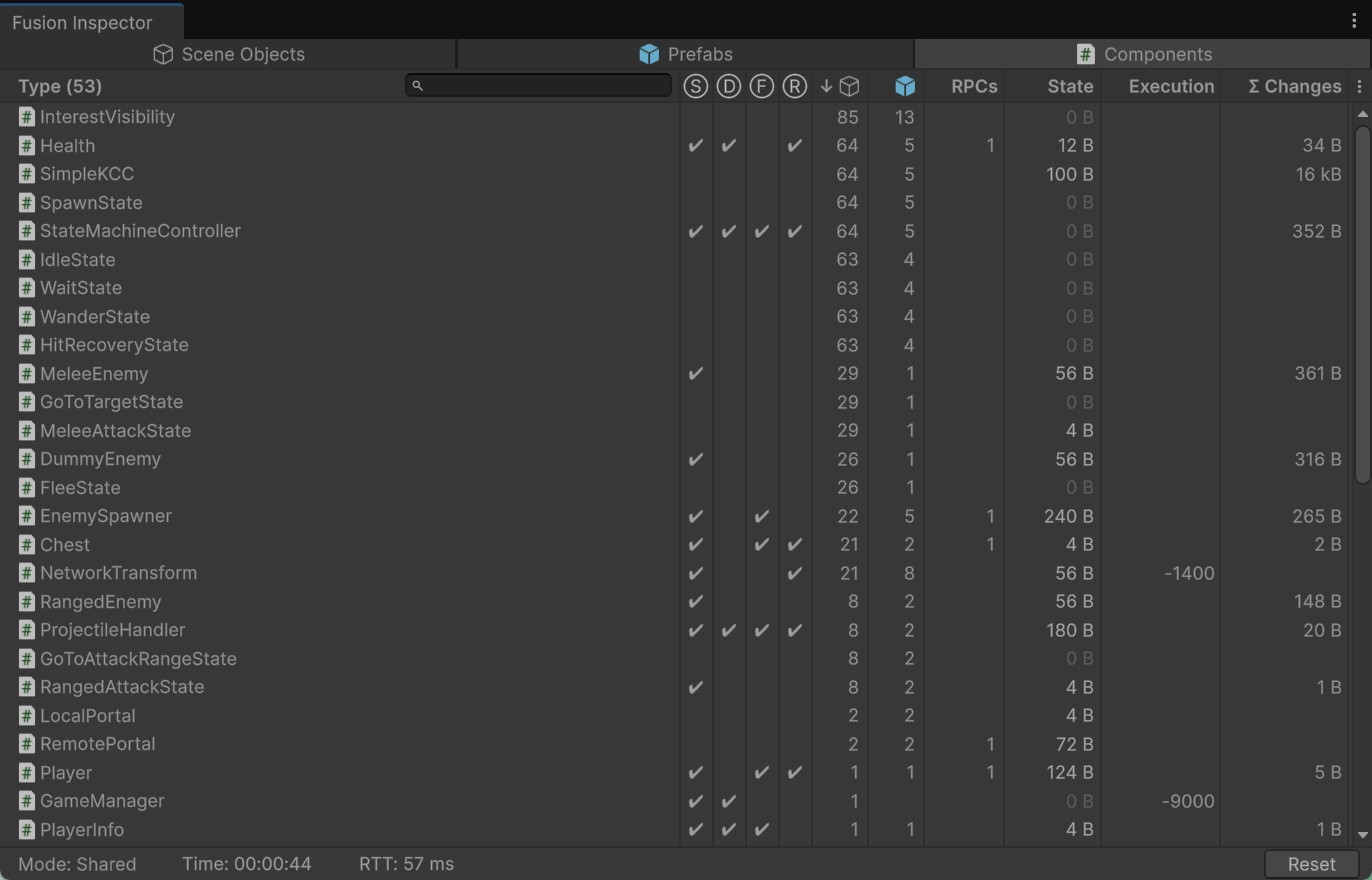
The Components section provides a detailed view of all components derived from the NetworkBehaviour.
Items Available
- Type name (double-click to select MonoScript asset)
- Fusion Method overrides -
Spawned(),Despawned(),FixedUpdateNetwork(),Render() - Fusion Interface implementations -
ISimulationEnter,ISimulationExit,IAfterHostMigration, ... - Script Metrics:
- Number of Scene Objects using the component
- Number of Prefabs using the component
- Number of RPCs declared by the component
- Networked State Size of the component
- Execution Order of the script
- Type Name Filter
- Field Selectors
Use-Cases
- Audit of networked components - networked state size, execution order
- Usage overview of Fusion methods, interfaces and RPCs in one place
- Tracking of Total State Changes per component - quickly tells you which components generate most of the network traffic
- Tracking of Average State Changes - helps identifying local state change peaks
- Regular check of components on scene objects when playing various scenes in realtime (during Play Mode).
RPCs
New in Fusion Inspector 2.1.
RPC tracking is split into two sections - RPCs with an overview of all RPC methods declared in NetworkBehaviour scripts, and [RPCs - Log] with a chronological list of recorded RPC events.
Overview
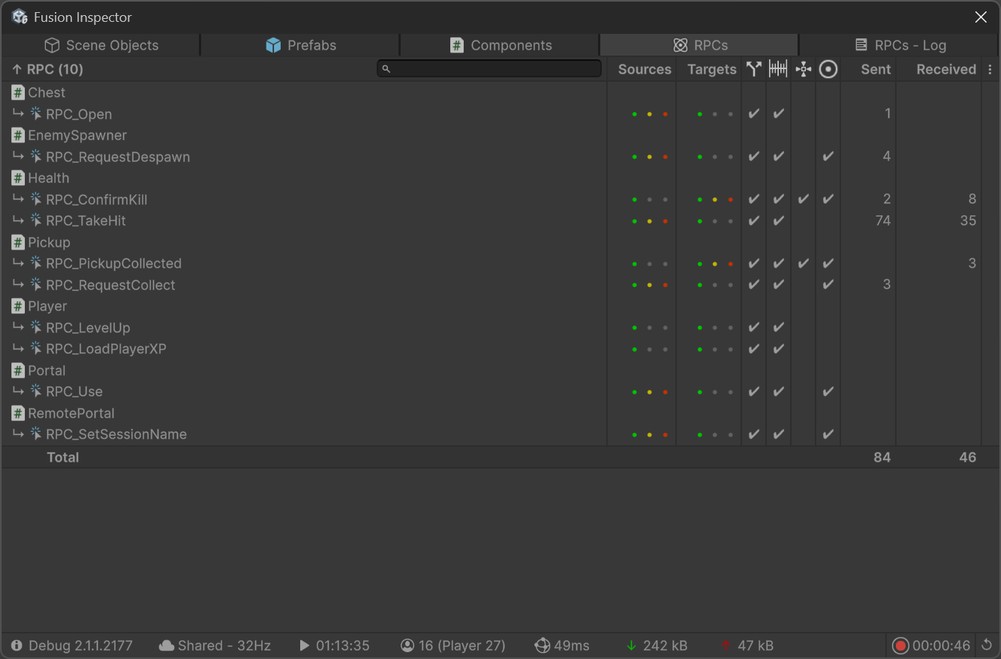
The Overview view shows one row per RPC method with its configuration and Sent / Received statistics.
Items Available
- Type name (component the RPC is declared in)
- RPC method name (double-click to open the script at the RPC declaration)
- Configuration - Is Reliable, Is Tick Aligned, Has Player Target, Invoke Local (represented by icons and checkmarks)
- Sources - allowed
RpcSourcesthat may invoke the RPC (dots - green = StateAuthority, yellow = InputAuthority, orange = Proxies, grey = excluded) - Targets -
RpcTargetsthat will execute the RPC (dots - green = StateAuthority, yellow = InputAuthority, orange = Proxies, grey = excluded) - Sent / Received counters (play mode)
- Total row with summed values
- Type/RPC Name Filter
- Field Selectors
Log
The Log view shows a chronological list of RPC events recorded for the current / selected NetworkRunner.
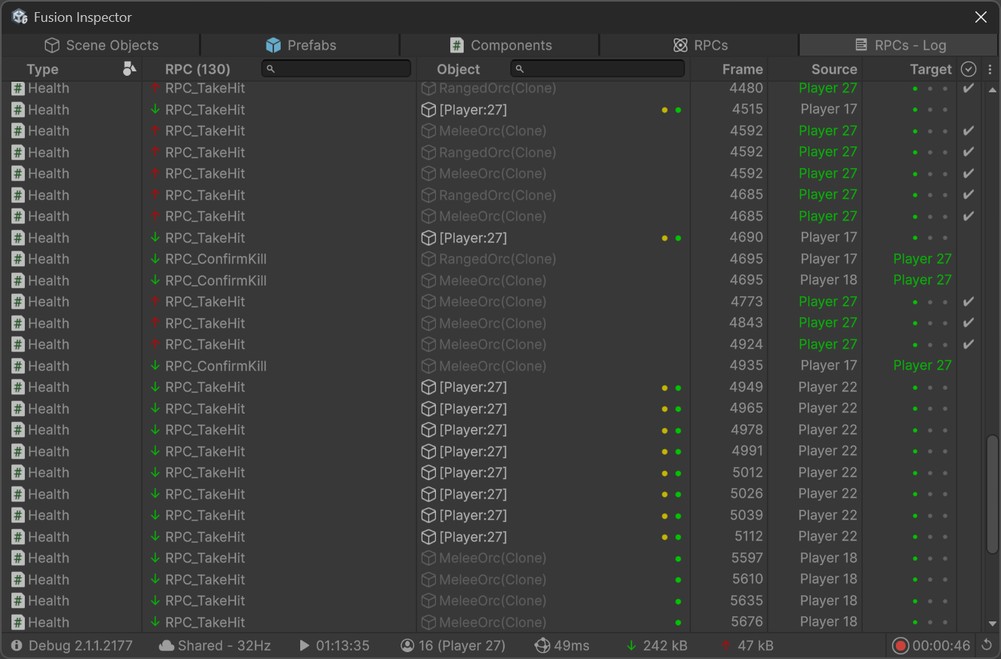
Items Available
- Direction arrow - ↑ sent from the local peer, ↓ received from a remote peer
- Type and RPC name
- Object the RPC was invoked on (instance RPCs only, despawned objects are dimmed)
- Frame in which the RPC was recorded
- Tick in which the RPC was sent or executed
- Source - player that invoked the RPC
- Target - player target of the RPC (
[RpcTarget]parameter) or the declaredRpcTargets - State / Input Authority of the object at the time of the event
- Result - checkmark when the RPC was sent / executed, red cross with a detailed reason when it was not
- Per-column filters
- Field Selectors
Filtering & Selection
- Right-click on any player, object or RPC name value offers quick filter actions - by a specific player (in one column or any), an exact object instance, an object name or an RPC name.
- Active filters are shown as removable items in a bar below the header.
- Clicking an event selects it and highlights all events of the same object - useful for visually tracking a single object without filtering.
Use-Cases
- Identifying chatty RPCs - sorting by Sent / Received quickly reveals methods which generate most of the traffic
- Verifying RPC configuration - sources, targets, reliability, local invocation in one place
- Debugging RPC delivery - the Result column explains why an RPC was not sent (target not in interest, insufficient authority, ...)
- Inspecting the exact sequence of RPCs around a specific gameplay event
💡 RPC events are captured only while at least one Fusion Inspector window is open. The log is recorded per NetworkRunner, cleared upon entering play mode and can be cleared manually using the reset button in the footer.
Interaction
Most UI elements have a tooltip and provide some additional functionality. Following is a list of available functions upon click:
- Object/Type - pings the scene object / prefab / script, double-click to select
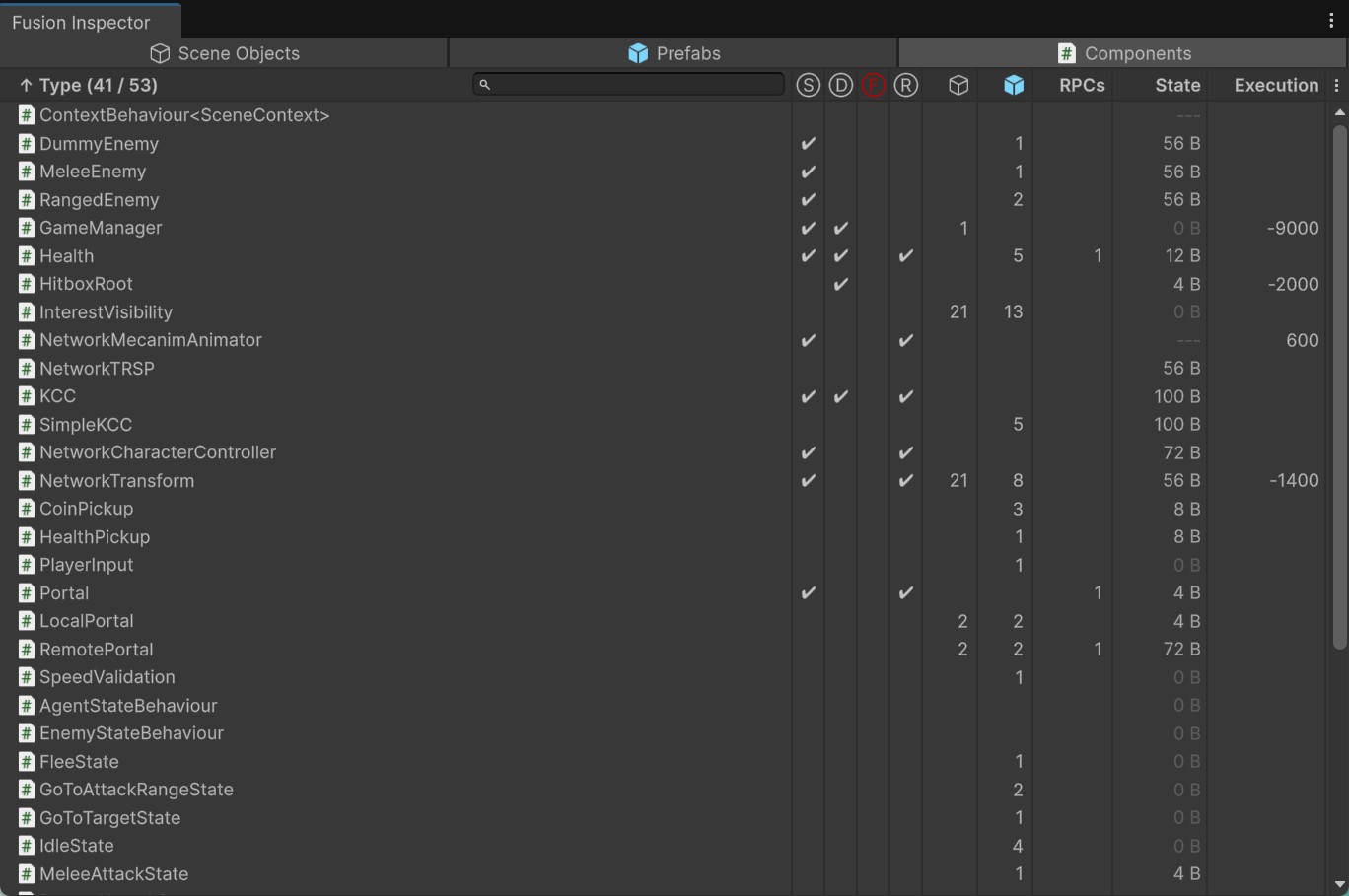
- Icon Field header - toggles filtering of that field
- Default - shows everything
- Green - shows only items with checkmark
- Red - shows only items without checkmark
- Name Field header - toggles sorting by the field value (ascending/descending)
- # of Scene Objects value - opens a context menu with scene object selector
- # of Prefabs value - opens a context menu with prefab selector
- # of RPCs value - opens a context menu with RPC selector (opens script editor with the RPC declaration)
- Right-click on an object, component, script, RPC or player value - opens a context menu with copy actions and quick filters
Networked game objects and prefabs can also be located from the other direction - right-click a game object in the Hierarchy or a prefab in the Project window and choose Select in Fusion Inspector.
Usage Examples
Following screenshots present actions mentioned above:
Tips
Here are some useful tips when working with the addon:
- By default the inspector is created as utility window - it always stays at the top, but cannot be docked. To enable docking, add
FUSION_INSPECTOR_DOCKEDscripting define symbol to Player Settings. - When docking is enabled, you can open more windows at the same time, each with its own unique view.
- Keep in mind the tool iterates over all objects and collect statistics every frame. This can have a negative impact on CPU, especially when iterating over thousands of objects or drawing hundreds of GUI elements.
- The RPC event log grows for the whole play session by design - it allows retroactive inspection of events that happened before you started investigating. Long sessions with heavy RPC traffic increase memory usage, use the reset button in the footer to clear the log.
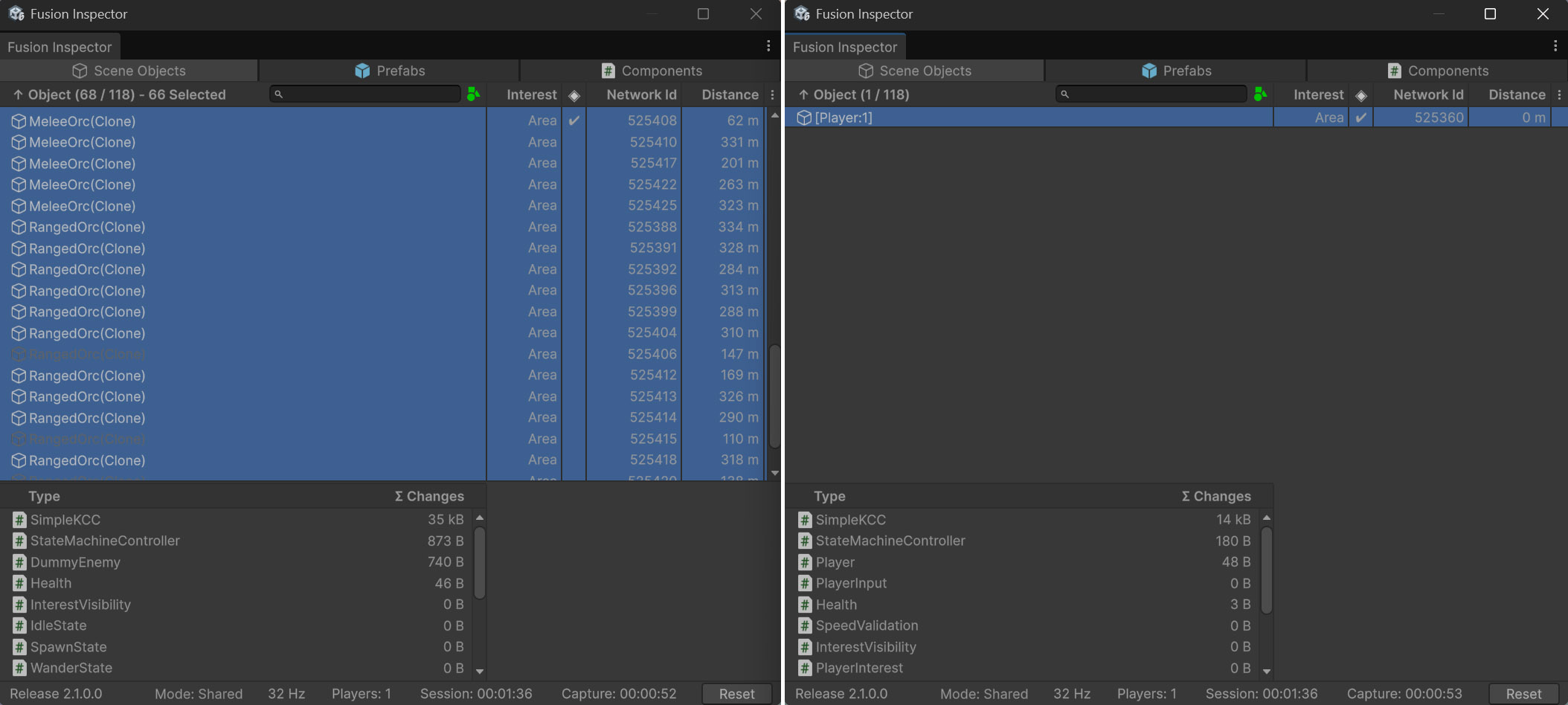
The following image shows two instances of Fusion Inspector to compare network state changes on enemy NPCs (left window) vs players (right window). You must use FUSION_INSPECTOR_DOCKED script define symbol to enable multiple instances.