Forecast Physics
Forecast Physics extrapolates the kinematics received over the network to place remote physics objects in the local time of all players. All clients run full physics locally and reconcile the local physics results with the extrapolated data. This enables smooth interactions between physics objects. See Physics for an overview of the alternatives.
Enabling Forecast
Physics Forecast (Global)
This is the global configuration for Forecast Physics, in the NetworkProjectConfig. It is enabled by default, disabling this will disable forecast across the whole project see Forecast Disabled
Forecast Physics Enabled (Per Object)
A per object option on the NetworkTransform to control Forecast Physics. Only effective when Physics Forecast is enabled in the NetworkProjectConfig.
Usage
For Forecast objects to move smoothly the Unity Rigidbody should have interpolation enabled:

Forecast is a special case within Fusion: for enabled objects FixedUpdate() should be used, not Update() or FixedUpdateNetwork(). There is an example integration of physics with Fusion, in this case for a vehicle.
If a physics object is controlled by a player, for example a car, better results are generally obtained by sending the player inputs to all clients and having all clients run both the object control code and physics locally.
In Forecast Physics the RigidbodyConstraints2D, RigidbodyConstraints and isKinematic are synced automatically. Toggling the isKinematic state (on the Rigidbody) of a Networked Transform on the State Authority is supported e.g. to enable picking up a physics object. When isKinematic is true the object behaves as a Forecast Disabled object: i.e. it is in remote time and is not extrapolated.
Note: swapping the Forecast Enabled state of a live object is not supported: toggle isKinematic instead.
If you wish to sync other physics properties e.g. mass you should do this manually e.g.
C#
public class PhysicsController : NetworkBehaviour
{
    [OnChangedRender(nameof(OnMassChanged))]
    [Networked] FloatCompressed Mass { get; set; }

    Rigidbody _rb;

    void OnMassChanged() {
      _rb.mass = Mass;
    }

    public override void FixedUpdateNetwork() {
      Mass = _rb.mass;
    }
}
Checklist
For a GameObject to work with Forecast Physics the following must be configured:
- Forecast Physics is enabled in the
NetworkProjectConfig - Forecast Physics enabled in the
NetworkTransform - The Unity Simulation Mode in the project Physics Settings is FixedUpdate and NOT Update or Script
- All networked physics objects should have a
Rigidbody(2D or 3D), aNetworkObjectand aNetworkTransform - Set the Rigidbody Interpolate setting to Interpolate
Additionally, for smooth networked physics, write physics code in FixedUpdate() (not FixedUpdateNetwork()).
Limitations
Recent versions of Unity support running physics in Update() rather than FixedUpdate(). This is not supported by Forecast Physics.
The extrapolation of the received data is not aware of obstacles in the world. As the physics run locally, objects will not incorrectly enter walls, or other obstacles. However objects in motion will not appear to be in exactly the same position for all clients. This will be most noticeable when a physics object has a sharp change of direction e.g. a ball bounces off the floor.
The quality of the networked physics will drop as a client's ping time increases, as with all networking code.
Error Detection and Correction
On every FixedUpdate a Forecast proxy compares its locally simulated Rigidbody against the extrapolated remote state and reconciles the two. This is the mechanism that lets each client run full local physics while still agreeing with the authority. It runs in three steps - extrapolate the remote state to local time, detect how far the local body has diverged, then apply a correction. The State Authority owns the true state and does not run this reconciliation.
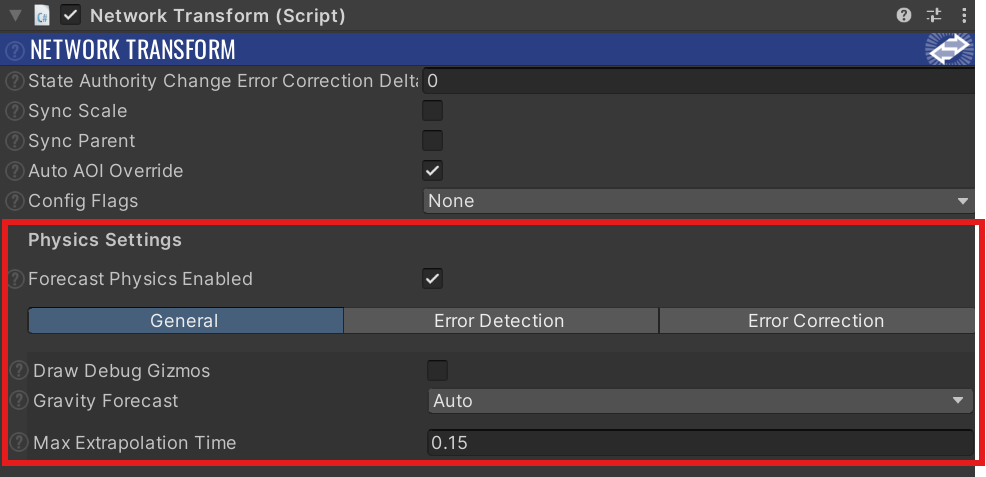
Extrapolation
The last state received from the authority - position, rotation, linear and angular velocity - is projected forward to the client's local time. Linear motion is projected from the remote velocity (optionally including gravity) and rotation from the remote angular velocity. Sleeping bodies are not extrapolated; they hold the remote position.
- Max Extrapolation Time - is used to clamp on how far into the future an object will be extrapolated
Gravity in the forecast is controlled by Gravity Forecast:
| Mode | Behaviour |
|---|---|
Apply |
Always include gravity in the extrapolation. |
None |
Never include gravity. Use for objects that do not fall. |
Auto |
Include gravity only when the remote body is moving in the direction of gravity, i.e. falling. Default. |
The result of extrapolation is the target that the local body is corrected toward.
The extrapolation can be overridden - NetworkTransform.CustomForecast
Error Detection
The distance and angle between the local body and the extrapolated target are measured each tick and classified into one of three bands:
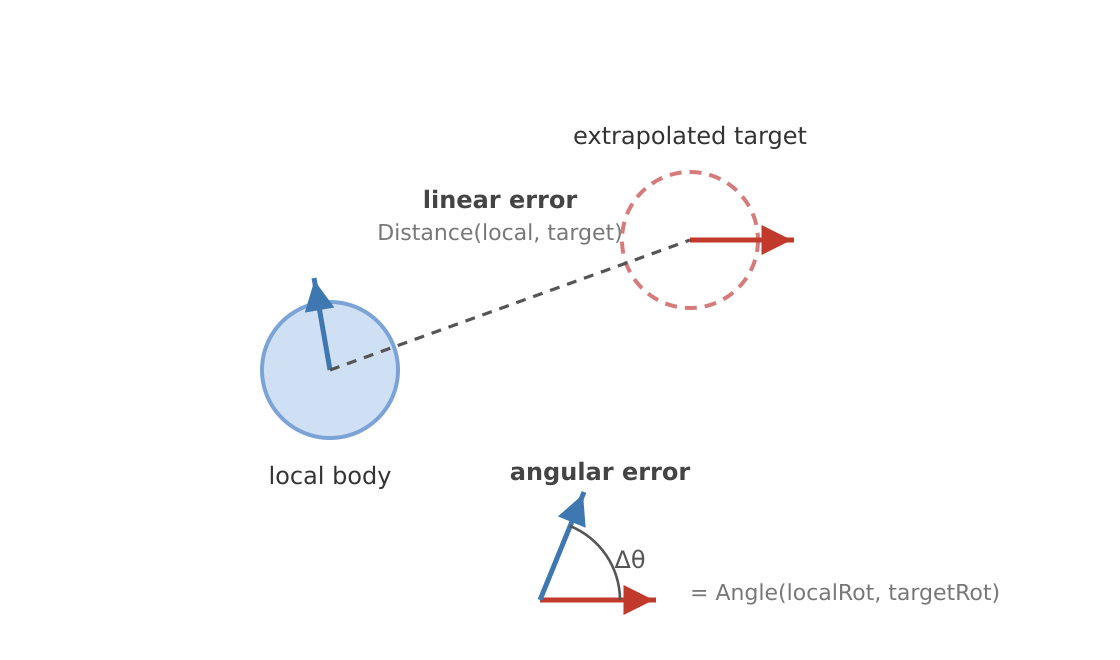

- Inside the Deadzone - below Min Linear Detected Error and Min Angular Detected Error. Errors are treated as inside the Deadzone. The Min Linear Detected Error will need tuning to match the scale of the object. A general rule of thumb is to use 2% of the objects diameter.
- Snapped - above Max Linear Error or Max Angular Error. The body is moved immediately to the remote state.
0(the default) disables the limit, so no hard snap is triggered on magnitude alone. - Corrected - between the two, the body is smoothly corrected (see Error Correction), unless a stall is detected.
Deadzone Behaviour
The objects behaviour inside the deadzone can be altered using the Deadzone Velocity Mode.
- Local Physics - The rigidbody will be driven solely by local physics
- Match Target - The rigidbody will match the extrapolated targets linear and angular velocities
Stall detection
Smooth correction assumes the body can actually reach the target. If it cannot - for example it is wedged behind an obstacle the authority does not have - correction would push forever without progress. A stall heuristic guards against this: while the error keeps pointing the same way High Error Similarity Threshold and the body is not closing the gap Low Correction Progress Threshold, time is accrued; once it exceeds Max Error Total Time the body is snapped to the remote state. The Auto button beside in the inspector derives a value from the object's collider bounds.
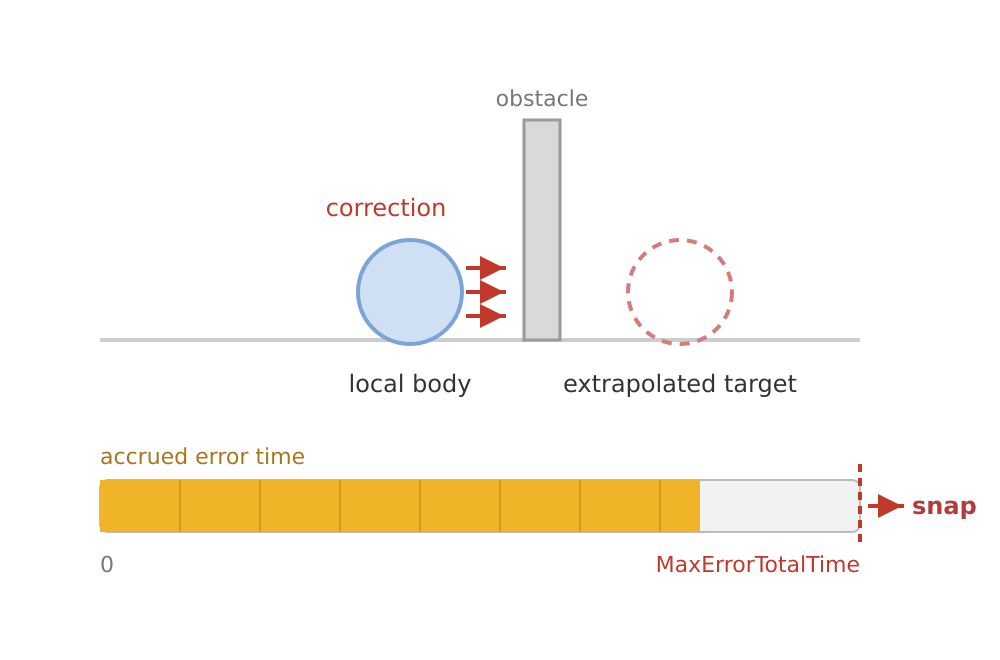
The default heuristic combines two per-tick measurements, and time accrues only while both hold:
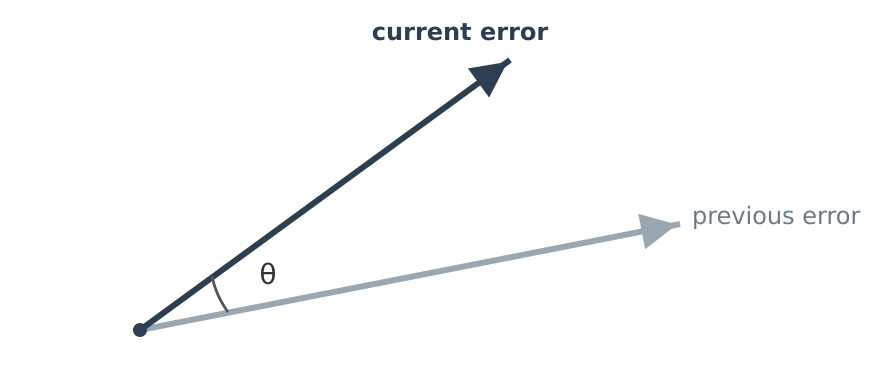
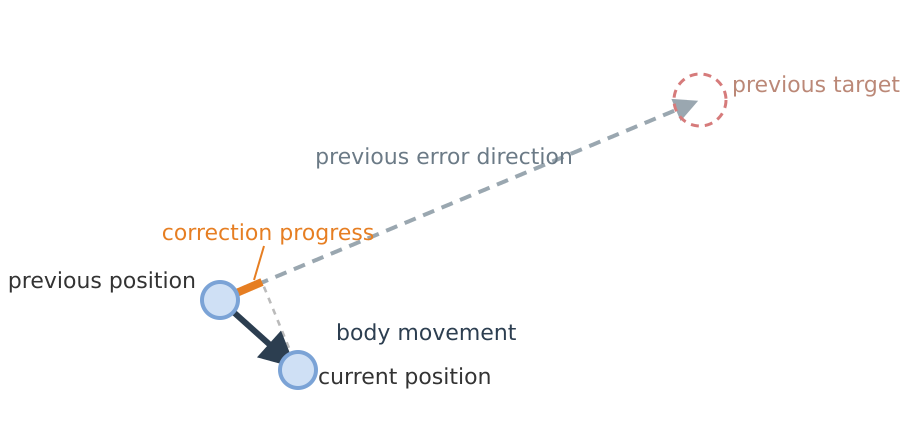
The built-in heuristic can be overridden - NetworkTransform.CustomErrorDetection; a normalized, tunable alternative is provided in NetworkTransformHelpers.NormalizedStallHeuristic.
Sleeping
If the authority reports the body as sleeping but the local body is still awake, the local body is given up to Max Remote Sleep Ignore Time to come to rest on its own before it is forced to sleep at the remote state.
Teleport
NetworkTransform.Teleport() moves the body immediately on all clients rather than correcting toward the new position over time.
Error Correction
When a correction is applied, Error Correction Type selects how the body is moved toward the target:
- Velocity (default, recommended) - a correction velocity is applied toward the target and the position is left to the physics engine. Tuned by Linear Vel Correction Mul and Angular Vel Correction Mul. Higher values correct faster but can overshoot.
- Position Rotation - as Velocity, but the position and rotation are additionally lerped toward the target using Position Correction Lerp and Rotation Correction Lerp.
- Spring Damping - a spring/damper force drives the body toward the target.
The correction can be overridden - NetworkTransform.CustomApplyCorrection.
Collisions
On a proxy a genuine collision should be driven by local physics, not fought by the correction pulling the body back toward the pre-collision target. When a collision is head-on enough - Min Impactful Collision Alignment (0 = treat every collision as impactful, 1 = only head-on) - correction is suspended for Impact Start Correction Time and then ramped back to full over Impact Correction Time Complete, letting the local collision response play out first. This window can be triggered manually - for example for a predicted jump - with NetworkTransform.TriggerLocalOverridesExtrapolated().
Visualizing the forecast
Enable Draw Debug Gizmos to see the reconciliation in the Scene view on a proxy: a green wire cube marks the remote state, a red wire cube marks the extrapolated target, and a blue ray shows the body's velocity.
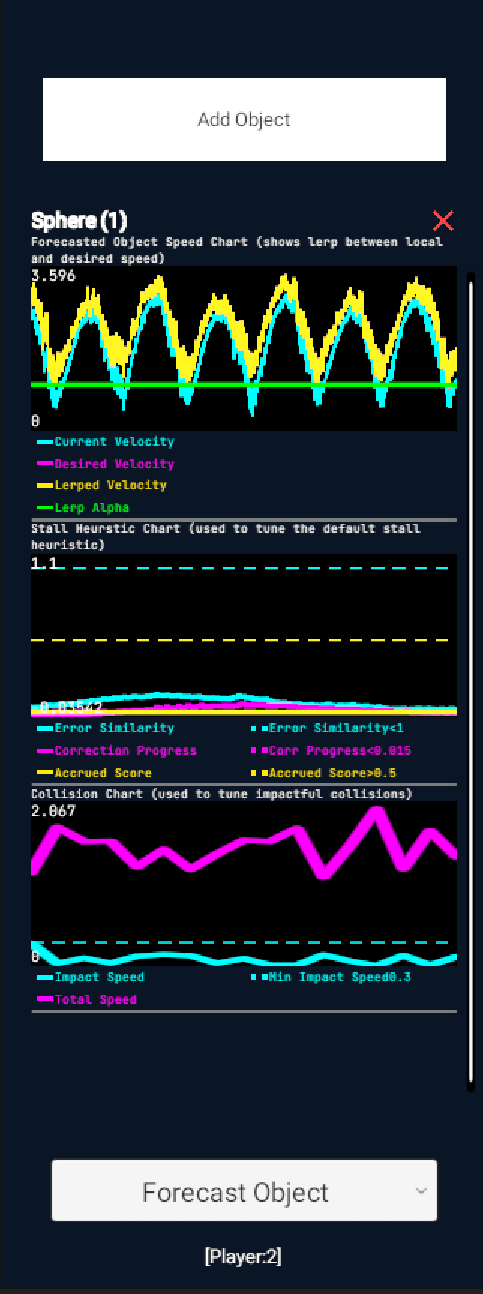
The Fusion Statistics Forecast Objects page graphs the velocity correction, stall heuristic and impactful collisions live, which can help with fine tuning. It is not enabled by default - add the ForecastObjectView prefab to the Statistics Pages list in the Fusion Hub.
Common Pitfalls and Remedies
Forecasted object oscillates and never settles
While the error is outside the deadzone a Forecast proxy applies a correction velocity toward the target. If the Rigidbody has zero linear drag - Unity's default - the body carries that velocity into the deadzone and, with no drag to dissipate it, coasts straight through and out the other side. It is corrected back, overshoots again, and ping-pongs across the target without ever settling. It is most noticeable on light, low-drag bodies whose remote is at rest.
Remedies:
- Change Deadzone Velocity Mode to Match Target - this causes the rigidbody to assume the velocity of the extrapolated target when inside the deadzone.
- Add a little drag to the
Rigidbody- linear drag, and angular drag if it also spins. Even a small amount bleeds off the residual correction velocity so the body loses energy and settles. This is the simplest fix. - Shrink the deadzone - provides a smaller area in which the object can oscillate, as mentioned previously 2% of the objects diameter is a good starting value.
Toggling ForecastEnabled at runtime does not disable forecast
Toggling ForecastEnabled at runtime is not supported, instead you can toggle the isKinematic state of the rigidbody on the StateAuthority to disable forecast at runtime.
See Also
The following Forecast Physics examples are available:
- Essential Forecast Vehicle Physics
- Forecast Physics 2D
- Forecast Boat and Water Physics
- Advanced Forecast Vehicle Physics
Last updated on
Back to top