Forecast物理
Forecast物理は、ネットワーク経由で受信した運動データを外挿し、リモートの物理オブジェクトを各プレイヤーのローカル時間に置きます。すべてのクライアントは、ローカルで完全な物理演算を実行し、その結果と外挿されたデータを調整します。これによって、物理オブジェクト間のスムーズなインタラクションが可能になります。他のアプローチの概要については、物理演算をご覧ください。
Forecastを有効にする
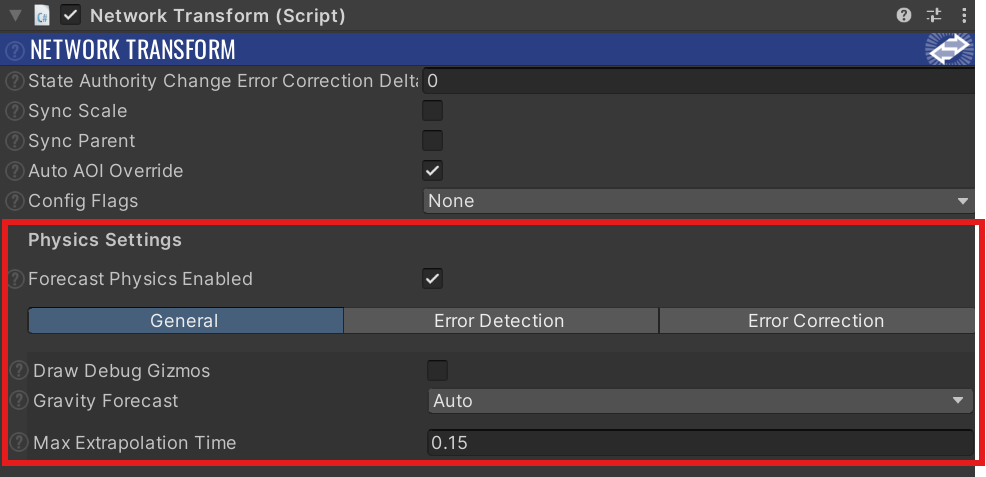
Physics Forecast(グローバル設定)
これはNetworkProjectConfigにあるForecast物理のグローバル設定です。デフォルトでは有効になっていて、無効にするとプロジェクト全体でForecastが無効になります。無効については、Forecast無効をご覧ください。
Forecast Physics Enabled(オブジェクトごとの設定)
オブジェクトごとのNetworkTransformのForecast物理を制御するオプションです。NetworkProjectConfigでPhysics Forecastが有効な場合のみ動作します。
使用方法
Forecast物理オブジェクトをスムーズに動かすには、UnityのRigidbodyの補間を有効にする必要があります:

ForecastはFusionの特殊なケースです。有効なオブジェクトでは、Update()/FixedUpdateNetwork()ではなく、FixedUpdate()を使用する必要があります。Fusionと物理演算のインテグレーションの例では、車のケースが確認できます。
物理オブジェクト(例:車)がプレイヤーによって制御される場合、一般的にプレイヤーの入力をすべてのクライアントに送信し、すべてのクライアントがローカルでオブジェクト制御コードと物理演算を実行する方が、良い結果が得られます。
Forecast物理では、RigidbodyConstraints2D・RigidbodyConstraints・isKinematicは自動的に同期されます。状態権限を持つネットワークオブジェクトでは、RigidbodyのisKinematicを切り替えることが可能です。例えば、物理オブジェクトをピックアップするために使用できます。isKinematicがtrueの場合、オブジェクトは「Forecast無効」としてリモート時間で動作し外挿は行われません。
実行時にForecast Enabled自体を切り替えることはサポートされていませんので、かわりにisKinematicを切り替えてください。
massなどの他の物理プロパティを同期したい場合は、以下のように手動で行う必要があります。
C#
public class PhysicsController : NetworkBehaviour
{
    [OnChangedRender(nameof(OnMassChanged))]
    [Networked] FloatCompressed Mass { get; set; }

    Rigidbody _rb;

    void OnMassChanged() {
      _rb.mass = Mass;
    }

    public override void FixedUpdateNetwork() {
      Mass = _rb.mass;
    }
}
チェックリスト
ゲームオブジェクトをForecast物理に対応させるには、以下の設定を行う必要があります:
NetworkProjectConfigでForecast物理が有効になっていることNetworkTransformでForecast物理が有効になっていること- プロジェクトの
Physics SettingsのSimulation ModeがFixedUpdateになっていること(Update/Scriptではなく) - すべてのネットワーク物理オブジェクトに、
Rigidbody(2D or 3D)・NetworkObject・NetworkTransformが追加されていること RigidbodyのInterpolateがInterpolateに設定されていること
さらに、ネットワーク物理オブジェクトをスムーズに動作させるには、物理演算コードを(FixedUpdateNetwork()ではなく)FixedUpdate()内で記述してください。
制限
Unityの最新バージョンでは、FixedUpdate()ではなくUpdate()内で物理演算を実行できますが、Forecast物理ではこれをサポートしていません。
受信データの外挿処理は、ワールドの障害物を考慮しません。物理演算はローカルで実行されるため、オブジェクトが壁や障害物に誤って侵入することはありませんが、動き回るオブジェクトは各クライアントで異なる位置に表示される可能性があります。これは、物理オブジェクトが急な方向転換を行う(例:ボールが床で跳ね返る)場合に特に目立ちます。
他のネットワークコードと同様に、クライアントのping増加に比例して、ネットワーク物理演算の精度は低下します。
誤差の検知と修正
ForecastプロキシはFixedUpdateごとに、ローカルでシミュレートされたRigidbodyと、外挿されたリモートステートを比較して調整します。これが、各クライアントのローカルで完全な物理演算を実行しつつ、権限者との整合性を保つ仕組みです。これは3つのステップで実行されます。まずリモートステートをローカル時間で外挿し、次にローカルのRigidbodyがどれだけズレているかを検知し、最後に修正を適用します。状態権限者は正しいステートを保持しているため、この調整は実行されません。
Extrapolation(外挿処理)
権限者から受信した最新ステート(位置・回転・速度・角速度)は、クライアントのローカル時間に変換されます。直線運動はリモートの速度(と重力)から、回転はリモートの角速度から変換されます。スリープ状態のオブジェクトは外挿されず、リモートの位置が維持されます。
オブジェクトが将来までどの程度外挿されるかを制限するために使用されます
予測における重力は、以下によって制御されます
- Max Extrapolation Time - オブジェクトがいつまで外挿されるかを制限するために使用されます
Forecastにおける重力は、Gravity Forecastによって制御されます:
| モード | 挙動 |
|---|---|
Apply |
重力を常に外挿に含めます。 |
None |
重力を外挿に含めません。落下しないオブジェクトに使用してください。 |
Auto |
リモートオブジェクトが、重力方向に移動する場合(例:落下中)のみ、重力を考慮します。デフォルト設定です。 |
外挿結果は、ローカルオブジェクトの修正先のターゲットになります。
外挿処理はオーバーライドできます - NetworkTransform.CustomForecast
Error Detection(誤差検知)
ローカルオブジェクトと外挿ターゲット間の距離と角度はティックごとに測定され、以下の3つの帯域のいずれかに分類されます:
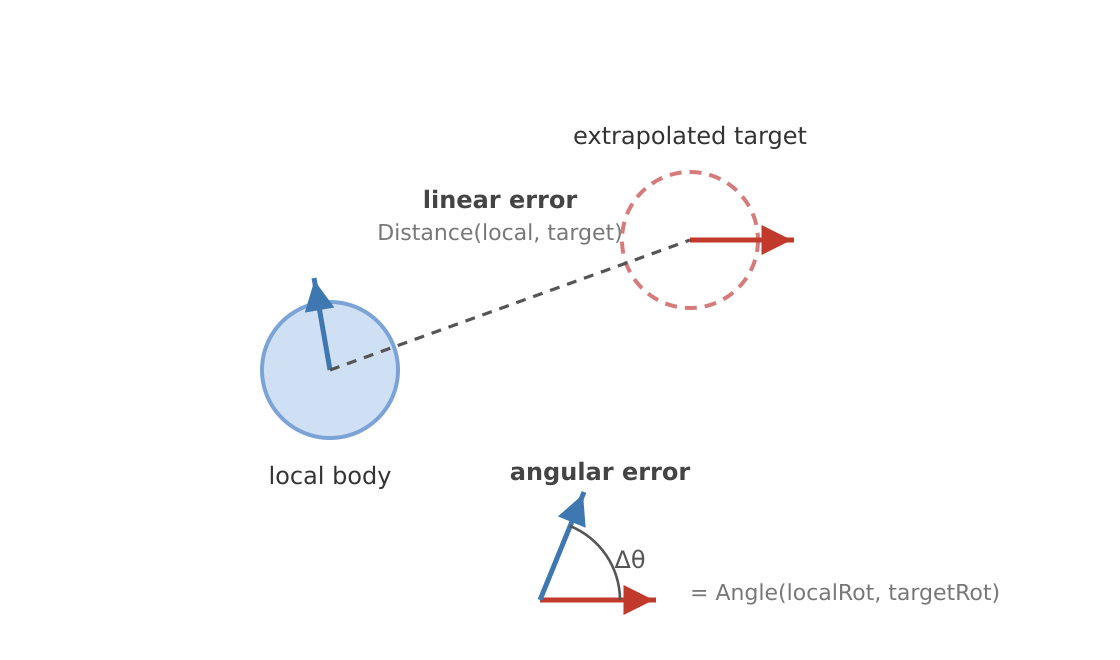

- デッドゾーン - Min Linear Detected ErrorとMin Angular Detected Error以下では、誤差はデッドゾーン内として扱われます。Min Linear Detected Errorは、オブジェクトのスケールに合わせて調整が必要です。一般的な目安として、オブジェクト直径の2%を使用します。
- スナップ - Max Linear ErrorかMax Angular Errorを超えると、オブジェクトは即座にリモートステートへ移動します。
0(デフォルト)にすると制限が無効になり、誤差が大きくてもスナップが発生しません。 - 修正 - 上記2つの間では、ストールが検知されていなければ、オブジェクトはスムーズに修正(Error Correctionを参照)されます。
デッドゾーンの挙動
デッドゾーン内のオブジェクトの挙動は、Deadzone Velocity Modeから変更できます。
- Local Physics -
Rigidbodyはローカル物理演算のみによって制御されます - Match Target -
Rigidbodyは外挿ターゲットの速度と角速度に合わせられます
ストールの検知
スムーズな修正は、オブジェクトが実際にターゲットへ到達できることを前提にしています。もし到達できない場合(例:障害物に挟まってしまった場合など)、修正が永遠に完了しなくなってしまいます。ストール検知によってこれを防ぎます。誤差が同じ方向を指し続け(High Error Similarity Threshold)、オブジェクトがそのズレを埋めらない(Low Correction Progress Threshold)間の時間はカウントされます。誤差の最大時間(Max Error Total Time)を超えると、オブジェクトはリモートステートにスナップされます。インスペクター横のAutoボタンによって、オブジェクトのコライダー境界から値を算出できます。
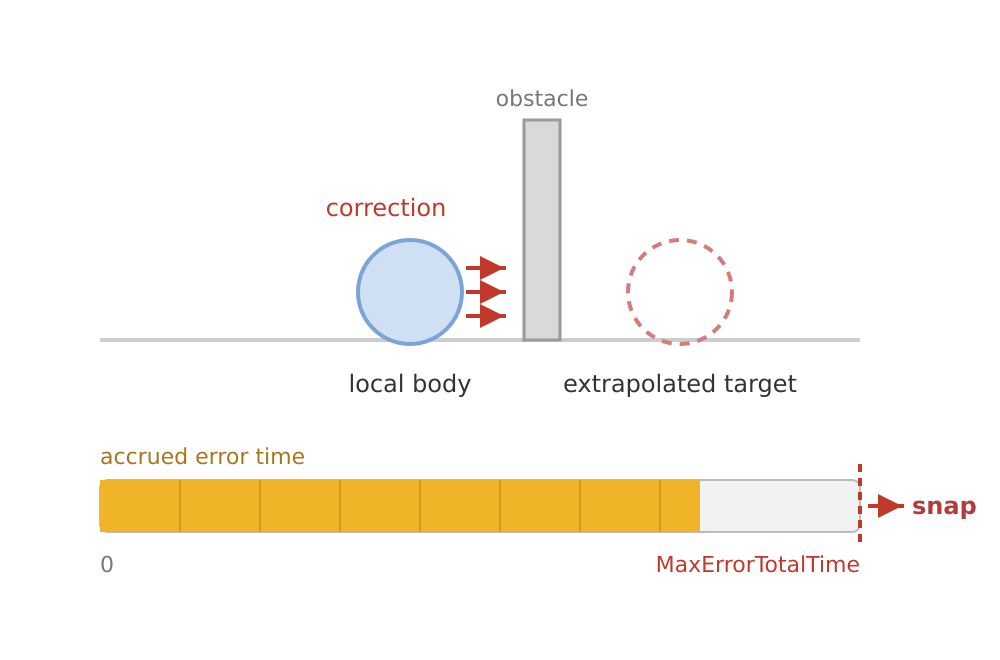
デフォルトのヒューリスティックは、ティックごとに2つの測定値を組み合わせたもので、両方が満たされている間のみ時間が加算されます:
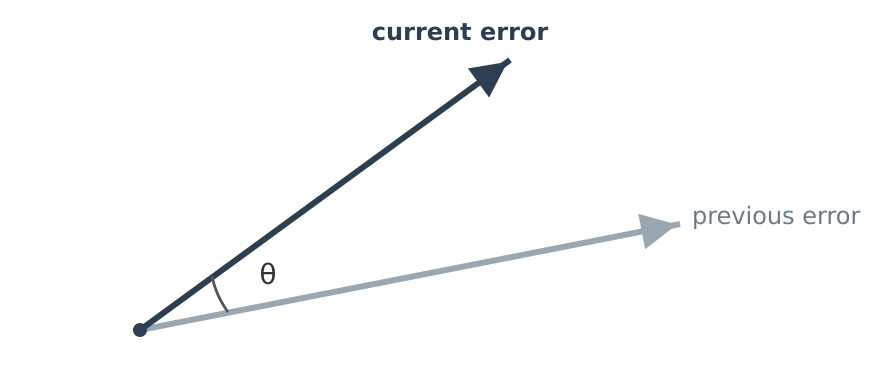
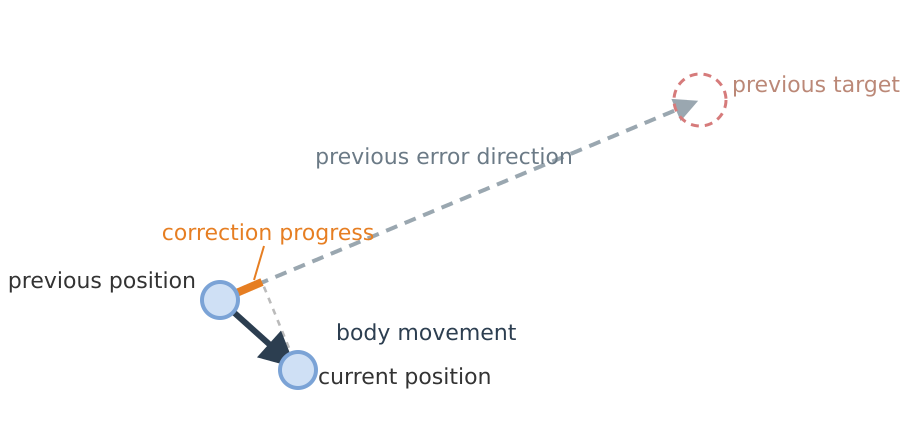
ヒューリスティックはオーバーライドできます - NetworkTransform.CustomErrorDetection、または別の選択肢としてNetworkTransformHelpers.NormalizedStallHeuristicから調整できます。
スリープ状態
権限者側でオブジェクトがスリープ状態であるにもかかわらず、ローカルオブジェクトがまだスリープに入っていない場合、Max Remote Sleep Ignore Timeの間、強制的ではなく自発的にスリープ状態になるための猶予が与えられます。
テレポート
NetworkTransform.Teleport()は、時間をかけて新しい位置へと修正するのではなく、すべてのクライアント上で即座に移動を実行します。
Error Correction(誤差修正)
修正が適用される際、Error Correction Typeによって、オブジェクトがターゲットに向けてどのように移動するかが選択されます:
- Velocity(デフォルト、推奨) - ターゲット方向への修正速度が適用され、位置の修正は物理エンジンに任せます。これは、Linear Vel Correction MulとAngular Vel Correction Mulで調整します。値を高くすると素早く修正されるようになりますが、オーバーシュートが発生するようになります。
- Position Rotation - Velocityに加えて、Position Correction LerpとRotation Correction Lerpを使用して、位置と回転がターゲット方向へ補間されます。
- Spring Damping - ばね/ダンパーの力がターゲット方向に適用されます。
修正はオーバーライドできます - NetworkTransform.CustomApplyCorrection.
コリジョン
プロキシで、実際の衝突をローカルの物理演算で処理するには、衝突前のターゲットに向けてオブジェクトを引き戻す修正によって打ち消されないようにする必要があります。十分に正面からの衝突である場合(Min Impactful Collision Alignment:0 = 全てのコリジョンを衝突として扱う、1 = 正面衝突のみ)、Impact Start Correction Timeの間は修正を一時停止し、Impact Correction Time Completeの間に徐々に修正の適用を戻すことで、ローカルな衝突判定がちゃんと行われるようにします。この値は手動でトリガーする(例:ジャンプの予測でNetworkTransform.TriggerLocalOverridesExtrapolated()を使用する)ことができます。
Forecastの可視化
Draw Debug Gizmosを有効にすると、プロキシのシーンビューで調整結果を目視できます。緑色のキューブはリモートステート、赤色のキューブは外挿ターゲット、青色の線はオブジェクトの速度を示します。
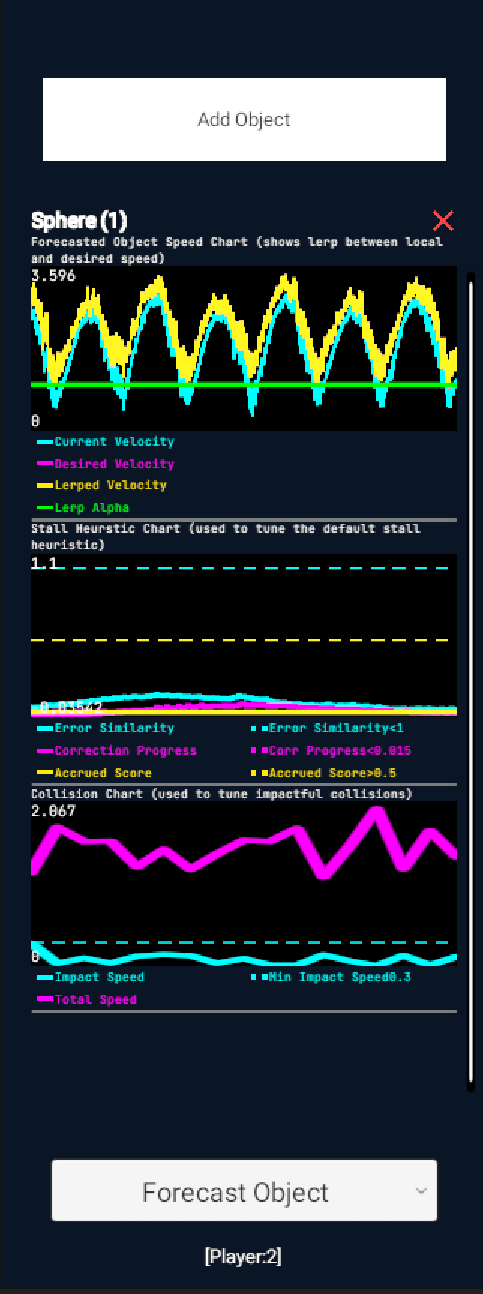
Fusion StatisticsのForecast Objectsページでは、修正速度・ストール検知・コリジョン衝突がリアルタイムでグラフ化されるため、微調整に役立つでしょう。これはデフォルトで有効になっていないので、Fusion Hubの「Statistics Pages」リストにForecastObjectViewプレハブを追加してください。
よくある落とし穴と対処法
Forecastオブジェクトが振動して安定しない
誤差がデッドゾーン外にある間、プロキシはターゲットに向かって修正速度を適用します。Rigidbodyのdragが0(Unityのデフォルト)の場合、オブジェクトはデッドゾーン内でも速度が維持され、抵抗によって減速しないため、そのままデッドゾーンを通り抜けて反対側に出てしまいます。そして再び修正とオーバーシュートを繰り返すため、ターゲットを往復し続けて安定しません。これは、リモート上では静止している、軽量で抵抗が少ない物理オブジェクトで特に顕著です。
対処法:
- Deadzone Velocity ModeをMatch Targetに変更する - これによって、
Rigidbodyはデッドゾーン内で外挿ターゲットの速度を維持するようになります。 *Rigidbodyに抵抗を追加する -Dragに加え、回転する場合はAngular Dragを加えます。わずかな量でも修正速度が減少するため、オブジェクトは安定します。これがもっともシンプルな修正方法です。 - デッドゾーンを縮小する - オブジェクトが振動できるエリアを狭めます。前述の通り、オブジェクト直径の2%が適切な初期値です。
実行時にForecastEnabledを切り替えてもForecast無効にならない
実行時のForecastEnabled切り替えはサポートされていません。かわりに、状態権限者上のRigidbodyのisKinematicを切り替えることで、実行時にForecastを無効にできます。
関連ページ
以下のForecast物理のサンプルが利用可能です:
- Essential Forecast Vehicle Physics
- Forecast Physics 2D
- Forecast Boat and Water Physics
- Advanced Forecast Vehicle Physics
Last updated on
Back to top