Collaboration desk
Overview
The Collaboration desk sample demonstrates how Fusion can be used to mix colocated users with remote users in a mixed reality scenario, using the Anchors addon.
Note: this sample focuses on an automatic mixed reality rooms alignment, designed to progressively build a common working table. To see a sample with manual re-positioning of the various user rooms, see the Fusion MR room Minimap technical sample.

When scanning a QRCode positioned on a table in the real-world room, the user will join the common table. If another user scanned the same QRCode, they will be colocated. The table is designed to build progressively, each user room contributing to its construction with a virtual table part aligned on the closest table detected in the room.
If remote users end up being located outside of the local users real life walls, a VR background context will appear behind the remote user, to make this more comfortable, creating a combined remote room.
Technical Info
This sample uses the
Shared Authoritytopology,The project has been developed with Unity 6.3, Fusion 2.1.1, Photon Voice 2.63 and tested with the following packages :
- Meta XR Core SDK v203 : com.meta.xr.sdk.core
- Meta MRUK v203 : com.meta.xr.mrutilitykit
- OpenXR plugin 1.16.1 : com.unity.xr.openxr
- Unity OpenXR Meta 2.3.1 : com.unity.xr.meta-openxr
Headset firmware version: v85, v2.1, v2.3, v2.5, v2.6
Before you start
To run the sample :
Create a Fusion AppId in the PhotonEngine Dashboard and paste it into the
App Id Fusionfield in Real Time Settings (reachable from the Fusion menu).Create a Voice AppId in the PhotonEngine Dashboard and paste it into the
App Id Voicefield in Real Time Settings
Before launching the application, please make sure that your room has been properly scanned in the Quest settings (Environment Setup / Space Setup).
The QR code should be placed on a table detected by the Quest during the space setup.
Download
| Version | Release Date | Download |
|---|---|---|
| 2.1.1 | 7月 21, 2026 | Fusion Collaboration Desk 2.1.1 |
Folder Structure
The main folder /Collaboration_Desk contains all elements specific to this sample.
The /Photon folder contains the Fusion and Photon Voice SDK.
The /Photon/FusionAddons folder contains the Industries Addons used in this sample.
The /Photon/FusionAddons/FusionXRShared folder contains the rig and grabbing logic coming from the VR shared sample, creating a FusionXRShared light SDK that can be shared with other projects.
The /XR folder contains configuration files for virtual reality.
Architecture overview
The Collaboration desk sample is based on the XR Shared addon, notably for the rig synchronization.
Aside from this base, the sample, like the other XR samples, contains some extensions to the XR addons, to handle some reusable features like marker detection, mixed reality rooms repositioning or touching.
Mixed reality rooms handling
The Anchors addon provides:
- the colocation logic, to ensure users in the same room can share the same spatial reference, after scanning a common visual marker,
- the combined remote room, providing a VR background context for remote users or objects when they are outside of the local room limits,
- the room repositioning logic
Table arrangement
The logic of this sample is to allow several groups of user to work together, by being sure they will be in the network room in an appropriate position to work around a common table. The idea in this sample is to do this positioning automatically.
The ArrangementManager component handles the progressive construction of this common table.
When a user launch the application, they are expected to scan a QR code, lying on the table they work at: it can be a personal table, or a meeting room table where other users will join later on.
When the QR code is scanned, 2 things happen simultaneously:
- first, the
IRLRoomManagerchecks if this QR code is known, to know if the user is in the same room as another user. See Anchors' addon colocation logic section for more details - besides, the application considers that the user is at their working position when this scan occurs, and triggers joining the common table.
Detect the reference table
When joining the table, the first step is to prepare for joining it. When the user triggers joining the table, the closest table (provided by a room scan, coming from Meta's MRUK) next to them is found.
In this sample, tables detected by MRUK have an ArrangeableFurniture (the tables are spawned by the NetworkedAnchorPrefabSpawner component after MRUK finished the room analysis)
In this component, this closest table ArrangeableFurniture.ShouldBeArranged is set to true, to warn the state authority of the ArrangementManager that this table should be used as a part of the common table (and that this user is ready to join it).
At this point, the ArrangementManager state authority creates an arrangement room network object. This object contains a ArrangementEmbeddedIRLRoom component, tracking information about this user room. Among those information is this reference table.
For now, the selected table has still not joined the common table.
Finding the user position on the table
To do so, the arrangement manager determines:
- which contribution this table will make to the common table
- where to put this table part on the common table
Table plate contribution to the common table
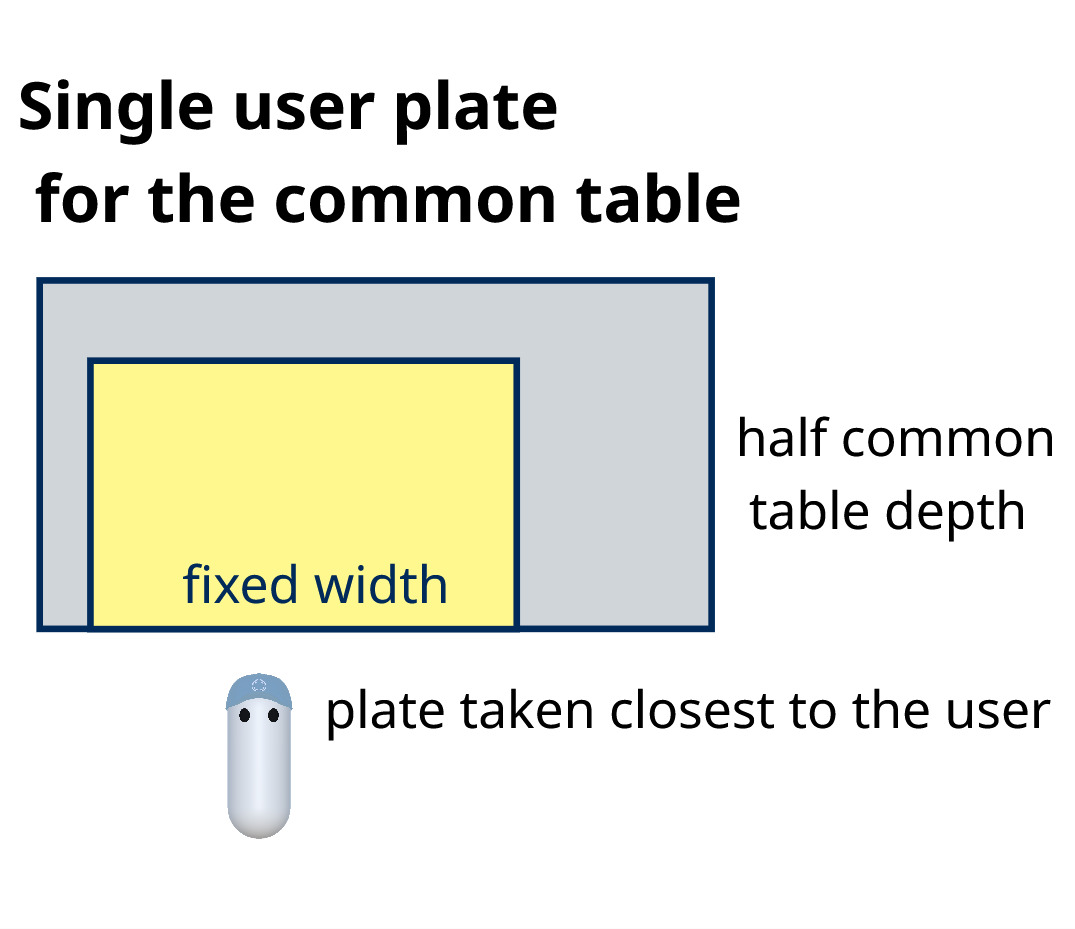
The goal here is to keep the common table size limited. To do so, when a user is alone in their room, instead of adding the full length of their table to the common table, we limit this contribution to a subsection of their table. By default, this "plate" has a width of 1 meter.
Besides, again to limit the table size, a single user should be able to have another single user in front of them. So the depth of this plate is set to half the depth of the common table (if it is the first user, the common table depth is set to their table depth: for the first user, the common table seems to be exactly their table, even if they are alone).
The side of the table to use, and the position to center this plate subsection are based on the user location: the arrangement manager considers a user will use the side of the table whose middle they are the closest to (note that for a QR code placed on the border of a thin table, the arrangement manager could confuse the desired side: placing the QRCode near the center of the table solves this).
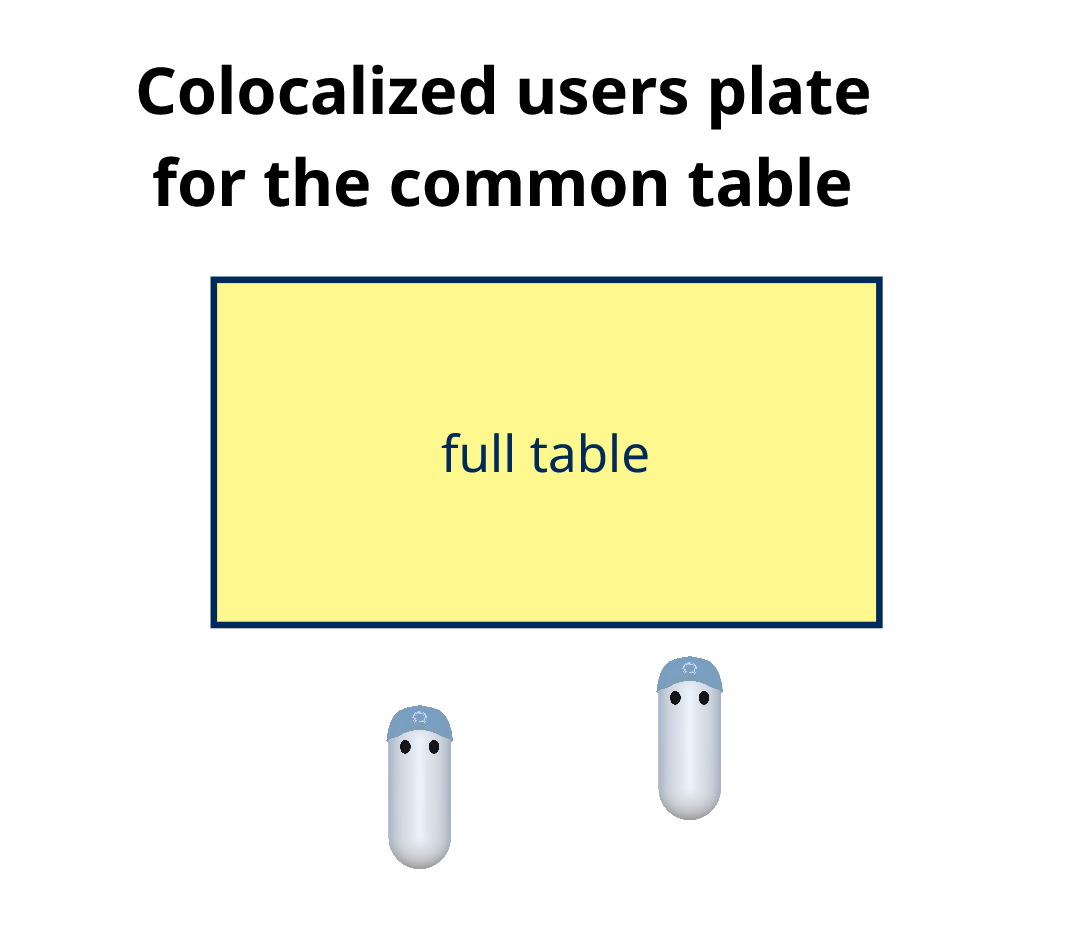
For colocated users, we expect other people to join at some point, so the full table width is used, and we consider that it requires booking both sides of the common table (no remote users will be placed initially in front of them)
This plate description (offset position, axis used, ...) is stored in the ArrangementEmbeddedIRLRoom.
Table plate position on the common table
Once the plate contribution is determined, the arrangement manager determines where to place it. To keep the common table size limited, it applies some rules:
- if only one side of the table is occupied on a section of the table, it will try first to fill the opposite side
- it will keep the width as limited as possible, but progressively and alternately filling each corner (around the table initial center)
- it will try to fill "holes" left by disconnected users (when they were the last user of their real-world room)
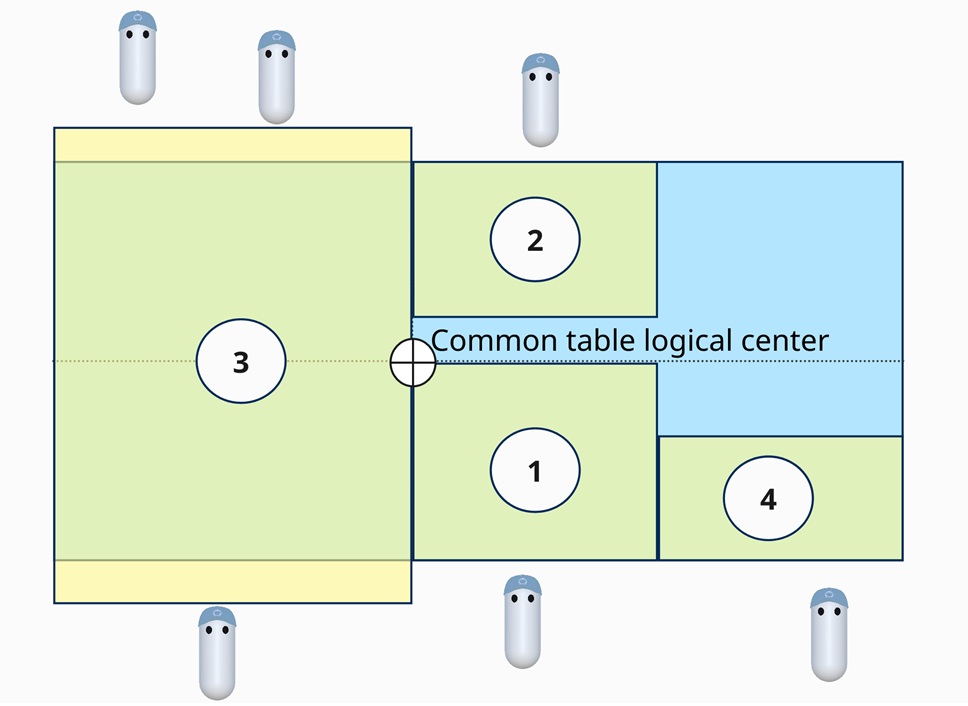
Move the users to join the table
Once the plate position is determined, the arrangement manager knows from which current location the table plate should move, and to which location it should end. This move should also be applied to every user, furniture, walls, anchors in the room containing this table.
To do so, the arrangement manager uses the NetworkIRLRoomMoveRequester associated to the moved user room, to trigger a move with NetworkIRLRoomMoveRequester.InitializingRoomMove. Note that every room connected to the application has a move requester object, spawned by the MoveRequesterSpawner component in the scene.
Update the common table
Finally, once the move actually occurred, the common table representation is updated, to reflect the new table size.
Updating the table arrangement
A user interface can be displayed, from a button under the left hand watch, to change the table arrangement.
One button allows to re-arrange the local user room: it is relevant to use it when another user colocalizes in the same room. Indeed, the arrangement manager does not automatically change the plate size to use the full table (to avoid unexpected changes), but if an arrangement restart is required, the arrangement manager will detect that this room now has a colocation setup, and will use the full table contribution to the common table.
Another button allows to fully reset the common table arrangement. It can be interesting for testing purposes, but also when a colocated room left the room and joined back, leaving a large hole (only single user tries to fill holes in the table, not colocated ones).
Car model and catwalk watch menu actions
To illustrate the need to have a common working table, the sample includes a small 3D car model to study, that can display an exploded view, and move alongside the common table to be observed by all attendees.
The model, its moving status, and its exploded view mode, can all be enabled with buttons present on the left watch.
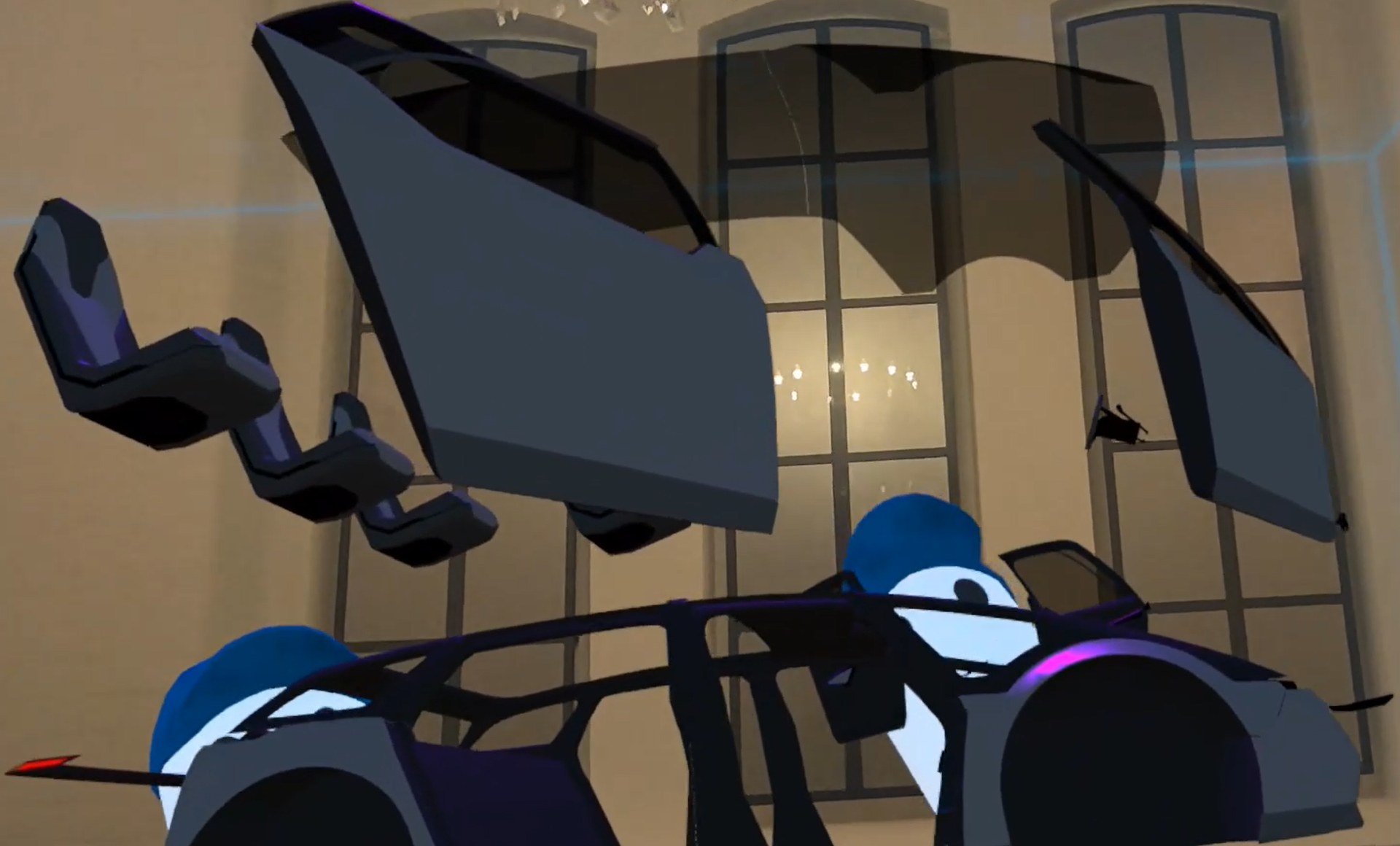
The car presentation state is synched through the CatWalkManager component and its related networked properties: CatWalkEnabled, CatWalkPlay, CatWalkObjectExplodeViewEnabled.
The car object itself stores network properties in the component CarController to know if the car, that can be grabbed, has been placed back on the catwalk track (IsOnTrack) and if the wheel should be animating (IsAnimating).
Hardware rig construction
The hardware rig has been generated by Meta's core building blocks, and is synchronized to the network rig with the MetaCoreIntegration Addon's components.
Network Connection
The network connection is managed by the Meta building blocks [BuildingBlock] Network Manager & [BuildingBlock] Auto Matchmaking.
[BuildingBlock] Auto Matchmaking sets the room name and Fusion topology (Shared mode).
[BuildingBlock] Network Manager contains the Fusion's NetworkRunner. The UserSpawner component, placed on it, spawns the user prefab when the user joins the room and handles the Photon Voice connection.
Used XR Addons & Industries Addons
To make it easy for everyone to get started with their 3D/XR project prototyping, we provide a comprehensive list of reusable addons. See Industries Addons for more details.
Here are the addons we've used in this sample.
XRShared
XRShared addon provides the base components to create an XR experience compatible with Fusion. It is in charge of the players' rig parts synchronization, and provides simple features such as grabbing and teleporting.
See XRShared for more details.
Voice Helpers
The VoiceHelpers addon is used for the voice integration.
See VoiceHelpers Addon for more details.
Anchors
The Anchors addon is used for colocation, room repositioning, the combined remote room, and the room minimap.
See Anchors Addon for more details.
Dynamic Audio group
The dynamic audio group addon is used to enable users to chat together, while taking into account the distance between users to optimize comfort and bandwidth consumption. The ColocDynamicAudioGroupMember component also ensures that voice transmission is cut for colocated users (as they are in the same real-world room, no need to sync their voice when they are close).
See Dynamic Audio Group XR Addon for more details.
XRITIntegration
The XRITIntegration addon is used to network the XR Interaction toolkit rig, and synchronize players' hands.
See XRITIntegration Addon for more details.
Feedback
The Feedback addon is used to centralize sounds used in the application and to manage haptic & audio feedbacks.
See Feedback Addon for more details.
3rd Party Assets and Attributions
The sample is built around several awesome third party assets:
- Meta XR SDKs
- Meta Lipsync
- Meta Sample Framework hands
- Sounds
Last updated on
Back to top- Overview
- Architecture overview
- Mixed reality rooms handling
- Table arrangement
- Detect the reference table
- Finding the user position on the table
- Move the users to join the table
- Update the common table
- Updating the table arrangement
- Car model and catwalk watch menu actions
- Hardware rig construction
- Used XR Addons & Industries Addons
- 3rd Party Assets and Attributions