Getting Started
Project Setup
- Unzip the downloaded package and open it in Unity 6000.3.18f1 or later.
- Create a Fusion 2 AppId following Creating a Fusion AppId.
- Open
Tools > Fusion > Realtime Settingsand paste the AppId into theApp Id Fusionfield.
The Photon Fusion Hub window opens when the project is opened for the first time and offers the same AppId field.
Running in Editor
- Open the
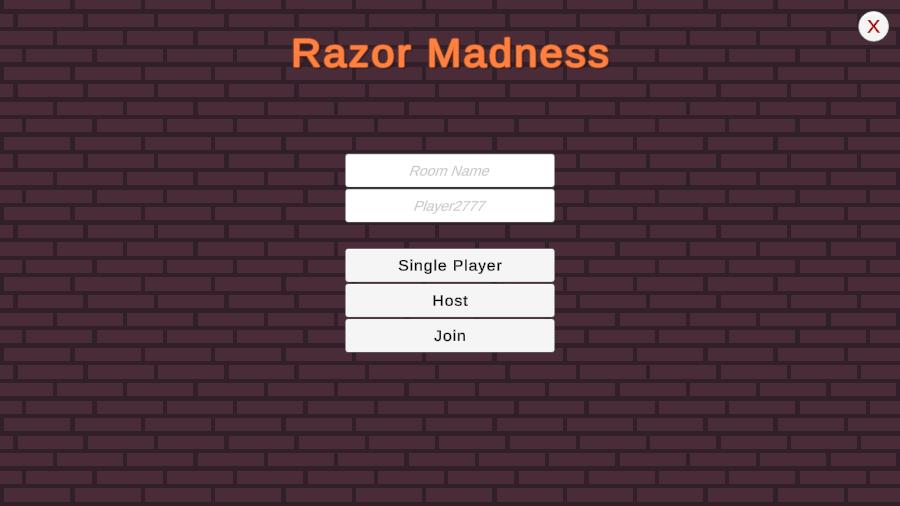
Menuscene found atAssets/Scenes/Menu.unity. - Enter Play Mode, the game starts in the main menu.
- Enter a nickname and a room name, both optional. Without a nickname the game generates one such as
Player1234. - Select Host to create the room, Join to connect to the room of a host with the same room name or Single Player to play alone without a connection. Without a room name, Host creates a room with a random name and Join enters a random open room.
- The session starts in the lobby level, where every player can move around. The host presses Start Game to close the session, so nobody else can join, and load the first level.
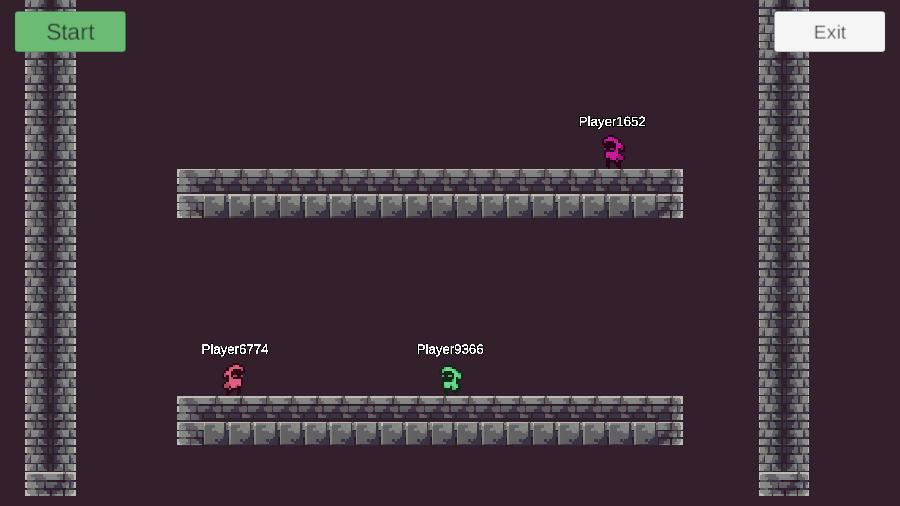
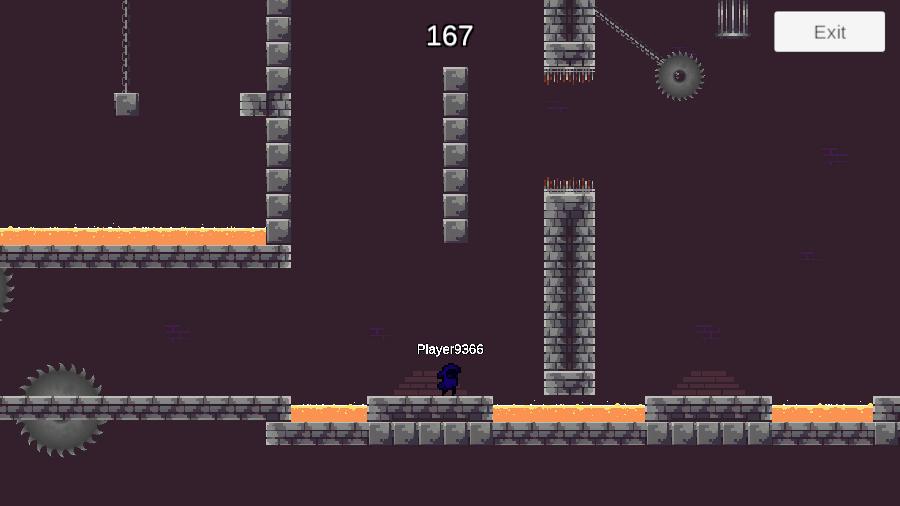
Every level starts with a five second countdown, then the three minute level timer runs. The first three players across the finish line fill the podium, or all players when fewer than three are racing. The podium screen shows when the podium is full or the level timer runs out. It stays for five seconds before the host loads the next level, and after the last level the race returns to the lobby. A player who touches a saw blade or lava respawns at the level start after one second. Players who finished follow the other players with the spectator camera. Press Exit to leave the session and return to the menu.
Controls
Keyboard
AandD- Move left and right, hold one of them while touching a wall to slide down slowlySpace- Jump, or wall jump while sliding along a wall, hold it to jump higherR- Respawn at the level startLeft ArrowandRight Arrow- Switch the spectated player after finishing the race
Building and Testing Multiplayer
All seven scenes are already in the build settings with Menu first, so create a build for your platform without further changes.
Run multiple instances of the build, or one build next to the Unity Editor.
Select Host in one instance and Join in the others with the same room name, then start the race from the lobby of the host.
Clients are only matched together when they use the same AppId, AppVersion and region.
Last updated on
Back to top