Connection Encryption
Overview
Photon encrypts all account data by default.
This includes every UserId.
Datagram Encryption, the feature this page describes, is optional and it is not necessary to protect account data.
With Datagram Encryption, Photon Fusion extends the capabilities of Photon Realtime's existing encryption system and includes support for end-to-end connection encryption between Fusion Clients and a Fusion Server. This enhancement is in addition to the already-supported connection encryption between peers and the Photon Cloud.
The Fusion Encryption System handles all the underlying details for the connection handshake in a secure manner, from key creation to key exchange, as well as the actual encryption/decryption of the packets sent over the network. While this incurs minimal processing cost, it ensures that only the intended peers can parse updates within a game session.
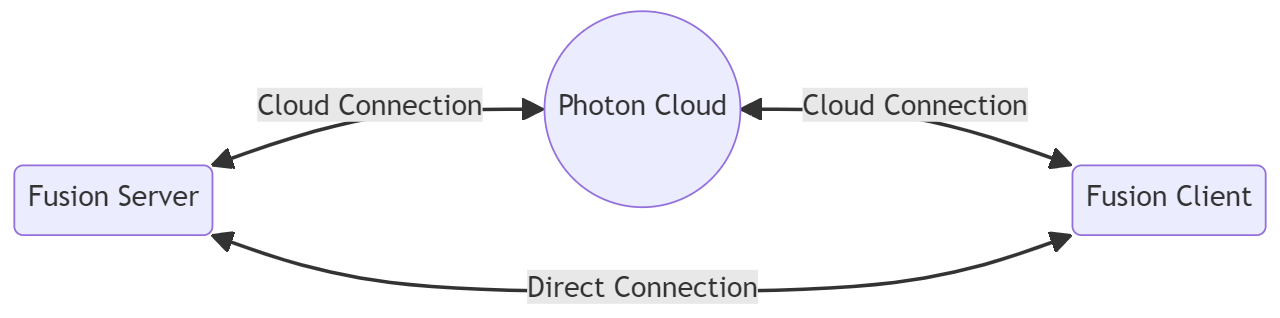
The image below illustrates that each Fusion peer can maintain several connection types:
Cloud Connection: This is the connection between the local peer and the Photon Cloud. It is mandatory, primarily used for matchmaking and can serve as a relay if necessary. All GameModes (exceptSingle player) maintain at least this type of connection.Direct Connection: This connection is established between aFusion Serverand aFusion Clientfor direct communication.
Encrypted by Default
Photon always encrypts account data between a client and the Photon Cloud.
Account data is everything in the Authentication request and in its response.
This includes the UserId and the credentials or tokens that a client sends to an Authentication Provider.
This applies to every Fusion project and every GameMode. It does not need the Datagram Encryption plugin and it does not need a setting from this page.
To set up authentication for an application, refer to the Authentication page. For the technical details of the default encryption, refer to the Photon Realtime Encryption page.
When to Use Datagram Encryption
Datagram Encryption is not a default and most games do not use it.
Do not add the Datagram Encryption plugin to a game when the only goal is to protect authentication data or UserIds.
Photon encrypts these without the plugin.
Datagram Encryption is a good option when the game traffic itself carries more sensitive data, for example in a game that involves real money. It encrypts all packets, which adds a small processing cost and a native plugin for each platform.
Authentication in Host and Server Mode
In Host and Server Mode, the Fusion Server often needs to know which account a player belongs to.
It is recommended to identify the player by the Photon UserId.
Do not send a separate authentication token via RPC for this purpose.
The Photon Cloud authenticates each client when it connects and the UserId is a result of that authentication.
This requires an Authentication Provider: without one, a client can claim any UserId.
See the Authentication page for the setup.
Datagram Encryption Setup
Follow this setup only when the game needs Datagram Encryption, see When to Use Datagram Encryption. The Encryption setup is straightforward:
1. Download and Import the Datagram Encryption Native Plugin
Download the DatagramEncryption plugin from the Photon SDKs page.
This plugin is not included in the default Fusion package due to its size and rare use.
It is necessary only for Datagram Encryption.
The default encryption of authentication data and UserIds works without it.
After the download, read the included README file for instructions on how to import it into your project.
2. Photon Cloud Connection Encryption
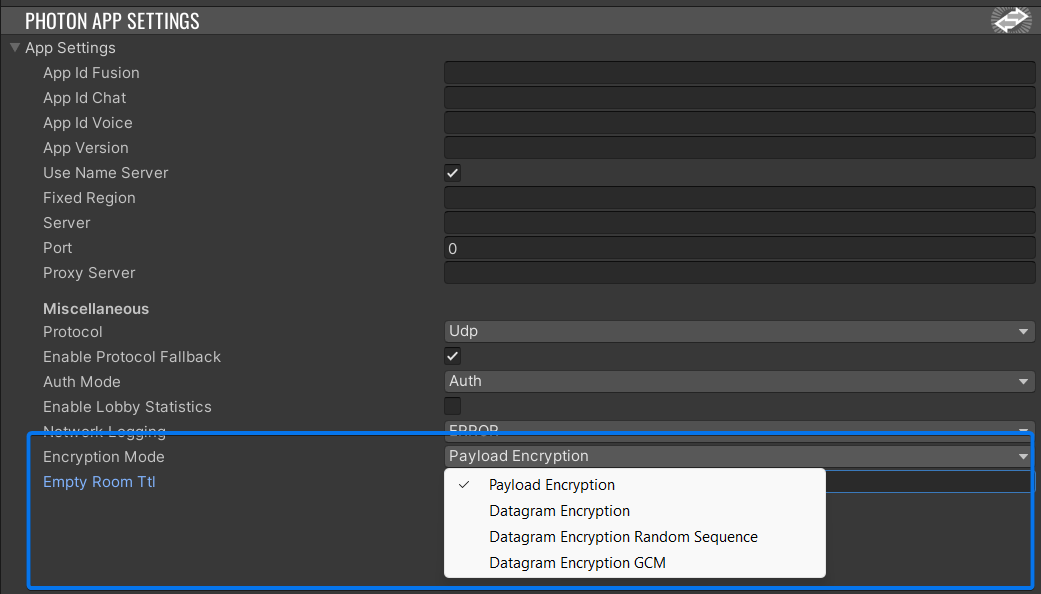
To enable Datagram Encryption for the connection between the local peer and the Photon Cloud, follow these steps:
- Open the
PhotonAppSettingsasset. - Set Port to
443. - Set the
ProtocoltoUDP. - Set the
AuthModetoAuth Once Wss. - Select the
Datagram Encryption GCMfor theEncryption Mode.
These settings ensure the connection between the local peer and the Photon Cloud is encrypted at the Datagram level.
This covers encryption for the Shared mode.
Without these settings, Photon still encrypts authentication data and every UserId on this connection.
For further information on Encryption Modes, refer to the Encryption Modes documentation.
3. Photon Fusion Direct Connection Encryption
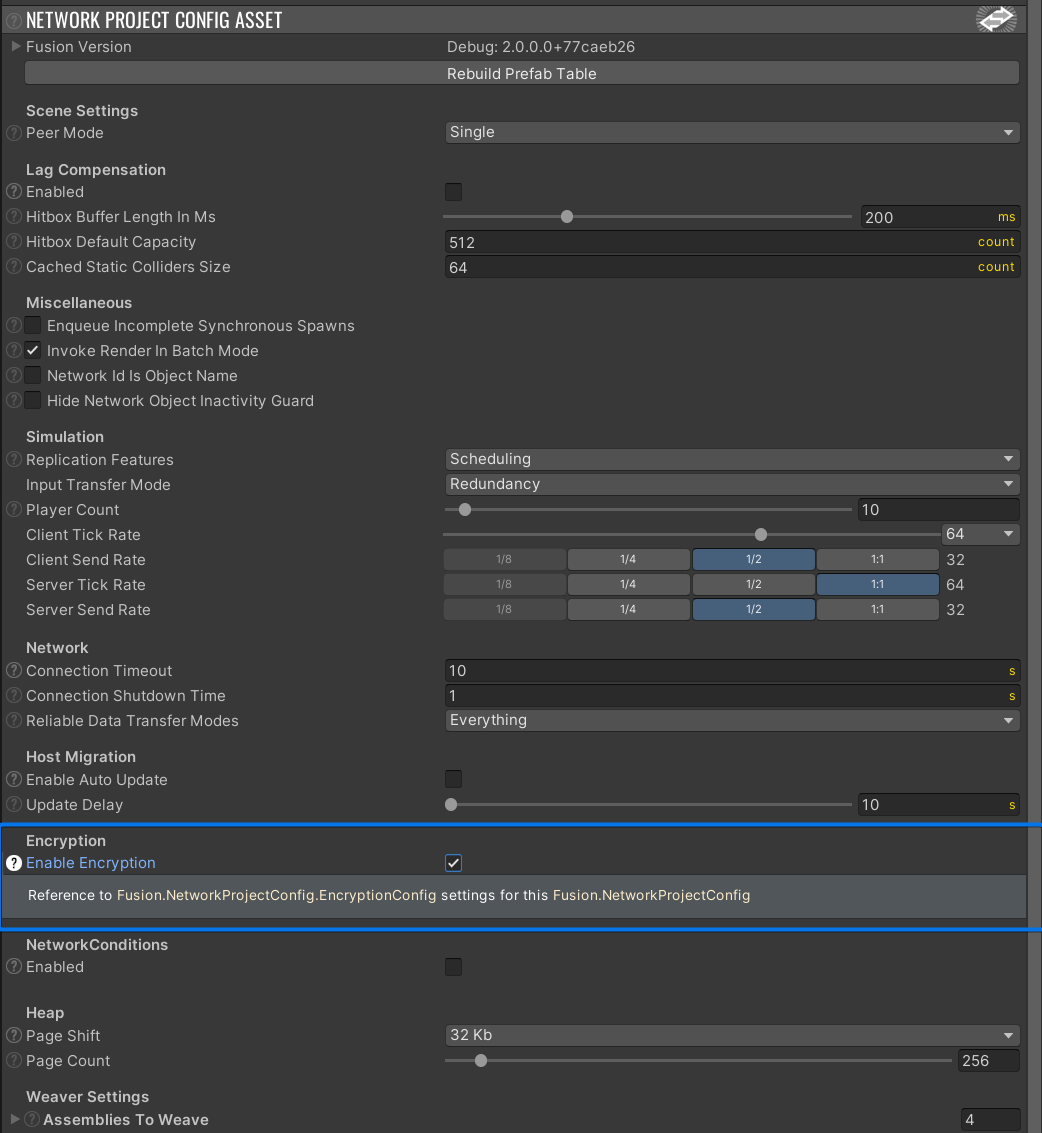
Enable the Fusion Encryption System at the NetworkProjectConfig asset.
This signals that the connection between a Fusion Server and a Fusion Client must be established in an encrypted manner.
This only affects ClientServer Modes (Client, Host, Server, AutoHostOrClient), as in Shared mode, there is only 1 type of connection - between the local peer and the Photon Cloud.
Encryption System Description
The packet encryption system achieves its behavior through the application of the following well-known algorithms with the specified settings:
- Advanced Encryption Standard (AES) (doc page):
- Key Size: 256 bits;
- Mode: CipherMode.CBC (doc page).
- Message Authentication Code (HMAC):
- Using the HMACSHA256 function (doc page).
The Data Encryption Process can be described with the following steps:
- Encrypt Data:
- The entire buffer is encrypted using the above algorithms.
- A
Hashbased on the packet content is generated and appended to the data buffer.
- Decrypt Data:
- The
Hashcode is validated; otherwise, the packet is discarded. - The received data buffer is decrypted.
- The
Last updated on
Back to top- Overview
- Encrypted by Default
- When to Use Datagram Encryption
- Authentication in Host and Server Mode
- Datagram Encryption Setup
- 1. Download and Import the Datagram Encryption Native Plugin
- 2. Photon Cloud Connection Encryption
- 3. Photon Fusion Direct Connection Encryption
- Encryption System Description