Getting Started
Project Setup
Each download is a complete Unity project.
- Unzip the downloaded package and open the project folder with Unity
6000.3.18f1. - Create a Fusion 2 AppId following Creating a Fusion 2 AppId.
- Open
Tools > Fusion > Realtime Settingsand paste the AppId into theApp Id Fusionfield of the selectedPhotonAppSettingsasset.
Running in Editor
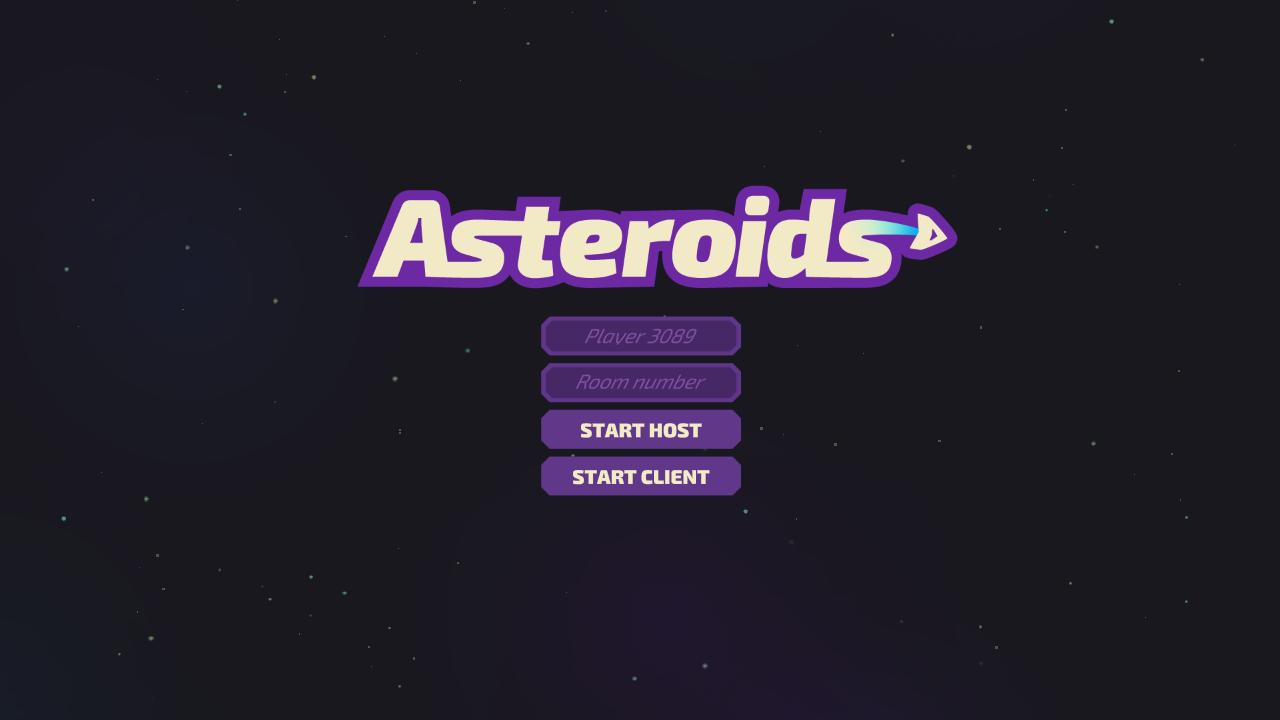
The sample starts from the Menu scene.
- Open the scene
Assets/Scenes/Menu.unityand enter Play Mode. - Enter a nickname and a room name. An empty nickname field uses the generated
Playername shown in the field. - In the Shared Authority project, press
STARTto join the session or create it. - The
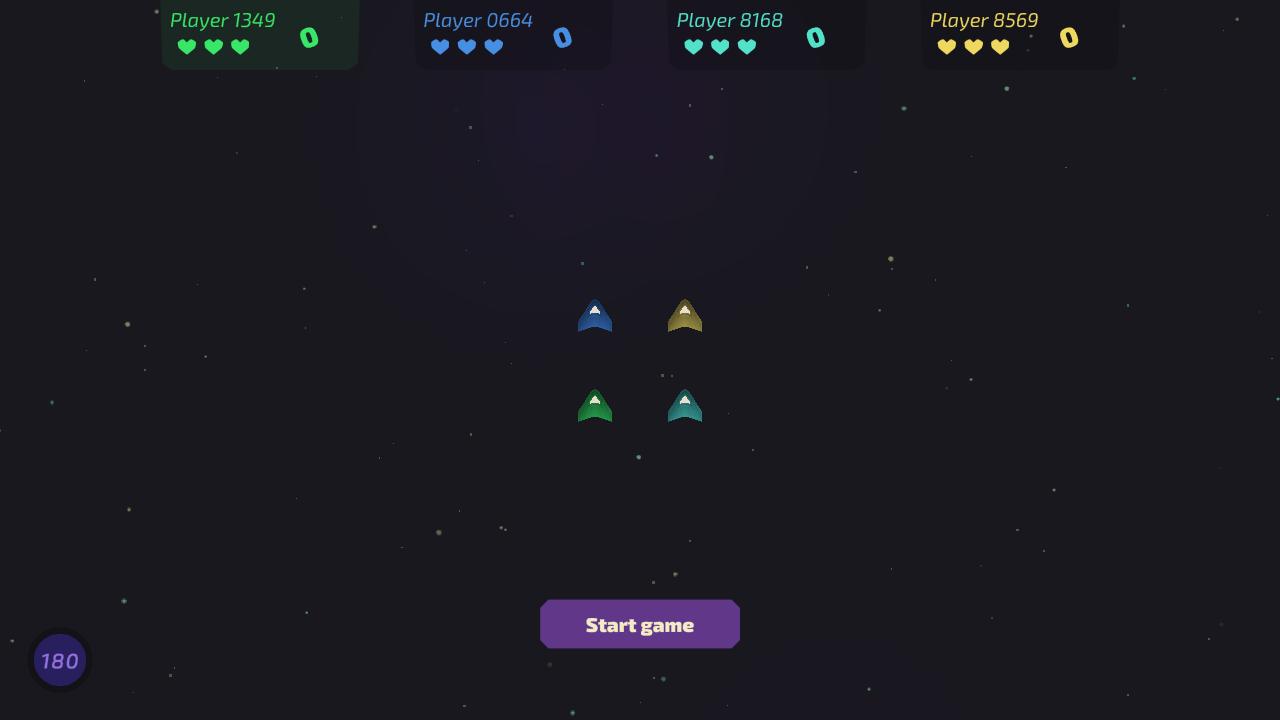
Gamescene loads with the pre-game screen. The master client pressesStart game, the other players seeWaiting for master. - The round lasts 180 seconds and ends earlier when every ship is out of lives. The winner screen shows the player with the highest score, remaining lives break a tie. After 4 seconds every client returns to the menu.
Controls
Keyboard and Mouse
WorUp Arrow- Thrust forwardSorDown Arrow- Thrust backwardA,DorLeft Arrow,Right Arrow- RotateLeft Mouse ButtonorEnter- Fire, one shot per press
Building and Testing Multiplayer
The build settings list the Menu and Game scenes in this order.
Keep both scenes in the list, StartMenu stops with an error when the Game scene is missing.
To test multiplayer, run a build next to the Unity Editor or start several builds on one machine.
Enter the same room name on every client and join before the round starts, GameManager.StartGame closes the session to new players.
Clients are only matched together when they use the same AppId, AppVersion and region.
In the Shared Authority project StartMenu starts the NetworkRunner with GameMode.Shared, every client joins the session and controls its own spaceship.
Last updated on
Back to top