Anchors
This addon detects visual markers such as QR codes or ArUco codes and offers two use cases: colocalization and object repositioning. It can operate with a single marker type (QR code or ArUco) or both simultaneously.
Marker detection & representation
Supported markers
QR Code with MRUK
QR code detection is based on the Meta MR Utility Kit (MRUK). Now, it supports Trackables of QR code type.
If QR code detection doesn't work with a compiled application, specially after an headset reboot, try to enable the experimental mode with adb command (adb shell setprop debug.oculus.experimentalEnabled 1)
ArUco with OpenCV
Using ArUco markers requires the OpenCV for Unity asset available in the Unity on the Asset Store. We do not distribute OpenCV for Unity with the project. You must purchase it yourself and add it to the project. Once installed, it is automatically detected, enabling ArUco marker support.
Marker detection logic
In this addon, the marker usage is a 3 steps process:
- Marker detection: the actual raw marker information collecting process, from the hardware information. It can be image analysis, direct operating system information like
MRUKTrackabledetection in Horizon OS, or even manual in-app declaration of common points. - Marker position stabilization: the raw marker detection can be more or less stable, to use it with confidence, an additional layer ensure to extract short-term and long-term stabilized positioning from the raw positioning
- Marker usage: finally, those marker positioning info can be use for actual features.
AnchorTag
The AnchorTag is the class representing point detected in space: it can be used to track marker detection results, or to visualize stabilized version of those detected position.
When used for detection results, the class is responsible to tell if the anchor is still detected or not, through the IsDetected property. The default implementation consider that the anchor is detected if its gameobject is active, but if a Meta's MRUKTrackable is present on the game object, then we rely on its IsTracked property.
The class also handles the visual aspect of the anchors.
IRLAnchorInfo
The various information related to a marker are grouped in the IRLAnchorInfo class.
It notably stores:
- its last detection status:
wasDetectedThisFrame,lastValidPosition,lastValidRotation, - the stabilized pose to use and its stability status:
stablePose,isPoseStable, - the duration of this stability relatively to an expected long stability duration
expectedDetectedAnchorsStabilityDuration:hasLongStability,longStabilityProgress.
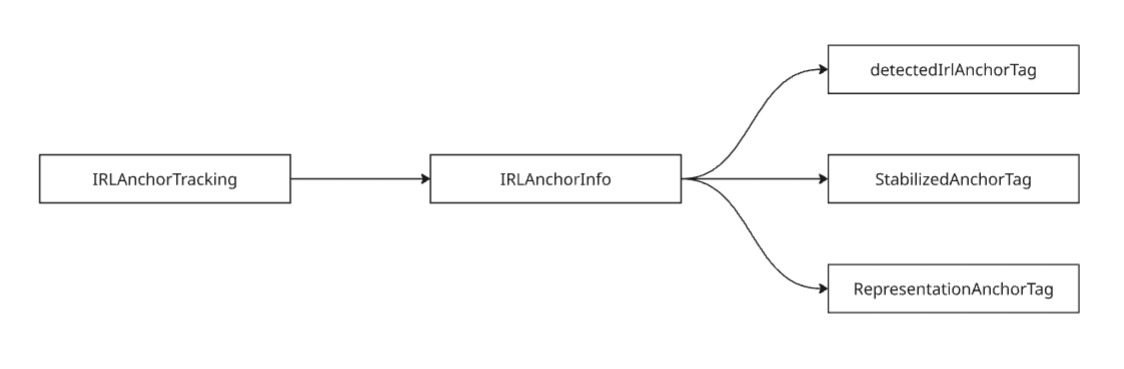
It necessarily stores a reference to the AnchorTag representing the raw detection results (to allow checking its IsDetected property), but it can optionally use other AnchorTag to visualize the stabilized results, or simplified visualization representation: for a single marker, the addon manages three types of anchors:
detectedIrlAnchorTag: thisAnchorTagtracks the actual input anchor position. It is updated in realtime and active only when the position has been detected. This is not intended to be displayed except for debugging purposes, in particular when using ArUco markers, because the current position may show large variations depending on the user's head movements.stabilizedIrlAnchorTag: thisAnchorTagis used to represent the anchor's stabilized position for the current frame (either this being average or latest position, based on the stabilization logic), that should be used in actual usage of anchors.representationIrlAnchorTag: it is used to display a representation of the anchor that hide some variation: it moves to the stabilized when it has remained stabilized at the same position for a sufficient amount of time, or moves slowly to the last detected position otherwise.
IRLAnchorTracking
The tracking and stabilization of the detected visual marker is handled by the IRLAnchorTracking class.
The detected marker analysis can be either automatic (during every late update, we consider that the detection has been done, and we collect which anchors are detected or not), or be called on demand to synchronize on a detection system that might need more than one frame to finish detecting markers.
It provides the IIRLAnchorTrackingListener interface to notify listeners that an anchor's status has changed.
C#
public interface IIRLAnchorTrackingListener
{
   void OnIRLAnchorSpawn(IRLAnchorTracking irlAnchorTracking, string anchorId);
   void OnIRLAnchorDetectedThisFrame(IRLAnchorTracking irlAnchorTracking, IRLAnchorInfo anchorInfo);
   void OnDetectionStarted(IRLAnchorTracking irlAnchorTracking);
   void OnDetectionFinished(IRLAnchorTracking irlAnchorTracking);
}
IRLAnchorTracking computes the anchor's average position using the latest detected poses and estimate the anchor stability. Several parameters allow you to adjust the sensitivity :
historyDuration: duration, in seconds, of the history, determining the number of previous positions to take into account when calculating the average position. To convert the duration to a number of positions, the maximum expected FPS can be provided inmaxFpspositionStabilityThreshold&rotationStabilityThreshold: allowed deviation before considering that an anchor's position is no longer stable.maxDetectedToStabilizedDistanceForLongStability: the maximum distance between the anchor's stable position and its last detected position, beyond which long term stability is no longer considered valid.expectedDetectedAnchorsStabilityDuration: the duration required to consider that a stable anchor (isPoseStable is true) has been stable long enough (so hasLongStability can be set to true).
Once stable markers are detected in real life, and mapped to the virtual scene position, those data can be used for various use cases.
MR rooms and colocalization
In this use case, the visual marker can be used to colocalize users physically in the same room, to make sure that in a mixed reality application, the real life user on the camera will appear at the same position that their avatar in the virtual scene.

Colocalization core
Colocalization types
Several cases can occur regarding colocalization scenarios:
- all user are in the same real life room
- users are split among several rooms in different locations
- several markers are present in one real life room (to cover large rooms needs)
- the markers position in the virtual scene is predefined (to place a predefined virtual overlay on the real life room)
- every real life room is only has one marker, but people can move from one room to the other by walking in their location
All those cases are supported by the following implementation.
Note: the addon contains also contains a simple AnchorBasedColocalization class, that does not require networking synchronization, for instance if there is just one common room, and if the detectable anchors position are all predefined and hardcoded in the Unity scene. This class being less flexible, it is mostly left in the addon for reference purposes.
Rooms logic
To cover all those cases, the addon introduces the concept of rooms, defined by their rooms ids. A room id is a temporary identification of a real life room. User can be detected in a room, as well as anchors.
In addition to that the position of the users and of detected anchors need to be shared on the network.
If further information allows to realize that 2 room ids describe the same real life location, the rooms can be merged, with only one room id remaining. This occurs when:
- a first user U1 detects an anchor A1, creating room R1, and sharing a network anchor NA1 storing its position
- a second user U2 detects another anchor A2, creating room R2, and sharing a network anchor NA1 storing its position
- the second user U2 also detects the anchor A1.
When such a room merge occurs:
- users and anchors room id change to match the merged room room id. Here, only the room R1 will remain, and both anchors and both users will be associated to this room
- the user who has initiated the merged is moved. Here, the Unity scene position of U1 won't change, but U2 position will change, so that the position of the anchor A1 relatively to U2 does not changes, while this relative position matches the NA1 position shared by U1
- room R1 is destroyed
- if other users where with U2 in room R1, they have to move in a similar way to U2
Supporting classes
A NetworkIRLRoomMember represents an user a a colocalization scenario. Its networked RoomId property stores the room id of the room in which this user is: at start, while no info is known about anchors, a unique room id is generated for this user, that is alone in this room. This class should be placed on the networked rig spawned for each user.
A NetworkedIRLRoomAnchor shares information about a detected real life anchor. In addition to a AnchorId networked property storing its anchor id, its networked RoomId property stores the room id of the room in which this anchor us: when an anchor is stable and detected for the first time, a networked anchor is created, and its room id is set to the room id of the user that detected it.
Every NetworkIRLRoomMember stores the last NetworkedIRLRoomAnchor it detected in the local RoomAnchorToFollow property. If the anchor is moved, the member will move to preserve its offset to the anchor.
The IRLRoomManager class tracks all NetworkIRLRoomMember and NetworkedIRLRoomAnchor (either from the local user or remote users), and stores them in their room. It watches room id changes on them to adapt its rooms cache content (the class is not networked and rebuilds locally an overview of all rooms based on the networked members and anchors data and updates).
Anchor detection logic
The IRLRoomManager requires a IRLAnchorTracking in the scene, and subscribes to its event.
When an anchor is detected, and its position has a long stability:
- 1 - if it is the first time that this anchor id is detected (locally or by a remote user):
- a
NetworkedIRLRoomAnchoris spawned, and placed at the detected position
- a
- 2 - if a known network anchor (created locally or by a remote user) has the same anchor id:
- 2.1 - if this network anchor is in the same room than the local user: we don't do anything
- 2.2 - if this network anchor is not in the same room than the local user: we consider that a colocalization has to be triggered
- the user position is changed so that the anchor they sees matches the networked anchor position. Its rig position before and after the merge are stored in
NetworkIRLRoomMember's networked properties, to ensure that the same move can then be applied by other members in the room - we plan a room merge
- the user position is changed so that the anchor they sees matches the networked anchor position. Its rig position before and after the merge are stored in
When a room merge occurs:
- all user and anchor in the previous rooms also change their room id to the new merged room
- all anchors are moved by their state authority to apply the same move then the user that triggered the colocalization did
Note: to detect a room merge, we see when a member room id changes. To avoid cascading several merges, NetworkIRLRoomMember contains a RoomPresenceCause networked property to allow to determine which user was the one changing its room id as it was initializing the room merge: the anchor moves will thus only occurs once.
Finally, all NetworkIRLRoomMember try to preserve their position offset to the last NetworkedIRLRoomAnchor they detected (stored in RoomAnchorToFollow). So when the room anchors have been moved during the room merge, the other members will also move to stay in sync with their anchor position.
Special cases and options
Hardcoded networked anchors
It is possible to store in the scene NetworkedIRLRoomAnchor without actually detecting anchors (or to spawn them through some kind of calibration data).
For such anchors, their IsChangingRoomForbidden has to be set to true: it warns the IRLRoomManager that a room containing it cannot be merged, and anchors and members should stay in it.
This allows to force the user position to a specific one, even for the first user detecting a given anchor.
This is relevant in scenario where the room has been calibrated, and the position of anchors are well known relatively to each others: this will allow for instance to map a predefined virtual decoration over a real life room.
Predefined room id
In the default implementation, when an users see several anchors, they are all supposed to be in the same room, triggering room merges.
However, if the colocalization scenario might include moving from one room to another, for instance if the user can roam in a building with several distinct rooms, it is possible to predefine an anchor room id, to prevent it from being merged into another room: in this case, the user will change room, leaving the previous one unchanged (no merge will occur).
Note that only one anchor can be present in a given room in this scenario: if 2 anchors would be predefined in the same room, we would not know how they are placed relatively to each other without the room merge mechanism.
To set predefined anchors, there are 2 options:
- in
IRLRoomManager, fill thepredefinedTagRoomMappingswith pairs of anchor id/room id - in
IRLRoomManager, provide apredefinedRoomSuffixSeparator: if an anchor id contains this string, the anchor aid string will be split around this separator, and the right side will be considered the room id. For instance, with a "-Room-"predefinedRoomSuffixSeparator, an QR code with the payloadAnchor18-Room-R3will be predefined in the room "R3"
For such anchors, the IsChangingRoomForbidden of their NetworkedIRLRoomAnchor component is automatically set to true, to prevent their room to be merged: anchors and members will stay in it.
Walls and furniture synchronization
In many mixed reality scenario, the room analysis, providing walls and furniture detection, is part of the information whose synchronization is required.
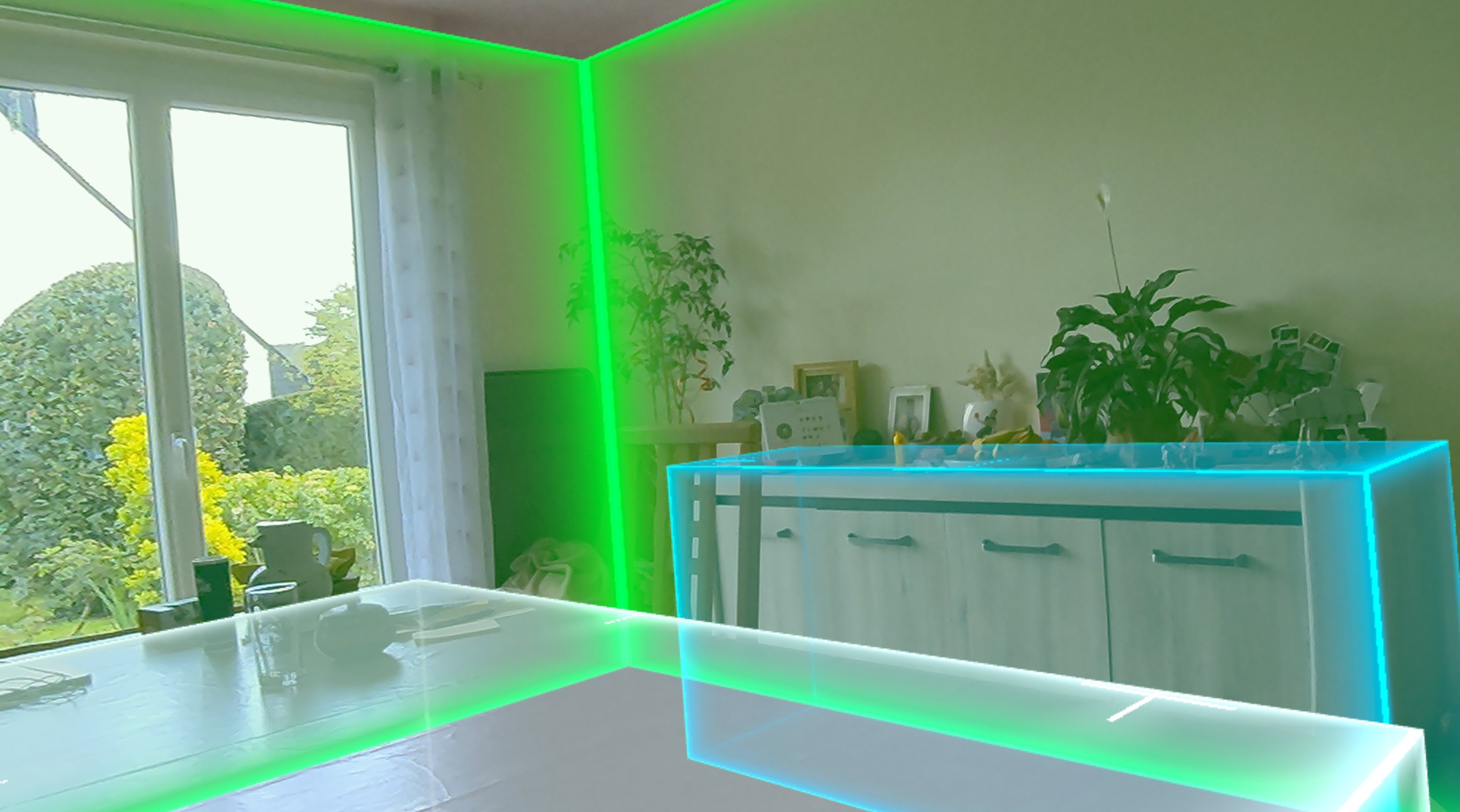
The NetworkIRLRoomAssociatedPartis used to synchronize such real life room, and make sure they stay synchronized with their user room.
NetworkIRLRoomAssociatedPart
This component ensure that its game object is considered as part of the room of the user that spawned it (aka, of the NetworkIRLRoomMember having the same state authority than them), tracked as the ReferenceRoomMember.
If attachedToLocalUser is set to true, it will ensure to always keep the same position and rotation offsets to its ReferenceRoomMember pose, so that the associated part will follow its user's rig position changes (either triggered by colocations, room moves, or other reasons).
Visibility of NetworkIRLRoomAssociatedPart
The IRLRoomManager.roomAssociatedPartDisplay property will drive the visibility of all NetworkIRLRoomAssociatedPart whose adaptRendersToRoomManagerMode is set to true.
We can select to:
- never display them,
- always display them,
- display only the room of the local user,
- display the only the room of remote users,
- or, for colocalized scenario, only the room associated parts of the main user in the room (to avoid overlaying several times the same room).
NetworkedAnchorPrefabSpawner
Note: this part is tied to Meta's MRUK usage for now, there is not yet equivalent for other platforms. Don't hesitate to contact us if this is needed for your project.
To easily spawn walls and furniture, the NetworkedAnchorPrefabSpawner can be placed on a Meta MRUK's game object. The prefabstoSpawn list allows to describe what NetworkObject containing the prefabs that should be spawned by the network runner for a given MRUK label (wall, table, ...). Usually, this prefab should include a NetworkTransform and a NetworkIRLRoomAssociatedPart too, with NetworkIRLRoomAssociatedPart.attachedToLocaluser set to true.
See the MRUKWithWallSpawner prefab for an already configured game object containing both MRUK and NetworkedAnchorPrefabSpawner (as well as MRUKPermissionWaiter, to manage properly permissions).
IRL room moves
The colocalization core defines IRL rooms for every group of colocalized (or single) users.
In mixed reality, the remotes users can potentially be placed in an undesirable place, either visually (inside your walls, in another real life room), or for the application use cases (not close enough to other users). To solve those issues, the Anchors addon provide solutions to move whole IRL rooms:
- either automatically, based on the application logic
- or manually, by moving the room, potentially while seeing a preview of the result.
NetworkIRLRoomMoveRequester
The NetworkIRLRoomMoveRequester handles room moves requests. A move can be requested from a script by calling NetworkIRLRoomMoveRequester.InitializingRoomMove.
It plans a room move, so that this room members' rigs will have a new position/rotation.
All members and anchors in the room will then be moved by the IRLRoomManager (first the anchors, then the members will follow the anchors - the member will move directly if they don't currently follow an anchor).
The move is described by giving an arbitrary point position/rotation before the move, and after the move.
Moving the requester to trigger moves
In addition to triggering moves through scripts, if the NetworkIRLRoomMoveRequester is moved while its status is not set to RequestStatus.RequestsBlocked, the new move requester position change will initialize a room move.
A small delay (delayBeforeStabilizingIncomingPosition seconds, 1 by default) is waited after the move requester stops moving, before triggering the actual room move, to be sure that the desired position is stable.
In addition to that, if the status is RequestStatus.RequestPostponed, the expected requested position/rotation are saved, but the actual move request is not sent to move the room until the status is set back to RequestStatus.RequestAllowed. This is useful to block the move while doing room move preview. See the following "Move preview" chapter.
Move previews
When the move requester moves should trigger a move request, it is possible to ask to have a room move preview, by setting NetworkIRLRoomMoveRequester.ShouldPreview to true : the room move description is shared other the network, but the room is not moved yet.
If a NetworkIRLRoomAssociatedPart's previewRoomRequesterMoves is set to true, this associated part will move alongside the move requester when it is previewing, allowing to see the impact of the move on the room that the move requester would have. The associated part position is restored at the end of the frame, so if the preview is stoppped and the move is cancelled, the associated part real position will remain unchanged.
GrabbableMoveRequester
The GrabbableMoveRequester component allows to simply move rooms, by make this room move request and preview associated with an object grab.
This component should be placed on a grabbable object (having a component implementing the INetworkGrabbable interface, like NetworkGrabbable) that also contains a NetworkIRLRoomMoveRequester.
When the object is grabbed, the move requests of the NetworkIRLRoomMoveRequester are postponed, until the grabbable is ungrabbed, then the requester preview mode is enabled.
When ungrabbed, the request is allowed to run again, once the move requester considers the position stabilized. The preview itself continues for an extended delay (extendedPreviewDuration, 2 seconds by default), to have a chance to let the actual move to occur (the move can be applying on remote users) before stopping the preview, preventing the position to reset to its unchanged value before finally being updated.
Combined remote room and MR context background
In addition to moving IRL rooms, there is another way of handling remote users being outside of the local room walls: provide them some virtual context background. The goal here is to display virtual room walls, surrounding the remote users when they are outside of the local real life room, to avoid having the strange visual effect it would create to see them being a real life wall.
Those walls should only appear when they are outside of the local room: this can be done using stencil buffers, with the local room walls acting as portals (the remote context walls can only be seen when looking through the portal placed on our local room walls).
This can be done by displaying with the appropriate rendering config remote walls synchronized with a NetworkIRLRoomAssociatedPart.
But if several remote rooms are present in the scene, this can become confusing, with a lot of walls overlapping.
To solve that, the Anchors addon provides a virtual combined room for remote users. The idea of this room is to show in a unique room all the places where remote users can go. So it is the smallest cube than contains:
- all remote users walls
- the local user head (to be sure that this combined remote room is linked to the local user - it is needed to actually have a common room feeling, if all the remote rooms have no shared part with your local room)
This combined remote room is handled by the MixedRealityRemoteUsersRoom class. It takes care of :
- the remote users combined remote room volume definition
- creating the required portals (handling the stencil buffer) in the local user walls
See the MixedRealityUsersRoom prefab for a preconfigured version of this component, with the appropriate portals (MRRoomPortalprefab).
Layer and stencil buffer layer configuration
The portal system in the local user walls, for the combined remote room, or any other MR context logic desired for walls outside of the local rooms, relies on a proper stencil buffer configuration.
The provided portal shader,VR_Portal, applies its configured stencil id (1 by default, in the provided Mat_VR_Portal material), so that renderers requiring this stencil to be set can be seen when you look at them through those portals.
Then, the combined remote room renderer needs to use a layer only visible when this portal-provided stencil id is set.
The MixedRealityRemoteUsersRoom.remoteUsersRoomLayerForDisplayLocalWallIntersectionPortalsAndRemoteUserRoom property (set to "VisibleThroughLocalWallsPortals" by default) asks this component to automatically configure the common room renderer to this layer.
In URP, to make this layer only visible with the appropriate stencil id is set, this can be done in a UniversalRendererData renderer config, added in the renderers list of the active URP config file.
The addons contains the MRPortal_VR_Renderer config, setting the layer 11 (that you should rename "VisibleThroughLocalWallsPortals" if you want to use this automatic config) as requiring the stencil buffer 1 to be visible. It needs to be added to the URP config renderer list.
Alternatively, it is possible to simply use the already preconfigured URP files, available in the Anchors addon (it will still be required to rename the layer 11 to "VisibleThroughLocalWallsPortals"):
- MRPortal_Mobile_RPAsset (for Android)
- MRPortal_PC_RPAsset (for PC)
Portal blocker material
Note that if the combined remote room material is opaque, the places where the combined remote room will appear will hide real life elements, including the wall on which the portal allowing to see them is.
To limit risks for the user, it is possible to add on the portals the Mat_Portal_Blocker: it will the portals wall become black when the user comes close to them, warning them of the proximity.
The default MRRoomPortal prefab includes it.
Additional combined remote room points
The MR combined remote room allow to give context for remote players outside of the local real life room. But some use cases may require to give context to other objects: a common presentation screen that may be out of the local room due to its size, ...
To support that, it is possible to add in MixedRealityRemoteUsersRoom.remoteUsersRoomAdditionalTransforms additional transforms that should be included in the combined remote room.
It can be edited at runtime with RegisterRemoteUsersRoomAdditionalTransforms/UnregisterRemoteUsersRoomAdditionalTransforms (this would trigger an immediate update of the combined remote room when doing so, by calling RequestUpdateRemoteUsersRoom).
IRL room minimap
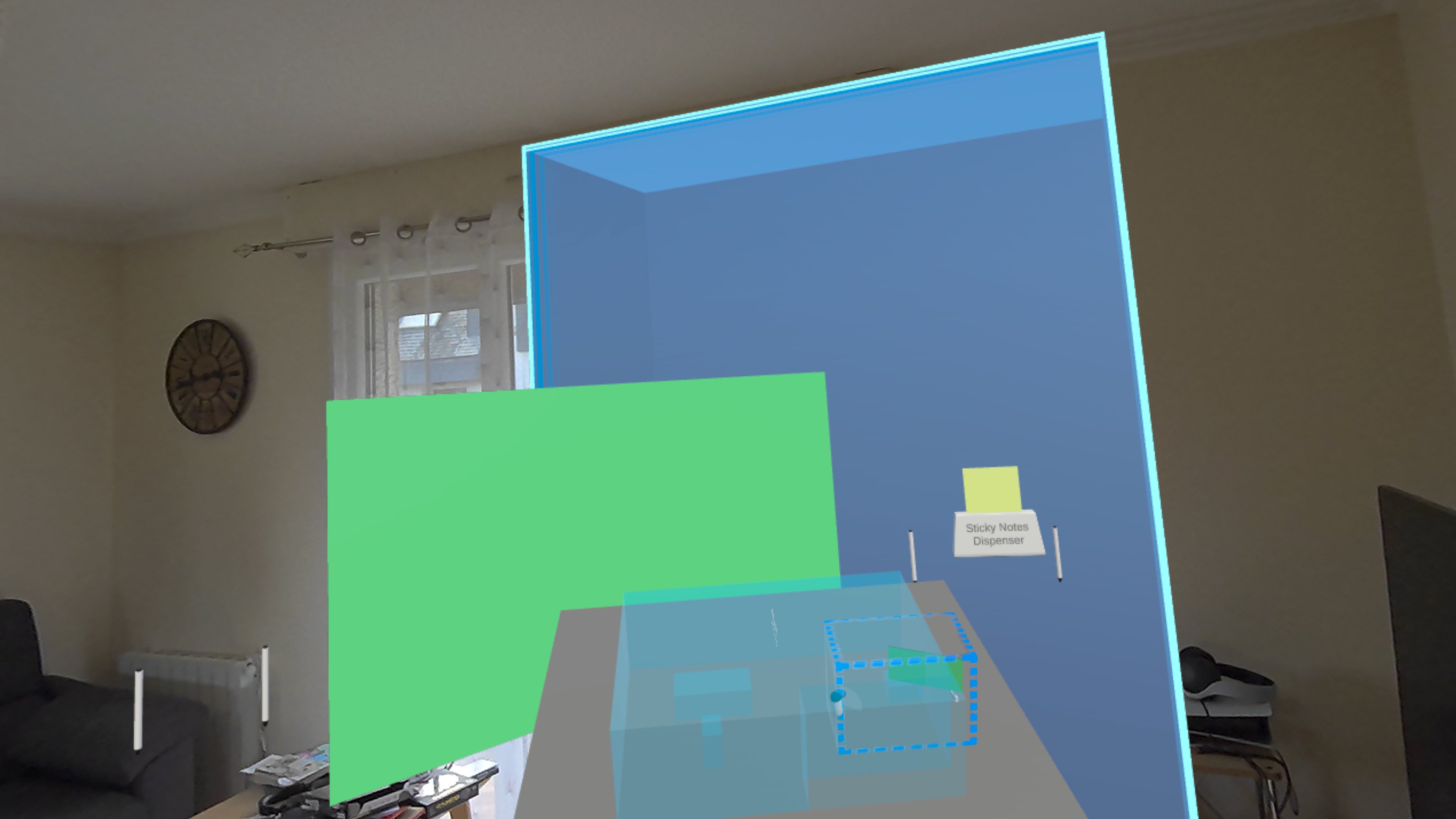
To have a better understanding of use cases mixing remote users and colocalized users, but also to allow simple move in mixed reality scenario, the Anchors addon provides a minimap system.
This shows a small 3D map of all the real life rooms present in the scene (walls, users, and tables by default), as well as a dashed box representing the combined remote room.
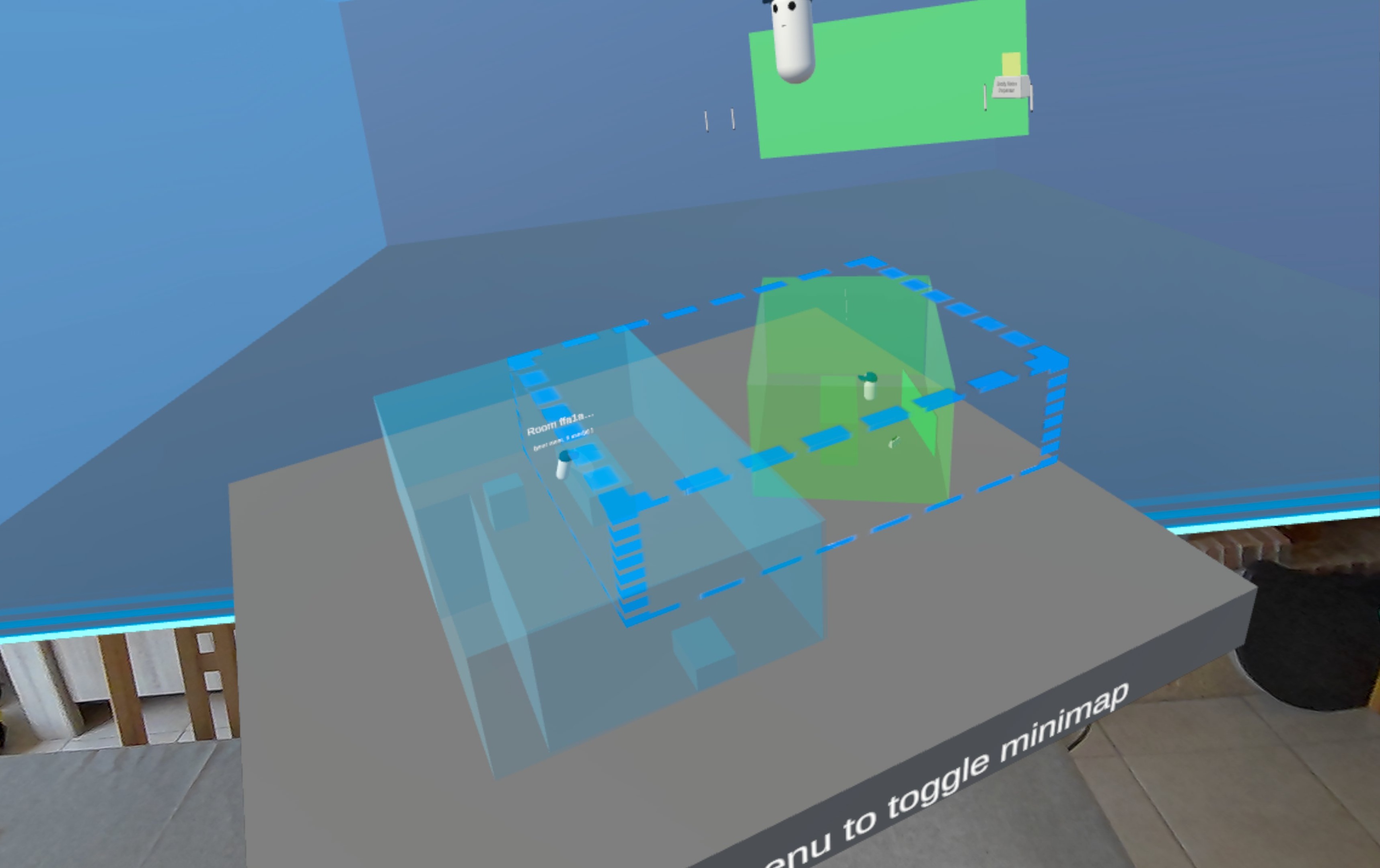
The rooms on the minimap can be grabbed and moved, triggering a preview during the moves, and an actual move after ungrabbing the minimap room.
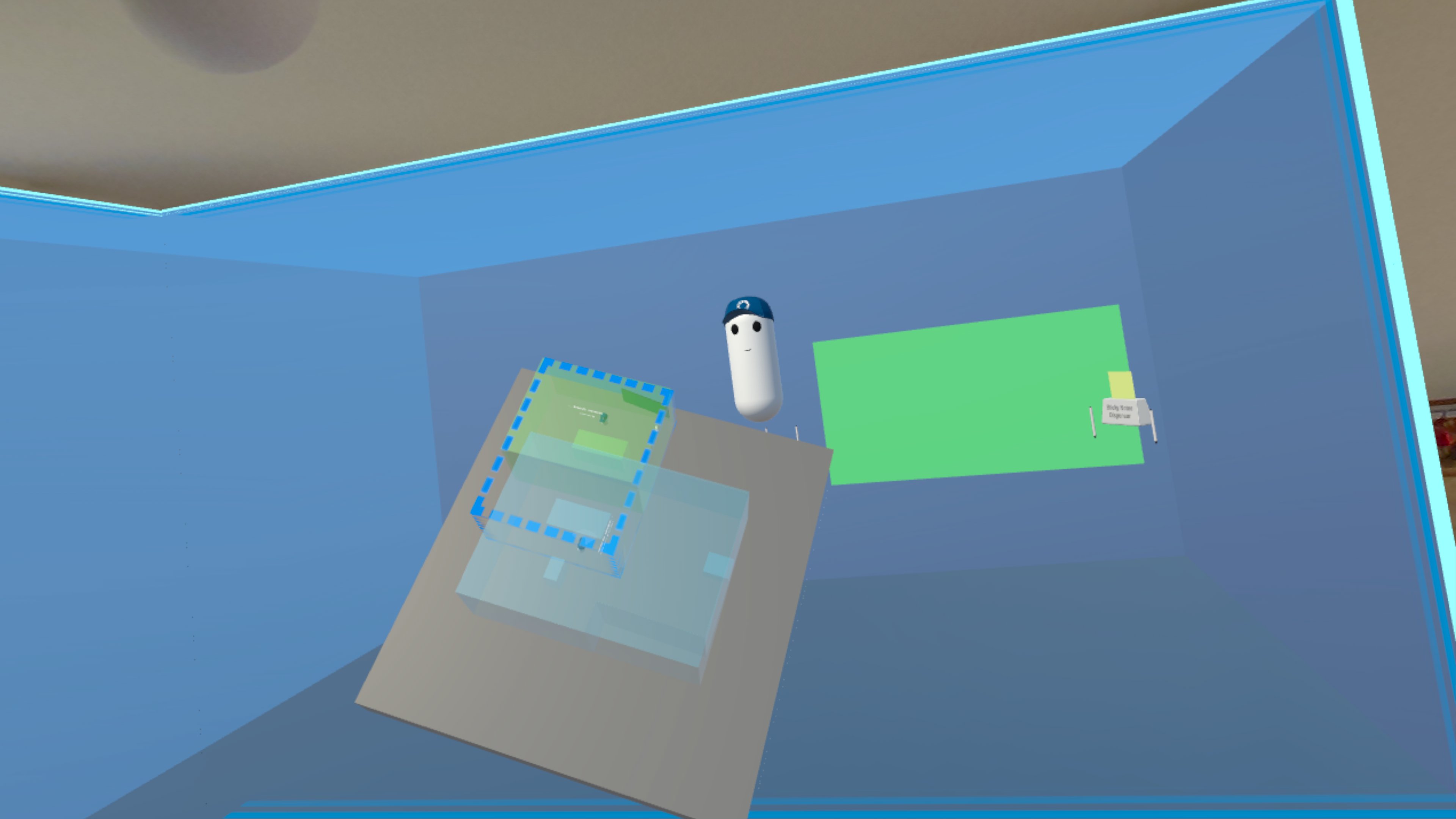
Note that:
- for the users to appears on the minimap, the user spawned network rig needs to have on its root a
NetworkIRLRoomAssociatedPart, withPartTypesets toUser, andattachedToLocalUserset to false - by default, the minimap on the minimap rooms are grabbable through the XRShared
Grabbablecomponent. To use another grabbing logic, some changes would be required, by calling directlyMinimapRoom.StartMovingRoom/MinimapRoom.EndMovingRoom(orMinimapRoom.OnGrab/MinimapRoom.OnUngrabto be able to use thedelayBeforeConsideringUngrabAsARequestdelay logic - allowing to quickly regrab a minimap room before it actually triggers a room move, for small adjustments). Note also that the move requestShouldPreviewshould be set in your interaction logic . Contact us for details if needed - by default, the minimap is opened/closed with the menu button of the left controller. This can be disabled with
IRLRoomsMinimap.toggleOnMainButtonPress, and it can be triggered from code withIRLRoomsMinimap.ActivateMinimap/IRLRoomsMinimap.DesactivateMinimap.
SceneFocusedElement
A SceneFocusedElement can be placed on elements in the scene, to ask them to be displayed on the minimap.
They will be represented on the minimap by an instance of the SceneFocusedElement.minimapPrefab.
By default (if addToCommonroom is checked), the SceneFocusedElement transform will be added to be combined remote room, extending it as needed. If boundingBoxTransform is set, the corners of this volume defining transform will also be added.
Note: even without using the minimap, it can be used to quickly require a background context for virtual objects, even in single players scenario.
Easy setup
To quickly setup colocalization, for an hardware rig build upon Meta building blocks, you can simply:
- add the
MRUKColocWithRemoteUsersCommonRoomto the scene, to support colocalization, have a MRUK setup to spawn walls and tables, and have a remote users combined room to see a virtual context background when remote users are outside of your real life room - add the
IRLRoomsMinimapto the scene, to have a minimap allowing to move rooms, triggerable with the menu button on the left controller. - for the users to appears on the minimap, the user NetworkRig needs to have on its root a
NetworkIRLRoomAssociatedPart, withPartTypesets toUser, andattachedToLocalUserset to false - to enable the combined remote room effect, use MRPortal_Mobile_RPAsset (for Android), or MRPortal_PC_RPAsset (for PC), as your URP config
Object repositioning
In this use case, after a calibration process, when a marker is detected, a virtual object can be spawned and repositioned according to the detected marker's position and the calibration data.
This repositioning is managed by the AnchorBasedObjectSynchronization class.
The calibration data, stored in ModelCalibration, describe how the anchor are expected to be placed on the object, by providing their relative position and rotation.
The class AnchorBasedObjectSynchronization triggers a repositioning when it receives stabilized anchor positions, provided by a sibling IRLAnchorTracking component, if the detected anchor ids matches the anchor id expected in the calibration.
If several expected anchor are detected at the same time, an virtual average anchor is used (one one for the detected anchors, and for the matching calibration anchors), by averaging all the anchors data.
Then, with this unique reference anchor from the calibration, and this unique anchors from the detection, the object is moved to make them coincide.
Please note that the repositioning algorithm is currently optimized to detect a static object and to compensate for head movements using a stabilization algorithm. This is especially important when tracking ArUco markers, where marker positions, reported at a high frequency, can vary significantly. It is less necessary with QR code detection through the Meta API, because the reported position is already stabilized.
Demo
Demo scenes can be found in Assets\Photon\FusionAddons\Anchors\Demo\Scenes\ folder, for repositioning and colocalization use cases.
Dependencies
- XRShared addon
- Meta MRUK and XR SDK
- [Optional] OpenCV
- [Optional] Screensharing addon (that includes
PassthroughCameraSamplesMeta classes, required for when using OpenCV to access camera capture code)
Download
This addon latest version is included into the XR Addons project
Supported topologies
- shared mode
3rd Party Assets and Attributions
The Aruco markers support requires OpenCV, and the actual implementaiton is based on Takashi Yoshinaga's QuestArUcoMarkerTracking:
- OpenCV for Unity
- QuestArUcoMarkerTracking MIT License Copyright (c) 2025 Takashi Yoshinaga;"
Changelog
- Version 2.0.8:
- Add MixedRealityRemoteuseRoom and MRRoomPortal to show a context for remote users rooms when they are positioned outside of local user rooms
- Add IRLRoomMinimap to show a minimap with grabbable rooms to trigger their moves
- Add LocalRoomOnly display mode for NetworkIRLRoomAssociatedPart
- Track NetworkIRLRoomAssociatedPart in IRLRoomManager
- Add IIRLRoomManagerPartListener.OnAssociatedPartPoseChange to know when an associated part is moving. useful to know when a room changed on a remote user
- Allow to have "fake" NetworkIRLRoomAssociatedPart for debugging, associated to hardcoded fake rooms id
- Version 2.0.7: Add option to change the anchor tag display after a long stability detection
- Version 2.0.6:
- Update Aruco and OpenCV support update for Meta SDK v83: transition to latest version of https://github.com/TakashiYoshinaga/QuestArUcoMarkerTracking, supporting Meta SDK v83
- Version 2.0.5:
- Add security because of QR Code reading incompatibility between Meta SDK v78 and MetaOS v83
- Add security for QR code with long payload
- Version 2.0.4: Update scene to use the new WebCamTextureManager Prefab (to avoid guid collision with Meta SDKs V81)
- Version 2.0.3:
- Add visualization option on IRLRoomManager for room associated parts (display just for one member for the remote rooms, all members of remote rooms, all rooms, ...)
- Bug fix when the last member of a room leaves it (anchor removal, room cleanup, ...)
- Version 2.0.2:
- Prefabs refactoring
- Compatibility with Fusion 2.1
- [Beta preview] Possibility to move remote room in colocalization scenario, with NetworkIRLRoomMoveRequester components
- Version 2.0.1:
- Ensure that anchors whose state authority has disconnected receive a new state authority (to continue moving on room merges)
- Bug fix: colocalization could fail in certain scenario (when a member was following an anchor, that it had created, during a room merge triggered by another player) due to an unneeded state authority check
- Version 2.0.0: First release
Last updated on
Back to top- Marker detection & representation
- Marker detection logic
- MR rooms and colocalization
- Colocalization core
- Walls and furniture synchronization
- IRL room moves
- Move previews
- Combined remote room and MR context background
- IRL room minimap
- Easy setup
- Object repositioning
- Demo
- Dependencies
- Download
- Supported topologies
- 3rd Party Assets and Attributions
- Changelog