Fusion Sticky Notes Cross-Platform Remote Relocation(Fusionスティッキーノートクロスプラットフォームリモートリロケーション)
概要
Fusion Sticky Notes Cross-Platform Remote Relocation (Fusionスティッキーノートクロスプラットフォームリモートリロケーション)は、混合現実で別の場所にいる相手や別のヘッドセットを使っている相手とコラボレーションする方法を説明しています。
これを実現させるには、まずアプリケーションの起動時にボタンをクリックして、実際の環境で壁を選択します。 この壁(アンカー)がコラボレーションの参照としての役割を持ちます。
ほかのユーザーが参加しそれぞれの参照用の壁を選択したら、システムがUnityシーンにユーザーをテレポートし、初めのリモートユーザーの壁に合わせて位置を調整します。 このリロケーションの後、両ユーザーはUnityシーン内で同じ参照ポイントの前にいることになります。まだ、それぞれの壁の方を向いている状態です。
このリロケーション機能(どんなヘッドセットを使用していても使える)に加えて、ユーザーはスティッキーノートをスポーンしそこに何かを書くことができます。 本サンプルでは、3通りの描写方法を説明します。
- 指を使う方法。ハンドまたはコントローラのトラッキング機能により実現。
- ペンを使う方法。
- Logitech MX Ink (Meta Questのみ)を使う方法。
さらに、ペンを使って3D描写を作成したり、描画とスティッキーノートの両方の色を変更することも可能です。
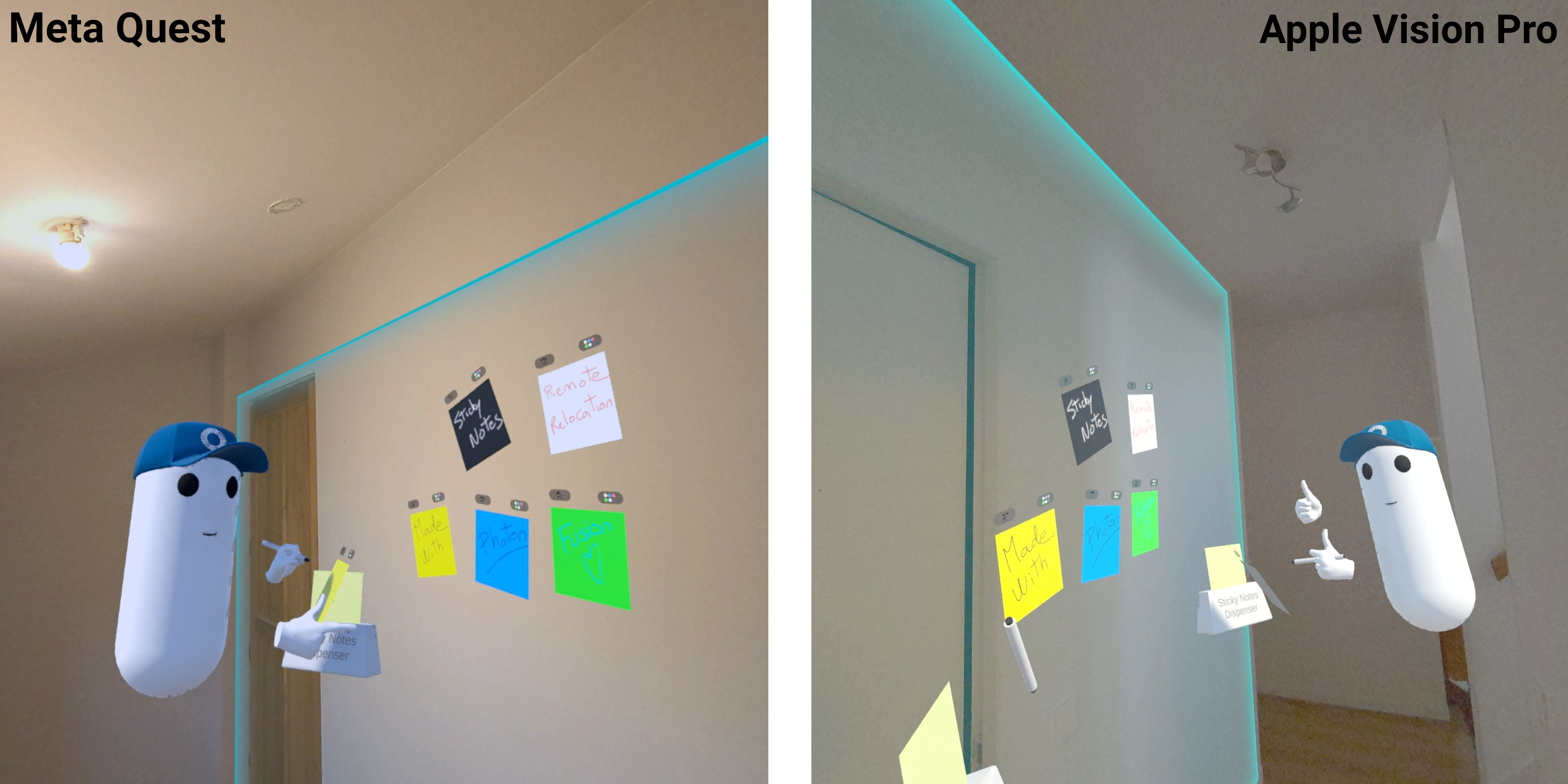
クロスプラットフォーム互換を必要としていないのであれば、本サンプルのより簡単なバージョンであるFusion Sticky Notes Meta SSA Colocationで、Meta Shared Spatial Anchors (SSA)機能で行うコロケーションシステムベースの方法をご覧いただくのもよいかと思います。
技術情報
本プロジェクトはUnity 2022.3.47、Fusion 2.0.2、Photon Voice 2.53で開発され、以下のパッケージでテストを行いました。
- Meta XR Core SDK 68.0.3 : com.meta.xr.sdk.core
- Meta XR Platform 68.0.0 : com.meta.xr.sdk.platform
- Meta MR Utility Kit 68.0.2 : com.meta.xr.mrutilitykit
- VisionOS XR Plugin 1.3.9 : com.unity.xr.visionos
- Unity PolySpatial 1.3.9 : com.unity.polyspatial
- Unity PolySpatial visionOS 1.3.9 : com.unity.polyspatial.visionos
- Unity PolySpatial XR 1.3.9 : com.unity.polyspatial.xr
- Logitech MX Ink Unity Integrationパッケージ (2024年8月28日)
ヘッドセットファームウェアバージョン:
- Apple VisionOS 2.0
- Meta Quest v69
始める前に
- サンプルを実行する前に、まず PhotonEngine Dashboard でFusion AppIDを作成し、Real Time Settings(Fusionメニューからアクセス可能)の
App Id Fusionフィールドにペーストします。それからLaunchシーンを読み込んでPlayを押してください。
ダウンロード
| Version | Release Date | Download |
|---|---|---|
| 2.0.6 | 10月 08, 2025 | Fusion Sticky Notes Crossplateform Relocation 2.0.6 |
入力処理
Meta Quest
- テレポート : A, B, X, Yボタン、またはスティックを押してポインタを表示する。可能な場所であれば指を離すと同時に手レポートします。
- タッチ : ボタンの上に手をかざすと切り替わります。
- グラビング : オブジェクトの上に手をかざし、コントローラのグラブボタンを押すと掴みます。
- バーチャルペン :
- ジョイスティックを上下に動かすとペンの色が変わります。
- トリガーボタンを押すと3D描写が始まります。ペンを離すと、描画が終了します。キューブがスポーンされ、3D描写を掴めるようになります。
- スティッキーノートをペンの先で触ると、表面に書けます。
- スティッキーノート : ジョイスティックを上下に動かすと、背景色が変わります。
Logitech MX Ink (Metaプラットフォームのみ)
- 前ボタンを押すとペンの色が変わります。
- 中央のボタンで3D描写が始まります。
- 後ボタンで作業中の描画を終了できます。キューブが表示され、3D描画を掴めるようになります。
- スティッキーノートをペンの先で触ると、表面に書けます。
- ペンの先で本物の表面に触れると3D描画が始まります。
Apple Vision Pro
- オブジェクトを視界に捉え、ピンチすると掴めます。
- ボタンを視界に捉え、ピンチすると押します。
フォルダ構造
/PhotonにはFusion および Photon Voice SDKが格納されています。
/Photon/FusionAddonsフォルダには、本サンプルで使用されているXR Addonが表示されています。
/XRフォルダには仮想現実用のコンフィグファイルが格納されています。
/Scriptsには本サンプル関連の全ての要素が格納されています。
アーキテクチャの概要
本サンプルは、VR Shared pageで説明されているコードベースに依存しており、特にリグ同期でそれが顕著です。
また、本サンプルではFusion Industries Addons を使用して再利用可能な機能を処理しています。
混合現実
本サンプルでは、パススルーや平面検出を用いて混合現実を重点的に取り扱っています。 ユーザーのローカル環境での垂直な面が検出され、壁プレハブがスポーンされてその面とインタラクションができるようになります。 検出された面は同期されません。検出してユーザーのみに見えているものです。
Meta Questに関して: 現在、現実の世界の面(壁など)を検出するために、ユーザーはまずQuestシステムパラメータでルームセットアップをする必要があります。
クロスプラットフォーム
本サンプルはApple Vision ProおよびMeta Questヘッドセットデバイスの両方で互換性があります。 クロスプラットフォーム互換を叶え、エディタにエラーメッセージを表示させないようにするには、使用しているプラットフォームのラインタイム時にシーンを適応させることが大事です。
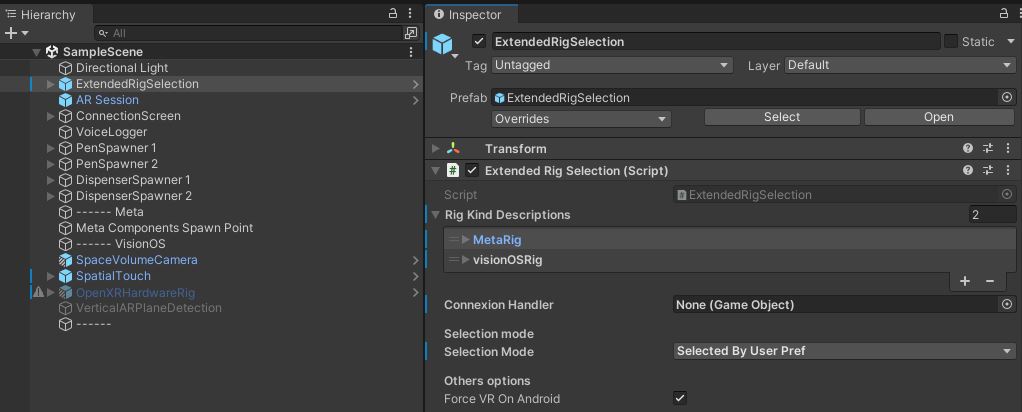
MetaパッケージではvisionOsビルド中に問題が起きる可能性があり、このプラットフォームからアンインストールすべきものである( visionOS buildsを参照)ことから、各プラットフォームで同じシーンを維持できるようにするために、ExtendedRigSelection機能を使用して、検出したプラットフォームで作成したオブジェクトをカスタマイズしています。
そのため、ExtendedRigSelectionゲームオブジェクトでは、MetaRig と VisionOSRigの2つのプロファイルを管理しています。
各プロファイルで、シーンゲームオブジェクトを有効にし、プラットフォームごとのプレハブをスポーンすることができます。
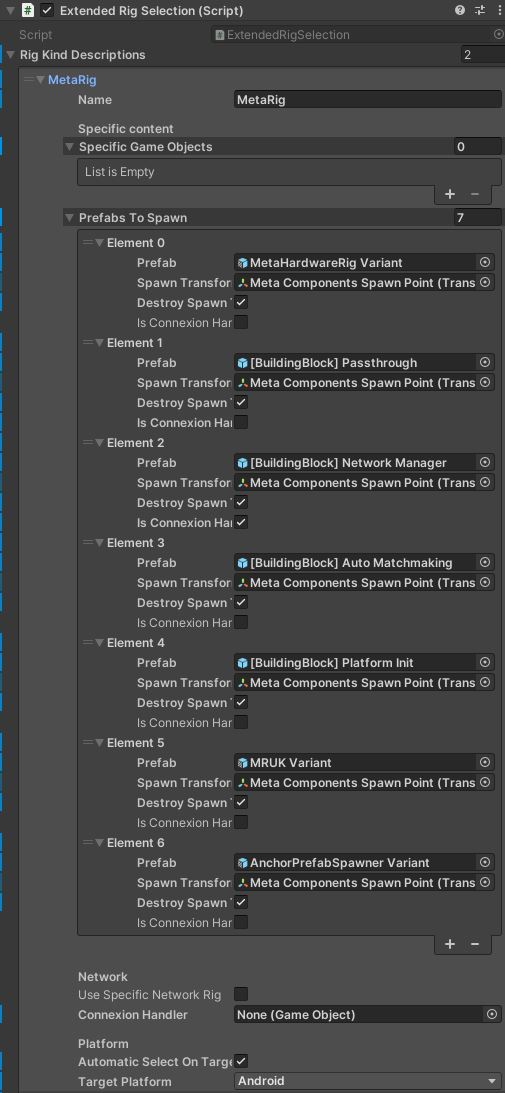
Metaプラットフォーム
ExtendedRigSelectionによって7つのプレハブがスポーンされます。
- Meta hardware rig (MetaビルディングブロックOVRリグのカスタムバージョン)、
- Passtrough ビルディングブロック、
- Network Manager ビルディングブロック(Runnerを含み、UserSpawnerコンポーネントでプレイヤーのネットワークリグプレハブを参照する) 、
- Auto Matchmaking ビルディングブロック (ルーム名を設定するFusion Bootstrapコンポーネント搭載)、
- Platform Init ビルディングブロック、
- MRUK ビルディングブロック変数(実際の環境を分析)、
- AnchorPrefabSpawner 変数(実際の環境で垂直の面を検出した時に壁プレハブをスポーン)、
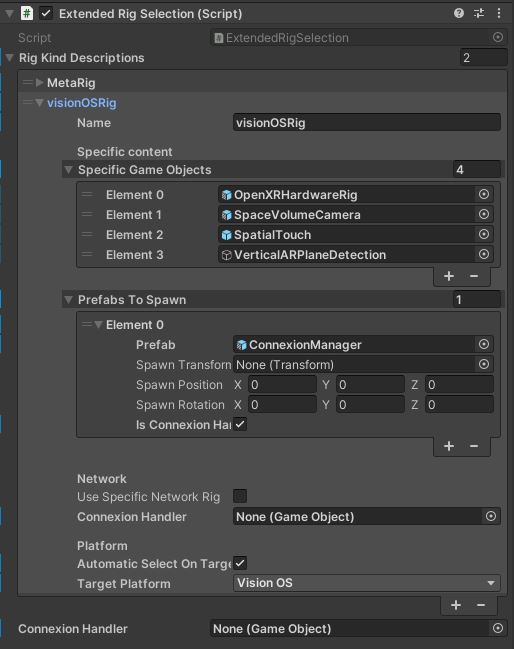
Appleプラットフォーム
ExtendedRigSelectionにより、以下の4つのシーンゲームオブジェクトがランタイム時に有効化されます 。
- OpenXR hardware rig:Metaプラットフォームと同様にランタイム時にスポーンされる可能性のあるオブジェクト。
- Space Volume Camera:ユーザーに表示されるUnityシーンの一部を指定する。
- Spatial Touch:ユーザーのインタラクションを検出。
- Vertical AR Plane Detection:実際の環境で垂直の面を検出した時に壁プレハブをスポーン
する。
以上に加えて、ConnexionManagerがスポーンされます。ネットワークRunnerが含まれ、プレイヤーのネットワークリグプレハブをスポーンします。
サンプルで提供されているvisionOSヘルパーツールにより、間接ピンチサポートなどvisionOSで適切に適応されるようにしています。
visionOSビルド
本プロジェクトで紹介されるMetaパッケージはvisionOsのビルドを回避します。vision OSのビルドを行う場合にはMetaパッケージを削除する必要があります。ExtendedRig選択ロジックにより、パッケージがアンインストールされた場合であってもビルドエラーを生じさせず同じシーンを保持することができるようになります。
Walls
Walls detection(壁検出)
アプリケーションが起動されると、環境にある実際の垂直な表面がハイライト表示されます。
Meta Quest
これをMeta Questデバイスで実行するには、はじめにシステムパラメータでルームをスキャンする必要があります。
Meta MRUK(Mixed Reality Utility Kit、混合現実使用キット)プレハブを使用してシーンデータを管理します。環境が既知のルームに対応するかを確認し、対応するシーンデータを読み込みます。
シーンデータを読み込むと、AnchorPrefabSpawnerを使用して壁が表示されます。
この目的のため、垂直な面が検出された際にMagneticARWall Meta壁プレハブをスポーンするようプレハブを設定します(WALL_FACE, DOOR_FRAME, WINDOW_FRAME, STORAGE, WALL_ARTなどのラベルが付いたオブジェクト)。
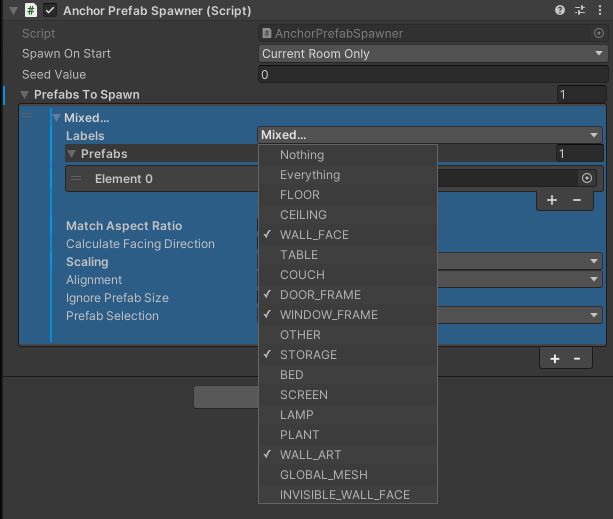
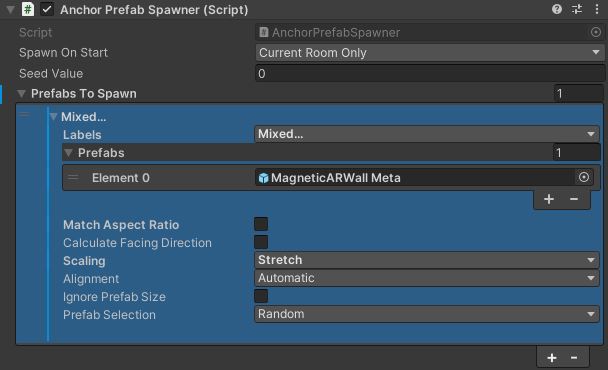
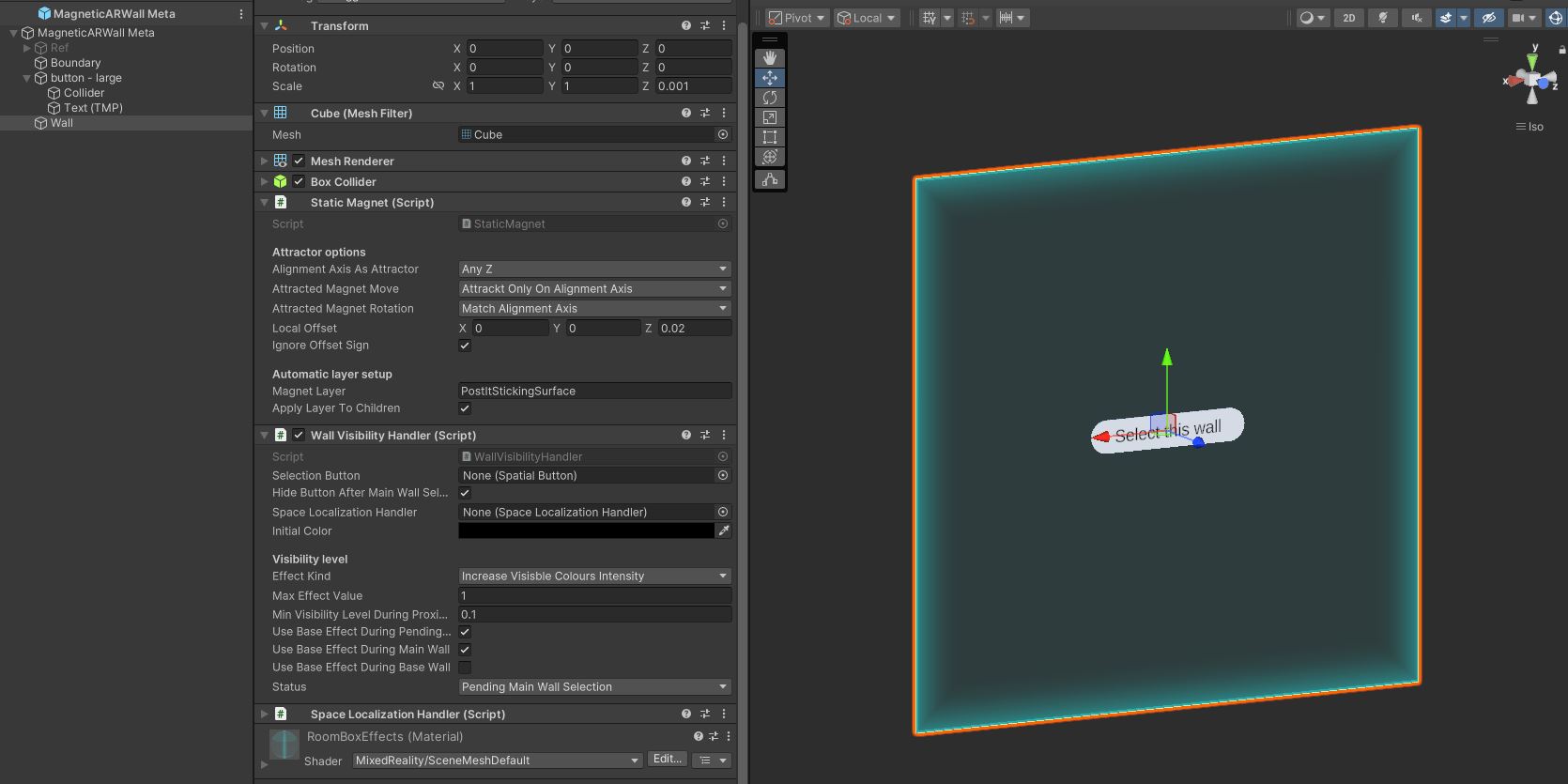
スティッキーノート上のMagnetPointコンポーネントは、適切なレイヤーのあるIMagnetsインターフェースを実装する全てのオブジェクトにひきつけられます。ここでは壁がこのケースに相当し、このインターフェースを実装しているStaticMagnetコンポーネントを搭載しています。
Apple Vision Pro
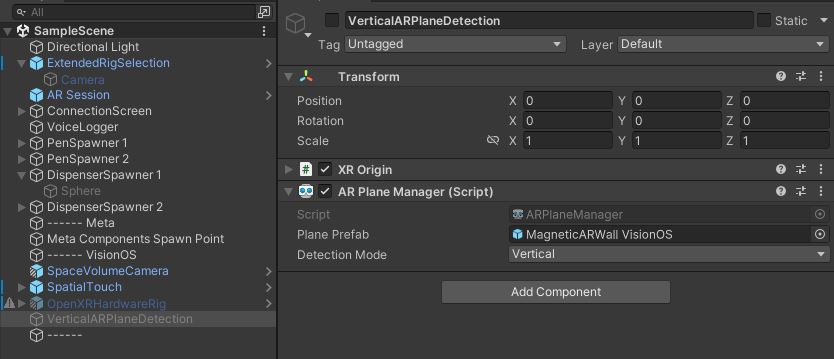
Apple Vision Proでは、 AR Foundation ARPlaneManagerによりリアルタイムで壁検出が実施されます。
垂直な面が検出されると、MagneticARWall VisionOS壁プレハブがスポーンされるように設定されています。
この壁はMetaのものと近いですが、マテリアルハンドリングやAR Foundation関連のロジックは異なります。
Wall visibilty(壁の可視性)
壁プレハブのWallVisibiltyHandlerクラスが、以下の現在のステータスに応じて壁の可視性を管理しています。
- 壁が未選択
- メインの壁としてこの壁が選択済み
- この壁が基本の壁
壁のステータスは、プレイヤーが壁ボタンを押すと変更されます。選択された壁のみが表示される壁となります。
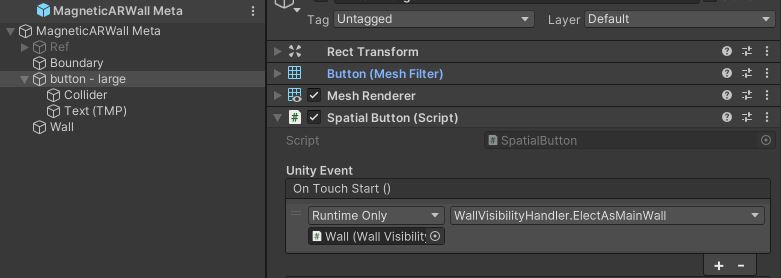
壁ステータスに応じた壁の可視性に加えて、スティッキーノートがプロキシミキティにある場合、視覚効果の作成にIProximityTarget インターフェースが使用されます。
スティッキーノート上のProximityHighlighterコンポーネントはMagnetPointイベントを使用して、IProximityTargetインターフェースを実装しているオブジェクトに距離の変化を知らせます。
このインターフェースはWallVisibilityHandlerにより実装されます。
Metaプラットフォームでシェーダーが使用されているため、Appleプラットフォームでは互換性がありません。使用できるエフェクトは2つあります。1つめはカラーアルファを変更するもので、もう1つは色の鮮やかさを変更するものです。
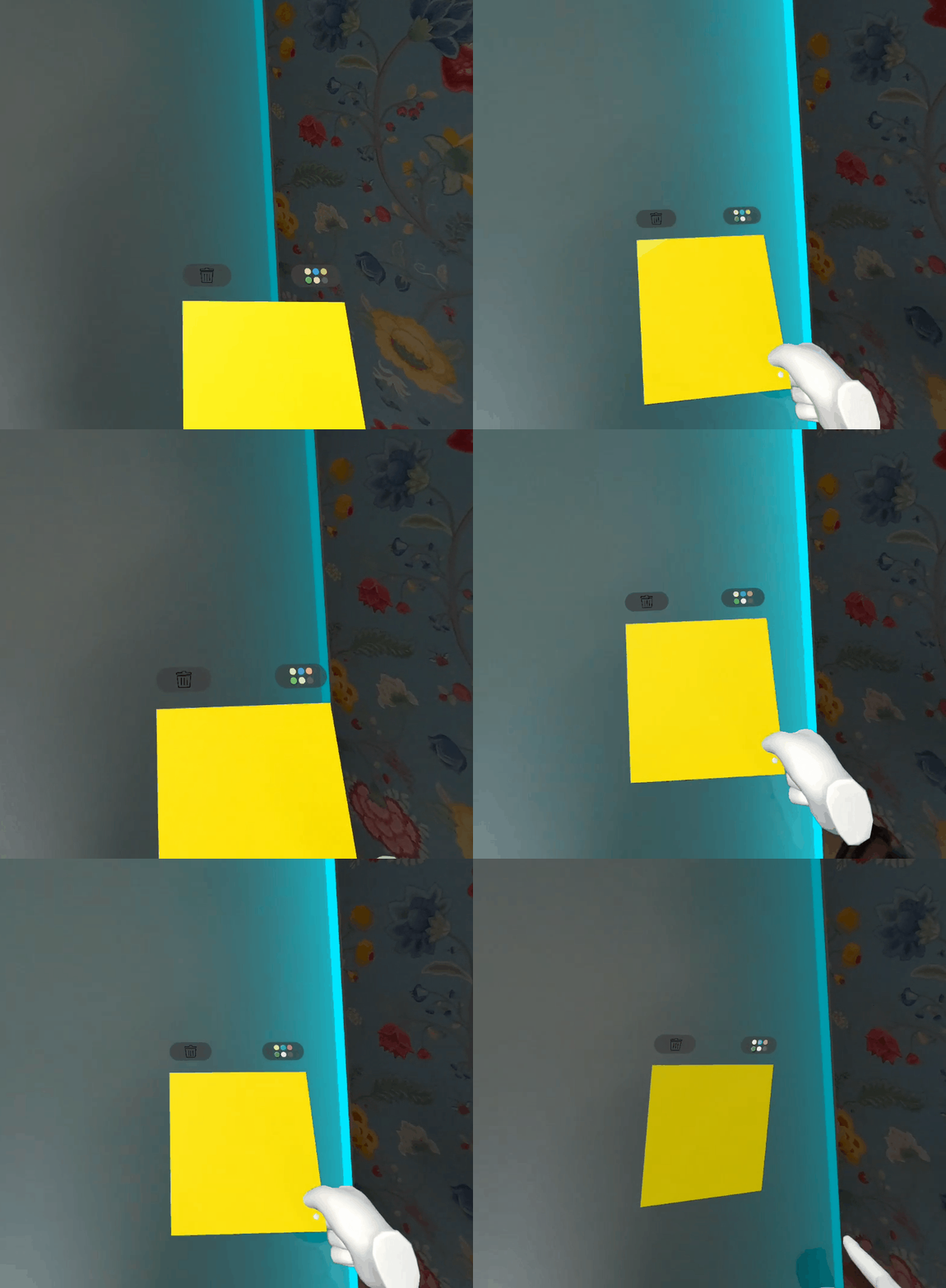
Wall selection & Relocation(壁の選択と移動)
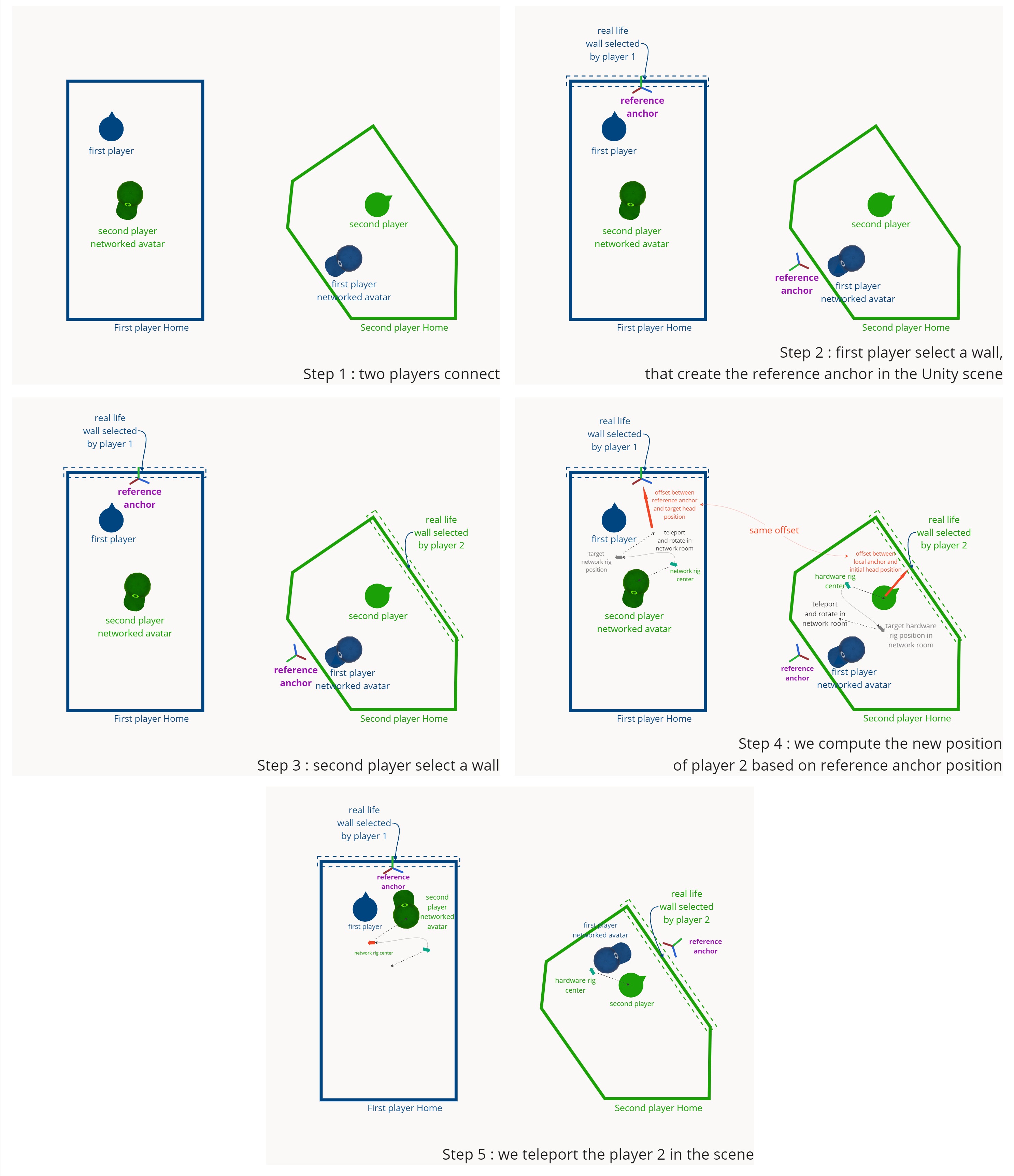
プレイヤーの場所を変える基本的な考え方は以下の通りです。
- 壁を選択する1人目のプレイヤーが、メインの壁の位置にレファレンスアンカーを作成します。このアンカーはネットワークで同期されるため、後から参加するプレイヤーにも表示されます。
- 2に目のプレイヤーがメインの壁を選択するとき、ネットワークリファレンスアンカーが既に存在するかどうか検索します。
- プレイヤーが選択した壁に対する自身の相対位置と、シーン内の参照アンカーの位置を使って、 ハードウェアリグを移動させることで、Unity シーン内で 2 人目のユーザーを 1 人目のプレイヤーが選択した壁の前にテレポートさせることができます。
詳しくは、ユーザーがボタンで壁を選択するときElecAsMainWall()メソッドが壁の可視性を変更するのは上記で説明した通りですが、壁ゲームオブジェクト上に設置されたSpaceLocalizationHandlerコンポーネントのReferenceWallSelection()関数も呼び出されます。ReferenceWallSelection() 関数はレファレンスアンカーを検索し、アンカーが検索されるとユーザーがテレポートされます。アンカーが存在しない場合は、作成します。
C#
    public void ElectAsMainWall()
    {
        ChangeStatus(Status.MainWall);
        foreach (var otherWall in SceneWalls)
        {
            if (otherWall == this) continue;
            otherWall.ChangeStatus(Status.BaseWall);
        }

        if (spaceLocalizationHandler != null)
            spaceLocalizationHandler.ReferenceWallSelection();
    }
C#
 public void ReferenceWallSelection()
    {
        ...

        // Check if a reference wall has been spawned by a previous player
        DetectReferenceWall();

        if (referenceWall)
        {
            // Teleport the user
            TeleportUserToPlaceReferenceAnchoreAtSelectedRealLifeposition();
        }
        else
        {
            // Compute the reference anchor and spawn it
            ...
            }
            runner.Spawn(referenceWallPrefab, transform.position, referenceWallRotation);
        }
    }
Pens
スティッキーノートで、バーチャルペンやLogitech MX Inkを使用して3D描写を作成したりインタラクトできます。
Virtual pen
SpawnOnConnectクラスの働きで、1人目のプレイヤーがネットワークに接続したときに2つのバーチャルペンがシーンにスポーンされます。
バーチャルペンを使用すると、コントローラのトリガーボタンを押すだけで新規3D描画を開始できます。 描画の色はジョイスティックを上下に動かすことで変更できます。 ユーザーがペンを離すと描画が終了します。その3D描画を掴むことができるようにキューブがスポーンされます。 また、バーチャルペンの先端でスティッキーノートの表面に触れることで、スティッキーノートに描くことができるようになります。
Logitech MX Ink
Logitech MX Inkでは、真ん中のボタンを押すと新規3D描画を開始できます。 描画の色は前のボタンで変更できます。 後ろのボタンを押すと描画を終了します。 また、実際の表面を3Dペンの先端で触れることでも3D描画を開始できます。 さらに、表面をペンの先端で触れることでスティッキーノートにも描画できます。バーチャルビジュアリゼーションはポストイットが手前にあると見えなくなるのは、バーチャルペンの場合と同様です。
プレイヤーのNetworkRigには、NetworkMXInkPenプレハブがあります。 ColoredNetworkMXPen はNetworkMXPenクラスから継承しています。
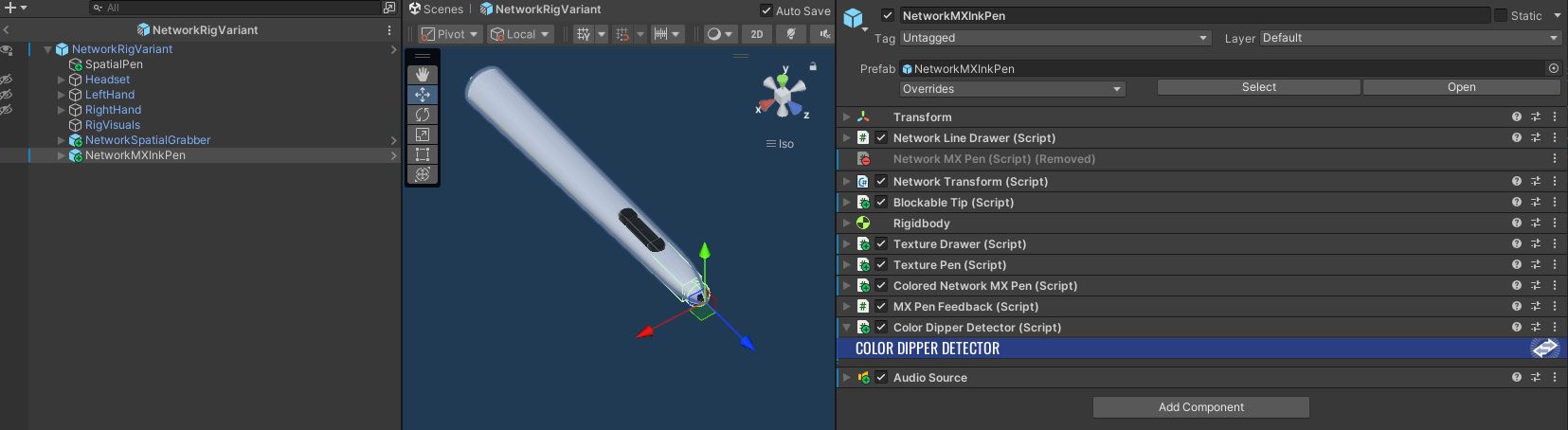
MX Inkペンが表示されるのはIsStylusActiveネットワーク変数でスタイラスが有効になっている場合のみです。
MX Inkのステータスが変更されるたびに、OnChangeIsStylusActive()メソッドが呼び出されます。
C#
    [Networked, OnChangedRender(nameof(OnChangeIsStylusActive))]
    public NetworkBool IsStylusActive { get; set; }

    protected virtual void OnChangeIsStylusActive()
    {
        UpdateDisplayedGameObjects();
    }
NetworkMXPenクラスはまた、MX Ink 3Dモデルを現実のMX Inkペンの位置の同期に同期させます。
C#
        public override void Spawned()
        {
            base.Spawned();
#if OCULUS_SDK_AVAILABLE
            if (Object.HasStateAuthority)
            {
                localHardwareStylus = FindObjectOfType<VrStylusHandler>();
            }
#endif
            UpdateDisplayedGameObjects();
        }

        public override void FixedUpdateNetwork()
        {
            base.FixedUpdateNetwork();

            if (localHardwareStylus)
            {
                transform.position = localHardwareStylus.transform.position;
                transform.rotation = localHardwareStylus.transform.rotation;
                IsStylusActive = localHardwareStylus.CurrentState.isActive;
                IsReplacingRightHand = localHardwareStylus.CurrentState.isOnRightHand;
            }
        }
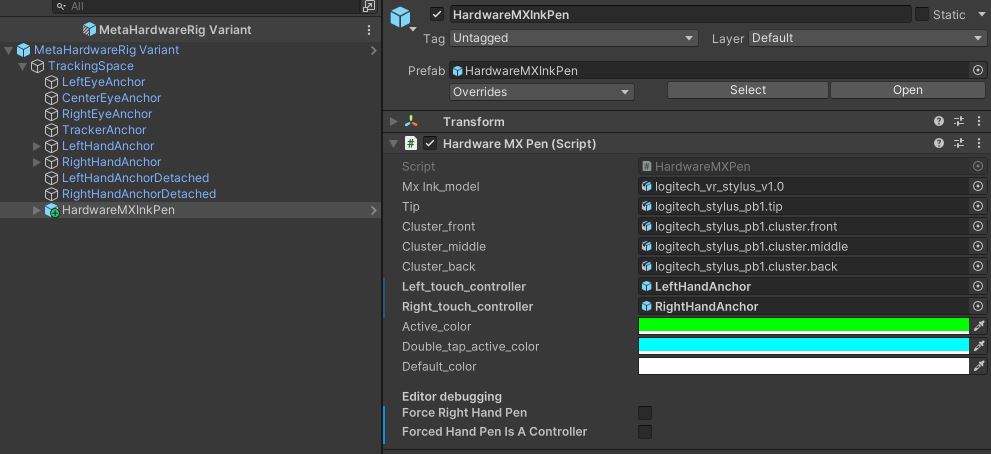
Metaデバイス用のハードウェアリグにはHardwareMXInkPenクラスが含まれています。これは、Logitech VrStylusHandlerクラスから継承されたものです。
描画同期
バーチャルペンの場合は、3D lineの作成と同期はLine DrawingアドオンのNetworkGrabbableLineDrawerクラスによって管理されます。
Logitech MX Inkペンの場合は、3D描画はLogitech MX Ink Integration addonのNetworkMXPenクラスで処理されます。
フィードバック
どちらのペンでも、ユーザーの使用時にオーディオおよびハプティクスのフィードバックが生成されえます。これを行うため、フィードバックを生成する必要のあるクラスがIFeedbackHandlerインターフェースを探します。
このインターフェースは、XRSharedアドオンにより提供されるBasicFeedbackクラスによって実装されます。
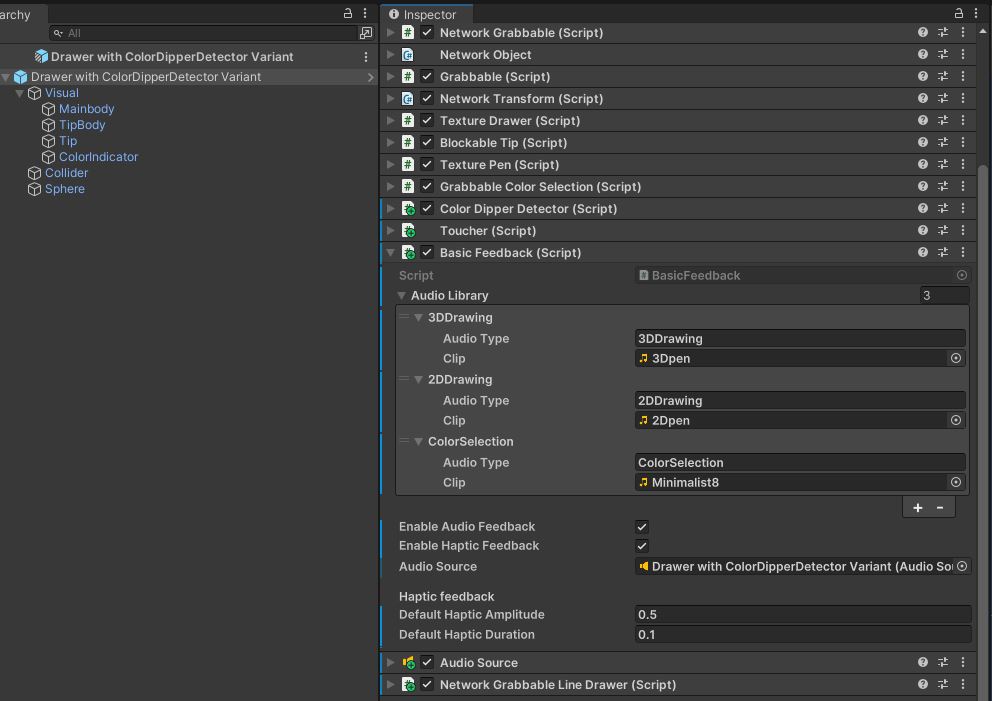
この例では、ユーザーがペンの色を変更した時にGrabbableColorSelectionクラスがハプティクスおよびオーディオのフィードバックを生成しています。
C#
        [Header("Feedback")]
        IFeedbackHandler feedback;
        [SerializeField] string audioType;
        [SerializeField] FeedbackMode feedbackMode = FeedbackMode.AudioAndHaptic;

        protected virtual void Awake()
        {
        ...
            feedback = GetComponent<IFeedbackHandler>();
        ...
        }

        private void CheckColorModification()
        {
            ...
            // Audio & Haptic feedback
            if (feedback != null)
                feedback.PlayAudioAndHapticFeeback(audioType: audioType, audioOverwrite: true, feedbackMode: feedbackMode);
            ...
        }
Sticky Notes
付箋は、Sticky Notesアドオンで構築しています。
付箋上での描画同期
指、バーチャルペン、Logitech MX Inkを使用して付箋に描画できます。
付箋のテクスチャ同期は Texture DrawingsアドオンのTextureDrawerクラスおよびTextureDrawingクラスで処理されます。
指での描画
通常のペンを使用している場合、アドオンのTexturePenクラスが使用されます。ただし指の描画の場合、サンプルでは専用クラスであるTouchDrawingを設けています。TouchDrawingは、ユーザーのネットワークリグ内で使用できるTextureDrawerコンポーネントを、片手ずつインターフェースしています。
TouchDrawingはITouchableインターフェースを実装するため、インデックス上に表示されているToucherコンポーネントがポストイットに触れると警告がでます(実際のところ、ここではPincherクラスとなります)。
Then, to limit erroneous lines to be drawn on the post-it when the user tries to grab it, DetectGrabbingOrDrawingStart checks the finger orientation to be sure that an actual drawing is expected to start.
While the finger stays in contact with the surface, in the Draw method, SmoothPosition is called to determine an average contact point and replace the contact position by this average: in finger tracking, the detection inaccuracies might lead to trembling drawing line, hence the use of this system. This can be customized with numberOfToucherPositionsToSmoothOn (and disabled by setting this to 0).
Finally, the TextureDrawer's AddDrawingPoint method is called, like with regular pens.
vision OS spatial drawing
The project contains an optional subclass of TouchDrawing, dedicated to using vision OS spatial touches to draw: SpatialTouchDrawing. It relies on the ISpatialTouchListener callbacks triggered by the SpatialTouchHandler component in the scene.
In vision OS 1, this was particularly required as the refresh rate of the hand skeleton was low, while the spatial touch position was much more frequently updated. In vision OS 2, it is less required, and the TouchDrawing is used by default in the project even for visionOS.
While the SpatialTouchDrawing is a bit more rapid and accurate (no need to smooth position), the current spatial touches have an issue that made us choose not to rely on it by default: currently, in Polyspatial, if you pinch directly on an object (not from remote), then you cannot touch again this object unless you have interacted with something else, or moved the hand pretty far away. This lead to the current issue here: while there is no issue if you pinch-grab the post-it remotly, if you grab it "locally", then you cannot draw on it easily without moving your hand far from it, which is a bit unexpected.
UI & Interaction
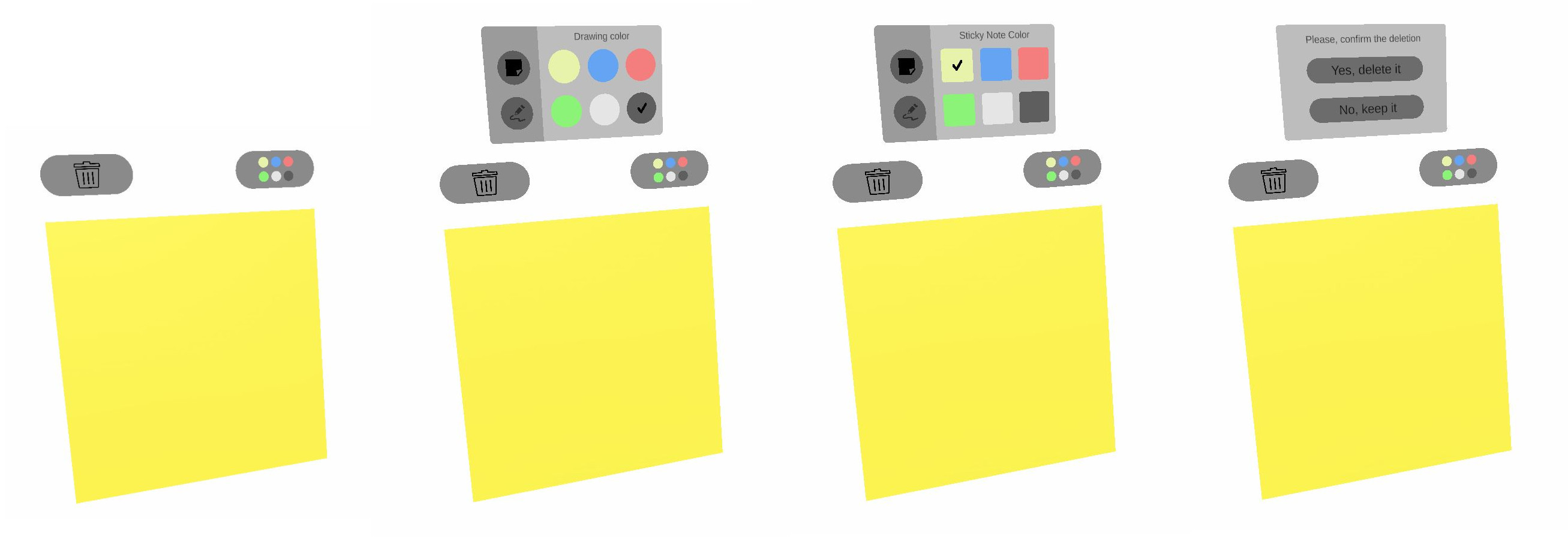
Compared to the sticky note addon prefab, a UI has been added to the notes to:
- change the background color,
- change the drawing color,
- delete the drawings,
- delete the sticky note,
Pen interaction
Sticky note buttons (SpatialButton & SpatialButtonWithIcons) implement the ITouchable interface in the SpatialTouchable class.
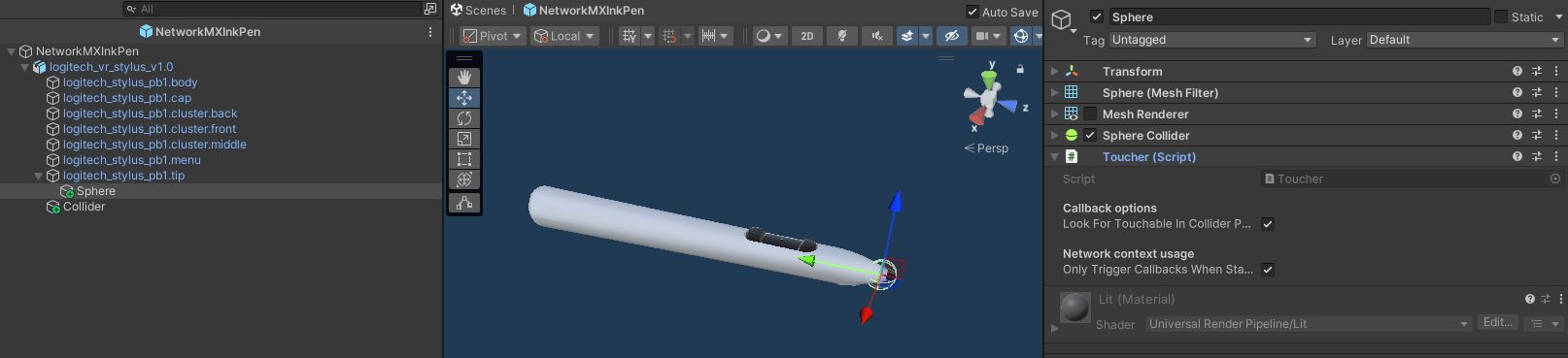
Pens can interact with the sticky notes UI thanks to the Toucher component, which will detect collisions with objects with an ITouchable interface.
Hand interactions
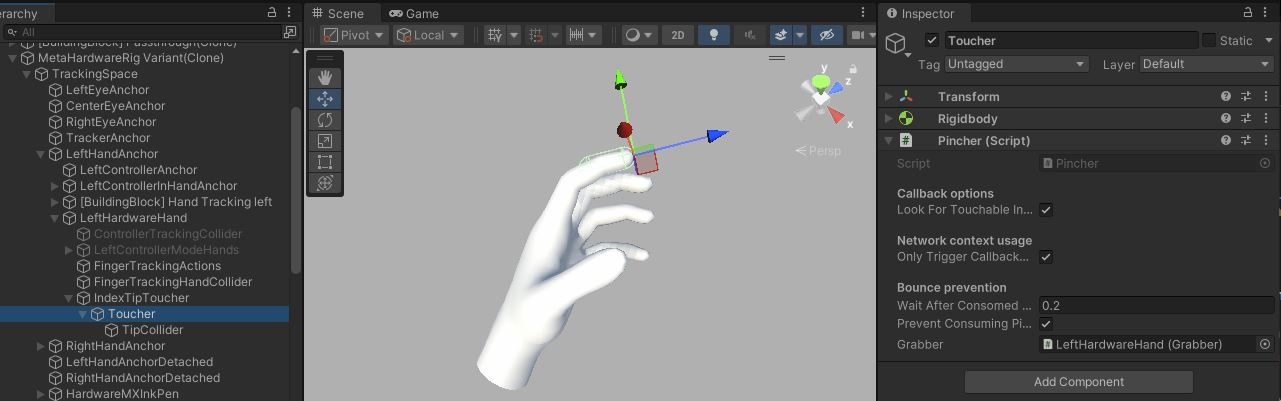
To interact with the finger, the Pincher component, which derived from the Toucher, is located to the hardware rig index.
Users can therefore interact with objects with the IPinchable interface, but also touch objects with the Touchable component.
This is the case for the UI buttons (SpatialButton & SpatialButtonWithIcons) which implement the ITouchable interface in the SpatialTouchable class.
The HandRepresentationManager component handles which mesh is displayed for an hand, depending on the hand tracking mode currently used (controller tracking or finger tracking).
Please note that, in this sample, it has been choosen to display the hardware rig hands when the finger tracking mode is enabled.
The local hand representation:
- is the XR Hands package hand representation on visionOs
- is the Meta OVR hand representation on Meta Quest
The remote user hands use the XR Hands package hand representation, no matter the origin platform.
See XR Hands Synchronization addon for more details on hand state synchronization.
The grabbing system used here is the "local rig grabbing" implementation described in the VR Shared - Local rig grabbing page.
Drawing color modification with sticky notes UI
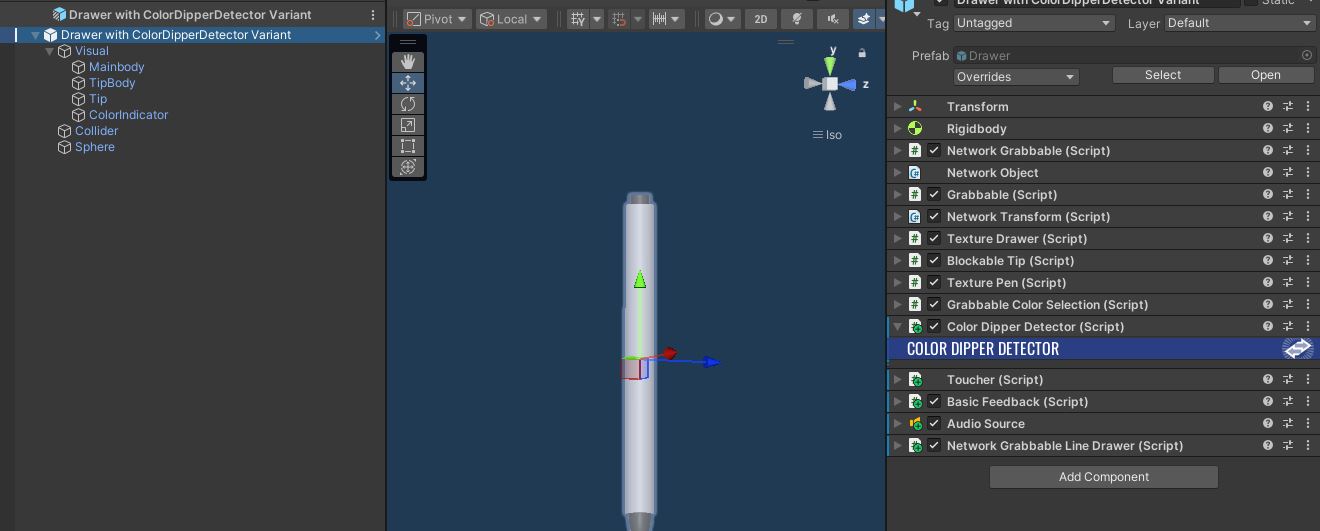
In addition to the Toucher, the sticky notes color buttons have the ColorDipper component.
On the pen side, the ColorDipperDetector checks if a collision occurs with a ColorDipper.
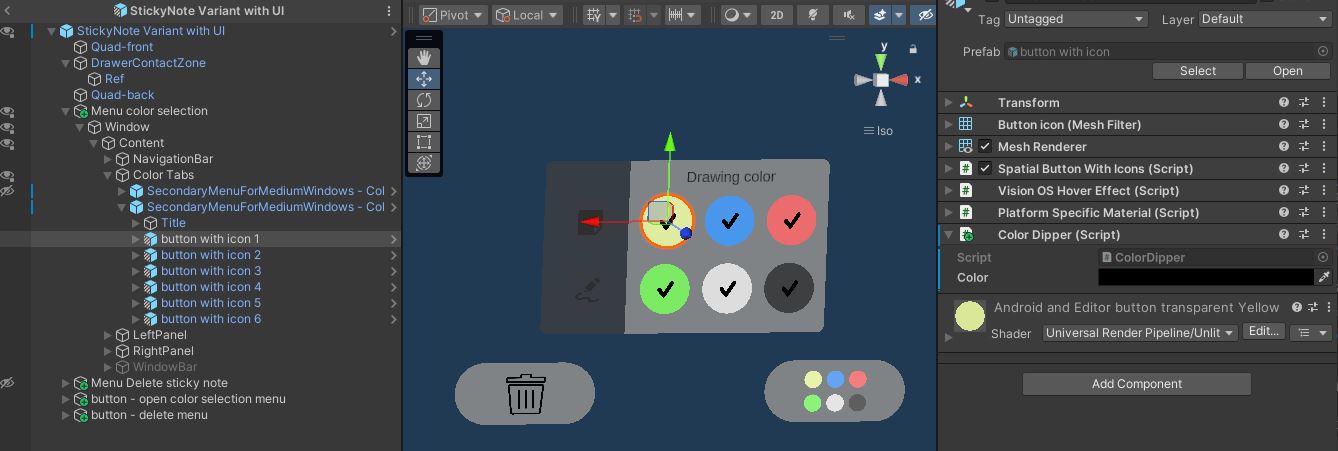
If a collision with a ColorDipper is triggered, ColorDipperDetector forwards the new color during the FixedUpdateNetwork() to the IColorProvider (ie the GrabbableColorSelection) by changing the colorProvider.CurrentColor.
C#
    private void OnTriggerEnter(Collider other)
    {
        if (Object && Object.HasStateAuthority)
        {
            ColorDipper colorDipper = other.GetComponentInParent<ColorDipper>();
            if (colorDipper != null)
            {
                colorChangeRequest = true;
                requestedColor = colorDipper.color;
            }
        }
    }

    public override void FixedUpdateNetwork()
    {
        base.FixedUpdateNetwork();
        if(colorChangeRequest)
        {
            colorProvider.CurrentColor = requestedColor;
            colorChangeRequest = false;
        }
    }
Then, GrabbableColorSelection synchronizes the color modification on the network (OnColorChanged()).
Note that GrabbableColorSelection is also responsible for synchronizing the color if the player changes it using the controller's joystick.
In the case of Logitech MX Ink, the ColoredNetworkMXPen class implements the IColorProvider interface, and is therefore responsible for changing the drawing color when the user uses the Logitech MX Ink hardware button or interacts with a color button.
Please note that the UI is also synchronized on the network.
When a new color is selected, the SpatialButton class calls the ChangeDrawingColor() method of the StickyNoteColorSelectionWithMenu class.
First, it checks if the user has the StateAuthority on the object, then it changes the color index variable.
This variable will be checked in the FixedUpdateNetwork() and the networked variable DrawingColorMenuIndex will be updated if required to inform remote users.
Finally, the OnDrawingColorMenuIndexChanged() function is called on all players.
C#
    [Networked, OnChangedRender(nameof(OnDrawingColorMenuIndexChanged))]
    [SerializeField] private int DrawingColorMenuIndex { get; set; }

    // ChangeDrawingColor is called by menu buttons (SpatialButtonWithIcons) in the scene
    public void ChangeDrawingColor(int index)
    {
        if (Object == null) return;
        await Object.WaitForStateAuthority();
        drawingColorRequestedWithMenu = index;
    }


    public override void FixedUpdateNetwork()
    {
        base.FixedUpdateNetwork();

        if (Object == null || Object.HasStateAuthority == false) return;
        CheckBackgroundColorSelectionWithStickyNoteMenu();
        CheckDrawingColorSelectionWithStickyNoteMenu();
    }

    private void CheckDrawingColorSelectionWithStickyNoteMenu()
    {
        if (DrawingColorMenuIndex != drawingColorRequestedWithMenu)
        {
            if (Object.HasStateAuthority)
            {
                // change the DrawingColorMenuIndex networked var so remote player's UI will be updated
                DrawingColorMenuIndex = drawingColorRequestedWithMenu;
            }
        }
    }

    // Update the menu selected color when the network var DrawingColorMenuIndex has been changed
    protected virtual void OnDrawingColorMenuIndexChanged()
    {
        // change drawing color
        ApplySpatialTouchDrawingColorChange(DrawingColorMenuIndex);

        if (DrawingColorMenuIndex == previousDrawingColorMenuIndex) return;
        // Update the color index
        previousDrawingColorMenuIndex = DrawingColorMenuIndex;

        // update buttons
        ActivateRadioButton(drawingColorRadioGroupButtons, DrawingColorMenuIndex);
    }
Background color
The background color of sticky notes can be changed when the user selects a new color in the user interface. The process of updating the UI is very similar to the drawing color selection described above.
Regarding the texture color modification process, when a new background color is selected, the SpatialButton class calls the ChangeStickyNoteColor() method of the StickyNoteColorSelectionWithMenu class.
It first checks whether the user has the State Authority on the object, then change the backgroundColorRequestedWithMenu variable.
This variable will be check in the FixedUpdateNetwork() with the CheckBackgroundColorSelectionWithStickyNoteMenu() method.
C#
    // ChangeStickyNoteColor is called by menu buttons (SpatialButtonWithIcons) in the scene
    public async void ChangeStickyNoteColor(int index)
    {
        if (Object == null) return;
        await Object.WaitForStateAuthority();
        backgroundColorRequestedWithMenu = index;
    }

    private void CheckBackgroundColorSelectionWithStickyNoteMenu()
    {
        if (backgroundColorRequestedWithMenu != -1 && colorIndex != backgroundColorRequestedWithMenu)
        {
            ChangeColor(backgroundColorRequestedWithMenu);
            backgroundColorRequestedWithMenu = -1;
        }
    }
The ChangeColor() function of the GrabbableColorSelection class updates the CurrentColor networked variable.
So, the OnCurrentColorChange(), OnColorChanged() and the ApplyColorChange() methods are called.
C#
    public class GrabbableColorSelection : NetworkBehaviour, IColorProvider
    {
        [Networked, OnChangedRender(nameof(OnCurrentColorChange))]
        public Color CurrentColor { get; set; }

        ...
        void OnCurrentColorChange()
        {
            OnColorChanged();
        }

        // Update the color when the network var has been changed
        protected virtual void OnColorChanged(bool forceChange = false)
        {
            if (CurrentColor == previousColor) return;
            // Update the color
            previousColor = CurrentColor;
            ...
            ApplyColorChange(CurrentColor);
        }
        ...
The new background color is applied to the TextureSurface by the override ApplyColorChange() function of the StickyNoteColorSelection derived class.
C#
public class StickyNoteColorSelection : GrabbableColorSelection
{
    TextureSurface texture;

    protected override void Awake()
    {
        base.Awake();
        texture = GetComponent<TextureSurface>();
        if (texture == null)
            Debug.LogError("TextureSurface not found");
    }

    protected override void ApplyColorChange(Color color)
    {
        texture.ChangeBackgroundColor(color);
    }
}
Deletion
When the user confirms the deletion of a sticky note, the DeleteObject() method of the DespawnObject is called.
A delay in deleting the object is necessary to allow audio feedback to be played.
C#
    public void DeleteObject()
    {
        await Object.WaitForStateAuthority();
        if (Object.HasStateAuthority)
        {
            StartCoroutine(DeleteObjectAfterDelay(delayBeforeDespawn));
        }
    }

    IEnumerator DeleteObjectAfterDelay(float delay)
    {
        if (feedback != null)
        {
            feedback.PlayAudioFeeback(audioType);
        }

        yield return new WaitForSeconds(delay);
        Object.Runner.Despawn(this.Object);
    }
Snapping
A specific PostItStickingSurface magnet layer is set on the Static Magnet component of the walls prefab .
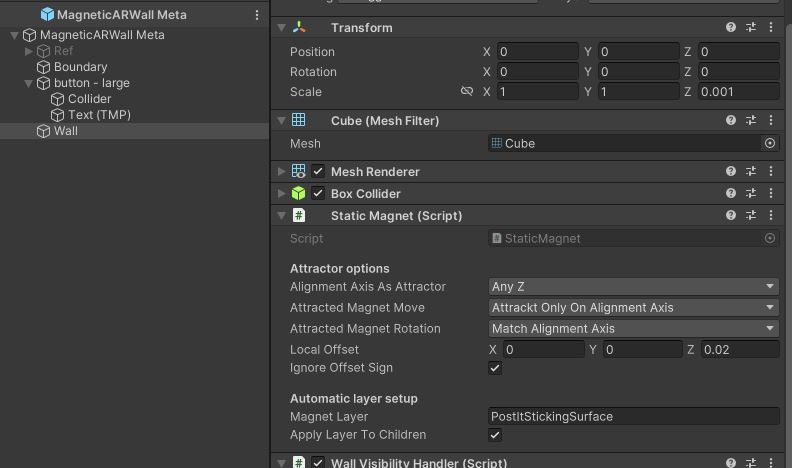
So, the sitcky notes Magnet Point component of the sticky notes prefab has to be set with the same layer.
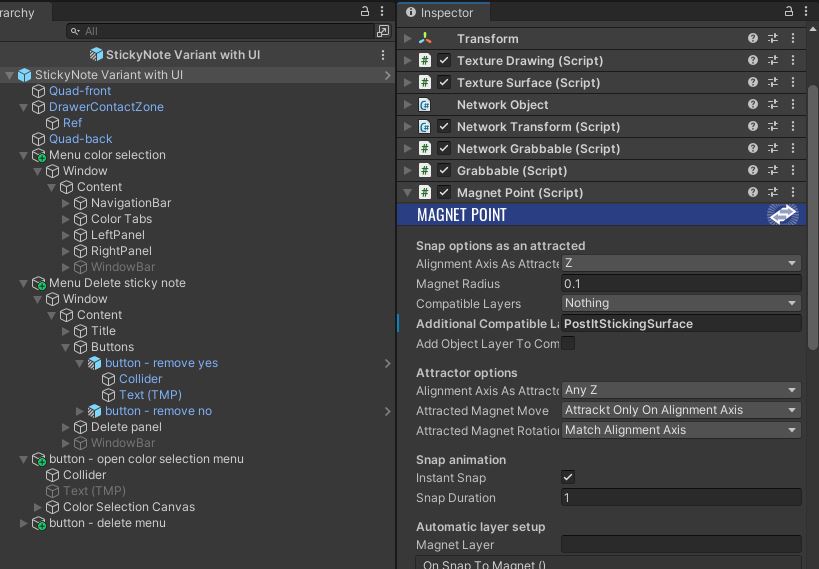
See the Magnets addon for more details.
Used XR Addons & Industries Addons
To make it easy for everyone to get started with their 3D/XR project prototyping, we provide a few free addons. See XR Addons for more details.
XRShared
The XR shared offers the core of the rig parts sycnhronization logic, as well as basic interaction capabilities such as grabbing.
Meta Core Integration
The Meta Core Integration addon has been developed to facilitate Meta building blocks support.
VisionOS helpers
The visionOS helpers addon addresses some specificities of the visionOS platform.
It makes the indirect pinch compatible with XRShare grabbing, provides tools to synchronize the bounded/unbounded Polyspatial's state, and also offers some cross-platform tools, like a LineRenderer replacement, or helpers to mimic the visionOS windows behavior in Unity.
MXInkIntegration
The Logitech MX Ink Integration addon has been developed to facilitate the Logitech MX Ink stylus support.
Voice helpers
The Voice Helpers addon provides some components to help set up Photon Voice for a Fusion XR project.
ConnectionManager
The ConnectionManager addon manages the connection launch and spawns the user representation for the Apple profile.
For the Meta profile, it is handle by the Network Manager building block which contains the Runner and references the players' network rig prefab in the UserSpawner component.
See ConnectionManager addon for more details.
ExtendedRigSelection
This addon allows to switch between the various rigs required in this sample. There is one profile for the Apple Vision Pro and one profile for Meta Quest devices.
See Extended Rig Selection addon for more details.
Line Drawing
This addons is used to create drawings with pens.
See Line Drawing addon for more details.
Texture Drawing
This addon is used to synchronized the texture edition on sticky notes.
Note that this sample includes a button to clear the drawing, that use the clearing method provided by the add-on.
See Texture Drawings addon for more details.
Data Sync Helpers
This addon is used here to synchronize the 3D/2D drawing points & sticky note drawing points.
See Data Sync Helpers addon for more details.
Blocking contact
We use this addon to block the pens on sticky notes surfaces.
See Blocking contact addon for more details.
Magnets
This addon is used to snap the sticky notes on the wall.
The Magnets addon for more details.
Sticky notes
This addon allows users to spawn sticky notes in the scene.
See Sticky Notes addon for more details.
XRHands synchronization
The XR Hands Synchronization addon shows how to synchronize the hand state of XR Hands's hands (including finger tracking), with high data compression.
It also provides some helpers classes to detect gestures (pinching, grabbing, ...)
Third party components
Oculus Sample Framework hands
Sounds
Last updated on
Back to top- 概要
- アーキテクチャの概要
- 混合現実
- クロスプラットフォーム
- Walls
- Pens
- Sticky Notes
- Used XR Addons & Industries Addons
- XRShared
- Meta Core Integration
- VisionOS helpers
- MXInkIntegration
- Voice helpers
- ConnectionManager
- ExtendedRigSelection
- Line Drawing
- Texture Drawing
- Data Sync Helpers
- Blocking contact
- Magnets
- Sticky notes
- XRHands synchronization
- Third party components