Configuration Files
Introduction
There are seven different configuration files necessary to create and run a Quantum game.
| Parameter Name | Description |
|---|---|
PhotonServerSettings |
Stores details of the Photon cloud connection. |
SessionConfig |
Stores configurations of the deterministic simulation and server. |
SimulationConfig |
Stores configuration of the Quantum ECS layer and core systems like Physics. |
RuntimeConfig |
Stores data about the actual game/application. |
RuntimePlayer |
Stores data about the individual player. |
QuantumEditorSettings |
Stores configurations of the Unity project. |
QuantumGameGizmoSettings |
Stores configurations of Unity gizmos shown during Quantum simulations. |
PhotonServerSettings, SessionConfig, SimulationConfig, QuantumEditorSettings and QuantumGameGizmoSettings are stored inside ScriptableObjects in the Unity project while RuntimeConfig and RuntimePlayer are usually assembled during runtime.
The Quantum menu Tools > Quantum > Find Config > .. will help locating the global instances of the config assets in the Unity project.
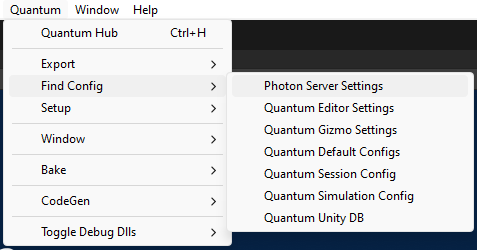
PhotonServerSettings
Quantum 3 uses Photon Realtime 5 to connect and communicate with the Photon Cloud (Quantum 3.1: embedded in the SDK). This config stores all required information to establish the connection.
See the Photon Realtime Introduction for more information about Photon Realtime.
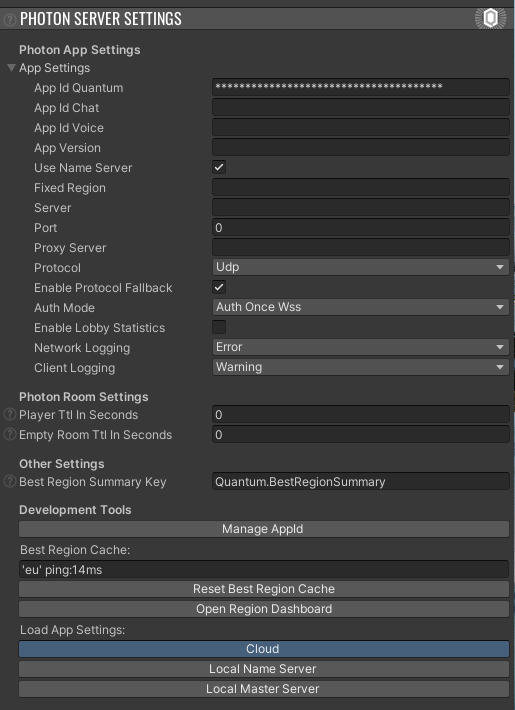
The most important setting is the AppId. Read the Quantum Asteroids Tutorial - Project Setup page, to learn how to set up a Photon AppId.
| Parameter Name | Description |
|---|---|
App Settings |
See the inline code summary or Photon Realtime 5 API documentation for details. |
Player TTL In Seconds |
The default Time-To-Live for players, used when creating Photon rooms. See the Realtime docs for more information. |
Empty Room TTL In Seconds |
The default room Time-To-Live, set when creating Photon rooms. See the Realtime docs for more information. |
Best Region Summary Key |
When connecting to the best region (FixedRegion:null) Photon does a ping to each available region for the AppId. The results are stored under Unity PlayerPrefs using this key to reuse during the next application start. |
Manage App Id |
Opens the Photon AppId dashboard URL. |
Best Region Cache |
The content of the best region cache read from PlayerPrefs. |
Reset Best Region Cache |
Delete the content of the PlayerPrefs. |
Open Region Dashboard |
Open the Photon region dashboard URL. |
Load App Settings |
The buttons configure the AppSettings to connect to cloud or local servers. |
SessionConfig
Other names for the SessionConfig are DeterministicConfig or DeterministicSessionConfig.
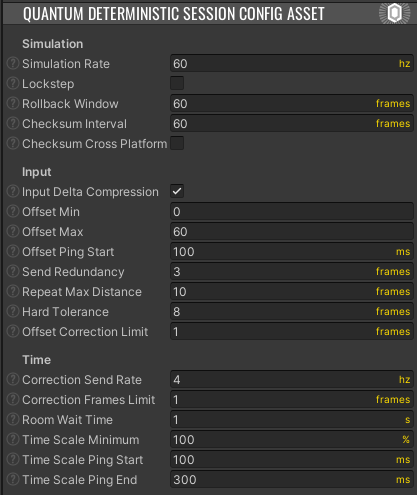
Through the SessionConfig developers can parametrize internals of the deterministic simulation and plugin (the Quantum server component).
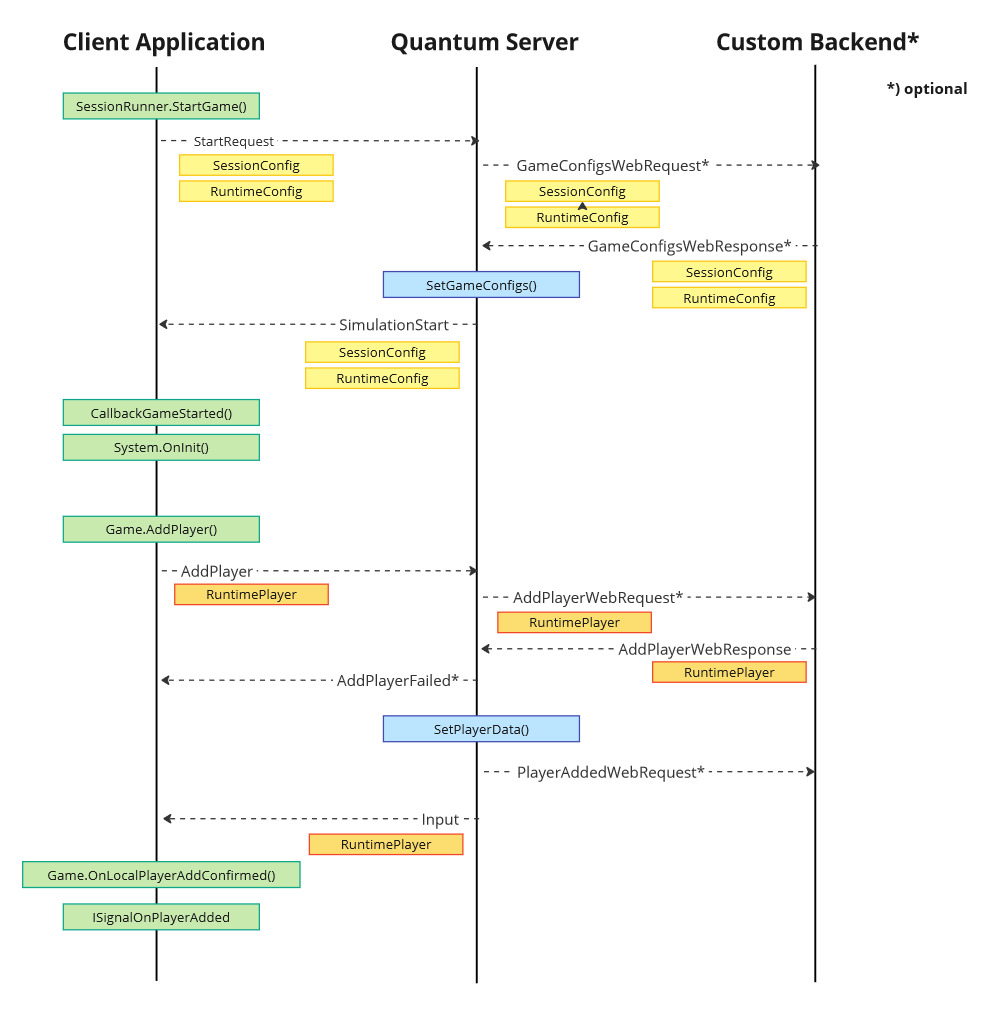
Each client sends its SessionConfig to the server as part of the SessionRunner.Arguments. The server will select the first instance it received or overwrites it by calling a webhook or running a custom plugin. The SessionConfig will be synchronized between all clients of a session before starting the simulation. See the Online Config Sequence Diagram section for protocol details.
The content on this config is included in the checksum generation.
| Parameter Name | Alternative Name | Unit | Description |
|---|---|---|---|
Simulation Rate |
Update FPS |
Hz | How many ticks per second Quantum should execute. |
Lockstep |
Lockstep Simulation |
Boolean | Runs the quantum simulation in lockstep mode, where no rollbacks are performed. It is recommended to set input InputDelayMin to at least 10. |
Rollback Window |
Tick Count | How many frames are kept in the local ring buffer on each client. Controls how much Quantum can predict into the future. Not used in lockstep mode. | |
Checksum Interval |
Tick Count | How often we should send checksums of the frame state to the server for verification (useful during development, set to zero for release). Defined in frames. | |
Checksum Cross Platform Determinism |
Boolean | This allows Quantum frame checksums to be deterministic across different platforms, however it comes with quite a cost and should only be used during debugging. | |
Input Delta Compression |
Boolean | If the server should delta-compress inputs against previous tick-input-set. Reduces overall bandwidth. | |
Offset Min |
Input Delay Min |
Tick Count | The minimum input delay a player can have. In Quantum 3.1 it is capped to the simulation rate. |
Offset Max |
Input Delay Max |
Tick Count | The maximum input delay a player can have. In Quantum 3.1 it is read-only and always equals the simulation rate. |
Offset Ping Start |
Input Delay Ping Start |
ms | At which ping value Quantum starts applying input delay. |
Send Redundancy |
Input Redundancy |
Tick Count | How much staggering the Quantum client should apply to redundant input resend. 1 = Wait one frame, 2 = Wait two frames, etc. |
Input Repeat Max Distance |
Tick Count | How many frames Quantum will scan for repeatable inputs. 5 = Scan five frames forward and backwards, 10 = Scan ten frames, etc. |
|
Hard Tolerance |
Tick Count | How many frames the server will wait until it expires a frame and replaces all non-received inputs with repeated inputs or null's and sends it out to all players. In Quantum 3.1 it is read-only and computed from Simulation Rate, Offset Ping Start and Offset Min. |
|
Override Hard Tolerance |
Boolean | Quantum 3.1: disables the hard tolerance computation and uses the value set below it instead. | |
Offset Correction Limit |
Min Time Correction Frames |
Tick Count | How much the local client time must differ with the server time when a time correction package is received for the client to adjust it's local clock. |
Correction Send Rate |
Time Correction Rate |
Hz | How many times per second the server will send out time correction packages to make sure every clients time is synchronized. |
Correction Frames Limit |
Min Offset Correction Diff |
Tick Count | How many frames the current local input delay must diff to the current requested offset for Quantum to update the local input offset. |
Room Wait Time |
Session Start Timeout |
s | An artificial wait time to control how long the server waits for other players after the online simulation has been requested to start. |
Time Scale Minimum |
Time Scale Min |
% | The smallest timescale that can be applied by the server. |
Time Scale Ping Start |
Time Scale Ping Min |
ms | The ping value that the server will start lowering the time scale towards Time Scale Minimum. |
Time Scale Ping End |
Time Scale Ping Max |
ms | The ping value that the server will reach the Time Scale Minimum value at, i.e. be at its slowest setting. |
Player Count |
int | Player count the simulation is initialized for. Can be left 0 because this parameter is overwritten by SessionRunner.Arguments.PlayerCount (when > 0) when starting the SessionRunner. |
|
Input Fixed Size |
int | The size of the input struct. This will be set internally after starting the session. The method to compute this is QuantumGame.GetInputSerializedFixedSize() |
SimulationConfig
The SimulationConfig holds parameters used by the Quantum ECS layer and inside core systems like physics and navigation. See the related system sections in the manual for more details of each value.
The SimulationConfig is part of the Quantum DB and multiple instances of this config are supported. Reference the SimulationConfig with the RuntimeConfig to select which one to use for the simulation.
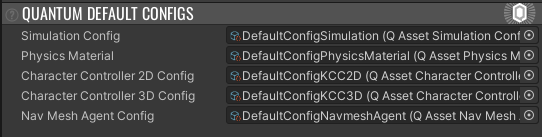
During the Quantum Unity project initialization by the Quantum Hub the following files are created.
QuantumUser/Resources/QuantumDefaultConfigs.assetwhich includes a SimulationConfig asset and it's referenced default config assets such as PhysicsMaterial, CharacterController2DConfig, NavMeshAgentConfig, etc. as sub assets.
- The file
QuantumUser/Simulation/SimulationConfig.User.cscontains a partial class definition that can be used to extend the content of the SimulationConfig.
C#
namespace Quantum {
  public partial class SimulationConfig : AssetObject {
    public int Foo;
  }
}
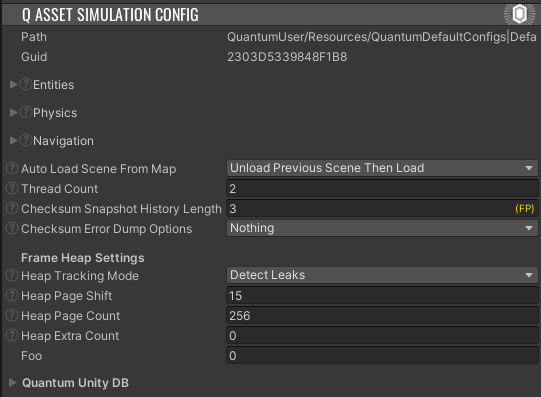
| Parameter Name | Description |
|---|---|
Entities |
See API docs. Quantum 3.1 adds CopyMode (Full copies all component blocks to the predicted frame, Diff only copies blocks that were written to since the last copy) and a Storage override per component type in ComponentTypeConfiguration (e.g. sparse set or table). |
Physics |
See physics settings. Quantum 3.1 adds the SolverType selection (default ProjectedGaussSeidel, legacy HybridJacobiGaussSeidel and LegacyGaussSeidel), Substeps (default 2), ScaleSubstepsWithGameTimeScale and MaxScaledSubsteps. |
Navigation |
See navigation docs. |
Auto Load Scene From Map |
This option will trigger a Unity scene load during the Quantum start sequence. Which might be convenient to start with but once the starting sequence is customized it should be disabled and replaced by custom scene loading. "Previous Scene" refers to a scene name in Quantum Map. The demo menu for example has a step that can load the scene before starting the Quantum simulation when AutoLoadSceneFromMap is disabled. |
Game Time Scale Affects Delta Time |
Quantum 3.1: if enabled (default) Frame.GameTimeScale also scales Frame.DeltaTime. Disable to only scale the game tick used by the GameTimer and set the delta time manually, see Frame Timer. |
Delta Time Type |
How the QuantumRunner tracks the time to progress the simulation. Default uses an internal stopwatch and is recommended for releasing games. EngineDeltaTime, EngineUnscaledDeltaTime and EngineUnscaledCappedDeltaTime (Quantum 3.1) use the Unity delta time, which is useful when pausing Unity during debugging but can cause time synchronization issues when starting online matches. |
Thread Count |
Override the number of threads used internally. Default is 2. |
Checksum Snapshot History Length |
How long to store checksums of verified frames. They are used to generate a frame dump in case of a checksum error happening. Not used in Replay and Local mode. Default is 3. |
Checksum Error Dump Options |
Additional options for checksum dumps, if the default settings don't provide a clear picture. |
The frame heap is used for custom allocations like QList.
The heap settings are grouped under Heap.
| Parameter Name | Description |
|---|---|
Tracking Mode |
If and to which extent allocations in the Frame Heap should be tracked when in Debug mode. Recommended mode for development is DetectLeaks (default). While actively debugging a memory leak, TraceAllocations mode can be enabled (warning: tracing is very slow). |
Management |
The memory management strategy. PageBased (default) splits memory segments into pages and those into pools of fixed-size blocks. PageBasedLegacy is the heap from Quantum 3.0, it cannot grow or allocate blocks larger than its page size. BlockBased splits memory segments directly into variable-size blocks. |
Page Size |
The size of a heap page. Default is 8 KiB. |
Segment Size |
The size of a heap segment. Default is 2 MiB. |
Segment Capacity |
The maximum number of segments each heap can allocate in order to grow. Default is 32. |
Page Shift |
PageBasedLegacy only: the size of a heap page expressed as the N in 2^N. Default is 15 (32 KiB). |
Page Count |
PageBasedLegacy only: the number of pages to allocate for each heap. Default is 256. |
Extra Heap Count |
The number of additional heaps to create, useful when creating frames that are managed by you instead of Quantum. Default is 0. |
| Parameter Name | Description |
|---|---|
Heap Tracking Mode |
If and to which extent allocations in the Frame Heap should be tracked when in Debug mode. Recommended mode for development is DetectLeaks. While actively debugging a memory leak, TraceAllocations mode can be enabled (warning: tracing is very slow). |
Heap Page Shift |
Define the max heap size for one page of memory the frame class uses for custom allocations like QList, for example. The default is 15, 2^15 = 32.768 bytes. TotalHeapSizeInBytes = (1 << HeapPageShift) * HeapPageCount |
Heap Page Count |
Define the max heap page count for memory the frame class uses for custom allocations like QList for example. Default is 256. |
Heap Extra Count |
Sets extra heaps to allocate for a session in case you need to create more (auxiliary) frames than actually required for the simulation itself. Default is 0. |
RuntimeConfig
In contrast to the SimulationConfig the RuntimeConfig holds information that can be different from game to game. By default it defines for example what map to load and the random seed. It does not have an asset to store the configs but it is assembled during runtime most likely based on the selection player do (e.g. game mode).
To use a certain RuntimeConfig, assign it to the SessionRunner.Arguments when starting the session.
C#
var map              = new AssetRef<Map>(QuantumUnityDB.GetGlobalAssetGuid("Photon/Quantum/Samples/SampleScenes/Resources/SampleMap"));
var simulationConfig = new AssetRef<SimulationConfig>(QuantumUnityDB.GetGlobalAssetGuid("QuantumUser/Resources/QuantumDefaultConfigs|DefaultConfigSimulation"));
var systemsConfig    = new AssetRef<SystemsConfig>(QuantumUnityDB.GetGlobalAssetGuid("Photon/QuantumUser/Resources/DefaultSystemsConfig"));

var sessionRunnerArguments = new SessionRunner.Arguments {
    RuntimeConfig = new RuntimeConfig() {
        Map              = map,
        Seed             = DateTime.Now.Millisecond,
        SimulationConfig = simulationConfig,
        SystemsConfig    = systemsConfig },
    // ..
    // Quantum 3.1: also set the TaskRunner, for example with sessionRunnerArguments.Init(runtimeConfig)
};
Similar to the SessionConfig the RuntimeConfig is sent to the server by each client, it can be validated by webhooks or a custom server then one version is distributed to every client during the Quantum start sequence.
Unlike SessionConfig, which is serialized in a binary form when send to the server, RuntimeConfig uses by default zip-compressed Json serialization to upload and download the config from the Quantum server.
During the Quantum Unity project installation a QuantumUser/Simulation/RuntimeConfig.User.cs script is created that allows the RuntimeConfig to be extended.
C#
namespace Quantum {
  public partial class RuntimeConfig {
    // Add your own fields (don't use properties).
    public int Foo;

    // Implement DumpUserData() to add information to a debug string that is returned when using Dump().
    partial void DumpUserData(ref String dump) {
    }
  }
}
Create a copy of a RuntimeConfig, for example, to test the serialization.
C#
var copy = new QuantumUnityJsonSerializer().CloneConfig(runtimeConfig);
If desired the config can also be stored on a game object like the QuantumRunnerLocalDebug script does.
C#
public class QuantumRunnerLocalDebug : QuantumMonoBehaviour {
    public RuntimeConfig RuntimeConfig;
    // ..
}
| Parameter Name | Description |
|---|---|
Seed |
The seed to initialize the randomization session under Frame.RNG. |
Map |
Asset reference of the Quantum Map used with the upcoming game session. |
SimulationConfig |
Asset reference to the SimulationConfig used with the upcoming game session. |
SystemsConfig |
Asset reference to the Quantum systems configuration. If no config is assigned then a default selection of built-in systems is used DeterministicSystemSetup.CreateSystems(RuntimeConfig, SimulationConfig, SystemsConfig).The systems to be used can always be post processed by code using the partial method DeterministicSystemSetup.AddSystemsUser(System.Collections.Generic.ICollection{SystemBase}, RuntimeConfig, Quantum.SimulationConfig, Quantum.SystemsConfig). |
RuntimePlayer
Similar to the RuntimeConfig the RuntimePlayer describes run-time properties for one player.
The data for a player behaves differently to the other configs, because it is sent by each player individually after the actual game has been started (AddPlayer). See the Player and Online Session documentation for more information.
During the Quantum Unity project installation a QuantumUser/Simulation/RuntimePlayer.User.cs script is created that allows the RuntimePlayer to be extended.
C#
namespace Quantum {
  public partial class RuntimePlayer {
    // Add your own fields (don't use properties).
    public int Foo;
  }
}
Similar to the RuntimeConfig the RuntimePlayer data is serialized with Json when sending and receiving from the Quantum server.
The default RuntimePlayer already contains two fields that can be used as a starting point for player visualization and nickname. The demo menu uses them for example.
C#
public partial class RuntimePlayer {
    // This is a proposal how to let players select an avatar prototype using RuntimePlayer. Can be ignored.
    public AssetRef<EntityPrototype> PlayerAvatar;
    // This is a proposal how to assign a nickname to players using RuntimePlayer. Can be ignored.
    public string PlayerNickname;
}
QuantumEditorSettings
The Quantum editor settings hold information vital for the Unity integration to function.
The editor settings are project settings, stored in ProjectSettings/QuantumEditorSettings.json and edited in Edit > Project Settings > Photon Quantum.
An existing QuantumEditorSettings asset from Quantum 3.0 is migrated automatically.
The Qtn CodeGen settings are found under Photon Quantum > Code Gen.
Log Level and Trace Channels set the Quantum logging scripting defines, see Logging.
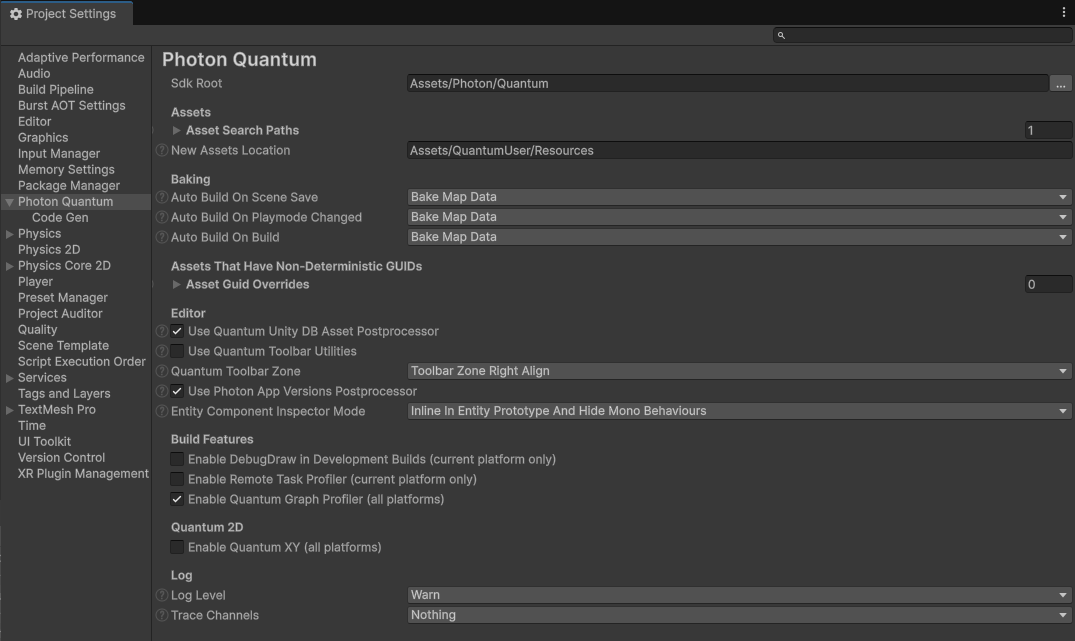
During Quantum Unity project installation by the Quantum Hub a default editor settings asset is created at QuantumUser/Editor/QuantumEditorSettings.asset.
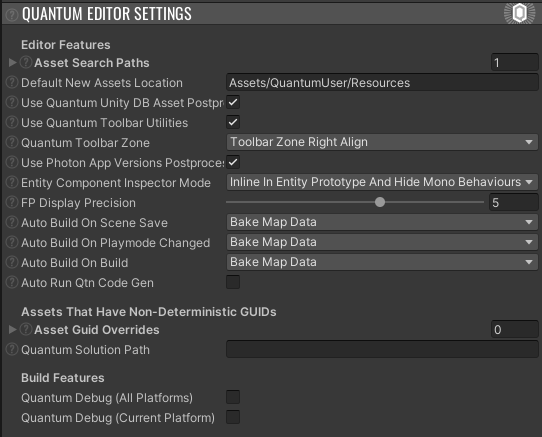
| Parameter Name | Description |
|---|---|
Sdk Root |
Location where Quantum is installed. |
Asset Search Paths |
Locations that the QuantumUnityDB uses to find Quantum assets. Changing this requires reimporting all Unity (Quantum) assets manually. |
Default New Assets Location |
Default folder where new Quantum assets are created. |
Use Quantum Unity DB Asset Postprocessor |
The post processor enables duplicating Quantum assets and prefabs and make sure a new GUID and correct path are set. This can make especially batched processes slow and can be toggled off here. |
Use Quantum Toolbar Utilities |
If enabled a scene loading dropdown is displayed next to the play button. |
Quantum Toolbar Zone |
Where to display the toolbar. Requires a domain reload after change. |
Use Photon App Versions Postprocessor |
If enabled a local PhotonPrivateAppVersion scriptable object is created to support the demo menu scene. |
Entity Component Inspector Mode |
If enabled entity components are displayed inside of EntityPrototype inspector |
FP Display Precision |
Quantum 3.0 only: how many decimal places to round to when displaying FPs. Default is 5. |
Auto Build On Scene Save |
What to bake automatically when saving a scene. |
Auto Build On Playmode Changed |
What to bake automatically when entering play mode. |
Auto Build On Build |
What to bake automatically when building a player. |
Asset Guid Overrides |
A list of Quantum assets that enabled GUID Override. This list is tracked automatically. |
Enable DebugDraw in Development Builds |
Toggles the QUANTUM_DRAW_SHAPES scripting define for the current platform. |
Enable Remote Task Profiler |
Toggles the QUANTUM_ENABLE_REMOTE_PROFILER scripting define for the current platform, see Profiling. |
Enable Quantum Graph Profiler |
Toggles the Quantum graph profilers for all platforms. |
Enable Quantum XY |
Toggles the QUANTUM_XY scripting define for all platforms. |
Log Level |
Sets the QUANTUM_LOGLEVEL_* scripting define that controls the initial log level. |
Trace Channels |
Sets the QUANTUM_TRACE_* scripting defines to enable trace logging channels. |
The Auto Build options select bake flags, for example BakeMapData (map prototypes, colliders and terrains) and BakeUnityNavMesh.
The Quantum debug libraries are toggled with the menu Tools > Quantum > Toggle Debug Dlls, see Release And Debug Builds.
QuantumGameGizmoSettings
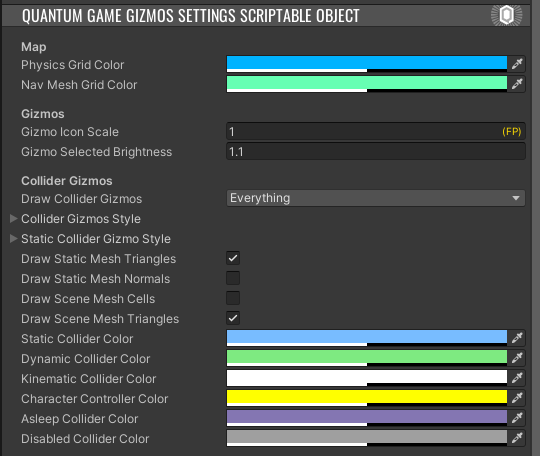
The gizmo settings contain information about Quantum debug and gizmo rendering, colors and toggles.
During Quantum Unity project installation by the Quantum Hub a default gizmo settings asset is created at QuantumUser/Editor/QuantumGameGizmosSettings.asset.
Usually the global config retrieved by QuantumGameGizmosSettingsScriptableObject.Global.Settings is used. To use a different one, assign it to QuantumRunner.GizmoSettings during runtime.
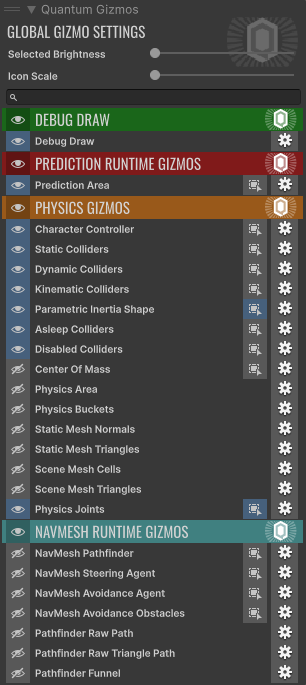
The gizmos are toggled and configured in the Quantum Gizmos overlay of the Unity scene view (right-click the scene tab > Overlay Menu > Quantum Gizmos), which edits the global gizmo settings asset.
The eye icon toggles a gizmo or a whole group, the select icon only draws the gizmo for selected objects and the gear icon opens the settings of a gizmo, for example its color.
Selected Brightness and Icon Scale are global settings for all gizmos.
Changing the Default Config Location
- use asset label
QuantumDefaultGlobalto find in Editor - use assembly attribute
QuantumGlobalScriptableObjectResourceto find at runtime - the asset must remain inside a
Resourcesfolder
When moving Quantum global/default config assets (e.g. SessionConfig or QuantumDefaultConfigs) away from their initial directories and accessing them in code with QuantumDefaultConfigs.Global, they will still be discovered in the Editor using the asset label QuantumDefaultGlobal.
This will not work at runtime in player builds and the following error is thrown: InvalidOperationException: Failed to load QuantumDefaultConfigs..
To support moved global config files add a file containing the following assembly attribute to the project. It needs to be part of a runtime assembly that is loaded in builds (e.g. Quantum.Unity.asmref or Quantum.Simulation.asmref), for example at the following path.
Assets\QuantumUser\View\QuantumUserAssemblyAttributes.cs
C#
[assembly: Quantum.QuantumGlobalScriptableObjectResource(typeof(Quantum.QuantumDefaultConfigs), "Configs/QuantumDefaultConfigs", AllowFallback = true)]
- The asset must remain inside a
Resourcesfolder. The second parameter is the path relative to theResourcesfolder without the file extension. In this example the asset is located atAssets/QuantumUser/Resources/Configs/QuantumDefaultConfigs.asset. Order: use default0, so it runs before the SDK's built-in fallback loader (Order = 2000).AllowFallback = true: if the custom path ever fails, the remaining loaders (including the editor one) still get a try.
To place the asset outside of any Resources folder, mark it as Addressable and use the QuantumGlobalScriptableObjectAddress attribute with its address instead.
C#
[assembly: Quantum.QuantumGlobalScriptableObjectAddress(typeof(Quantum.QuantumDefaultConfigs), "QuantumDefaultConfigs")]
Online Config Sequence Diagram
The flow of client controlled config files through the Quantum connection protocol.
Last updated on
Back to top