Quantum Project
Unitypackage Content
The Quantum 3 SDK is distributed as a unitypackage file. It's roughly separated into two sections: Assets/Photon and Assets/QuantumUser. The former represents the Quantum SDK and the latter mutable user code.
After installing Quantum, the user is presented with following folder structure:
Assets
├───Photon
│   ├───Quantum
│   │   └───Runtime
│   │       └───Realtime
│   └───(QuantumAsteroids)
└───QuantumUser
    ├───Editor
    ├───Resources
    ├───Scenes
    ├───Simulation
    │   └───Generated
    └───View
        └───Generated
Assets
├───Photon
│   ├───PhotonLibs
│   ├───PhotonRealtime
│   ├───Quantum
│   ├───(QuantumAsteroids)
│   └───(QuantumMenu)
└───QuantumUser
    ├───Editor
    │   ├───CodeGen
    |   └───Generated
    ├───Resources
    ├───Scenes
    ├───Simulation
    │   └───Generated
    └───View
        └───Generated
Upgrading will replace all files in Photon subfolders but not in QuantumUser. Some upgrades require manual steps, for example deleting files that were removed from the SDK. Follow the Quantum 3.0 to 3.1 Migration Guide when upgrading a 3.0 project.
All deterministic simulation code MUST be in QuantumUser/Simulation or included in the Quantum.Simulation assembly reference.
Code extending Quantum view scripts CAN be in Quantum.Unity or Quantum.Unity.Editor (e.g. partial methods) using their respective assembly references.
It is possible to opt out of the Quantum assembly definitions, for example for users migrating from such setup in Quantum 2.1 projects.
Assets/Photon
Assets/Photon contains Photon Quantum and other packages.
Changes to files in here will be overwritten during upgrades.
Folders inside Assets/Photon/Quantum:
| Folder | Content | Assembly |
|---|---|---|
Assemblies |
Quantum engine libraries and the zipped debug and release versions of them. | |
Editor |
Quantum Unity editor scripts. | Quantum.Unity.Editor |
Editor/Assemblies |
Prebuilt Quantum CodeGen libraries. | Quantum.CodeGen.Qtn.dll |
Editor/CodeGen |
Quantum CodeGen integration scripts. | Quantum.Unity.Editor.CodeGen |
Editor/Dotnet |
Project templates, libraries and the console runner used to export the simulation to a standalone .NET project. | |
PackageResources |
Optional unitypackages, see Optional Packages. | |
Resources |
Runtime resources, for example the default input actions and the stats prefab. | |
Runtime |
Quantum Unity runtime scripts. | Quantum.Unity |
Runtime/Realtime |
The embedded Photon Realtime library that Quantum uses to connect and communicate with the Quantum cloud (Quantum 3.1). | Quantum.Realtime |
Simulation |
Quantum simulation core scripts. | Quantum.Simulation |
Tests |
Simulation tests (Quantum 3.1). | Quantum.Simulation.Tests |
To use Photon Realtime from its own UPM package instead of the embedded copy, add the QUANTUM_DISABLE_REALTIME scripting define.
In Quantum 3.0 Photon Realtime is located in Assets/Photon/PhotonLibs and Assets/Photon/PhotonRealtime.
Files inside Assets/Photon/Quantum (Quantum 3.1):
| File | Content |
|---|---|
AGENTS.md, CLAUDE.md |
A guide for AI coding agents that explains the Quantum concepts, where code goes and how to look up the documentation. CLAUDE.md only references AGENTS.md. |
QuantumDocumentation.zip |
An offline copy of this manual in markdown. The Quantum Hub installs it into Assets/Photon/Quantum/Documentation~, a folder that Unity does not import, so AI agents and other tools can read it. |
CHANGELOG.md |
The release notes of the installed SDK version. |
Optional Packages
The Assets/Photon/Quantum/PackageResources folder contains unitypackages that are not imported by default.
Install them from the Quantum Hub or import them with Assets > Import Package > Custom Package.
| Package | Content |
|---|---|
Quantum-Asteroids.unitypackage |
The Asteroids sample game. |
Quantum-DemoInput.unitypackage |
Demo input scripts based on the Unity InputSystem, requires the com.unity.inputsystem package (Quantum 3.1). |
Quantum-Menu.unitypackage |
An in-game menu to start random online matches or create parties, see Sample Menu Customization. |
Quantum-MultiClient.unitypackage |
The multi-client scripts to run multiple Quantum clients in one Unity instance (Quantum 3.1, part of the SDK in 3.0). |
Assets/QuantumUser
Files inside Assets/QuantumUser will never be overwritten by an upgrade and are under the developers control.
Assembly definition references (.asmref) add the code in its folders to the Quantum assemblies.
Folders inside Assets/QuantumUser:
| Folder | Content | Assembly |
|---|---|---|
Editor |
User editor scripts and editor settings assets. | Quantum.Unity.Editor |
Resources |
Runtime config files. | |
Scenes |
The default folder for new Quantum scenes. | |
Simulation |
The actual simulation code. | Quantum.Simulation |
Simulation/Generated |
Generated Quantum C# code. | Quantum.Simulation |
View |
The default location for view scripts. | |
View/Generated |
Generated Quantum prototype scripts. | Quantum.Unity |
Assemblies
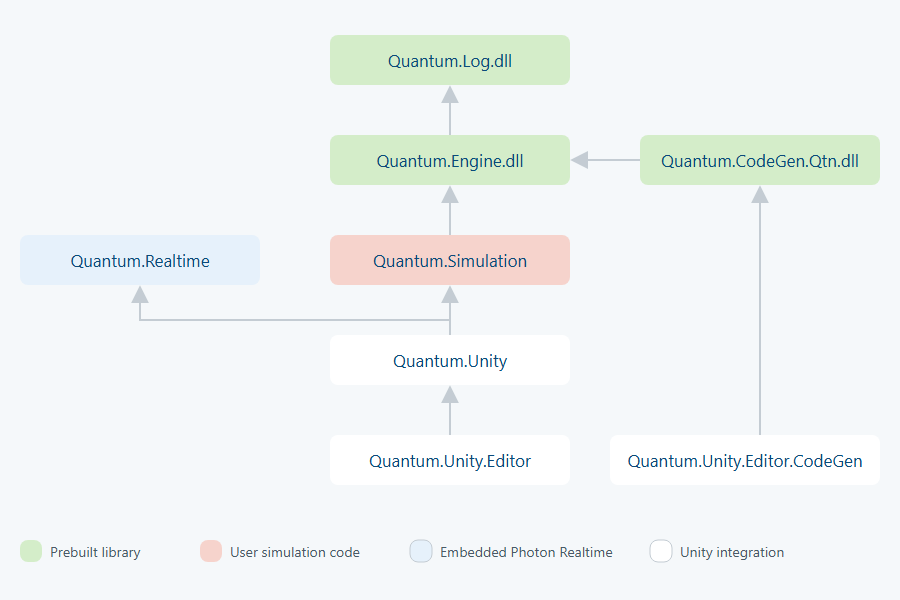
Quantum is split into these assemblies:
| Assembly | Purpose |
|---|---|
Quantum.Simulation |
Simulation code. Add all user simulation code to this assembly with assembly definition references. Unity and Odin property attributes can be used at will, but any use of non-deterministic Unity API is heavily discouraged. Code from this assembly can be worked on as a standalone .csproj, similar to quantum.code.csproj in Quantum 2. |
Quantum.Unity |
Code specific to the Quantum integration with Unity. CodeGen also emits MonoBehaviours here that wrap component prototypes. |
Quantum.Unity.Editor |
Editor code for Quantum.Simulation and Quantum.Unity. |
Quantum.Unity.Editor.CodeGen |
CodeGen integration code. It is fully independent of the other Quantum assemblies, so it can always run, even with compile errors. This may require exiting Safe Mode. |
Quantum.Realtime |
The embedded Photon Realtime library (Quantum 3.1). |
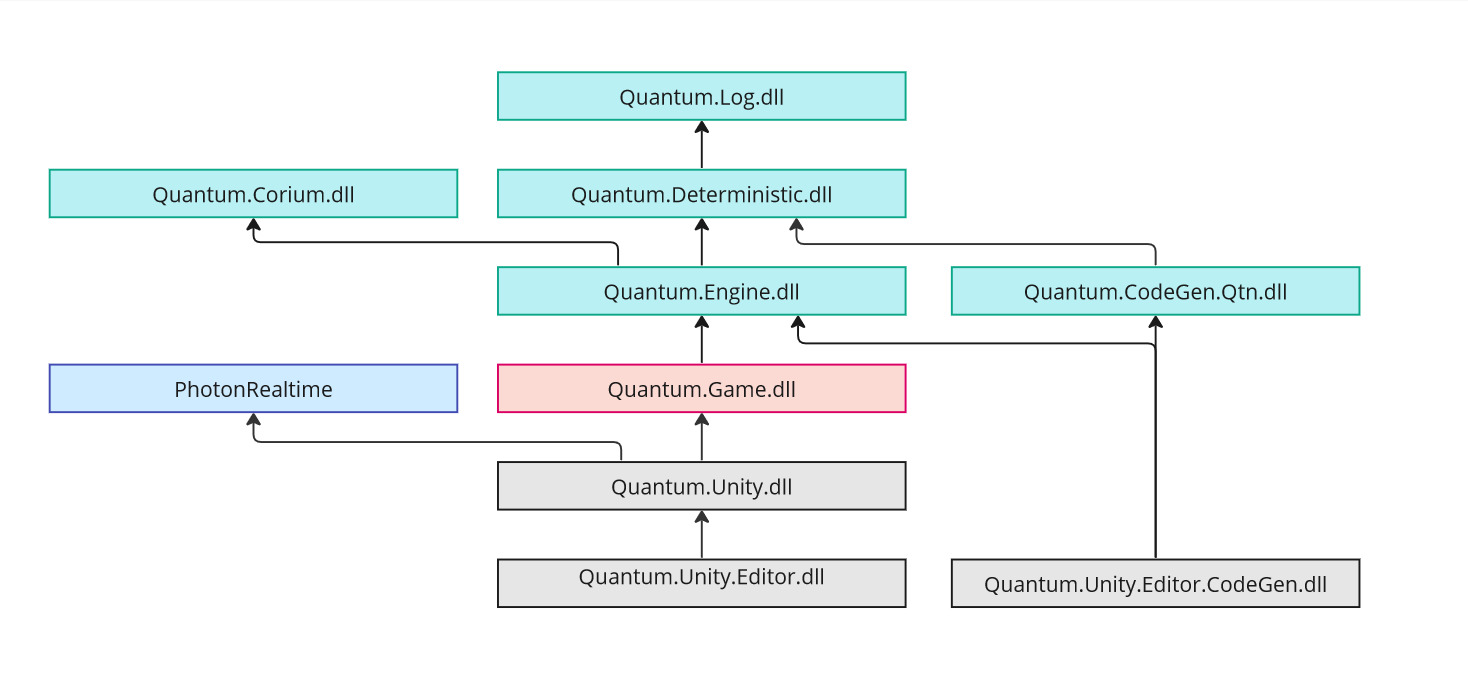
Quantum Dependencies
Quantum Hub
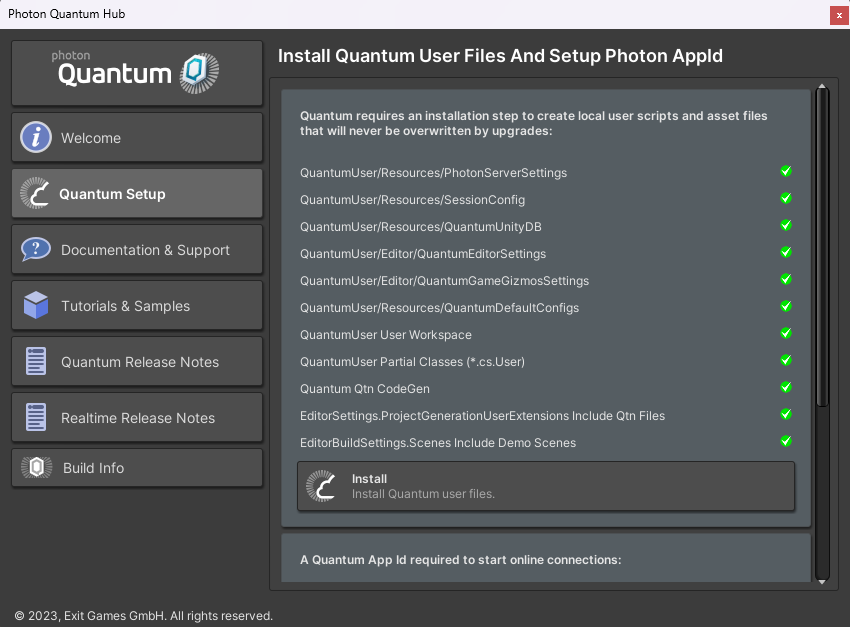
Open by pressing Ctrl+H or via the Quantum menu.
The Hub window will also pop up when a vital Quantum configuration files is missing (e.g. PhotonServerSettings) and recommend pressing the installation button.
The installation process takes care of installing files locally that cannot originate from the unitypackage because they would be overwritten by the next Quantum version upgrade.
Release And Debug Builds
The Quantum libraries come in release and debug configurations.
In Quantum 3.1 these are Quantum.Engine.dll and Quantum.Log.dll, in Quantum 3.0 also Quantum.Deterministic.dll.
Both configurations are stored as Quantum.Release.zip and Quantum.Debug.zip in Assets/Photon/Quantum/Assemblies.
Toggling extracts the selected configuration and overwrites the libraries.
To toggle between debug and release use the menu Tools > Quantum > Toggle Debug Dlls:

Toggling is only possible when the SDK is installed under Assets (unitypackage) or as an embedded or local UPM package.
Registry and git UPM packages are extracted to the read-only Library/PackageCache, where Unity restores any changed files.
The debug build has significant performance penalties compared to a release build. For performance tests always use a Quantum release build (and Unity IL2CPP). Read more about this in the Profiling section.
The development build contains assertions, exceptions, checks and debug outputs that help during development and which are disabled in release configuration. For example:
Log.Debug()andLog.Trace(), when called from the quantum code project, will not be outputting log anymore.- As well as all
Draw.Shape()methods. NavMeshAgentConfig.ShowDebugAvoidanceandShowDebugSteeringwill not draw gizmos anymore.- Assertions and exceptions inside low level systems like physics are disabled.
Logging
Quantum provides the static Quantum.Log class to log from the simulation code and also to produce all its owns log outputs.
C#
namespace Quantum {
  public unsafe class MyQuantumSystem : SystemMainThread {
    public override void Update(Frame frame) {
      Log.Debug($"Updating MyQuantumSystem tick {frame.Number}");
    }
  }
}
The Unity SDK has wrapper around that called QuantumUnityLogger. It will statically initialize itself during RuntimeInitializeOnLoadMethod and/or InitializeOnLoadMethod (see QuantumUnityLogger.Initialize())
The partial method InitializePartial() can be used to customize the initialization.
The QuantumUnityLogger class offers various customizations fields to for example define the color schemes.
Log Level
The global log level is controlled by Quantum.Log.LogLevel. To set the initial log level use the following scripting defines:
QUANTUM_LOGLEVEL_TRACEQUANTUM_LOGLEVEL_DEBUGQUANTUM_LOGLEVEL_INFOQUANTUM_LOGLEVEL_WARNQUANTUM_LOGLEVEL_ERROR
They are toggled with the QuantumEditorSettings inspector.
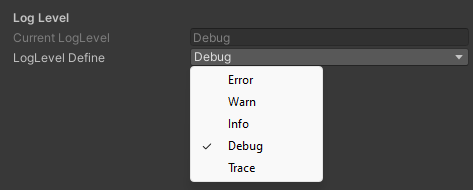
As mentioned in the last section about debug builds Log.Trace() and Log.Debug() messages will only be logged with TRACE and DEBUG defines respectively. Notice that running the UnityEditor always defines DEBUG.
Photon Realtime Log
The Photon Realtime library used by Quantum has its own log levels that can be controlled with the Photon.Realtime.AppSettings found on the PhotonServerSettings ScriptableObject.
AppSettings.NetworkLogging: Log level for the PhotonPeer and connection. Useful to debug connection related issues.AppSettings.ClientLogging: Log level for the RealtimeClient and callbacks. Useful to get info about the client state, servers it uses and operations called.
In non-development builds Realtime logs less than the ERROR severity will not log unless defining LOG_WARNING, LOG_INFO and LOG_DEBUG.
Exporting Simulation
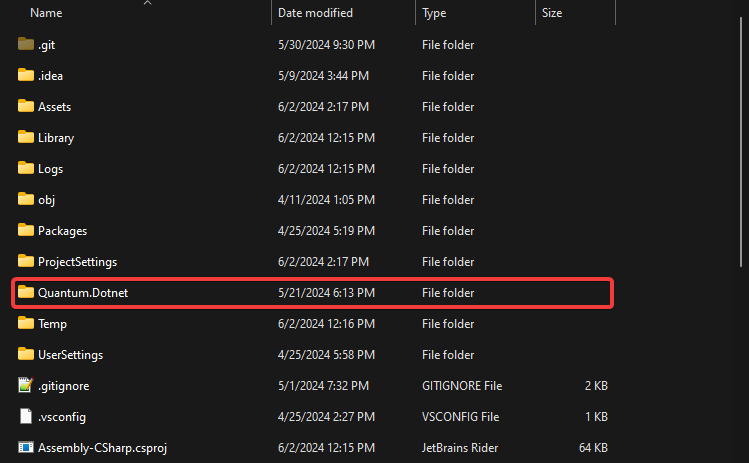
The Quantum simulation code can be exported to a standalone C# project that is free of Unity dependencies. The project is generated into the Unity project folder, it will link to all simulation source files found and uses non-Unity Quantum dependencies extracted from Assets/Photon/Quantum/Editor/Dotnet/Quantum.Dotnet.Debug.zip for example.
Select the
QuantumDotnetProjectSettingsasset in the Unity project to define what simulation sources are searched for.- Add additional
IncludePathsmanually or mark the folders with theQuantumDotNetIncludeUnity asset label.
- Add additional
Select the
QuantumDotnetBuildSettingsasset in the Unity project control how the DotNet project is generated and build.
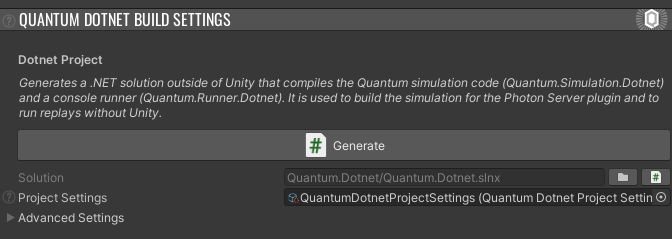
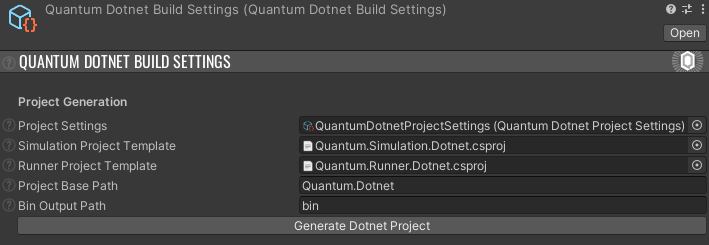
- Enable
Show Folder After Generationand pressGenerate Dotnet Project- The project will be generated at
Project Base Path, relative to the Unity project folder.
- The project will be generated at
Exported Solution Structure
The generated solution comes with two projects:
Lib- The unzipped non-Unity Quantum dependencies in Debug and Release configurationQuantum.Runner.Dotnet- Contains a lightweight console runner that can run Quantum replaysQuantum.Simulation.Dotnet- Contains the non-Unity Quantum simulation project and codeQuantum.Simulation.Dotnet.Tests- Contains the non-Unity Quantum simulation sample tests (3.1)
Using the Console Runner
Build the solution in your IDE.
Open a terminal and navigate to the folder with the built exe (
Quantum.Runner.exe).Run the exe with the following arguments:
Arguments in square brackets are optional.
Bash
Quantum.Runner.exe --replay-path path/to/replay [--db-path path/to/db] [--checksum-path path/to/checksum]
The --replay-path argument is required.
The --db-path argument is optional if the replay contains the db.
The --checksum-path argument is completely optional.
Bash
Quantum.Runner.exe --replay-path path/to/replay --lut-path path/to/lut [--db-path path/to/db] [--checksum-path path/to/checksum]
The --replay-path and --lut-path arguments are required.
The --db-path argument is optional if the replay contains the db.
The --checksum-path argument is completely optional.
To acquire the LUT files, you can access them in the Assets/Photon/Quantum/Runtime/RuntimeAssets/LUT folder in the Unity project (before SDK 3.0.3: Assets/Photon/Quantum/Resources/LUT).
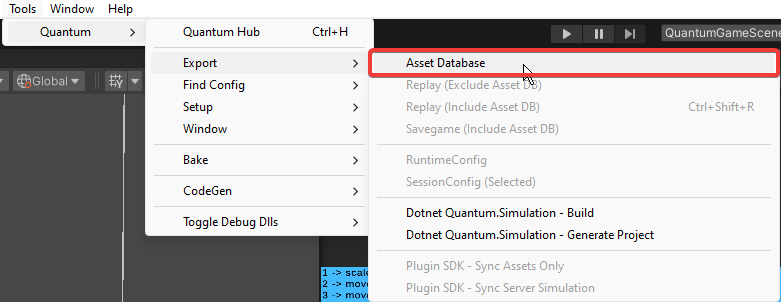
To acquire a standalone assets file, you can press the Asset Database menu button under the Tools/Quantum/Export/AssetDatabase menu.
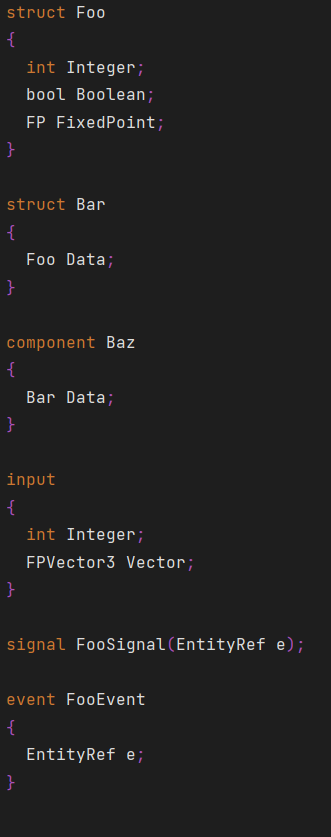
Syntax Highlighting in .qtn files
To enable syntax highlighting in the DSL (files with .qtn extension), follow the IDE specific guides below.
Visual Studio
In Visual Studio, it is possible to add syntax highlighting for QTN files by associating it with another type (e.g. C# or Microsoft Visual C++). To do this go to Tools -> Options -> Text Editor -> File Extension.
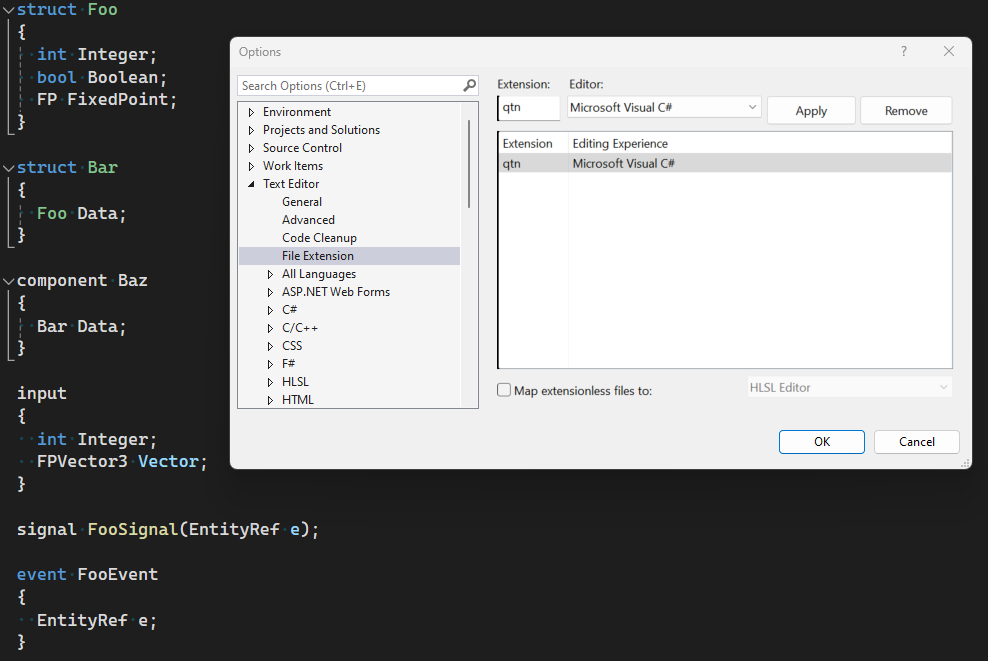
Visual Studio Code
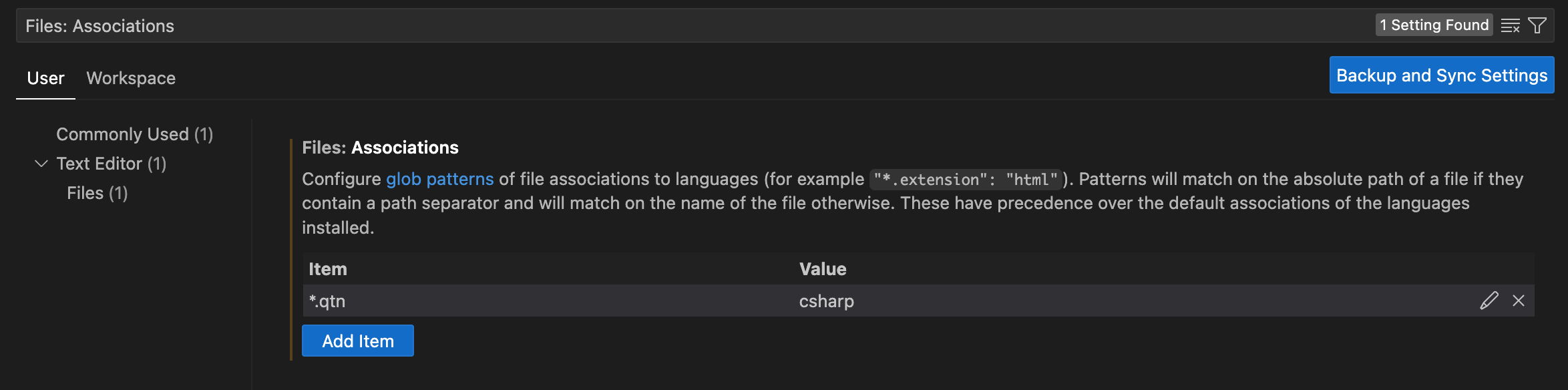
In Visual Studio, it is possible to add syntax highlighting for QTN files by associating it with another type (e.g. C#).
- Open Settings (Ctrl+, or Cmd+, on macOS).
- Search for "Files: Associations".
- Add a new file association of "*.qtn" to "csharp".
JetBrains Rider
In JetBrains Rider, it is possible to add syntax highlighting to the DSL files (the ones with .qtn extension) by defining a new file type.
- Step 1: Navigate to
File -> Settings -> Editor -> File Types.
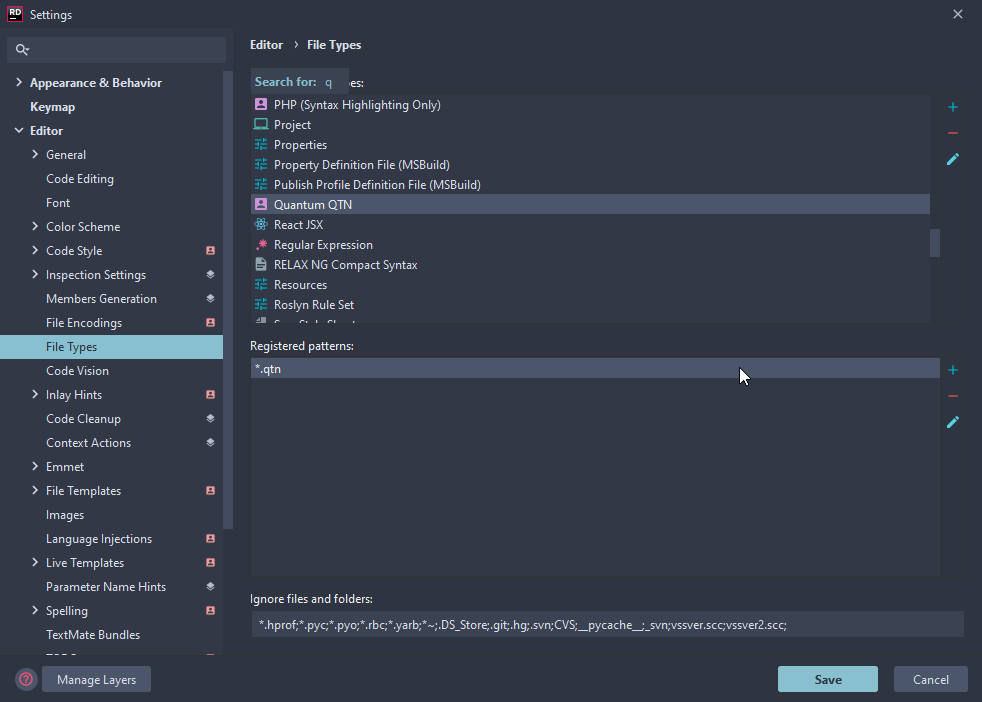
- Step 2: In the
Recognized File Typescategory, press the+sign at the right of the to add a new file type.
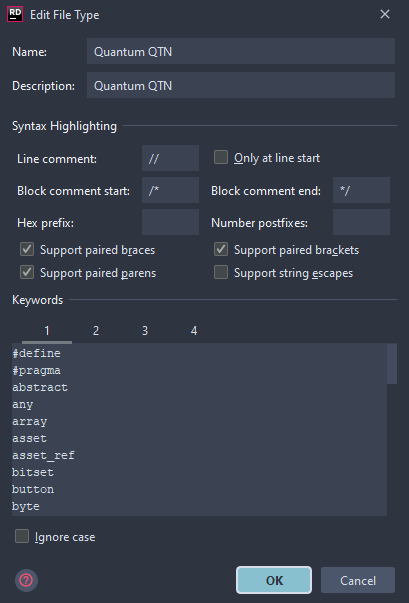
- Step 3: Check the settings for line comments, block comments, etc...
- Step 4: Paste the list below into the keywords level 1.
C#
#define
#else
#endif
#ifdef
#ifndef
#pragma
AssetRef
Boolean
Button
EntityRef
QString
QStringUtf8
abstract
any
array
asset
asset_ref
bitset
bool
buffers
button
byte
client
command
component
component_prototype_ref
dictionary
entity_prototype_ref
entity_ref
enum
enum_count
event
fields
filter
flags
global
has
hash_set
import
input
int
internal
list
local
long
not
nothashed
player_ref
private
public
qstring
qstringutf8
ref
remote
sbyte
server
short
signal
singleton
struct
synced
table
typeof
uint
ulong
union
use
ushort
using
void
- Step 5: Paste the list below into the keywords level 2 then press
Ok.
C#
#
(
)
*
,
.
:
;
<
=
=>
>
?
[
]
{
}
- Step 6: In the
File Name Patternscategory, press the+sign at the right side. - Step 7: Enter
*.qtnas the wildcard for the type.
Last updated on
Back to top