Replays
Introduction
This documentation explains how to save and play back deterministic Quantum simulation replays.
Replays are re-runs of the game simulation using the same libraries, game assets, configurations and user input from a recorded session. They can also be used to start a second simulation that is slightly in the past to, for example, perform a kill-cam replay. The application doesn't have to be the same one or even run on the same platform, but it has to be built with the same game and Quantum dlls. Optionally checksums can be recorded with and verified during playback.
Running a Quantum replay requires four parts:
- An application build with the same version of game and Quantum libraries
Quantum.Engine.dll(Quantum 3.0: alsoQuantum.Deterministic.dll)Quantum.Simulation.dll
- The game assets
- The Quantum asset database (DB)
- The look-up table files (LUT), Quantum 3.0 only
- The game session specific configuration files
- SimulationConfig
- RuntimeConfig
- The game session specific input history
How To Save A Replay
Unity
Before starting Quantum, set the RecordingFlags to either Input or All.
C#
  [Flags]
  public enum RecordingFlags {
    None = 0,                 // records nothing, default setting
    Input = 1 << 0,           // records input
    Checksums = 1 << 1,       // records checksums
    All = Input | Checksums   // recorded input and checksum
  }
- Use the inspector
enumfield of theQuantumRunnerLocalDebugor
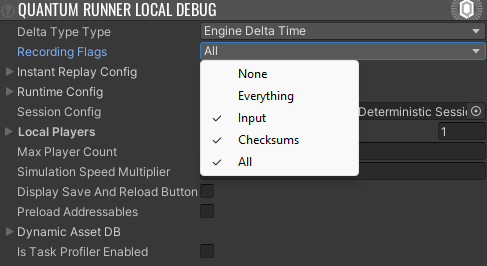
- Use the inspector
enumfield in theQuantumMenuUIController.ConnectArgswhen using the Quantum menu or
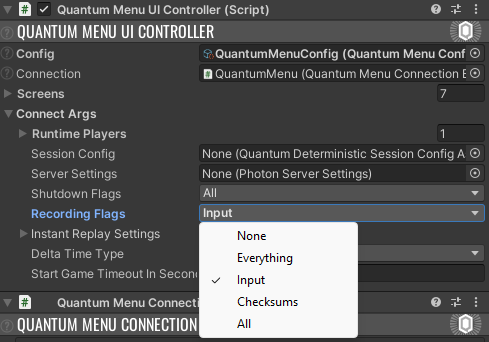
- Set the flags on the
SessionRunner.Argumentswhen callingSessionRunner.Start()or

- Alternatively the input recording can also be started manually using
QuantumGame.StartRecordingInput().
PS: Input recording in general will create managed memory allocations.
Start the game, then save the replay by selecting one of Unity Editor menu options below. The exported file can either include the asset db for convenience or exclude the asset db to keep the replay files size small. The default name consists of the current loaded map name and the datetime.
Tools > Quantum > Export > Replay (Integrated Asset DB): the asset db is saved inside the replay file.Tools > Quantum > Export > Replay (Separate Asset DB): the asset db is saved as a second file with the-DBpostfix.Tools > Quantum > Export > Replay (Without Asset DB): the asset db is not saved.
A save file dialog asks for the location and remembers the last used folder, relative to the project when it is inside Assets.
Tools > Quantum > Export > Snapshot (Integrated Asset DB) saves a snapshot of the current game state with the asset db into the same QuantumReplayFile format.
In code use QuantumGame.GetSnapshotFile().
Tools > Quantum > Export > Replay (Include Asset DB)(Ctrl+Shift+R): the asset db is saved inside the replay file.Tools > Quantum > Export > Replay (Exclude Asset DB): the asset db is saved as a second file with the-DBpostfix.
The default replay file location is Assets/QuantumUser/Replays.
Tools > Quantum > Export > Savegame (Include Asset DB) saves a snapshot of the current game state with the asset db into the same QuantumReplayFile format.
In code use QuantumGame.CreateSavegame().
Alternatively, create and save the replay file manually in code:
C#
var replay = quantumGame.GetRecordedReplay(includeChecksums: true, includeDb: false);
File.WriteAllText("replay.json", JsonUtility.ToJson(replay));
Alternatively export the asset db in code:
C#
using (var file = File.Create("db.json")) {
  quantumGame.AssetSerializer.SerializeAssets(file, quantumGame.ResourceManager.LoadAllAssets().ToArray());
}
Webhook
To save a replay from a session running on the Quantum Public Cloud the replay webhooks must be set up and point to a custom backend.
The start WebRequest comes with the SessionConfig and RuntimeConfig configuration files. The chunks will arrive frequently until IsLast is finally true, representing the streaming input from all players.
To make the replays playable in Unity, either serialize them in JSON into a QuantumReplayFile class or create another data structure to store the required data.
How To Run A Replay
Unity
Instead of the QuantumRunnerLocalDebug script use the QuantumRunnerLocalReplay script to start a local game using a replay. Drag and drop the recorded file into the Replay File field of the inspector. If the default file naming convention is used it will detect and set the asset Database File automatically. Press play.
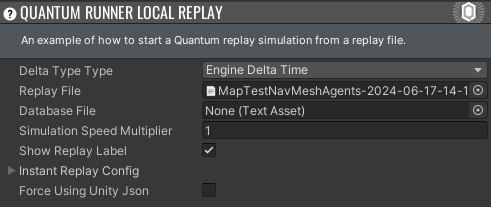
The script follows a few steps to load a replay file, set up and configure arguments and start the Quantum session. The process is similar to what the .Net application runner does and can be used to create custom replay starting logic.
Deserialize the replay file, let InitForReplay() set up the SessionRunner arguments and start the game.
C#
var serializer = new QuantumUnityJsonSerializer();
var replayFile = JsonUtility.FromJson<QuantumReplayFile>(ReplayFile.text);

var arguments = new SessionRunner.Arguments();
arguments.InitForReplay(replayFile, serializer, assets: DatabaseFile != null ? DatabaseFile.bytes : null);
arguments.InstantReplaySettings = InstantReplayConfig;
arguments.DeltaTimeType = DeltaTimeType;

var runner = (QuantumRunner)SessionRunner.Start(arguments);
InitForReplay() is an extension method in QuantumRunnerExtensions.
It sets the default Unity arguments (including the required TaskRunner), decodes the RuntimeConfig, creates the input provider from the replay, sets the DeterministicGameMode.Replay mode, the InitialTick and the FrameData and loads the asset database from the assets parameter or from the replay file.
Optionally start verifying a list of checksums and log out checksum mismatches.
C#
if (replayFile.Checksums?.Checksums != null) {
  runner.Game.StartVerifyingChecksums(replayFile.Checksums);
}
Step 1: Deserialize the replay file.
C#
var replayFile = JsonUtility.FromJson<QuantumReplayFile>(ReplayFile.text);
Step 2: Create an input provider from the replay file. It will automatically create the correct provider based on if the input is delta compressed or if it uses raw inputs.
C#
_replayInputProvider = replayFile.CreateInputProvider();
Step 3: Create the SessionRunner arguments. For example, decode the binary RuntimeConfig, set the simulation to DeterministicGameMode.Replay mode. InitialTick and FrameData are only required if the replay does not start from the beginning.
C#
var serializer = new QuantumUnityJsonSerializer();
var runtimeConfig = serializer.ConfigFromByteArray<RuntimeConfig>(replayFile.RuntimeConfigData.Decode(), compressed: true);

var arguments = new SessionRunner.Arguments {
  RunnerFactory = QuantumRunnerUnityFactory.DefaultFactory,
  RuntimeConfig = runtimeConfig,
  SessionConfig = replayFile.DeterministicConfig,
  ReplayProvider = _replayInputProvider,
  GameMode = DeterministicGameMode.Replay,
  RunnerId = "LOCALREPLAY",
  PlayerCount = replayFile.DeterministicConfig.PlayerCount,
  InstantReplaySettings = InstantReplayConfig,
  InitialTick = replayFile.InitialTick,
  FrameData = replayFile.InitialFrameData,
  DeltaTimeType = DeltaTimeType
};
Step 4: Use the asset database saved with the replay or an external asset database source or do not set a different ResourceManager at all.
C#
var assets = replayFile.AssetDatabaseData?.Decode();
if (DatabaseFile != null) {
  assets = DatabaseFile.bytes;
}

var serializer = new QuantumUnityJsonSerializer();

if (assets?.Length > 0) {
  _resourceAllocator = new QuantumUnityNativeAllocator();
  _resourceManager = new ResourceManagerStatic(serializer.AssetsFromByteArray(assets), new QuantumUnityNativeAllocator());
  arguments.ResourceManager = _resourceManager;
}
Step 5: Finally, start the game.
C#
_runner = QuantumRunner.StartGame(arguments);
Optionally start verifying a list of checksums and log out checksum mismatches.
C#
_runner.Game.StartVerifyingChecksums(replayFile.Checksums);
.Net Application
Create or update the .Net simulation project by selecting the QuantumDotnetBuildSettings asset and pressing Generate Dotnet Project.
Open and compile the solution file under Assets/../Quantum.Dotnet/Quantum.Dotnet.sln.
Start the runner from the command line accordingly.
Quantum.Dotnet\Quantum.Runner.Dotnet\bin\Debug> .\Quantum.Runner.exe --help
Description:
  Main method to start a Quantum runner.

Usage:
  Quantum.Runner [options]

Options:
  --replay-path <replay-path>      Path to the Quantum replay json file.
  --db-path <db-path>              Optionally an extra path to the Quantum database json file.
  --checksum-path <checksum-path>  Optional an extra path to the checksum file.
  --version                        Show version information
  -?, -h, --help                   Show help and usage information
For example:
Quantum.Dotnet\Quantum.Runner.Dotnet\bin\Debug>.\Quantum.Runner.exe
  --replay-path ..\..\..\..\Assets\QuantumUser\Replays\MapTestNavMeshAgents-2024-06-17-14-19-46.json
Quantum.Dotnet\Quantum.Runner.Dotnet\bin\Debug> .\Quantum.Runner.exe --help
Description:
  Main method to start a Quantum runner.

Usage:
  Quantum.Runner [options]

Options:
  --replay-path <replay-path>      Path to the Quantum replay json file.
  --lut-path <lut-path>            Path to the LUT folder.
  --db-path <db-path>              Optionally an extra path to the Quantum database json file.
  --checksum-path <checksum-path>  Optionally an extra path to the checksum file.
  --version                        Show version information
  -?, -h, --help                   Show help and usage information
For example:
Quantum.Dotnet\Quantum.Runner.Dotnet\bin\Debug>.\Quantum.Runner.exe
  --replay-path ..\..\..\..\Assets\QuantumUser\Replays\MapTestNavMeshAgents-2024-06-17-14-19-46.json
  --lut-path ..\..\..\..\Assets\Photon\Quantum\Runtime\RuntimeAssets\LUT
Before SDK 3.0.3 the LUT files are located in Assets\Photon\Quantum\Resources\LUT.
Caveat: Recorded checksums in Unity are not compatible with the ones generated in the Dotnet runner. Activate ChecksumCrossPlatformDeterminism in the SessionConfig to validate recorded checksums on different platforms.
PlayerIsLocal()
The QuantumGame.PlayerIsLocal() check is good for numerous view control for example camera, audio and VFX focus.
Replays store the actor number of the recording client in QuantumReplayFile.LocalActorNumber.
QuantumGame.GetRecordedReplay() sets it automatically, so PlayerIsLocal() returns the same results during the replay as in the recorded session.
Replays captured online using the webhook do not have this information.
Set LocalActorNumber on the replay file before starting the replay to choose the local player, online clients start with actor number 1.
To freely choose the focused player during a replay, wrap the PlayerIsLocal() check into checking the session game mode first.
C#
public class CustomViewContext : MonoBehaviour, IQuantumViewContext
{
  private PlayerRef _focusedPlayer;

  public bool IsFocusedPlayer(QuantumGame game, PlayerRef player)
  {
    if (game.Session.GameMode == DeterministicGameMode.Replay)
    {
      return player == _focusedPlayer;
    }

    return game.PlayerIsLocal(player);
  }
}
QuantumReplayFile API
The QuantumReplayFile holds all relevant data to run a Quantum replay and can be serialized in JSON.
The replay has to include a valid input history saved as InputHistoryDeltaCompressed or InputHistoryLegacy. The former is much more files size friendly and is the only mode that input is streamed from the Photon Public Cloud.
The RuntimeConfigData is stored in a binary serialized form (Quantum.AssetSerializer) like the data that is received during replay streaming.
The replay may include a serialized (AssetSerializer) asset db AssetDatabaseData for convenience, which should be omitted in production environments where file size is an issue.
The replay may contain recorded checksums that can be verified at runtime as a development feature.
The QuantumJsonFriendlyDataBlob is a wrapper around storing binary data in JSON to work around the problem that Unity JSON tools only serialize byte arrays verbosely.
C#
public class QuantumReplayFile {
  // Delta compressed binary input history, this is the same that is send over replay webhooks for example.
  public QuantumJsonFriendlyDataBlob InputHistoryDeltaCompressed;
  // Full verbose input used in Quantum 2.1, which is still functional, but has only fringe use cases.
  public DeterministicTickInputSet[] InputHistoryLegacy;
  // Binary serialized RuntimeConfig.
  // Use AssetSerializer.ConfigToByteArray(runtimeConfig, compress: true)
  public QuantumJsonFriendlyDataBlob RuntimeConfigData;
  // The session config.
  public DeterministicSessionConfig DeterministicConfig;
  // The last tick of the input.
  public int LastTick;
  // The initial tick to start from, requires InitialFrameData to be set.
  public int InitialTick;
  // Optional frame data to start the replay with. This is used for snapshots for example.
  public byte[] InitialFrameData;
  // Optional checksums. Omit this for replays in production environments.
  public ChecksumFile Checksums;
  // Optional serialized asset database. Omit this for replays in production environments.
  // Use AssetSerializer.SerializeAssets(stream, ResourceManager.LoadAllAssets().ToArray())
  public QuantumJsonFriendlyDataBlob AssetDatabaseData;
  // The actor number of the local player that the replay was recorded from, 0 for local games.
  public int LocalActorNumber;
}
C#
public class QuantumJsonFriendlyDataBlob {
  /// The byte array is saved as is.
  public byte[] Binary;
  /// The byte array is saved as Base64 text.
  public string Base64;
  /// Both Binary and Base64 can be GZip compressed.
  public bool IsCompressed;
}
Instant Replays
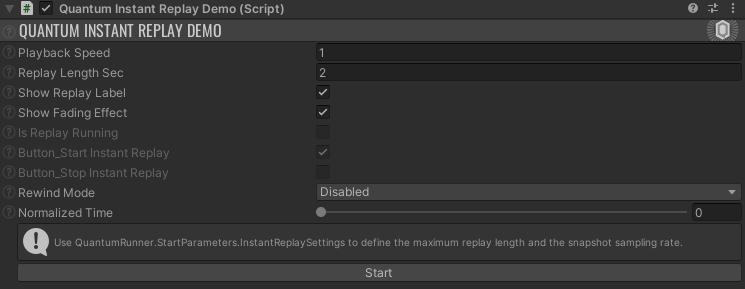
We provide a script which demonstrates how to do instant replays, like kill-cam replays which happen during the game, in an auxiliary QuantumRunner, and then gets back to the default runner once the instant replay is over.
To use it, just add the Unity component called QuantumInstantReplayDemo to a Game Object, do the setup (set playback speed, replay length, etc.) and then, during gameplay, hit the Start and Stop buttons.
Last updated on
Back to top