Getting Started
Requirements
- Godot 4.6 or later
- Fusion 3 AppId, which can be created in the Photon Engine Dashboard.
Before diving into this sample, we recommend having a basic understanding of Fusion in Godot.
See the Quick Start Guide for an introduction.
Download
| Version | Release Date | Download |
|---|---|---|
| 3.0.0.407 | 5月 05, 2026 | Fusion Godot Starter |
Running in Godot
To run the sample, first set your Fusion App Id in Project > Project Settings > Fusion > Connection > App Id.
External GDExtension settings such as the Fusion section will only show up if you use the search field or enable "Advanced Settings" in the Project Settings window.
Each example within Fusion Starter is accessible via its own scene file, which can be opened and played directly (shortcut F6). Alternatively, all examples can be launched from the menu.tscn scene located in the project root.
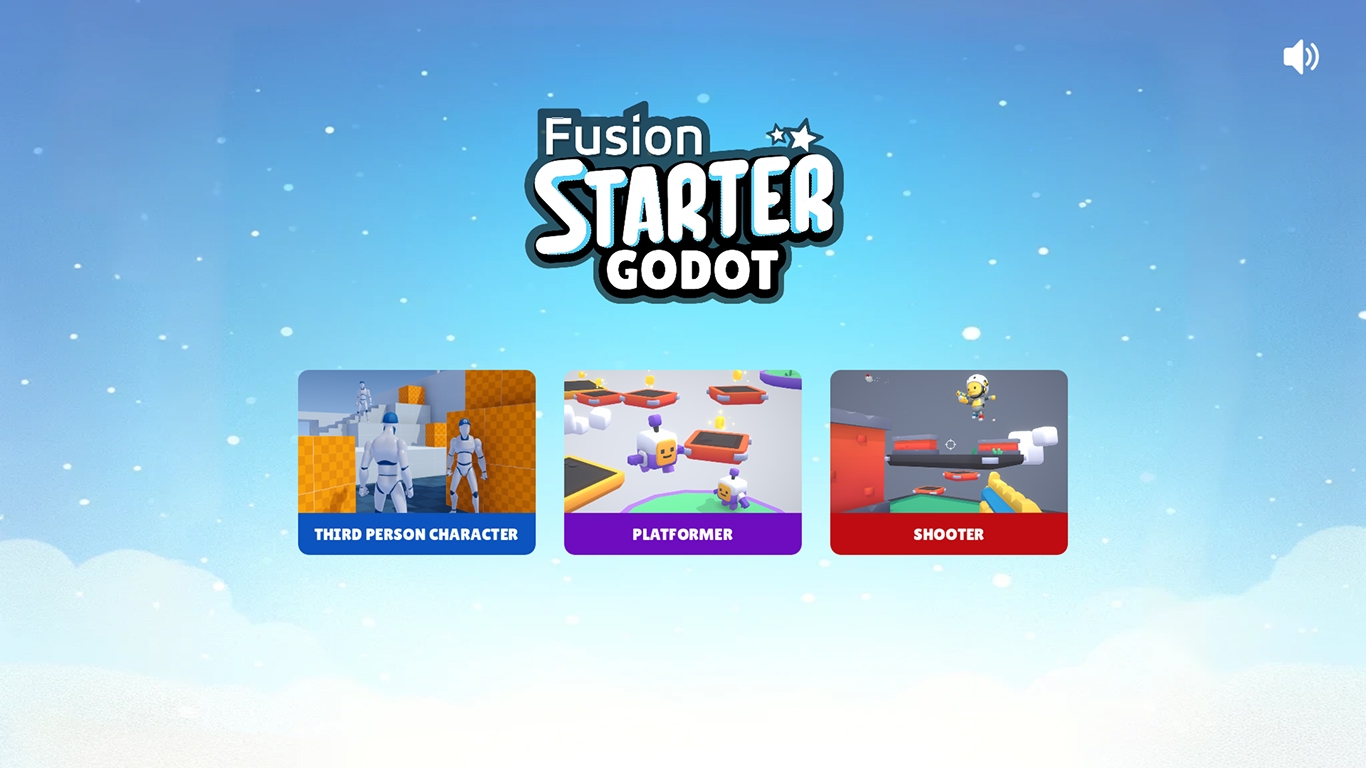
Upon starting the game, a connection menu appears where players can enter a nickname and a room name. Clicking the Connect button will initiate a new game session, or connect the player to an already existing game in that room.
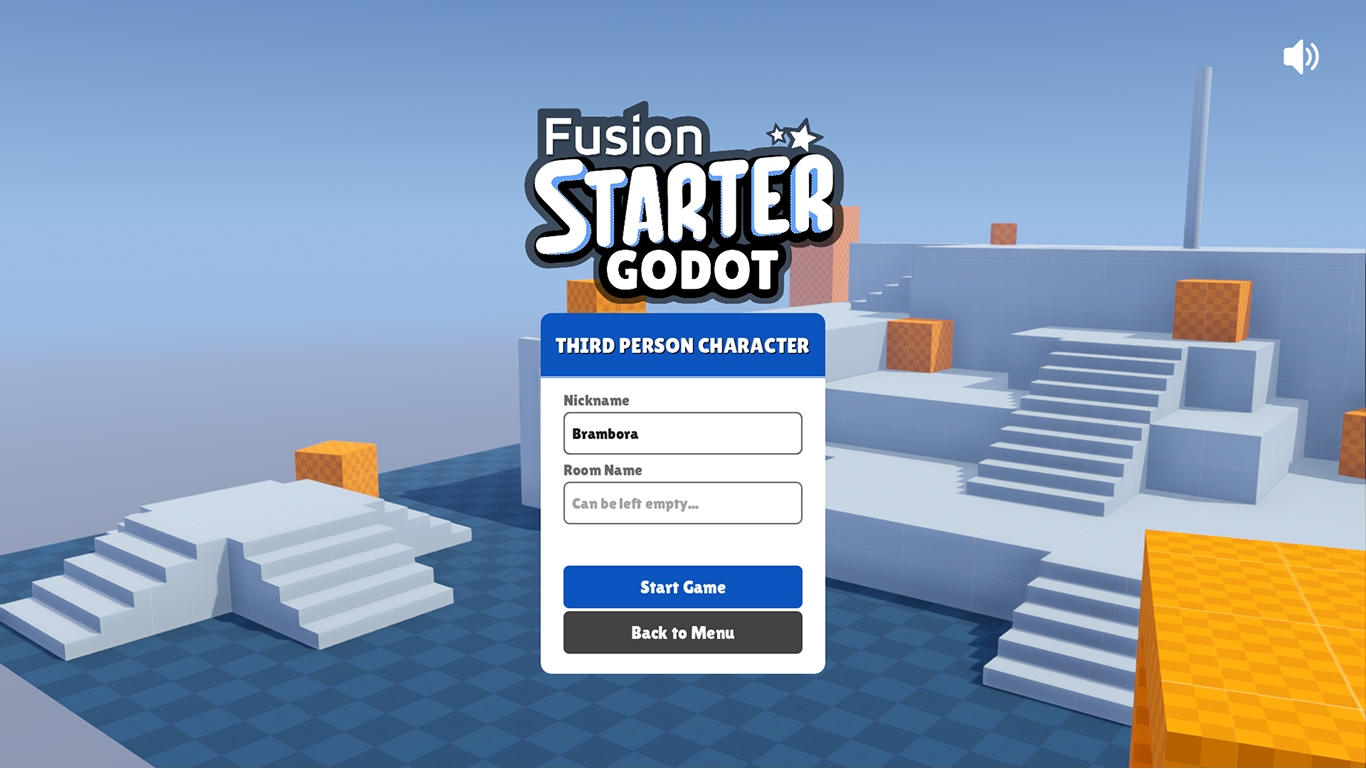
Press the Esc key during gameplay to reopen the connection menu. Use the Back to Menu button to return to the main menu scene.
Gameplay Controls
- Use the
W,S,A,Dkeys for movement. - Use the
Spacekey for jump. - Use the mouse for looking around.
- Use
Left mouse buttonfor weapon fire (only in the Shooter example) - Press the
Esckey to toggle the connection menu during play.
Making a Build and Testing
The sample can be built for all supported platforms: Windows, Mac, Linux, iOS, Android and web.
For quick multiplayer testing without creating a build, use Godot's Multiple Run Instances feature to launch several game instances directly from the editor.
Back to top