WebGL
Quantum supports multiple platforms, including WebGL, which comes with its unique challenges that developers must be aware of when working with it. This page provides a comprehensive list of these considerations.
WebGL Performance
WebGL is a unique environment that presents certain limitations. In general, performance is expected to be lower compared to other platforms. Hence, it is crucial to test the performance of your application in WebGL builds and not just within the editor to ensure optimal performance.
When the runInBackground option is disabled in the Player Settings, the application will stop running when the player switches to another tab. If the tab remains inactive for an extended period, the client will disconnect and will require reestablishing the connection once the tab is brought back into focus.
Given the low performance of WebGL, it is recommended to build both the Quantum code project in Release mode and set Unity to IL2CPP. Debug builds of the quantum code project can be extremely slow on WebGL.
Older versions of Unity only support single-threading in WebGL builds, where the simulation is confined to the main thread and the ThreadCount setting in the SimulationConfig is ignored. Starting with Unity 6, multithreading was introduced as an experimental feature and can be enabled through PlayerSettings.
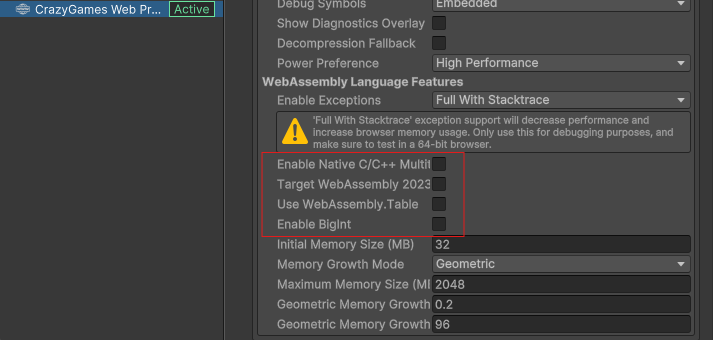
There is a known code-stripping issue in the native LLVM build chain when building a WebGL project with LTO that can cause RuntimeError: unreachable errors in runtime when Quantum does compression.
To avoid this issue, make sure your Quantum SDK is upgraded to the latest 3.0 or 3.1 release and include the com.unity.sharp-zip-lib package in your project.
Stack Traces
To enhance WebGL performance in release builds you can turn off the stack trace of logs in Unity. Go to edit > project settings > Player > Other Settings and scroll all the way down to Stack Trace* Set the stack trace of Warning and Log to None.

Async LUT Loading
Build size is a critical concern when working with WebGL. A significant portion of the Quantum package size comes from the lookup table LUT files, which can be loaded as Addressable assets to reduce the final build size. Follow the steps below to configure the LUT files as Addressables:
Install Addressables
- Open
Window>Package Manager. - Locate
Addressablesand install it.
Initialize Addressables
- Open
Window>Asset Management>Addressables>Groups. - Click on
Create AddressablesSettings.
Mark LUT Files as Addressables
- Move all files from
Assets/Photon/Quantum/Resources/LUTto a folder outside ofResources.
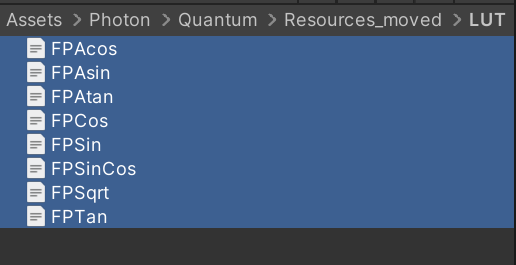
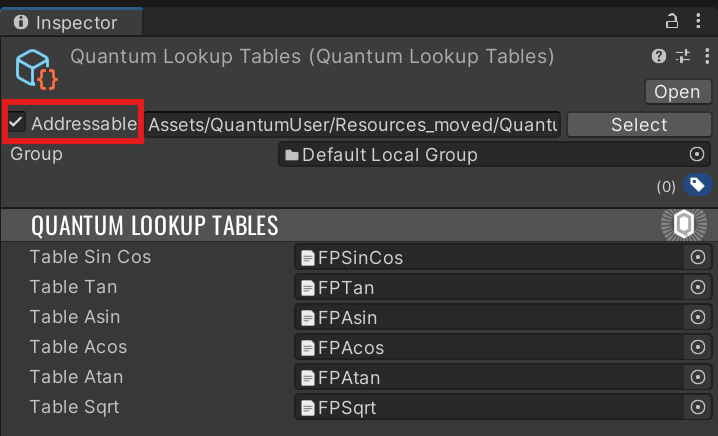
- In the inspector, enable the
Addressablecheckbox. - Repeat the same procedure for the
QuantumLookupTableslocated atAssets/QuantumUser/Resources: move it outside ofResourcesand enable theAddressablecheckbox in the inspector.
Scripting Define Symbol
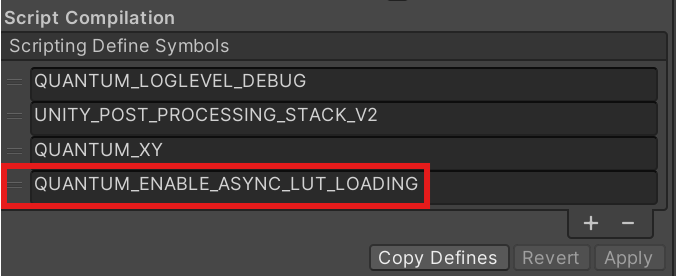
- Open
Edit>ProjectSettings>Player. - Make sure the correct platform tab is selected,
WebGL settingsin this case. - Add the define
QUANTUM_ENABLE_ASYNC_LUT_LOADINGonScriptDefineSymbolslist.
WebSockets
Browsers cannot establish direct UDP connections, so WebSockets over TCP are utilized instead. However, TCP's reliable and sequenced transfer protocol can negatively impact gameplay for players with poor network connections. To provide the best player experience, it is recommended to also offer the game as a download.
A warning that the application is switching to WebSockets may appear in the browser, but this can be safely ignored.
Interactive Showcase
Below is a demonstration of a Quantum WebGL build which you can try right now on your web browser.

Much more WebGL demonstrations can be found in our Itch.io page.
Back to top