Setup
Installation
- (Windows only) Unblock
Photon-Quantum-X.X.X.Plugin-SDK.zipbyright-click > Properties > Unblockbefore unzipping it. - Unzip the archive into a folder inside or next to the Quantum Unity project (Quantum tools will auto-detect the location).
|
Or | |
- (Running local Photon Server) Download and copy a Photon Server license from the Photon dashboard into the
Photon.Server/deploy_win/bin. PS: only Circle membership owners have access to the license file.
Testing The Server Plugin
- Open the
Quantum.Plugin.Custom.slnin Visual Studio or Rider, set theQuantum.Plugin.Custom.Stockas start-up project and ignore that other project may fail to compile; - Press F5 to start the Photon-Server;
- Open the game server log file under
Photon.Server\deploy_win\log\GSGame.log; - Open the Unity project, select
PhotonServerSettings.assetand press theLocal Name Serverbutton; - Start an online game using the Quantum Menu.
Testing Server Simulation
- Select and configure the
QuantumDotnetProjectSettingsasset in Unity- Add include paths to all simulation code or Qtn-file folders or mark the folders with the
QuantumDotnetIncludeUnity asset label; - Simulations folder for example are
Assets\Photon\QuantumAsteroids\Simulation;
- Add include paths to all simulation code or Qtn-file folders or mark the folders with the
- Select the
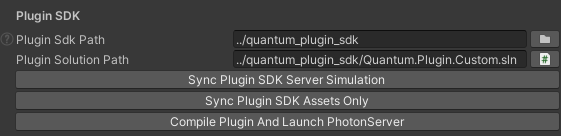
QuantumDotnetBuildSettingsasset and pressDetect Plugin SDK. If this fails, set the folder (that contains thePhoton.Serverfolder) manually;

- Select the
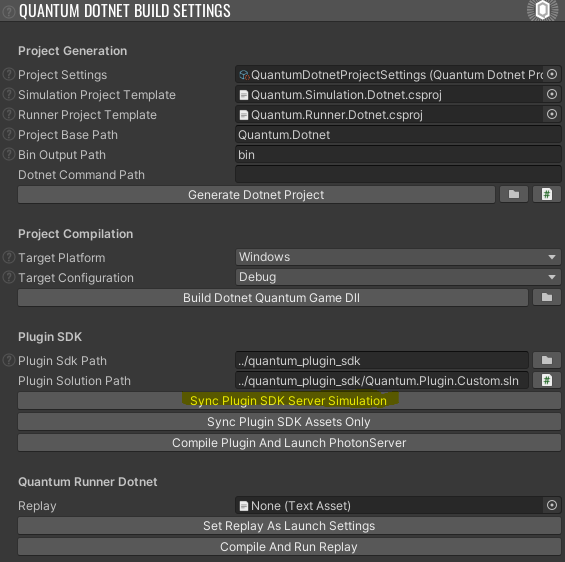
QuantumDotnetBuildSettingsasset and pressSync Plugin SDK Server Simulation. This step builds the non-Unity simulation dll, exports the Quantum Unity DB and copies the LUT files:- Libraries to the
Libfolder; - Assets to
Photon.Server\deploy_win\Plugins\QuantumPlugin3.X\bin\assets;
- Libraries to the
- Open the
Quantum.Plugin.Custom.slnin Visual Studio or Rider;- Set the
Quantum.Plugin.Custom.Sample.ServerSimulationproject as the start-up project; - Press F5 to start the Photon-Server;
- Open the game server log file under
Photon.Server\deploy_win\log\GSGame.log;
- Set the
- Open the Unity project, select
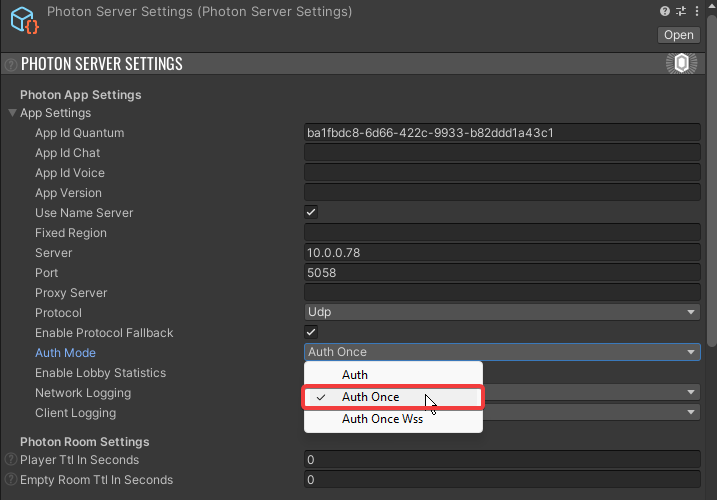
PhotonServerSettings.assetand press theLocal Name Serverbutton; - While selecting the
PhotonServerSettings.assetchange theAuth ModetoAuth Once; - Start an online game using the Quantum Menu.
SDK Content
Lib Folder
The Lib folder includes all dependencies required to compile and run the Quantum Photon Server plugin.
The PhotonHivePlugin.dll for example is the interface for general Photon Server plugins. Quantum.Deterministic.Plugin.dll, Quantum.Deterministic.Server.dll and Quantum.Deterministic.Server.Interface.dll are the main libraries of the Quantum plugin. Quantum.Engine.dll and Quantum.Log.dll are usually replaced by the libraries of custom simulation build (from Unity).
Photon.Server Folder
The folder includes the local Photon Server. The bin folder has the Photon.Server executables, LoadBalancing and NameServer has the server code and Plugins has the server plugins. The log folder contains the server logs (e.g. the game server log GSGame.log).
The plugin configuration file LoadBalancing\GameServer\bin\plugin.config includes the local configuration key value store that online servers get from the Photon Dashboard.
The custom plugin libraries will be outputted to Plugins\QuantumPlugin3.X\bin. This is also the folder that is uploaded to the Photon Enterprise cloud in the end.
Quantum.Plugin.Custom.* Folders
These folders contain sample projects for a custom Quantum plugin (see next section).
Plugin Samples
The Quantum.Plugin.Custom.sln comes with multiple sample projects. Select one as a start-up project to be able to start it with F5.
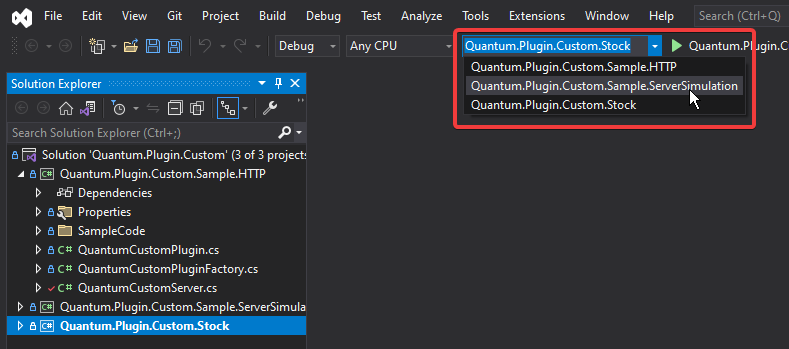
See in the launchSettings.json how F5 will start a Photon Server:
JSON
{
  "profiles": {
    "Quantum.Plugin.Custom.Sample.ServerSimulation": {
      "commandName": "Executable",
      "executablePath": "$(ProjectDir)/../Photon.Server/deploy_win/bin/PhotonServer.exe",
      "commandLineArgs": "--run LoadBalancing --config PhotonServer.config",
      "workingDirectory": "$(ProjectDir)/../Photon.Server/deploy_win/bin"
    }
  }
}
The shared csproj file Quantum.Plugin.Shared.csproj.include is used in each project to support basic integration tasks like:
- Copying the output to the destination folder: Photon.Server\Plugins\QuantumPlugin3.X\bin;
- Zipping the plugin to prepare for Photon Cloud upload;
- Checking for a license file.
Stock Sample
This sample is a blank slate which only consists of a custom DeterministicPluginFactory which is responsible to instantiate the required DeterministicPlugin. It will just instantiate the unmodified base plugin object.
C#
// 3.0
public override DeterministicPlugin CreateDeterministicPlugin(IPluginHost gameHost, String pluginName, Dictionary<String, String> config, IPluginLogger logger, ref String errorMsg) {
  return new DeterministicPlugin();
}
C#
// 3.1
public override DeterministicPlugin CreateDeterministicPlugin(IPluginHost gameHost, String pluginName, Dictionary<String, String> config, ref String errorMsg) {
  return new DeterministicPlugin();
}
HTTP Sample
In some situations, you may need to query an external service to get some information or to perform some action (such as giving a player's account rewards).
Different to the stock sample this sample includes a plugin factory that creates custom plugin and server classes called QuantumCustomPlugin and QuantumCustomServer.
The sample shows how to override the create game and player joined callbacks OnCreateGame and BeforeJoin. Both defer the continuation until a HTTP request to a custom backend was completed.
The sample demonstrates how to override OnDeterministicCommand() to perform a HTTP request when a player sends a command, then discards the command. The HTTP response is used to enqueue the command back into the session by calling SendDeterministicCommand()
Server Simulation Sample
This sample shows how to enable server simulation on the Quantum server.
To compile this project all steps from the section Testing Server Simulation have to be completed first.
Quantum 3.0
The server requires to be started with session context and session runner instances. These classes are coming from the Quantum.Simulation assembly build from Unity using the QuantumDotnetBuildSettings.
C#
public override DeterministicPlugin CreateDeterministicPlugin(IPluginHost gameHost, String pluginName, Dictionary<String, String> config, IPluginLogger logger, ref String errorMsg) {
  // The session context is required for the `DotNetSessionRunner` and it will make resource manager and command serializer accessible.
  var sessionContext = new DotNetSessionContext {
    AssetSerializer = new QuantumJsonSerializer()
  };

  // The session runner is responsible for running the game simulation. The class `DotNetSessionRunner` is located inside the Quantum SDK Unity project.
  var sessionRunner = new DotNetSessionRunner {
    AssetSerializer = new QuantumJsonSerializer()
  };

  return new DeterministicPlugin(new DeterministicServer(sessionContext, sessionRunner));
}
The DotNetSessionRunner is a simple implementation of the IDeterministicSessionRunner interface that allows the Quantum simulation to be run outside of Unity.
The QuantumJsonSerializer is used to serialize and deserialize the AssetDB.
Events and Callbacks from Server Simulation
It is possible to, from the custom plugin, react to Events (defined and triggered in the simulation code) and Callbacks.
This can be achieved that by getting the EventDispatcher and CallbackDispatcher from the DotNetSessionRunner and subscribing to the desired events and callbacks.
C#
private void SubscribeToEvents(DotNetSessionRunner sessionRunner) {
    var eventDispatcher = (EventDispatcher)sessionRunner.EventDispatcher;

    eventDispatcher.Subscribe<EventFoo>(this, OnEventFoo);
}

private void OnEventFoo(EventFoo foo) {
    // Do something with the event
}
C#
private void SubscribeToCallbacks(DotNetSessionRunner sessionRunner) {
    var callbackDispatcher = (CallbackDispatcher)sessionRunner.CallbackDispatcher;

    callbackDispatcher.Subscribe<CallbackGameStarted>(this, c => Log.Info("Game Started"));
}
Quantum 3.1
Quantum 3.1 changed the required interfaces to enable server simulation.
CreateSessionFactory() needs to be overloaded that returns a ServerSessionFactory object with minimal configurations: assetSerializer and runServerSimulation.
The implementation of ServerSessionFactory includes methods to create necessary parts to make the plugin run server simulation. It's implemented inside the Quantum.Simulation library exported from Unity using QuantumDotnetBuildSettings.
C#
public override IDeterministicSessionFactory CreateSessionFactory() =>
  // We want to run server simulation (DeterministicServer.SessionRunner) and have to pass a session factory here.
  new ServerSessionFactory(
    assetSerializer: new QuantumJsonSerializer(),
    runServerSimulation: true);

public override DeterministicPlugin CreateDeterministicPlugin(IPluginHost gameHost, string pluginName, Dictionary<string, string> config, ref string errorMsg) =>
  // Create a default plugin with a custom server to test events and callbacks
  new DeterministicPlugin(new QuantumCustomServer());
Events and Callbacks from Server Simulation
The QuantumCustomServer is used to subscribe to callbacks and events emitted by the running sessions with server simulation.
C#
public class QuantumCustomServer : DeterministicServer {
  public override void OnDeterministicStartSession() {
    // SessionRunner is null when the server simulation is disabled (dashboard, percent, failed start)
    if (SessionRunner is ServerSessionRunner sessionRunner) {

      // Subscribe to callbacks
      sessionRunner.CallbackDispatcher.Subscribe<CallbackGameStarted>(this, c => Log.Info("Game Started"));

      // Subscribe to events
      sessionRunner.EventDispatcher.Subscribe<EventFoo>(this, OnEventFoo);
    }
  }

  private void OnEventFoo(EventFoo foo)  { }
}
Further Readings
The Quantum custom plugin is based of Photon-Server V5 and follows the workflow described in the Photon Server docs. Dive into these docs for further reading: Photon-Server V5 Manual
To upload the plugin to the Photon Enterprise cloud the following tutorial is helpful: Enterprise Plugin Setup
Last updated on
Back to top