User Guide
How Tags Work
Tags live in a tree.
Status.CrowdControl.Stun is a kind of Status.CrowdControl, which is a kind of Status.
An entity can hold any number of tags and code asks one of two questions about it: does it have exactly this tag, or this tag or anything more specific?
That second question is the reason to use tags.
A rule written against Status.CrowdControl covers stuns, roots and freezes, including the ones a designer adds next month.
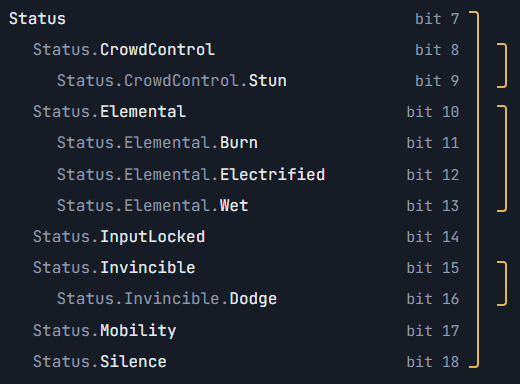
On an entity, each tag is one bit, which is of course either set or not set.
| The entity has | You ask about | Has |
Has, exact |
|---|---|---|---|
Status.Elemental.Burn |
Status.Elemental |
true | false |
Status.Elemental.Burn |
Status.Elemental.Burn |
true | true |
Status.Elemental |
Status.Elemental.Burn |
false | false |
Setting a tag sets only that tag.
An entity given Status.Elemental.Burn does not also hold Status.Elemental.
It matches it through Has, because Burn sits under Elemental.
A project has one tag database asset.
The top level of the tree works like folders: Status.*, Item.*, Creature.*.
Getting Started
Six steps take you from an empty project to a spell that crowd control and Silence can block. Step 1 happens once per project. Steps 2 to 5 are the loop you repeat for every feature.
There is no system to add. The first Game Tags call in a game finds the project's tag database and keeps a reference to it in the frame's globals.
1. Create the Tag Database
In the Project window choose Create > Quantum > Asset... and pick GameTagDatabase.
Keep it in your own folders, anywhere you prefer.
2. Add Your Tags
Open Tools > Quantum > Game Tags.
Add Tag creates a top-level tag, and typing a full name such as Status.CrowdControl.Stun creates Status and Status.CrowdControl too.
Right-click a tag to add a child, rename it or delete it.
The counter shows how many of the available tags are in use.
A project can have up to 256 tags.
3. Tag Your Entities
Add the Game Tags component to an entity prototype and list the tags it spawns with under Initial Tags, if any.
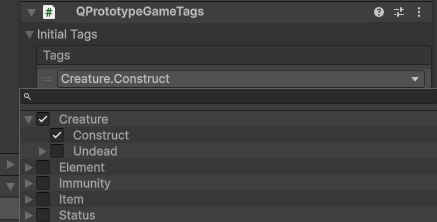
Entities you create in code only need the component:
C#
var entity = frame.Create();
frame.Add<GameTags>(entity);
frame.Unsafe.GetPointer<GameTags>(entity)->Set(frame, entity, config.StartingTags);
4. Put Tags in Your Data
Give your assets GameTag fields for single tags and GameTagCollection fields for a list of tags.
Both get a tag picker in the inspector, on assets and on MonoBehaviours alike.
A collection resolves its tags against the database the first time it is used and keeps the result, so there is nothing to cache yourself.
C#
using Quantum.Addons.GameTags;

public class SpellConfig : AssetObject
{
    public GameTagCollection BlockedByTags = new GameTagCollection(); // Status.CrowdControl, Status.Silence
    public GameTag TagToApply;                                        // Status.Silence
}
5. Ask and Change in a System
Read the entity's GameTags component, ask it a question and change its tags through it.
Changes take the entity too, because they raise a signal for it.
C#
var casterTags = frame.Unsafe.GetPointer<GameTags>(caster);
if (casterTags->HasAny(frame, spell.BlockedByTags))
    return;

var targetTags = frame.Unsafe.GetPointer<GameTags>(target);
targetTags->Set(frame, target, spell.TagToApply);
Every check here reads the lists from the asset, so the next designer who wants Fear to block spells only adds Status.Fear to BlockedByTags.
6. See the Tags While You Play
Add GameTagsDebugger to the entity's prefab and press Play.
It shows the entity's tags above it, with no canvas, font or label prefab to set up.
To refer to tags from code without an asset field, turn on generated tag IDs in Project Settings > Game Tags and write GameTagId.Status_Silence.
See Generated Tag IDs.
Asking About Tags
There are three checks on the GameTags component.
Has takes one tag, and HasAll and HasAny take a collection.
Each has an optional exact parameter: by default a tag also matches every tag under it, and with exact: true only the tag itself counts.
Under the hood, Has ANDs the entity's bits with the tag's descendant mask, 64 bits at a time, and stops at the first overlap.
There is no walk up the tree.
Which Check to Use
Picking a check takes two decisions. First, are you asking about one tag, a list where the character needs all of the tags, or a list where any one of them is enough? Second, do variants count? A stun is a kind of crowd control, so a check for crowd control can count a stunned character, or it can ask for that exact tag only.
| Variants count | Exact tags only | |
|---|---|---|
| One tag | Has(frame, tag) |
Has(frame, tag, exact: true) |
| List, needs all | HasAll(frame, tags) |
HasAll(frame, tags, exact: true) |
| List, needs at least one | HasAny(frame, tags) |
HasAny(frame, tags, exact: true) |
Has
Is the character under any kind of crowd control?
Ask about a broad category and every specific version counts.
A stun is crowd control, so a check for Status.CrowdControl catches it.
Add Freeze next month and the same check catches that too, with no code change.
This is the check for most rules: a stun icon over the head, no moving while disabled, a holy sword that deals bonus damage to anything that is Undead.
C#
tags->Has(frame, config.CrowdControlTag)
Has, Exact
Does the character have the real thing, and not a lighter variant?
An invincibility power-up lets the player defeat enemies just by running into them.
A dodge roll also makes the player invincible for a split second, through Status.Invincible.Dodge, and every damage rule should respect that.
But rolling into an enemy shouldn't defeat it, so the touch rule checks for the exact parent tag.
C#
bool defeatsOnTouch = tags->Has(frame, config.InvincibleTag, exact: true);
HasAll
Does the character meet every requirement?
For requirement lists that designers fill in on an ability or a combo. A spell needs a magic skill and a staff. A reaction fires when a character is both Wet and Electrified. Each entry accepts its variants, so if a spell requires Undead, ghosts and skeletons both qualify.
C#
tags->HasAll(frame, ability.RequiredTags)
HasAll, Exact
Does the character have every one of these exact tags?
For a list of requirements where lighter variants must not count.
Say a special attack needs the invincibility power-up and a hammer in hand.
Without exact, a player holding a hammer could unlock the attack just by rolling, because the dodge roll's Status.Invincible.Dodge counts as Status.Invincible.
With exact: true, only the specific tags count.
C#
tags->HasAll(frame, attack.RequiredTags, exact: true)
HasAny
Is anything on this list stopping the action?
For lists where one match is enough, such as the tags that block a spell.
A spell's blocked-by list holds Status.CrowdControl and Status.Silence.
A character with any of them, or with something under them like Status.CrowdControl.Stun, can't cast.
C#
tags->HasAny(frame, ability.BlockedByTags)
HasAny, Exact
Does the character have one of these exact tags?
For lists where one match is enough, but tags under them don't count.
An enemy's ignore list holds Status.Invincible, so it stops chasing a player who picked up the invincibility power-up.
A player who is only dodging has Status.Invincible.Dodge, which sits under Status.Invincible but is not the same tag, so the enemy keeps chasing them.
C#
tags->HasAny(frame, ai.IgnoreTargetsWithTags, exact: true)
Comparing Without an Entity
Tags and collections can be compared directly, without an entity.
Use this when both sides are data: does this item fit this slot, does this damage type match this resistance.
The hierarchy applies the same way, and every method takes the same optional exact parameter.
Collections have Contains for one tag, and ContainsAll and ContainsAny for another collection:
C#
// slot.AcceptedTags = [Item.Weapon], item.Tags = [Item.Weapon.Staff]
bool fits = item.Tags.ContainsAny(frame, slot.AcceptedTags); // true
A single tag has Is, which is true when the tag is the other one or sits under it:
C#
// damage.TypeTag = Damage.Fire.Lava, resistance.TypeTag = Damage.Fire
bool resisted = damage.TypeTag.Is(frame, resistance.TypeTag); // true
Changing Tags
Tags are changed through the entity's GameTags component, with Set, Clear and ClearAll.
Set and Clear take either one GameTag or a whole GameTagCollection.
Each call raises OnGameTagsChanged once if anything changed, which is why it takes the entity as well.
C#
var tags = frame.Unsafe.GetPointer<GameTags>(entity);
tags->Set(frame, entity, config.SilenceTag);
tags->Clear(frame, entity, config.SilenceTag);
tags->Clear(frame, entity, config.ElementalTag, clearDescendants: true); // also removes Burn, Wet and Electrified
tags->Set(frame, entity, item.GrantedTags);                              // a whole collection, one signal
tags->ClearAll(frame, entity);
Set and Clear change only the exact tags you pass, never the rest of the tree, unless Clear is asked for the descendants too:
| Call | What changes |
|---|---|
Set(Status.Elemental.Burn) |
Only Burn is set. Status.Elemental and Status are not set, although Has still finds Burn through them. |
Clear(Status.Elemental) |
Only Status.Elemental is cleared. Burn, Wet and Electrified stay set. |
Clear(Status.Elemental, clearDescendants: true) |
Status.Elemental and every tag under it are cleared. Use it to remove a whole family. |
ClearAll() |
Every tag on the entity is cleared. |
A deleted tag or an empty field is ignored by every change and every check.
Listing an Entity's Tags
GetTags fills a list with the tags the entity has, in database order.
Only tags actually set are listed, so an entity with Status.Elemental.Burn does not list Status.
Keep the list and reuse it, and listing allocates nothing.
C#
var tags = frame.Unsafe.GetPointer<GameTags>(entity);
tags->GetTags(frame, results); // results: a List<GameTag> you keep and reuse

var database = GameTagDatabase.Get(frame);
for (int i = 0; i < results.Count; i++)
{
    Log.Info(database.GetTagData(results[i]).Name);
}
GetTagData returns what the database knows about a tag, such as its full Name.
Reading Tags in Unity Views
Views read the same component from the predicted frame.
A GameTag field on a MonoBehaviour gets the same tag picker as on an asset.
C#
public class TagIndicatorView : QuantumEntityViewComponent
{
    public GameTag CrowdControlTag;     // Status.CrowdControl
    public GameObject StunStarsObject;  // stars over the head, shown while under crowd control

    public override void OnUpdateView()
    {
        Frame frame = PredictedFrame;
        StunStarsObject.SetActive(frame.Get<GameTags>(EntityRef).Has(frame, CrowdControlTag));
    }
}
Reacting to Changes
Systems can react to tags as they change. Every signal fires after the entity's tags are updated, so a handler always reads the tags the entity has now.
| Signal | When it fires |
|---|---|
ISignalOnGameTagsChanged |
Raised by Set, Clear and ClearAll, once per call and only when a tag was actually added or removed. |
ISignalOnComponentAdded<GameTags> |
Quantum's own signal, for entities spawned from a prototype. Their initial tags are set before the component reaches the entity, so they are all present when this fires and OnGameTagsChanged does not fire for them. |
C#
public unsafe class TagReactions : SystemSignalsOnly, ISignalOnGameTagsChanged, ISignalOnComponentAdded<GameTags>
{
    public void OnGameTagsChanged(Frame frame, EntityRef entity)
    {
        var tags = frame.Unsafe.GetPointer<GameTags>(entity);
        if (tags->HasAll(frame, config.ConductionTags)) // sees the tag that was just set
        {
            tags->Set(frame, entity, config.StunTag);
        }
    }

    public void OnAdded(Frame frame, EntityRef entity, GameTags* component)
    {
        // the prototype's initial tags are already on the component
    }
}
Tags and Per-Tick Logic
Tags work best reactively: check them when something happens, or react when they change.
They are not a replacement for Quantum's filters.
A system that does work every tick for the entities with a certain tag has to visit every entity with GameTags and query each one, while a filter only visits the entities that have a given component.
Querying tags every tick still works, but the suggested pattern is to turn the tag into a component:
- React to the tag in
OnGameTagsChangedandOnAddedofISignalOnComponentAdded<GameTags>. - When the tag is added, add a component that represents it. When the tag is removed, remove the component.
- Do the per-tick work in a system that filters on that component.
C#
// component Electrified { } in a .qtn file

public unsafe class ElectrifiedSystem : SystemMainThreadFilter<ElectrifiedSystem.Filter>, ISignalOnGameTagsChanged, ISignalOnComponentAdded<GameTags>
{
    public struct Filter
    {
        public EntityRef Entity;
        public Electrified* Electrified;
    }

    public override void Update(Frame frame, ref Filter filter)
    {
        // per-tick work, only for electrified entities
    }

    public void OnGameTagsChanged(Frame frame, EntityRef entity)
    {
        UpdateComponent(frame, entity, frame.Unsafe.GetPointer<GameTags>(entity));
    }

    public void OnAdded(Frame frame, EntityRef entity, GameTags* tags)
    {
        UpdateComponent(frame, entity, tags);
    }

    private void UpdateComponent(Frame frame, EntityRef entity, GameTags* tags)
    {
        bool hasTag = tags->Has(frame, config.ElectrifiedTag);
        bool hasComponent = frame.Has<Electrified>(entity);

        if (hasTag && hasComponent == false)
        {
            frame.Add<Electrified>(entity);
        }
        else if (hasTag == false && hasComponent)
        {
            frame.Remove<Electrified>(entity);
        }
    }
}
The Playground sample uses this pattern for its electrified aura.
When an entity gets Status.Elemental.Electrified, ElectrifiedAuraSystem creates an aura entity with an ElectrifiedAura component, and destroys it when the tag is removed.
The same system filters on ElectrifiedAura to move each aura with its source every tick.
Editor Tools
Tag Editor Window
Tools > Quantum > Game Tags shows the project's tags as a searchable tree, and the database asset's inspector shows the same editor.
Typing a full name like Status.Elemental.Burn creates the missing parents, and a counter shows how many of the available tags are used.
Tag Pickers in the Inspector
GameTag and GameTagCollection fields get a tree picker on any asset or MonoBehaviour.
Designers choose the tags and code reads the fields.
A field whose tag was deleted shows Missing Tag.
Initial Tags on Prototypes
The Game Tags component on an entity prototype lists the tags the entity spawns with. They are stored as permanent IDs and resolved on every spawn.
Safe Renames, Checked Deletes
Renaming keeps the tag's ID, so references follow, children included.
Before a delete, the dialog lists every scene, prefab and asset under Assets/ that still uses the tag or a child of it, and logs them to the Console.
That search reads assets as text, so it needs Asset Serialization set to Force Text, which is an optional choice.
Generated Tag IDs
Tag IDs are optional generated C# constants, so code can refer to tags without an asset field:
C#
frame.Unsafe.GetPointer<GameTags>(entity)->Set(frame, entity, GameTagId.Status_Silence);
Each constant holds the tag's hash, exactly as an asset field would. Renaming a tag renames its constant and deleting a tag removes it, so code that still uses the old name stops compiling.
Choose how they are generated in Project Settings > Game Tags, or from the Tag IDs row of the Game Tags window:
| Mode | Behavior |
|---|---|
| Off | Never generated. The default. |
| Manual | Generated when you click Generate Tag IDs. |
| Automatic | Generated when you leave the tag editor after changing tags. |
The window shows Out of date when the file no longer matches the tags, and entering Play warns in the Console.
The settings page also sets the class name, its namespace and the output file:
| Setting | Default |
|---|---|
| Class name | GameTagId |
| Namespace | Quantum |
| Output file | Assets/QuantumUser/Simulation/Generated/GameTags/GameTagId.cs |
Debug View
GameTagsDebugger lists an entity's tags above it while the game runs.
It needs a QuantumEntityView on the same object or a parent and adds one if there is none.
It only rebuilds its text when the tags change.
| Field | Default | Description |
|---|---|---|
HeightOffset |
1.5 | How far above the object the label sits, in world units. |
ShortNames |
false | Show Burn instead of Status.Elemental.Burn. |
FontSize |
14 | Text size of the label. |
TargetCamera |
None | The camera that renders the entity. Empty uses the main camera. |
BackgroundColor |
Nearly opaque dark gray | Drawn behind the label's text. |
The debugger is a development tool; leave it out of release builds.
Last updated on
Back to top