Meta Camera Integration
Overview
The Meta Camera Integration sample is provided with full source code and demonstrates how Fusion & Video SDK can be used to stream Meta camera to remote users.

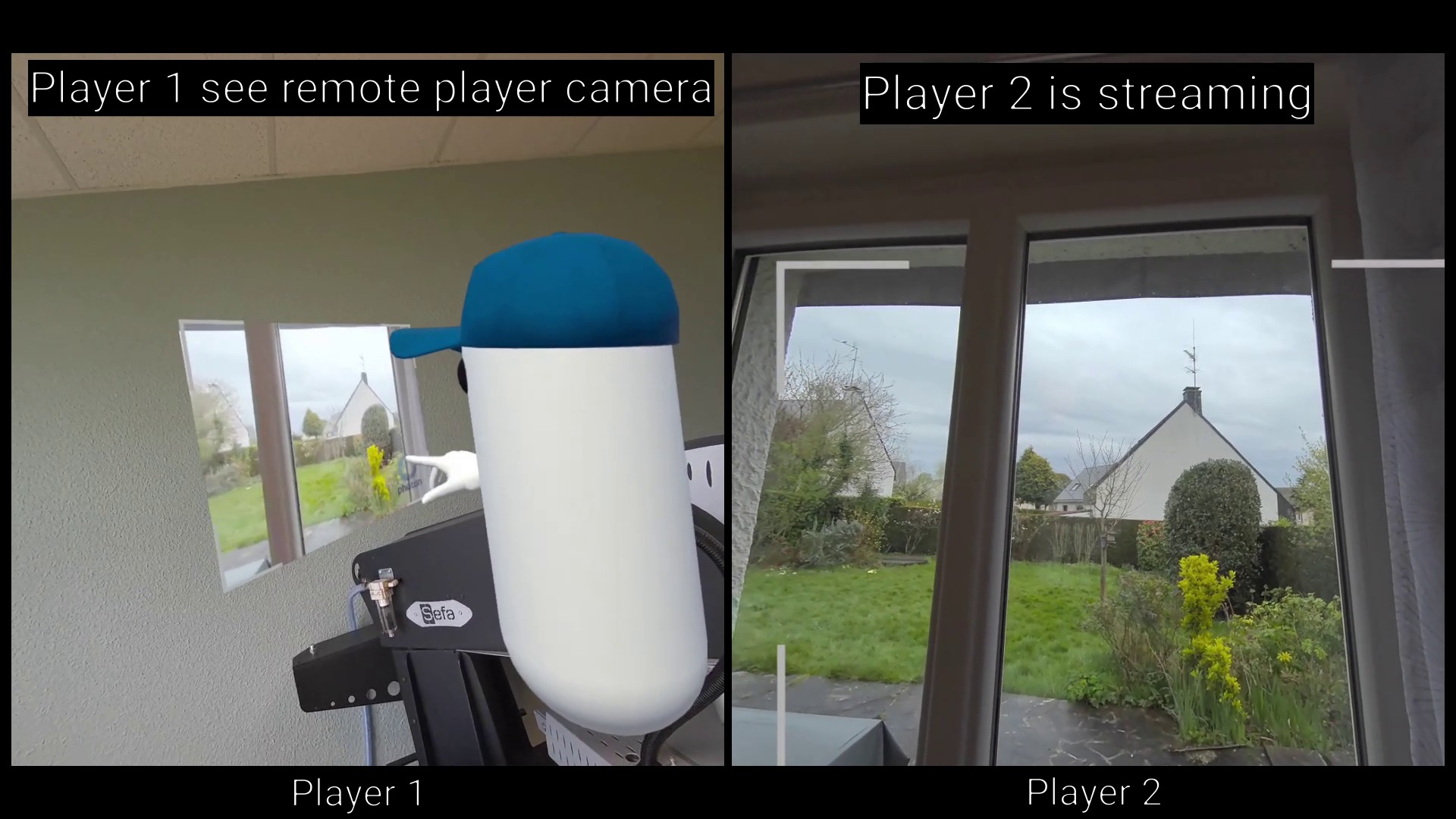
Each user can start streaming their Meta Quest camera by using a button on their watch. At this point, for remote users, a screen will appear in front of the avatar of the user streaming his camera.
In this way, this screen will act as a kind of window on the player's real environment, and remote players will be able to see this environment.
This can be particularly useful for remote support use cases.
Another sample showing how to synchronize photos taken with the Meta camera (rather than stream video) is available here
Technical Info
This sample uses the
Shared Authoritytopology,The project has been developed with Unity 6.0, Fusion 2 and tested with the following packages :
- Meta XR Core SDK 85.0.0 : com.meta.xr.sdk.core
- Meta MRUK 85.0.0 : com.meta.xr.mrutilitykit
- Unity OpenXR Meta 2.4.0 : com.unity.xr.meta-openxr
Headset firmware version: v83 & v85
Video broadcasting is implemented using Photon Video SDK v2.62.
Compilation : the
SubsampledLayoutDesactivationeditor script manages disabling the Meta XR Subsampled Layout option automatically : please remove it if it is not the desired behaviour.
Before you start
To run the sample :
Create a Fusion AppId in the PhotonEngine Dashboard and paste it into the
App Id Fusionfield in Real Time Settings (reachable from the Fusion menu).Create a Voice AppId in the PhotonEngine Dashboard and paste it into the
App Id Voicefield in Real Time Settings
Download
| Version | Release Date | Download |
|---|---|---|
| 2.0.10 | 2月 16, 2026 | Fusion Meta Camera Integration 2.0.10 |
Folder Structure
The main folder /Meta-Camera-Integration contains all elements specific to this sample.
The /Photon folder contains the Fusion and Photon Voice SDK.
The /Photon/FusionAddons folder contains the XR Addons used in this sample.
The /Photon/FusionAddons/FusionXRShared folder contains the rig and grabbing logic coming from the VR shared sample, creating a FusionXRShared light SDK that can be shared with other projects.
The /XR folder contains configuration files for virtual reality.
Architecture overview
The Meta Camera Integration sample is based on the same code base as that described in the VR Shared page, notably for the rig synchronization.
Aside from this base, the sample, like the other Industries samples, contains some extensions to the XR Addons, to handle some reusable features like synchronized rays, locomotion validation, touching, teleportation smoothing or a gazing system.
The video streaming uses the Photon Video SDK.
Meta Quest Sample
The SampleSceneMetaQuestOnly scene is very simple, because the passthrough is enabled and there is no 3D environment.
Each user who connects is represented by an avatar.
Each user can decide to start/stop streaming their camera to the other players using the watch menu.
When streaming is active, in addition to the text on the watch, visual feedback informs the user that they are sharing their camera.
Other remote players can then view this video stream on the screen that appears when the stream is launched.
This screen is located in front of the player sharing their camera, giving the impression of having a kind of portal onto their real environment.
By pressing the watch menu again, you can place the screen at a fixed position in the scene, avoiding having a screen that is always moving.
The Meta camera and streaming resolution can be changed using the settings button under the left hand.
Several players can share their camera simultaneously.
Network Connection
The network connection is managed by the Meta building blocks [BuildingBlock] Network Manager && [BuildingBlock] Auto Matchmaking.
[BuildingBlock] Auto Matchmaking set the room name and Fusion topology (Shared mode).
[BuildingBlock] Network Manager contains the Fusion's NetworkRunner. The UserSpawnercomponent, placed on it, spawns the user prefab when the user joins the room and handles the Photon Voice connection.
Camera & Microphone Permissions
To avoid conflicts during permission requests, camera and microphone access permissions are handled by a PermissionsRequester.
This component sequentially processes permission requests to prevent concurrent or conflicting calls.
Any object that requires a permission request must inherit from the PermissionWaiter class and define its EXECUTION_ORDER.
Please note that the PermissionsRequester is automatically created as a shared instance if it does not already exist in the scene.
The Meta Quest camera permission is managed by the PassthroughCameraAccessPermissionWaiter component, located on the PassthroughCameraAccessAndPermissionWaiter GameObject.
Similarly, the FusionVoiceClientPermissionWaiter component located on the [BuildingBlock] Network Manager GameObject waits for microphone access permission before allowing the FusionVoiceClient to connect.
Camera Streaming
To stream the camera, we use the Photon Video SDK.
As the requirement is very similar to screen sharing, we are reusing the developments that were included in the ScreenSharing Addon.
Notably, being able to use Android video surfaces alongside XR single pass rendering requires a specific shader, that is included in the addon, as well as some additional components handling those specific textures.
Important notes about application configuration and deployment
The Video SDK is incompatible with some options that the Meta tooling might suggest you to activate (see the included PhotonVoice/readme-video.md for more details on the supported configurations).
To configure properly the project, you need:
- Graphics jobs disabled
- Multithreading rendering disabled
Camera Video Emission
Camera streaming is managed by the WebCamEmitter class of the ScreenSharing addon.
To start or stop the camera streaming when interacting with the watch menu (RadialMenuButtonActionStreaming), the StreamingHandler component located on the player prefab calls the NetworkWebcam ToggleEmitting() method.
Camera Video Reception
The ScreensharingReceiver scene game object manages the reception of the camera stream.
It waits for new voice connections, on which the video stream will be transmitted. Upon such a connection, it creates a video player and a material containing the video player texture.
Then, with EnablePlayback(), it pass it to the ScreenSharingScreen which manages the screen renderer visibility : the screen will then change its renderer material to this new one.
The special case to be managed in this sample compared with the default screensharing addon is that there is a screen for receiving the video stream for each user.
So, ScreenSharingScreen and NetworkWebcam components are located on the networked player prefab, and the ScreenSharingEmitter passes in the communication channel user data the network object Id of the object containing the target screen.
This way, the ScreensharingReceiver looks for this object instead of using a default static screen.
The NetworkWebcam component:
- references itself on the
WebCamEmitteras thenetworkScreenContainer, - configures the screen mode (display or not of the video stream for the local player),
- determines whether players stream the camera by default when they join the room,
Camera Resolution
The user can change the Meta camera resolution and video bitrate at runtime using the parameter button under the left hand.
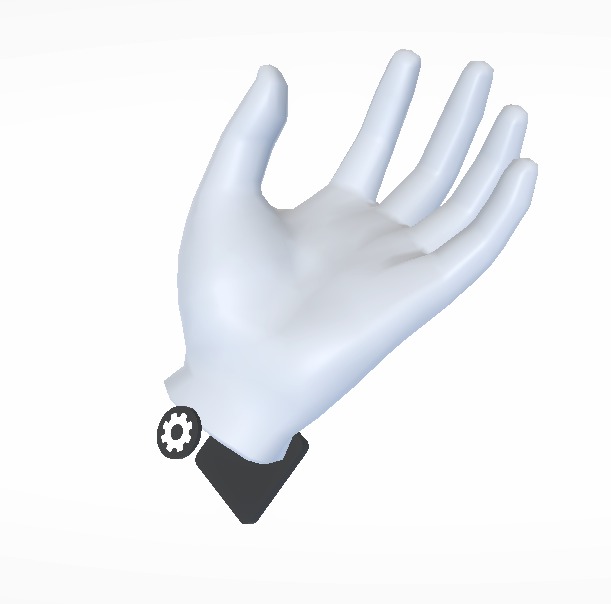
A UI is then displayed, showing the different streaming configurations.
These configurations can be adjusted through the StreamingManager component located in the scene.
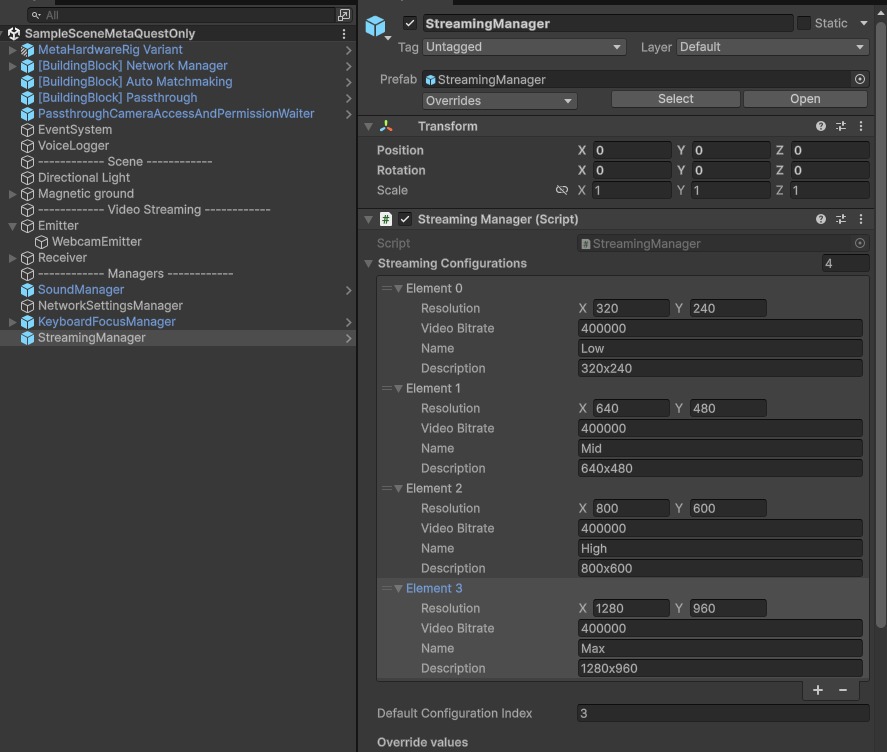
The streaming resolution is automatically adapted according to the Meta Camera resolution setting thanks to the WebcamEmitter InitializeRecorder() methods called when a new streaming is started.
If a stream is in progress when the user changes the resolution, the transmission is stopped and then automatically restarted.

Watch Interaction
The user can start or stop camera streaming from the watch menu, which opens when the user looks at their watch.
In addition, the streaming user can decide whether the screen can be anchored in the scene, which avoids having a screen that is always moving.
For this, the watch menu button contains a RadialMenuButtonActionStreaming component which calls the StreamingHandler ToggleEmitting() methods when the user touches the button.
This toggles between the following 3 states:
- no streaming,
- streaming screen following the user's head,
- streaming screen at a fixed position,
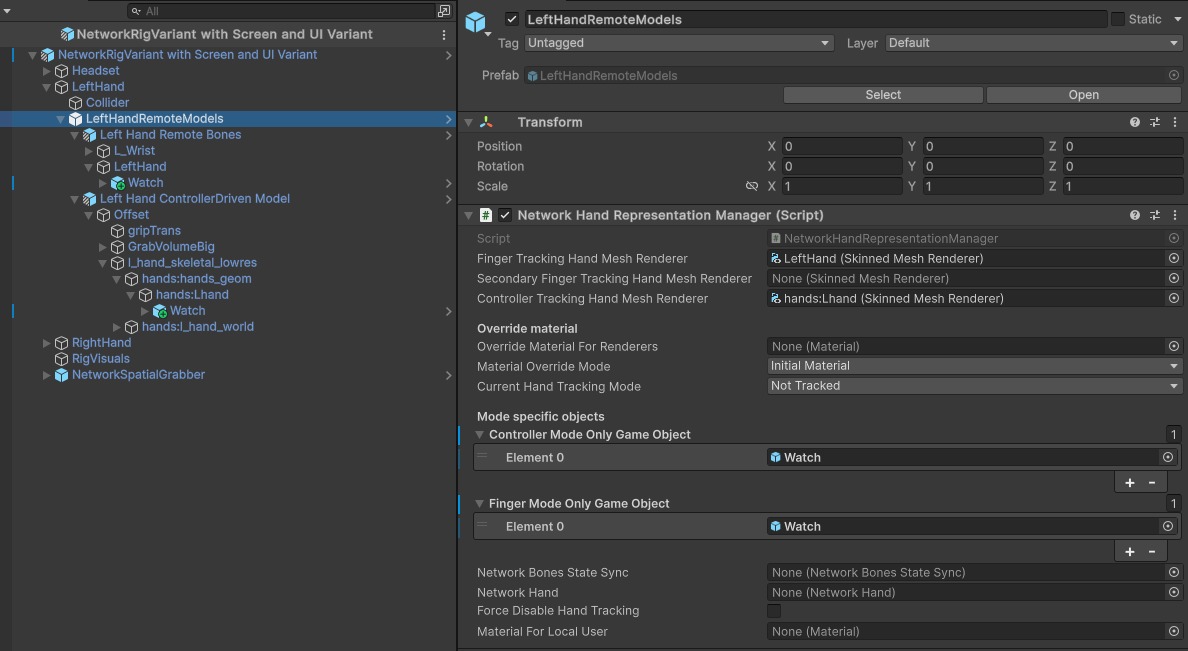
Please note that the prefab spawned for each user contains 2 watches:
- one for the hand model driven by the controllers
- one for the hand model driven by the finger tracking
The RigPartVisualizer enables/disables watches according to current hand tracking mode.
UI
The UI is managed by 2 scripts :
StreamingHandlerupdates the text on the player's watch.ScreenSharingUIManagerupdates the UI in front of players.
These scripts respectively listen to NetworkWebcam and WebcamEmitter events in order to update the UI based on the local player�s streaming emitter status
In addition, ScreenSharingUIManager implements the ScreenSharingScreen.IScreenSharingScreenListener interface so that UI for remote players can be updated when they start/stop streaming their camera (PlaybackEnabled() && PlaybackDisabled() methods)
Used XR Addons
To make it easy for everyone to get started with their 3D/XR project prototyping, we provide a comprehensive list of reusable addons.
See XR Addons for more details.
Here are the addons we've used in this sample.
XRShared
XRShared addon provides the base components to create a XR experience compatible with Fusion.
It is in charge of the players' rig parts synchronization, and provides simple features such as grabbing and teleport.
See XRShared for more details.
Voice Helpers
We use the VoiceHelpers addon for the voice integration.
See VoiceHelpers Addon for more details.
Screen Sharing
We use the ScreenSharing addon to stream the Meta Quest Camera.
See ScreenSharing Addon for more details.
Meta Core Integration
We use the MetaCoreIntegration addon to synchronize players' hands.
See MetaCoreIntegration Addon for more details.
Feedback
We use the Feedback addon to centralize sounds used in the application and to manage haptic & audio feedbacks.
See Feedback Addon for more details.
Watch Menu
The WatchMenu addon provides classes to create a simple interactable watch menu.
See Watch Menu Addon for more details.
3rd Party Assets and Attributions
The sample is built around several awesome third party assets:
- Meta XR SDKs
- Meta Lipsync
- Meta Sample Framework hands
- Sounds