Fusion Statistics 2.1
Overview
Fusion Statistics consists of a set of UI components for monitoring useful Fusion telemetry. The FusionStatistics component is the primary component for generating, initializing and controlling a hierarchy of telemetry UI elements.
Fusion Statistics uses the basic UnityEngine.UI components, which allows stats to be viewed in builds as either a screen overlay or attached to an object in 3D space.
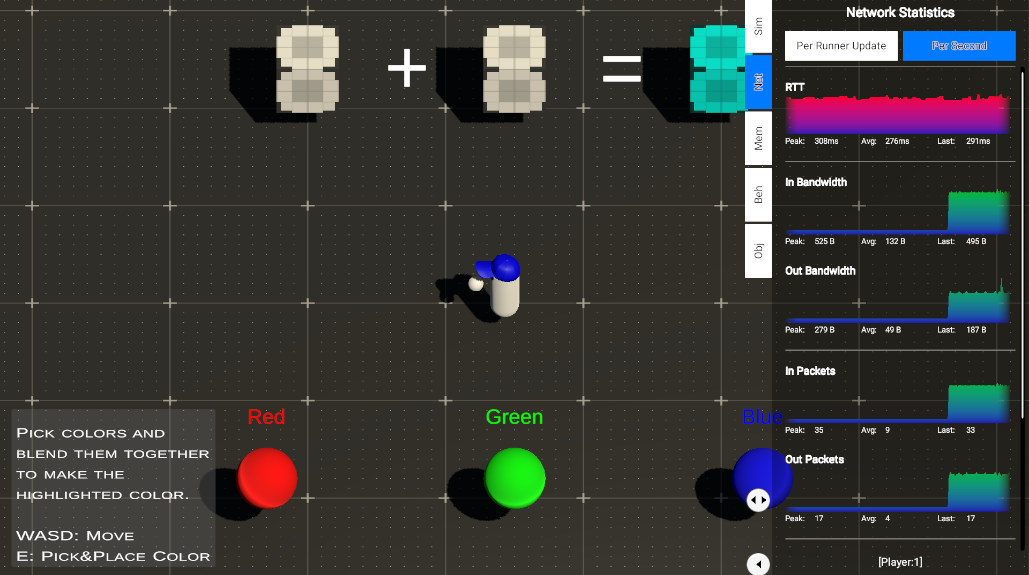
Basic Usage
To get started with the Fusion Statistics:
- Add the component
FusionStatisticson aNetworkRunnerobject before it was started; or, - Click the statistics button on the Network Runner Controls window.
- Call the extension method
NetworkRunner.SetupStatistics()on aNetworkRunnerinstance.
Note: It is possible to remove the statistics by click the same button again or calling the extension method NetworkRunner.RemoveStatistics().

After the setup, a root canvas will be created with a statistics panel displaying lots of useful information.
Statistics Panel Usability
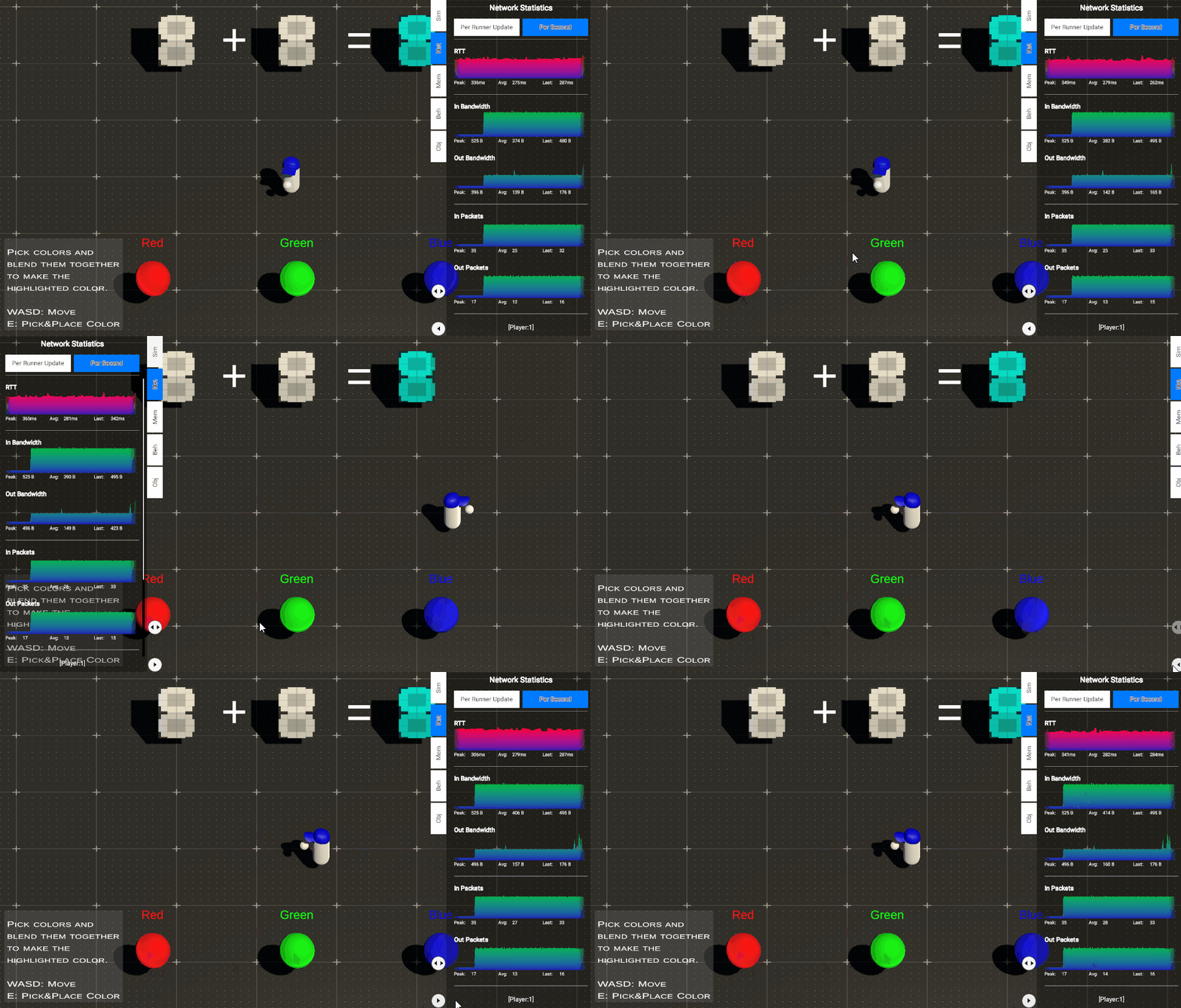
You can anchor the panel on either side of the screen. You can also collapse the panel to see more of the game, as shown above.
When using Multi-Peer, a button will be available to switch between statistics panels.
Statistics Pages
The Statistics panel has multiple pages dedicated to displaying specific information, such as memory, network, and simulation. It is possible to switch between them using the tab buttons on the side of the panel. A few pages allow developers to choose whether to display stats per NetworkRunner update (the rate they are collected) or per second.
Note: The images were captured alone in shared mode, so a few stats such as Objects Update Out or input-related ones are expected to be zero.
Simulation Page

The simulation page will display stats related to the simulation itself.
- Forward Ticks: How many forward ticks were simulated.
- Re-simulation Ticks: How many re-simulation ticks were executed.
- Objects Update In: How many objects updates fusion received.
- Objects Update Out: How many objects were updated and sent by the local simulation.
Network Page
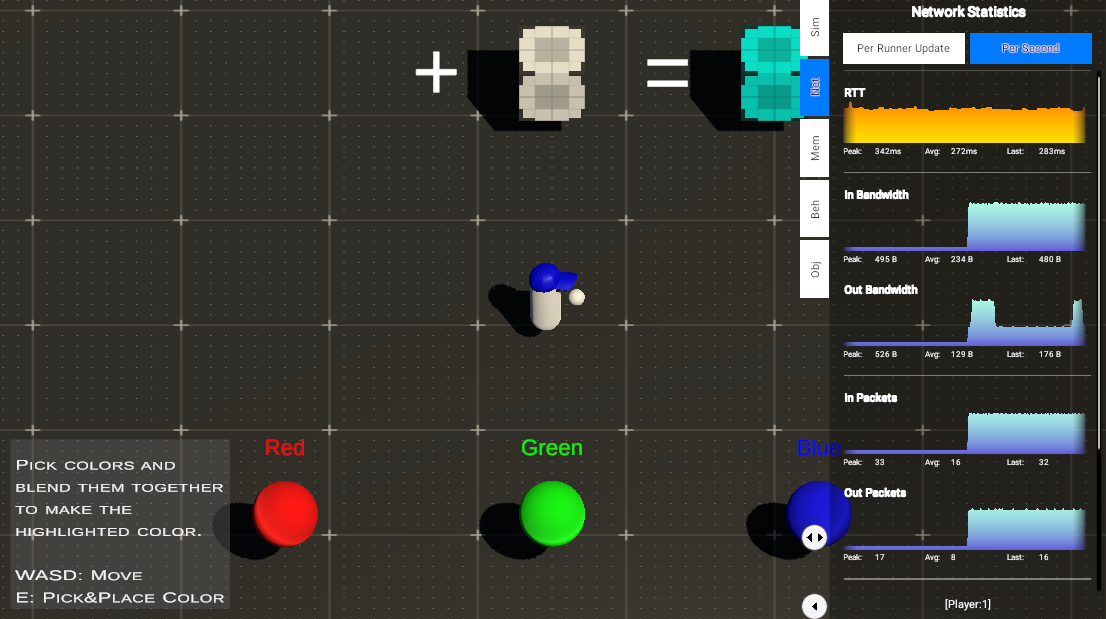
Displays networked related stats.
- RTT: last calculated Round Trip Time. RTT is always displayed per update.
- In Bandwidth: Amount of Bytes received.
- Out Bandwidth: Amount of Bytes sent.
- In Packets: The amount of packets received by the simulation.
- Out Packets: The amount of packets sent by the simulation.
- Input In Bandwidth: Amount of bandwidth in Bytes for the inputs received.
- Input Out Bandwidth: Amount of bandwidth in Bytes for the inputs sent.
Memory Page
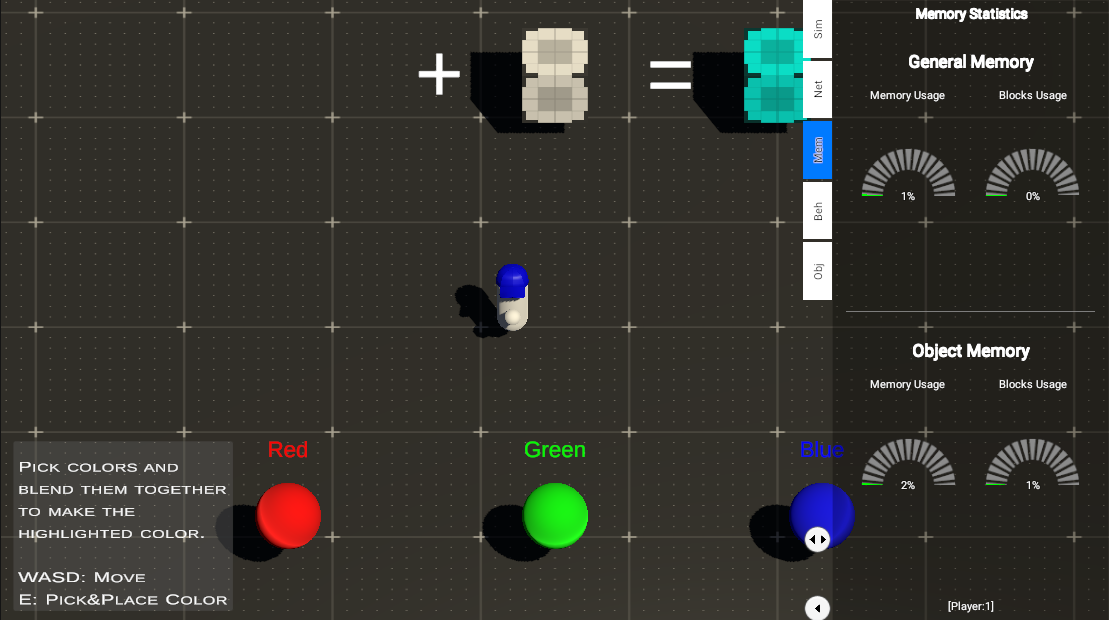
The Memory page shows the status of the total memory and memory blocks used for the two allocators that Fusion uses internally. If either of these radial charts reaches 100%, Fusion will not have any more memory available to work with. You can change the memory values on the NetworkProjectConfig.
Behaviour Page

Use the Behavior page to check the execution count and execution time of any NetworkBehaviour or SimulationBehaviour internally for Render or FixedUpdateNetwork. Use it to see how many milliseconds of your execution time is spent on a specific behavior.
To add a behavior, click the "Add Behaviour" button and select the desired behaviour. Only the first ten elements are displayed, so use the search bar to find the desired behaviour.
Use the top buttons to change between FixedUpdateNetwork or Render values.
Object Page
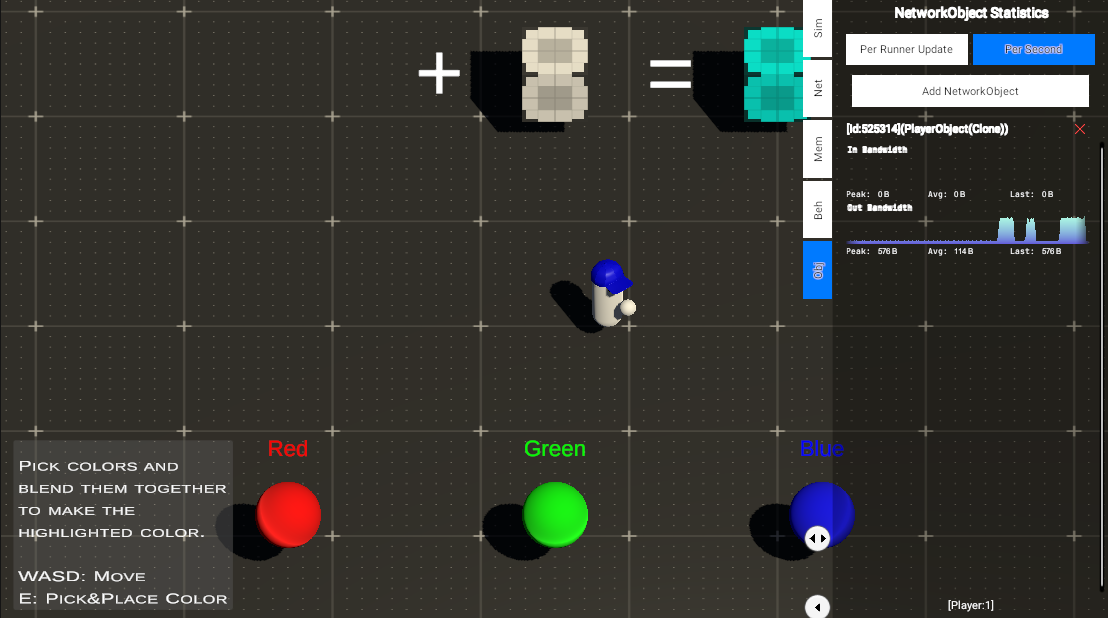
The object page is used to check in and out bandwidth for a specific NetworkObject, add an object by clicking the "Add Object" button. Only the first ten elements are displayed, so use the search bar to find the desired object.
Configurations
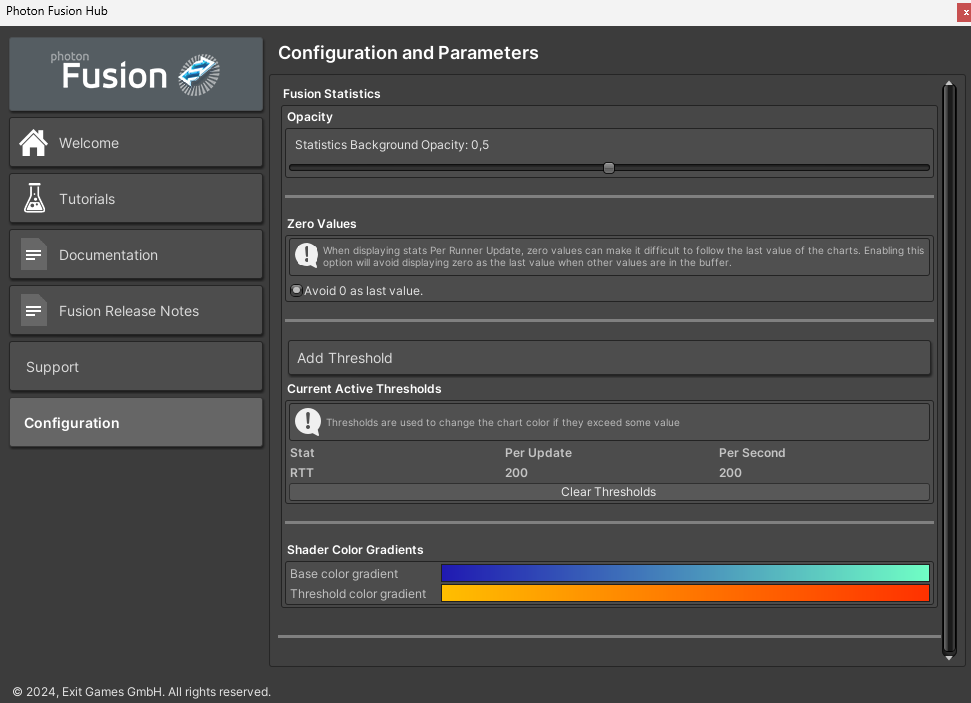
Fusion statistics can be configured either by editing the configuration asset directly or by using the Fusion Hub configuration page. The developer can change the background opacity, view active thresholds, add new thresholds, change base and threshold gradient colors, and more.
The configuration is applied when setting up the statistics panel.
Configuration asset path: Photon/Fusion/Runtime/Statistics/Resources/FusionStatsResources/FusionStatisticsDefaultConfig.asset
World Anchor
In VR scenarios, or any other scenario where it is necessary to set the statistics graphs to world position, this can be achieved by using the extension method NetworkRunner.SetStatisticsWorldAnchor(Anchor).
Pass a Null value as anchor to restore the canvas to screen space. Adjust the size by scaling the StatisticsRootCanvas object.
The statistics panel canvas will follow the GameObject position, if the object is destroyed the statistics will be removed from the NetworkRunner and the developer should set it up again.
Breaking Changes from 2.0
Fusion statistics changed a bit, the following instructions will help when upgrading from fusion 2.0.
Manually Collecting Data
Since it may be desirable to gather the values directly, it is possible to read the stats directly from the FusionStatisticsManager from the NetworkRunner. They can now be accessed as follows:
Note: Each simulation stat has a corresponding value on the FusionStatType enum.
C#
public void StatisticsCollectData() {
    if (Runner.TryGetFusionStatistics(out var statisticsManager)) {
        // simulation snapshot
        var rtt = statisticsManager.SimulationSnapshot.Stats[FusionStatType.RoundTripTime];
        var forwardTicks = statisticsManager.SimulationSnapshot.Stats[FusionStatType.ForwardTicks];

        // memory snapshot
        var generalMemoryFree = statisticsManager.MemorySnapshot.GeneralAllocatorMemorySnapshot.TotalBytesFree;
    }
}
Known Issues
- Unity may throw an error about GUIClips when editing the gradient fields on the configuration page.