Architecture
Unity Project
All game scripts are located in the Assets/Scripts folder under the RazorMadness namespace.
| Folder | Content |
|---|---|
/Scripts |
AnimatorId, the animator parameter and state hashes |
/Scripts/Managers |
GameManager and SceneLoader, the session and scene flow |
/Scripts/Input |
InputController and the InputData input struct |
/Scripts/Player |
PlayerBehaviour, PlayerRigidBodyMovement, PlayerPresentation and PlayerSpawner |
/Scripts/Level |
LevelBehaviour, the race logic of one level |
/Scripts/Saws |
RotatingSaw and MovingSawBlade |
/Scripts/Camera |
CameraManager, the follow and spectator camera |
/Scripts/UI |
UIMainMenu, UISessionHud, UIFinishRaceScreen and UINicknameText |
/Prefabs |
The GameSession launcher, the level prefabs, the RigidBodyPlayer prefab, the saw blades and the particles |
/Scenes |
The Menu, Lobby_Level and Level_0 to Level_4 scenes |
/Arts, /Audio, /PhysicsMaterials, /Settings |
Sprites, tilemaps, animations, music, sound effects, the player physics material and the URP settings |
/3rdParty |
The dungeon tile set, see Overview |
/Photon |
The Fusion SDK and the Physics Addon |
The project uses seven scenes, all registered in the build settings:
Menu: The main menu where the player enters a nickname and a room name and picks Single Player, Host or JoinLobby_Level: A small level without finish line where the players gather and move around until the host starts the raceLevel_0toLevel_4: The race levels, loaded one after another by the host and wrapping back to the lobby after the last one
Every level scene is assembled from the same prefabs: LevelRig with the camera, PlayerSpawner, SessionHud and, in the race levels, RaceLevel with the finish line, the timers and the podium screen.
High Level Breakdown
The game starts in the Menu scene from the UIMainMenu script, which instantiates the GameSession prefab and calls GameManager.StartGame() with the selected GameMode.
The GameManager starts the NetworkRunner directly in the lobby scene, and its SceneLoader, a NetworkSceneManagerDefault subclass, loads every scene behind a loading screen.
The prefabs placed in each level do the rest: PlayerSpawner spawns a character per player, LevelBehaviour runs the race, CameraManager follows the local player and UISessionHud offers the Start Game and Exit buttons.
Session and Scene Flow covers the session start, the level loading and the session HUD.
Player is the predicted character with its input, rigidbody movement, respawn and presentation.
Race Level runs the countdown, the level timer, the finish line and the podium.
Spectator Camera follows the local player and cycles through the other players after finishing.
Saw Blades are the fixed, moving and rotating hazards.
Session and Scene Flow
GameManager sits on the GameSession prefab next to the NetworkRunner and implements INetworkRunnerCallbacks, see NetworkRunner.
StartGame() passes the selected GameMode, the room name, the SceneLoader and the lobby scene to NetworkRunner.StartGame(), so the session opens directly in Lobby_Level.
The object is marked DontDestroyOnLoad because the lobby load unloads the menu scene that created it.
StartMatch(), called by the host from the Start Game button, closes the session, so nobody else can join, and loads the first level.
ExitSession() shuts the runner down, and OnShutdown() loads the menu again.
SceneLoader extends NetworkSceneManagerDefault and keeps the index of the last loaded level.
LoadNextLevel() loads the following scene of the build settings by name through NetworkRunner.LoadScene(), which only the host may call, and wraps back to the lobby after the last level, see Scene Loading.
The loading screen animation is played around the base scene load:
C#
protected override IEnumerator LoadSceneCoroutine(SceneRef sceneRef, NetworkLoadSceneParameters sceneParams)
{
    StartLoadingScreen();

    yield return new WaitForSeconds(LoadingScreenTransitionTime);
    yield return base.LoadSceneCoroutine(sceneRef, sceneParams);
    yield return new WaitForSeconds(LoadingScreenTransitionTime);

    FinishLoadingScreen();
}
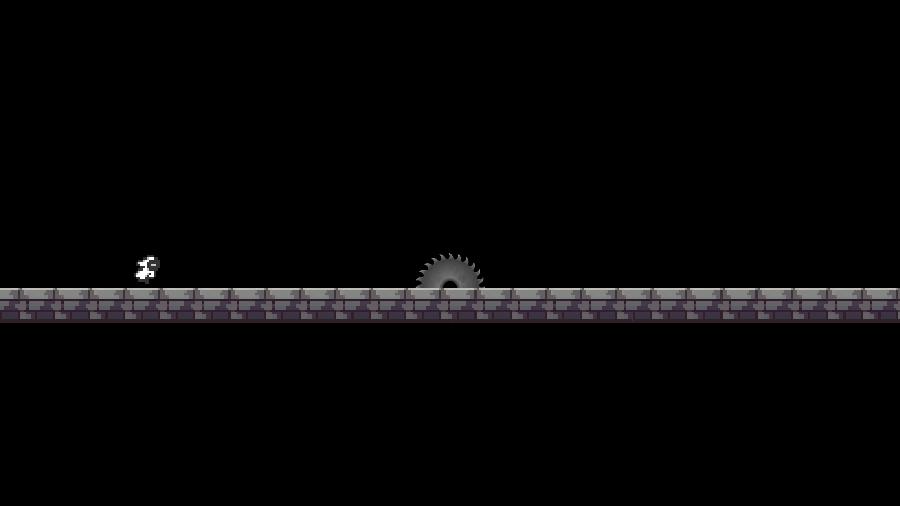
UISessionHud on the SessionHud prefab shows the Start Game button only in the lobby and only on the host, while the Exit button is available to everyone in every level.
Player
The RigidBodyPlayer prefab is a NetworkObject with a Rigidbody2D and the NetworkRigidbody component of the Physics Addon.
When the first character spawns, NetworkRigidbody adds the RunnerSimulatePhysics component to the NetworkRunner, which then simulates the 2D physics scene in every tick.
The character is predicted and resimulated on the input authority, while proxies are rendered in the remote timeframe.
Four scripts share the prefab:
InputControllercollects the keyboard input inOnInput()into theInputDatastruct, aNetworkButtonsfield with the Left, Right, Jump and Respawn buttons. It keeps the previous buttons in networked state, soPresseddetects a button press in a tick safe way, see Player Input.PlayerRigidBodyMovementapplies forces to the rigidbody inFixedUpdateNetwork()withRunner.DeltaTimeand detects ground and walls withRunner.GetPhysicsScene2D()overlap queries, so resimulations reproduce the same result. Coyote time and the jump buffer areTickTimers, and extra gravity while falling or after an early jump release gives the snappy arc.PlayerBehaviourholds the networked state:Nickname,PlayerColor,InputsAllowed, the alive and finished flags and the respawn timers. It detects kill zones and the finish line with an overlap box on theInteractlayer inFixedUpdateNetwork().PlayerPresentationis a plainMonoBehaviourthat reads the networked state inLateUpdate()and drives the animator, the jump and death effects, the nickname label, the color and the camera binding of the local player.
Reading the keyboard into the networked input struct:
C#
void INetworkRunnerCallbacks.OnInput(NetworkRunner runner, NetworkInput input)
{
    Keyboard keyboard = Keyboard.current;
    if (keyboard == null)
        return;

    InputData currentInput = new InputData();
    currentInput.Buttons.Set(EInputButton.Respawn, keyboard.rKey.isPressed);
    currentInput.Buttons.Set(EInputButton.Jump, keyboard.spaceKey.isPressed);
    currentInput.Buttons.Set(EInputButton.Left, keyboard.aKey.isPressed);
    currentInput.Buttons.Set(EInputButton.Right, keyboard.dKey.isPressed);

    input.Set(currentInput);
}
Death and the finish line are detected with an overlap query on the physics scene of the runner in FixedUpdateNetwork(), so the check runs in every tick, resimulations included:
C#
private void DetectCollisions()
{
    Collider2D hitCollider = Runner.GetPhysicsScene2D().OverlapBox(transform.position,
        _collider.bounds.size * CollisionBoxScale, 0f, _interactLayerMask);
    if (hitCollider == null)
        return;

    if (hitCollider.CompareTag(KillTag) && _alive)
    {
        KillPlayer();
    }
    else if (hitCollider.CompareTag(FinishTag) && _finished == false)
    {
        FinishRace(hitCollider.GetComponentInParent<LevelBehaviour>());
    }
}
A killed character is frozen, teleported back to the PlayerSpawner position with NetworkRigidbody.Teleport() after one second and regains control after a short freeze.
PlayerSpawner, a scene object in every level, spawns a character for every active player in Spawned() and for players joining the lobby in PlayerJoined(), gives it a random color, registers it with Runner.SetPlayerObject() and despawns it when the player leaves, see PlayerRef and Callback Interfaces.
The nickname is sent from the input authority to the host with an RPC in Spawned(), see RPCs.
Visual effects react to networked state rather than to RPCs, so a mispredicted jump that is rolled back plays no effect:
C#
private void UpdateJump()
{
    // A mispredicted jump rolls the counter back, and only a new jump should play effects.
    if (_movement.JumpCount > _renderedJumpCount)
    {
        _playerSource.PlayOneShot(_jumpClip);
        Instantiate(_jumpParticlePrefab, (Vector2)_gfxRoot.position + GetJumpParticleOffset(),
            Quaternion.identity);
    }

    _renderedJumpCount = _movement.JumpCount;
}
Race Level
LevelBehaviour on the RaceLevel prefab runs one race: the start countdown, the level timer, the finish line and the podium.
Its networked state is two TickTimers and the array of winners, see TickTimer and Network Collections:
C#
[Networked] private TickTimer _startTimer { get; set; }
[Networked] private TickTimer _levelTimer { get; set; }
[Networked, Capacity(MaxWinners)] private NetworkArray<PlayerRef> _winners => default;
When the level spawns, the start timer counts down five seconds while the characters cannot move.
Once it expires, FixedUpdateNetwork() starts the level timer of 180 seconds, set on the prefab, and allows the inputs of all players.
Render() draws both timers and shows the podium once the level timer has expired.
A character that touches the finish line calls PlayerOnFinishLine() on the host, which records its PlayerRef in the winners array and blocks the input of that player.
The podium is full after three finishers, or after all players when fewer than three are racing, and it is checked again when a player leaves.
FinishLevel() then expires the level timer, so every client shows the podium from the same networked state.
When the level timer runs out before the podium is full, the podium shows the players who finished so far.
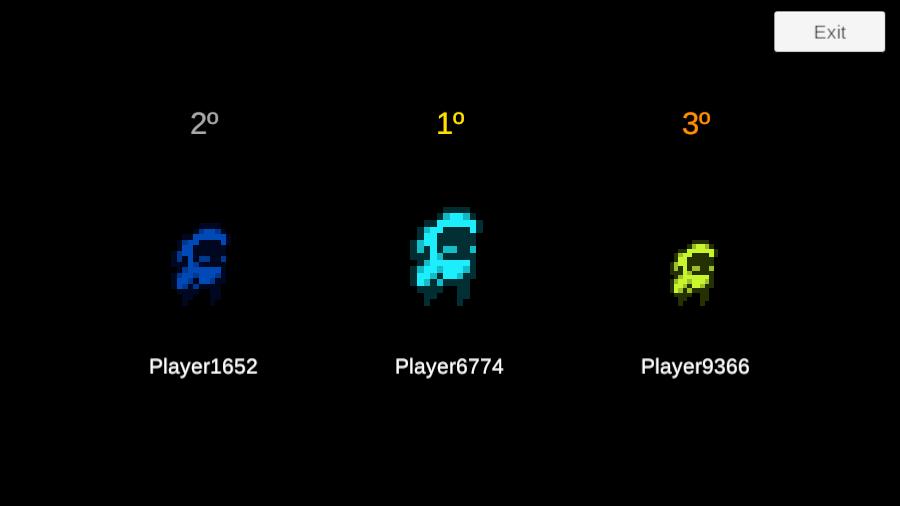
LevelBehaviour resolves the winners through Runner.TryGetPlayerObject(), and the podium screen, UIFinishRaceScreen, shows their nickname and color for five seconds before the host loads the next level.
Spectator Camera
CameraManager on the LevelRig prefab moves the camera towards CameraTarget in LateUpdate().
PlayerPresentation binds the camera to the local character once it exists and switches the camera to spectating when the finished flag of the local player changes.
While spectating, Left Arrow and Right Arrow cycle through the PlayerBehaviour instances in the level.
The camera is presentation only, it reads networked state but never writes it.
Saw Blades
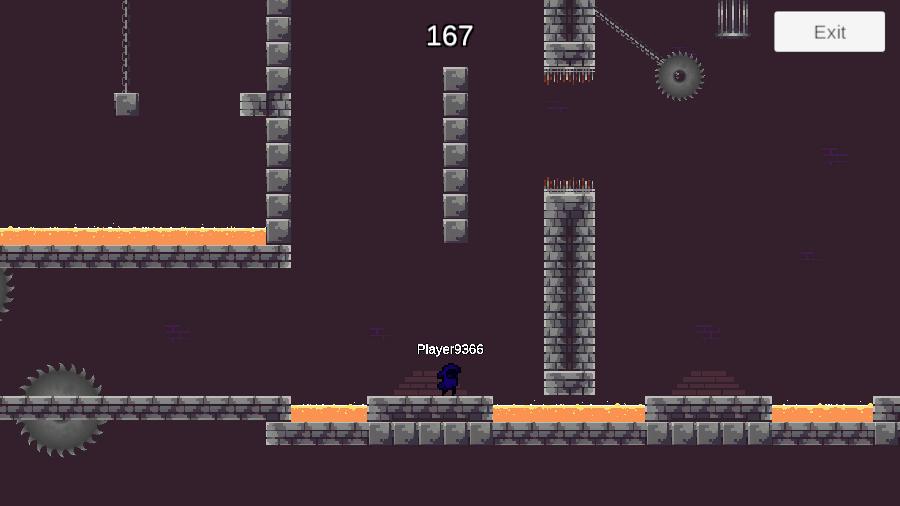
The levels contain three kinds of saw blades, all trigger colliders on the Interact layer with the Kill tag.
The lava pools use the same tag and layer on a trigger BoxCollider2D without a script.
- The fixed saw blade, the
Saw_Bladeprefab, is a plain GameObject with a trigger collider and no script. The character detects it with the overlap box inFixedUpdateNetwork(). - The rotating saw blade, the
Rotating_Saw_Bladeprefab, is aNetworkObjectwith aNetworkTransformand a kinematicRigidbody2D, see NetworkTransform.RotatingSawstores the origin, the start angle and the start time in networked properties once inSpawned()and computes the position on a circle from the elapsed simulation time inFixedUpdateNetwork(), so resimulations reproduce the movement. ALineRendererdraws the chain from the origin to the blade. - The moving saw blade, the
Moving_Saw_Bladeprefab, works the same way withMovingSawBlade, which moves from its start position along a list of positions set in the editor and only keeps the origin and the start time networked.
Both scripts call Runner.SetIsSimulated(Object, true) in Spawned(), so the saw blades also run FixedUpdateNetwork() on clients, where they are proxies.
[DefaultExecutionOrder(-500)] runs them before PlayerBehaviour, and setting Rigidbody2D.position directly makes the new position visible to the overlap query of the character in the same tick.
Moving the rotating saw blade in simulation and drawing its chain in render:
C#
public override void FixedUpdateNetwork()
{
    float elapsed = Mathf.Max(0f, Runner.SimulationTime - _startTime);
    float angle = _initialAngle + _speed * elapsed / Runner.DeltaTime;
    Vector2 position = PointOnCircle(_radius, angle % FullCircleDegrees, _origin);
    // Setting the body directly makes the new pose visible to physics queries in this same tick
    _rigidbody.position = position;
    transform.position = position;
}

public override void Render()
{
    _line.SetPosition(1, transform.position);
}
The state authority sets the networked properties once in Spawned(), and the position depends only on them and on the simulation time, so the host and the clients compute the same position for the same tick.
Last updated on
Back to top