Server Plugin
Overview
The Fusion MMO Server Plugin is an example how developers can create a custom Fusion shared mode server plugin, test it locally and upload to the Photon Enterprise Cloud.
⚠️ Creating a Photon Enterprise Cloud involves additional costs. Please contact us for more information and for the Fusion MMO Server Plugin download permissions.
Features covered by the Fusion MMO Server Plugin:
- Spawning/despawning networked objects from plugin.
- Processing hits, tracking damage history and clamping.
- Plugin authoritative control of [Networked] properties.
- Plugin authoritative behavior of tornado - movement, inflicting damage.
- Processing and intercepting RPCs.
- Tolerance-based speed validation.
- Sharing data structured between Unity and Plugin.
Testing a local Photon Server is supported only on Windows.
Download
| Version | Download |
|---|
Installation
- (Windows only) Unblock Fusion-MMO-Server-Plugin-2.1.0.zip by
right-click > Properties > Unblockbefore unzipping it. - Unzip the archive into a
Fusion.Pluginfolder inside the root of the Unity project.
|
- Download and copy a Photon Server license from the Photon dashboard into the
Fusion.Plugin\Photon.Server\deploy_win\bin.
Running The Server Plugin
- Open Fusion MMO Unity project.
- Select
Assets\Photon\Fusion\Resources\PhotonAppSettings.assetand setServerto127.0.0.1. - Select
Assets\Photon\Fusion\Editor\FusionPluginProjectSettings.assetand click bothExport CodeandExport Prefabs & Scenes. - Open
Fusion.Plugin\Fusion.Plugin.Custom.slnin Visual Studio or Rider, build (Ctrl + Shift + B) and run (Ctrl + F5). - Wait until the server is ready, usually within several seconds.
- Now you can enter play mode in Unity Editor and connect to the local server.
- Game server log file is located under
Fusion.Plugin\Photon.Server\deploy_win\log\GSGame.log.
The server can be started also from command line by running Fusion.Plugin\Photon.Server\deploy_win\bin\PhotonServer.exe --run LoadBalancing
⚠️ Export Code and Export Prefabs & Scenes actions are necessary when you make any change to code/objects which are exported for plugin.
Plugin Content
Lib Folder
The Lib folder includes all dependencies required to compile and run the Photon Fusion Server plugin.
The PhotonHivePlugin.dll for example is the interface for general Photon Server plugins. Fusion.Plugin.dll, Fusion.Runtime.dll and Fusion.Realtime.dll are the main libraries of the Fusion plugin.
Photon.Server Folder
This folder includes the local Photon Server. The bin folder has the Photon.Server executables, LoadBalancing and NameServer has the server code and Plugins has the server plugins. The log folder contains the server logs (e.g. the game server log GSGame.log).
The plugin configuration file LoadBalancing\GameServer\bin\plugin.config includes the local configuration key value store that online servers get from the Photon Dashboard.
The custom plugin libraries will be outputted to Plugins\Fusion.Plugin\bin. This is also the folder that is uploaded to the Photon Enterprise cloud.
Fusion.Plugin.Custom Folder
This folder contains MMO related plugin specific scripts, code exported from Unity (PluginNetworkTypes.cs) and database (PluginNetworkObjectDB.Partial.cs + PluginNetworkObjectDB.json).
Project Key Elements
This section describes key elements of working with custom server plugin.
[PreserveInPlugin] Attribute
The [PreserveInPlugin] attribute can be used on fields, properties and data structures to ensure they are exported and available in server plugin.
Unity project:
C#
public class Health : NetworkBehaviour
{
  // BaseHealth will be exported from Unity and accessible in Fusion Server Plugin solution.
  [PreserveInPlugin]
  public int BaseHealth = 100;

  [Networked]
  public int CurrentHealth { get; set; }
}

// The attribute can be used to export enums.
[PreserveInPlugin]
public enum EHitType
{
  None,
  Body,
  Foliage,
}
Server plugin:
C#
// This is a custom partial implementation which extends pre-generated class with all the exported and networked members.
partial class Health
{
  public override void Spawned()
  {
    // The initial health value is set in server plugin.
    // This is an illustration example which doesn't prevent cheating (changing data on client state authority).
    CurrentHealth = BaseHealth;
  }
}
[Networked] Attribute Parameters
The [Networked] attribute supports parameters which define behavior of the networked property.
C#
public class Player : NetworkBehaviour
{
    [Networked(PluginAuthority = true, AllowPrediction = false)]
    private int _level { get; set; }
    [Networked(PluginAuthority = true, AllowPrediction = false)]
    private int _xp { get; set; }
}
PluginAuthority- While running with custom server plugin, the plugin has state authority over the property. On the client with object's state authority the property acts as the object was a proxy. While running without custom server plugin, this parameter has no effect.AllowPrediction- If true (default), any peer can write to the property. On non state authority clients the property get's reset as soon as any object update arrives. If set to false, only state authority can write to the property, writes from input authority and proxies are ignored (value will not be changed).
With parameters combined and running custom server plugin, the effect of [Networked(PluginAuthority = true, AllowPrediction = false)] is following:
- The plugin has authority over the property.
- Client with object's state authority cannot write to the property - value assignment will be ignored.
- Other clients (object proxy) also cannot write to the property.
- In other words - on clients you'll only see changes made by server plugin.
- It provides fully authoritative control of the property.
[Rpc] Attribute Parameters
By default state authority targeted RPCs are executed immediately while invoked on state authority. If there's a custom server plugin involved, you may need to forward processing of the RPC to the plugin. This is done using InvokeLocalMode = RpcInvokeLocalMode.ForwardToPlugin in Rpc attribute. In such case forwarding RPC introduces a delay equal to RTT compared to immediate local execution.
Unity project:
C#
public class Chest : NetworkBehaviour
{
  [Rpc(RpcSources.All, RpcTargets.StateAuthority, InvokeLocalMode = RpcInvokeLocalMode.ForwardToPlugin)]
  private void RPC_Open(RpcInfo info = default)
  {
    // Spawn treasure logic.
  }
}
Server plugin:
C#
partial class Chest
{
  partial void RPC_Open(ref RpcInfo info)
  {
    // Cancel the RPC => it won't be forwarded back to Chest state authority.
    info.Cancel();

    // Instead we'll spawn treasure directly in the plugin.
  }
}
While running custom server plugin, the RPC_Open() call is forwarded to the plugin even if the state authority opens the chest. The plugin then cancels the rpc by calling info.Cancel() so it won't be forwarded back to the state authority and take over the treasure spawn. This pattern can be used to achieve authoritative logic execution. In case of custom server plugin not being involved, state authority spawns the treasure.
In many cases client and plugin both execute the same or very similar code. It's a good idea to have the treasure spawn logic in a shared file to avoid code duplication.
Runner.HasCustomPlugin
The Runner.HasCustomPlugin returns whether a custom server plugin is running for current session. With this it is possible to write code compatible with both scenarios - running sessions with and without custom server plugin at the same time.
C#
[Rpc(RpcSources.All, RpcTargets.StateAuthority, InvokeLocalMode = RpcInvokeLocalMode.ForwardToPlugin)]
private void RPC_TakeHit(int damage, NetworkId instigator, RpcInfo info = default)
{
  if (Runner.HasCustomPlugin == false)
  {
    // We only want to modify health if there is no custom server plugin running.
    _networkHealth -= damage;
  }

  HitReceived.Invoke(instigator);
}
IPluginBakedDataProvider Interface
The IPluginBakedDataProvider interface can be used for custom data export.
Unity project:
C#
public class Chest : NetworkBehaviour, IPluginBakedDataProvider<Chest.PluginData>
{
  PluginData IPluginBakedDataProvider<PluginData>.Bake(in PluginBakedDataContext context)
  {
    // Creating new instance of custom plugin data.
    PluginData pluginData = new PluginData();
    transform.GetPositionAndRotation(out pluginData.Position, out pluginData.Rotation);
    return pluginData;
  }

  // Data definition for server plugin.
  [PreserveInPlugin]
  public sealed class PluginData
  {
    [PreserveInPlugin]
    public Vector3 Position;
    [PreserveInPlugin]
    public Quaternion Rotation;
  }
}
Server plugin:
C#
partial class Chest
{
  public void SpawnItem(NetworkObject item)
  {
    // Using BakedPluginData to access baked chest position/rotation to spawn the item in front of the chest.
    Vector3 position = BakedPluginData.Position + BakedPluginData.Rotation * Vector3.forward;
    Runner.Spawn(item, position, BakedPluginData.Rotation);
  }
}
RPC Intercepting
RPCs can be fully controlled by the server plugin - cancel them, modify parameter values, fire new RPCs. The following code represents an example which works in both scenarios at the same time - WITH and WITHOUT the server plugin.
Unity project:
C#
public class Health : NetworkBehaviour
{
  [Networked]
  public int CurrentHealth { get; set; }

  // This method is invoked locally on any client.
  public void TakeHit(int damage)
  {
    if (CurrentHealth <= 0)
      return;

    // Calling RPC to apply damage on the state authority.
    RPC_TakeHit(damage);
  }

  // It's necessary to use ForwardToServer otherwise the RPC won't be intercepted by plugin when called on state authority.
  [Rpc(RpcSources.All, RpcTargets.StateAuthority, InvokeLocalMode = RpcInvokeLocalMode.ForwardToServer)]
  private void RPC_TakeHit(int damage, RpcInfo info = default)
  {
    // WITHOUT server plugin => the RPC is normally invoked on state authority.
    // WITH server plugin => the RPC won't be executed because it's cancelled (see server plugin code below).
    CurrentHealth = Mathf.Max(0, CurrentHealth - damage);
  }
}
Server plugin:
C#
partial class Health
{
  partial void RPC_TakeHit(int damage, ref RpcInfo info)
  {
    // Cancel the RPC => it won't be forwarded to the state authority.
    info.Cancel();

    // Processing damage in server plugin.
    CurrentHealth = Mathf.Max(0, CurrentHealth - damage);

    // The code above is only for demonstration purposes.
    // More realistic scenario includes clamping the damage, instigator distance check, ...

    // It is also possible to only "override" RPC parameters.
    // In this case you need to cancel the original RPC and fire a new one:
    /*
    damage = RecalculateDamage();
    RPC_TakeHit(damage);
    */
  }
}
Object Spawning
The following code shows how to spawn an object from a prefab in the server plugin:
C#
partial class CustomServer
{
  public override void OnPlayerJoined(NetworkRunner runner, PlayerRef player)
  {
    PluginNetworkObjectDB.PrefabData prefabData = PluginNetworkObjectDB.Default.FindPrefabData("SomeObject");
    if (prefabData != null)
    {
      NetworkPrefabRef prefabRef = NetworkPrefabRef.Parse(prefabData.UnityAssetGuid);
      runner.Spawn(prefabRef);
    }
  }
}
Sharing Files
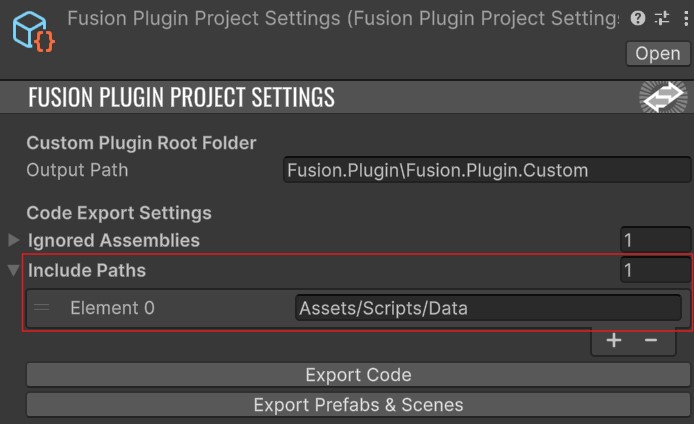
It is possible to include whole C# files in server plugin compilation. To do that, move the files to a unique folder location and include the path in plugin project settings (Assets\Photon\Fusion\Editor\FusionPluginProjectSettings.asset). Don't forget to hit the Export Code after modifying the path list.
General Recommendations
There are some points to keep in mind while working with the server plugin:
- The plugin instances run in a multi-threaded environment - be careful with
statickeyword. - It is tempting to write server plugin code like a dedicated server. Don't try to achieve 100% cheat-proof gameplay (like correcting player speed, damage calculations from multiple sources with complex chains, ...).
- The plugin can be used to detect cheaters, without letting them know. Next time, they can be assigned to a special matchmaking queue and play with other cheaters.
- It is possible to run a different set of server plugin logic for specific games, for example separating causal and ranked matches.
Further Readings
The Fusion plugin is based of Photon-Server V5 and follows the workflow described in the Photon Server docs. Dive into these docs for further reading: Photon-Server V5 Step by Step Guide
Back to top- Overview
- Download
- Installation
- Running The Server Plugin
- Plugin Content
- Project Key Elements
- [PreserveInPlugin] Attribute
- [Networked] Attribute Parameters
- [Rpc] Attribute Parameters
- Runner.HasCustomPlugin
- IPluginBakedDataProvider Interface
- RPC Intercepting
- Object Spawning
- Sharing Files
- General Recommendations
- Further Readings