Setup
This Addon is for Fusion 2.1.x. It does not support Fusion 2.0.x.
Download Plugin SDK
The SDK is available on the Overview page.
Installation
SDK Setup
- (Windows only) Unblock
FusionPluginSDK-x.x.x.zipbyright-click > Properties > Unblockbefore unzipping it. - Unzip the archive into a folder inside or next to the Fusion Unity project
|
Or | |
- Place your
.licensefile inFusion.Plugin.Custom/Config/. Without it, the server will log a license error and refuse to start games.
Unity Setup
- Inside your Unity project, create a
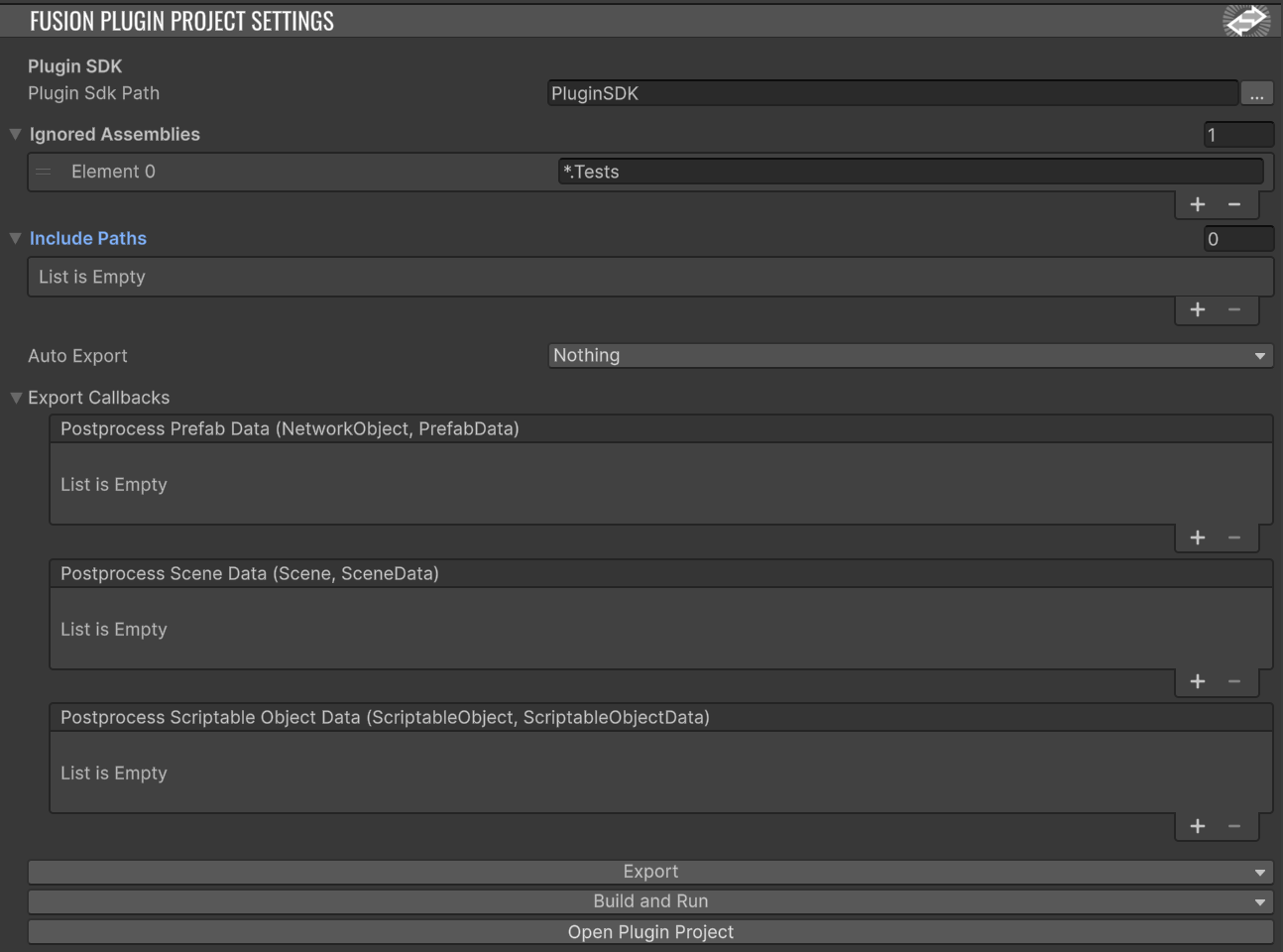
FusionPluginProjectSettingsasset viaright-click > Create > Fusion > Plugin Project Settings. - Set the
Plugin SDK Pathfield to the directory you extracted the SDK into in the previous step.
- Press
Export. It should complete without errors. - Press
Build and Run. This builds your custom plugin and starts the localPhotonServerwith your plugin loaded in a new terminal window. - To get your game to connect to the local server, open
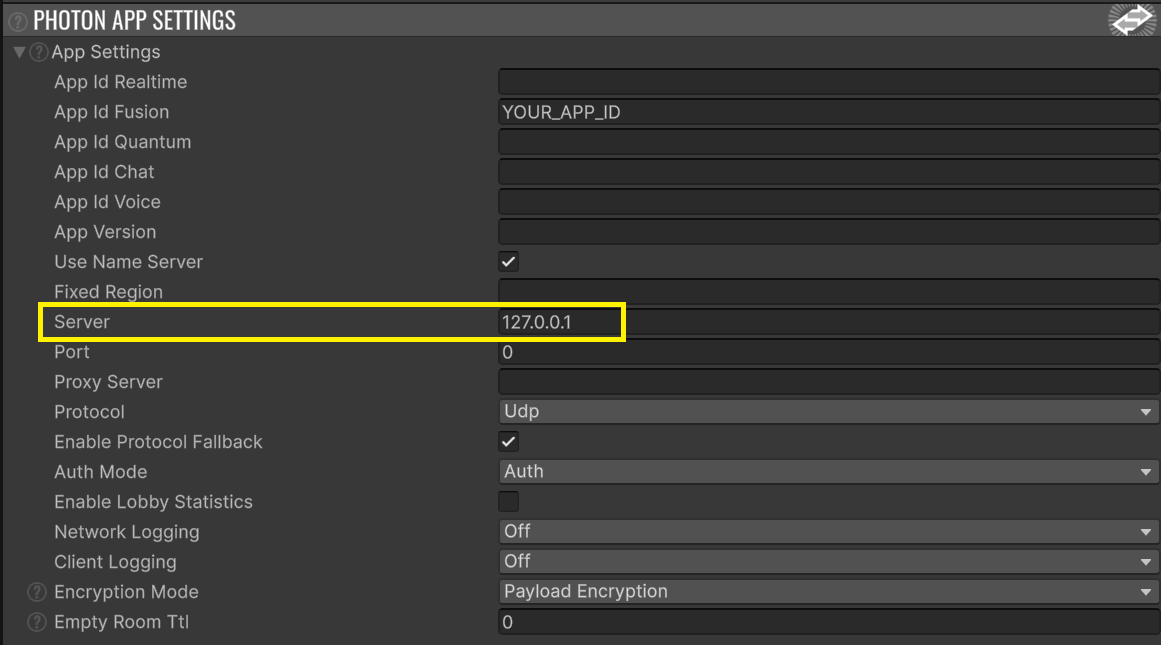
PhotonAppSettingsand set the server IP address to127.0.0.1.
- Run your game and connect. You should see a log line like the following in the server's terminal window:
15:01:58.317 [Plugin.Custom] [8 ] INFO - adding player [Player:1]IDE Setup
The Build and Run button is convenient but obscures the underlying C# solution. To work on the plugin code directly, open the solution file at PluginSDK/Fusion.Plugin.Custom.sln — either by opening it from your file explorer, or via the Open Plugin Project button in the FusionPluginProjectSettings inspector.
Once the solution is open in your IDE, you can launch the server and plugin straight from the IDE's run/debug button — there's no need to come back to Unity and press Build and Run. This is also the path for attaching a debugger, setting breakpoints, and inspecting plugin state at runtime.
SDK structure
Inside the extracted SDK you'll find:
| Directory | Description |
|---|---|
Fusion.Plugin.Custom/ |
Custom plugin project — your core plugin code lives here. |
Fusion.Plugin.Types/ |
Generated types and embedded NetworkObject database — extensions to exported types live here. |
Lib/ |
Prebuilt Fusion runtime binaries (Debug and Release). |
Photon.Server/ |
Local Photon Server used for development. |
Fusion.Plugin.Custom.sln |
Top-level solution. Open this in your IDE. |
After any change in Unity to networked types or assets (prefabs, scenes, scriptable objects) that the plugin needs to see, press Export again. The plugin works against a snapshot taken at export time.
Next steps
You now have a custom plugin running and connected. To extend it with game-specific behaviour — overriding server-side callbacks, intercepting RPCs, making properties plugin-authoritative, baking custom data in from Unity — see Features.
Back to top